




Ticket Types
Organizer Guide
4 min read
Help articles may not be fully accurate — they can lag behind the app due to frequent updates and automated translation. If in doubt, please contact support.
On this page
- 1. The list
- 2. Add or edit a ticket type
- 3. Good to know
- 4. Troubleshooting
- 5. Related
Ticket types are what attendees buy: General, Child, Family pass, VIP, a free registration, a members-only seat. Each has its own price, capacity and rules. Manage them under Manage → Tickets & Pricing → Ticket Types (shortcut: g then t). You can also edit them in the Ticket Types card at the bottom of Details & dates.
The list
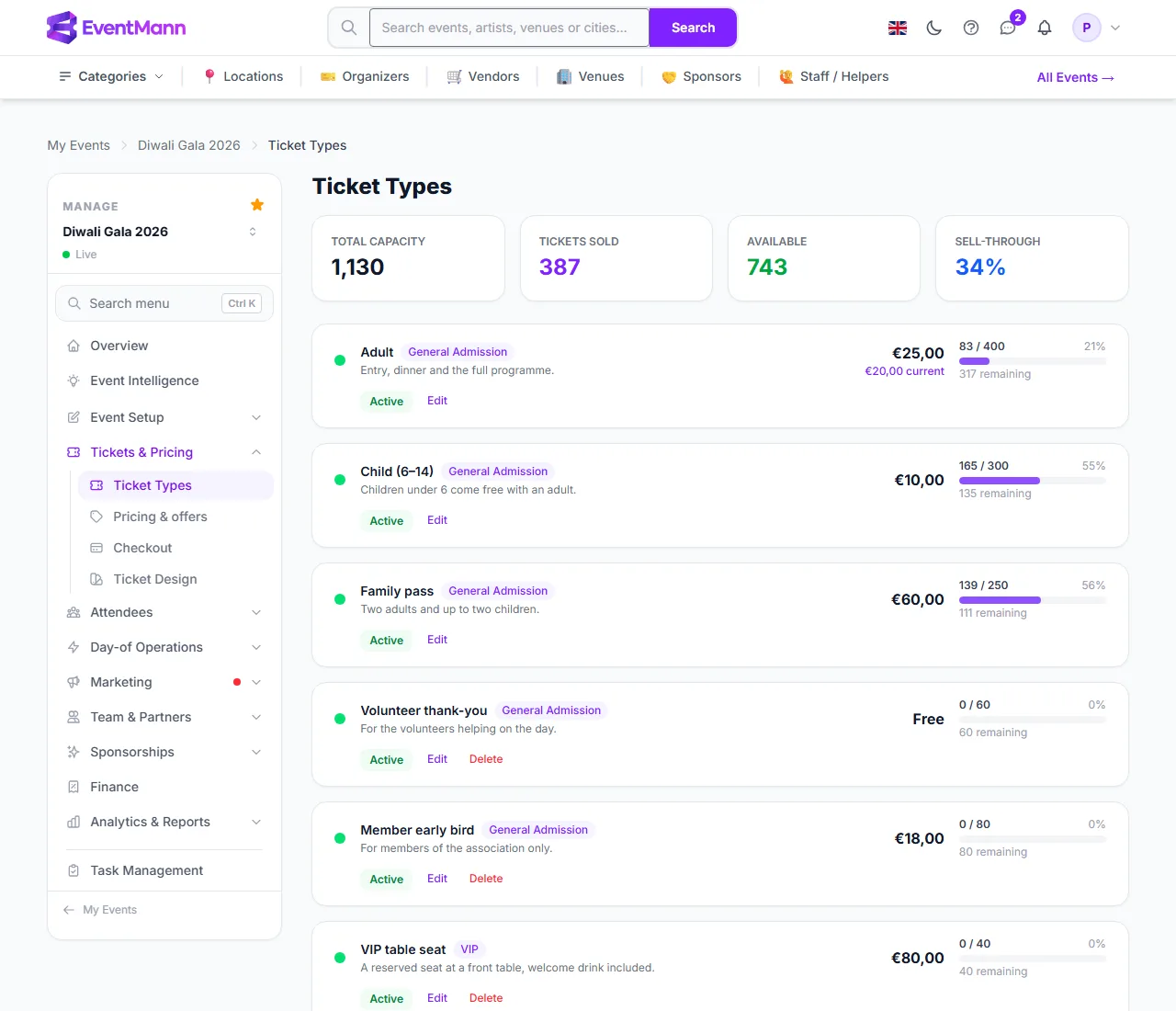
- The four figures ① at the top show Total capacity, Tickets sold, Available and Sell-through.
- Each type is a card: name, tier badge, description, price, sold / capacity with a progress bar and the number remaining. A discount from a pricing rule or flash sale shows beside the price.
- The green Active button toggles a type on and off. An inactive type is not for sale but keeps its orders. Edit ③ opens the type in place.
- Delete ② appears only on a type that has no sales. A type that has sold cannot be deleted; deactivate it instead.
- Open Add Ticket Type ④ to create a new one.
Add or edit a ticket type
The first fields apply to every ticket:
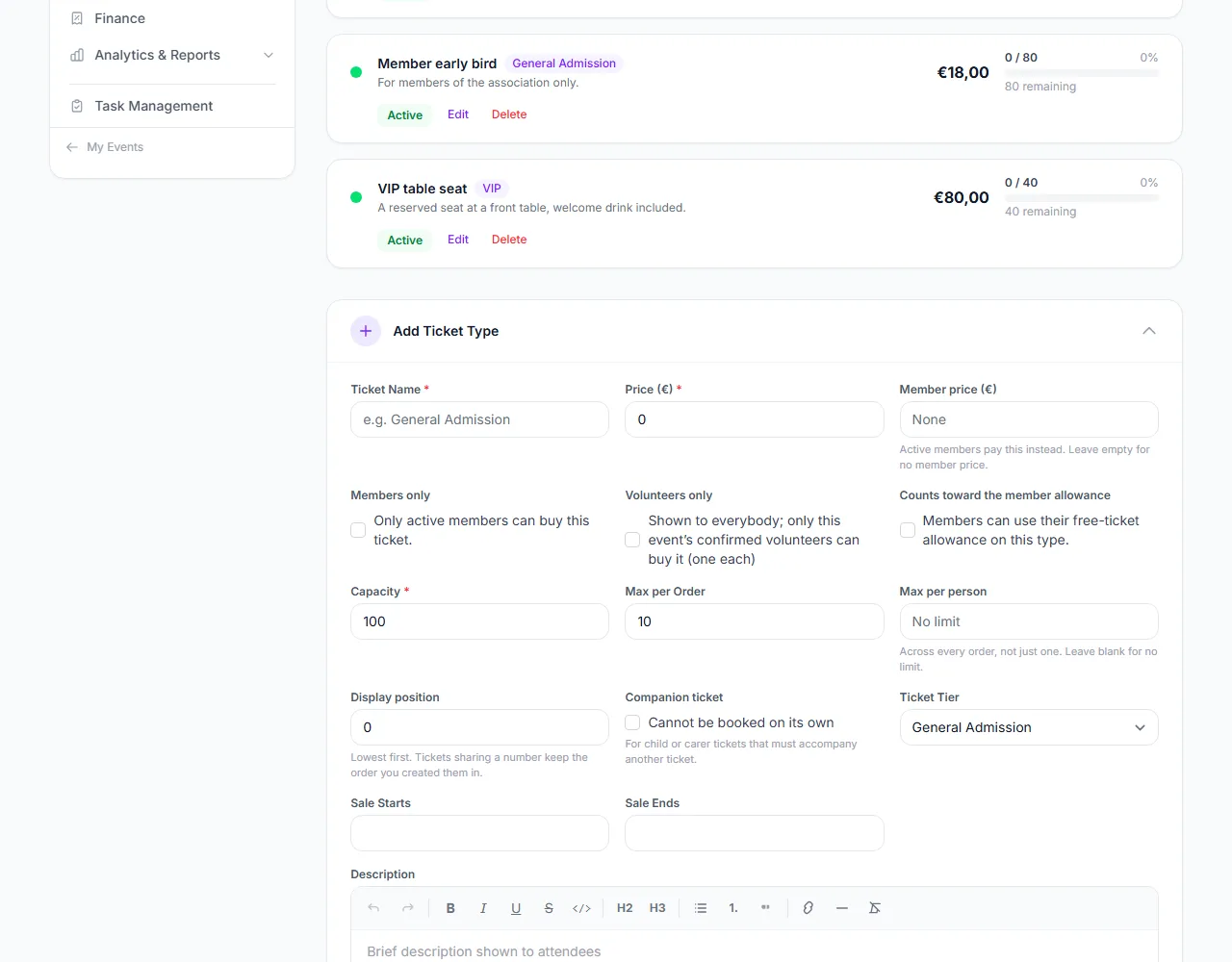
- Enter the Ticket Name ① and the Price (0 makes it free). A paid ticket can only be created or switched from free to paid when your Stripe account is connected and verified.
- Optionally set a Member price ②. Active members of your organization pay it instead of the price, but never more than the best price they could otherwise get: if a flash sale or pricing rule already brings the price below the member price, the lower one applies. It cannot exceed the normal price.
- Tick Members only ③ to reserve the ticket for active members. Everyone else sees it as a locked row that explains how to join.
- Tick Volunteers only ④ for a thank-you ticket: it is shown to everybody, but only this event’s confirmed volunteers can buy it, one each unless you set a higher per-person limit. It is left out of the prices shown in listings, so a free thank-you ticket never makes a paid event look free. See Volunteers.
- Counts toward the member allowance lets members spend a free-ticket allowance from their membership plan on this type. See Memberships.
- Set the Capacity, the Max per Order (default 10) and Max per person ⑤. Max per person counts across every order a buyer places, not only one; blank means no limit.
The remaining fields:
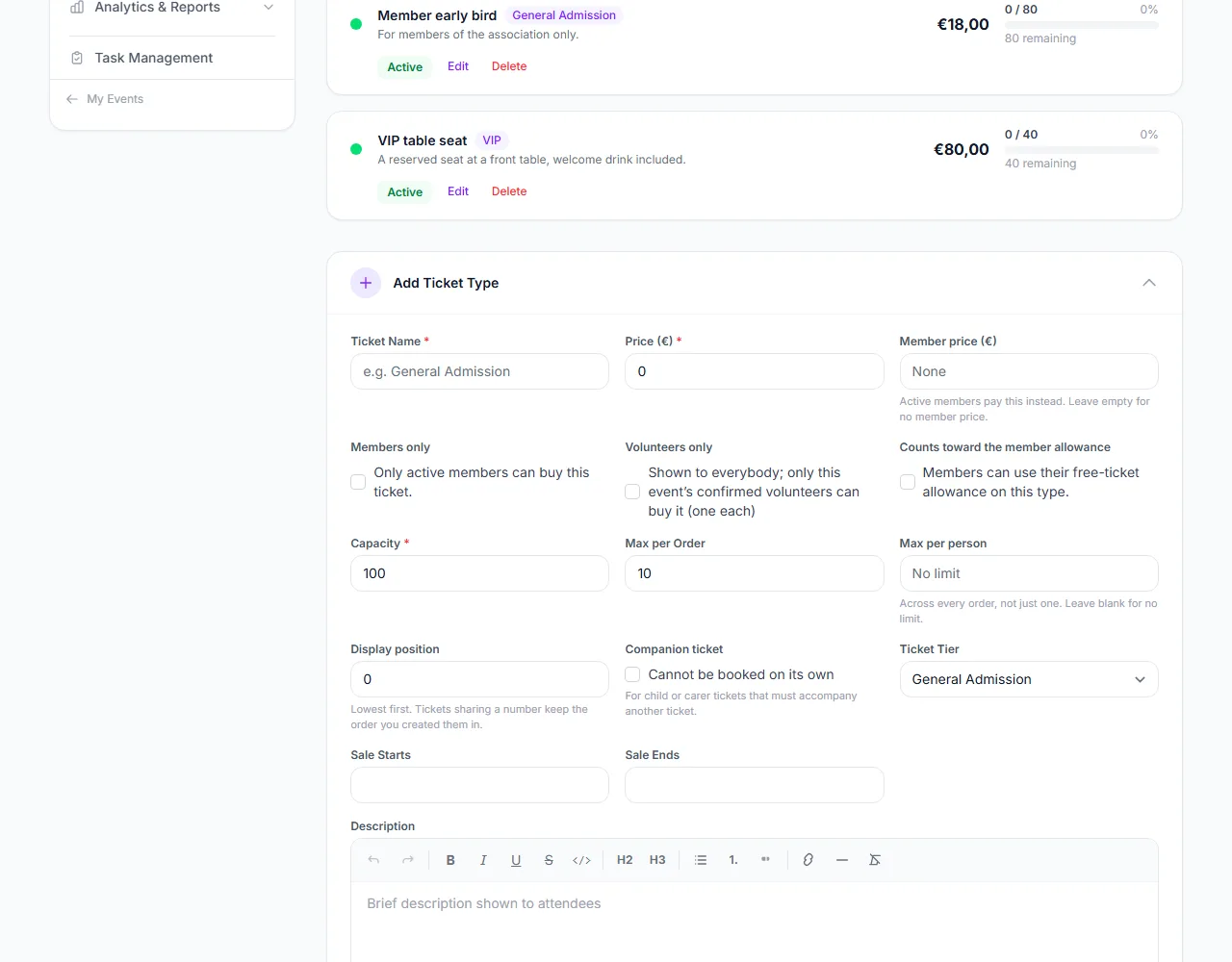
- Companion ticket ① — “Cannot be booked on its own”. For child or carer tickets that must accompany another ticket in the same order.
- Ticket Tier ② — General Admission, VIP, Early Bird, Group, Student or Season Pass. The tier shows as a badge and drives the VIP list at check-in.
- Display position ③ — lowest first; types with the same number keep the order you created them in.
- Sale Starts and Sale Ends ④ — a sale window for this type alone, in the event’s timezone, inside the event’s own booking window.
- Write a Description shown to buyers, and leave Active (available for sale) ticked to put it on sale. On an event with a seat map you also see requires a seat; untick it for a lap child or any ticket that should not take a seat.
- Click Add Ticket Type (or Save when editing).
Good to know
- Capacity cannot be set below the number already sold. To stop selling, deactivate the type.
- Two limits apply to every basket: the type’s own Max per Order and the event-wide Max tickets per order on Details & dates. A companion ticket additionally needs another ticket in the order.
- On an event whose tickets are all reserved for members, use the Members-only event switch on Details & dates instead of ticking each type.
- There is no automatic limit on free tickets per person; if you want one, set Max per person.
- The sold counter on this page reflects real, committed sales; pending checkouts that have not paid are not counted until they do.
Troubleshooting
- “Please connect your Stripe account before creating paid tickets” — finish Stripe onboarding, or keep the price at 0. See Setting Up Stripe Connect.
- The member price is rejected — it cannot be higher than the price.
- “Cannot delete a ticket type that has sales” — deactivate it instead.
- Capacity will not go down — it cannot be lower than tickets sold.
- Members do not see their price — they must be signed in with an active membership of your organization; an expired or revoked one does not count.