




Setting Up Payment Method
Staff & Volunteers
2 min read
Help articles may not be fully accurate — they can lag behind the app due to frequent updates and automated translation. If in doubt, please contact support.
On this page
This is the step-by-step for adding a payment method on Payment Methods (sidebar → Payment Methods). Read Payment Methods first if you want to know what the entries are used for — they are notes for you; they do not trigger any payout.
Add a bank account
- Scroll to the Add Payment Method form below your saved entries.
- Leave Payment Type ① on Bank Transfer.
- Type the account holder in Account Name ②. It is required.
- Type your IBAN or account number in Account Number ③. It is required.
- If your bank needs one, add the Routing Number (sort code or BIC). Optional.
- Press Add Payment Method ④.
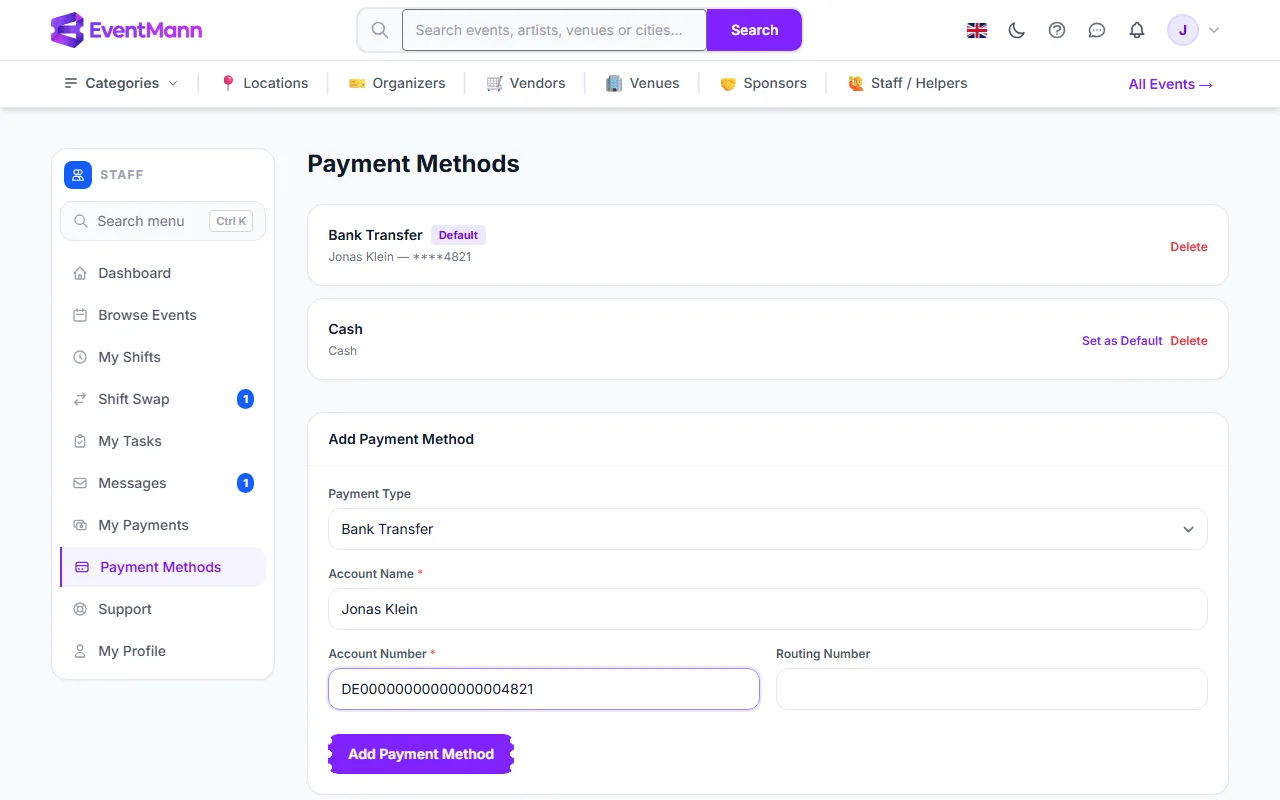
The new entry appears at the top of the list. Only the last four characters of the number are shown afterwards.
Add one of the other types
- Choose PayPal, Check or Cash in Payment Type ①. The fields below change.
- For PayPal type the email address. For Check and Cash there is nothing to fill in.
- Press Add Payment Method.
Choose which one is the default
- In the list, click Set as Default on the entry you want.
- The Default label moves to it. Only one entry is the default.
Good to know
- Fields are limited: names and emails up to 255 characters, account and routing numbers up to 50.
- Tell the organizer how to pay you in a message as well. They cannot see this page.
- Check the account number twice. There is no verification against your bank.
Troubleshooting
- Nothing happens when I press the button. A required field for the chosen type is empty. For PayPal, the email field must be filled; for a bank transfer, name and number.
- The number I typed shows with stars. That is intended; only the last four characters are displayed.