




Event Details
Help articles may not be fully accurate — they can lag behind the app due to frequent updates and automated translation. If in doubt, please contact support.
On this page
- 1. What is on the page
- 2. The ticket panel
- 3. Write a review
- 4. Good to know
- 5. Troubleshooting
- 6. Related
The event page is where a listing turns into a decision: it has everything you need to know about the event, the organizer’s rules and every ticket type on offer. You get there from any list, a search result, a shared link or the organizer’s page.

What is on the page
- Header — the cover picture (a generated picture for the category when the organizer uploaded none), the category, a Featured badge, an age badge when there is a minimum age, the title, the date and time and the venue address. Times are shown in the event’s own time zone, with the zone shown next to them. An online event says that the link is shared after you book.
- Save and share ① — Save adds the event to My Saved Events (signed in only). The round buttons share it by Facebook, X, LinkedIn, WhatsApp, email or copy its link.
- About this event — the organizer’s description, and, where they added one, an agenda by day.
- Location — the venue and a map with Open in Maps for directions.
- Organized by ② — the organizer’s name and logo, how many followers they have, Follow or Following and Contact. The organizer’s email address is never printed; Contact opens a form (see How to Contact the Organizer). A Payments verified badge means they finished setting up payments.
- Ticket conditions ③ — what you may do with a ticket after buying: cancel, what you get back (the cancellation terms), change the attendee details and transfer it. Read this before you buy; see How to Get a Refund.
- Sponsors — sponsors the organizer chose to show.
- Reviews ④ — the average score, how many people gave each star count, and written reviews with the organizer’s reply under them. Only confirmed attendees can leave a review after the event.
- The ticket panel ⑤ — Ticket Types with a quantity chooser, described below.
- More events like this — other events in the same category. Report this event at the bottom opens the contact page with the event already filled in.
The ticket panel
The panel lists every ticket type you may see, with its price and a status: Available, Selling Fast, Filling Up, Only 3 left! or Sold Out. A price struck through with a smaller one beside it is a discount that applies now, for example a time-limited sale, and the price shown is the price you pay.
- Set a quantity with + and −. When you choose something, the order total appears; fees are only listed when the organizer passes them on to you.
- The button under the panel reads Select Tickets until you choose something, then Book Now with the total. It takes you to checkout with your quantities (see Checkout Process).
- Some rows are locked for you: Members only tickets, and Volunteers only thank-you tickets. See Member Benefits.
- If members may book earlier than everybody else, the panel says when you can start.
- For a seated event you choose seats on the checkout page, not here.
- Where the event has a waitlist and a type is sold out, you can join it at checkout.
Write a review
After the event has started, open Reviews from the event page, or Leave a review from your order or your dashboard.
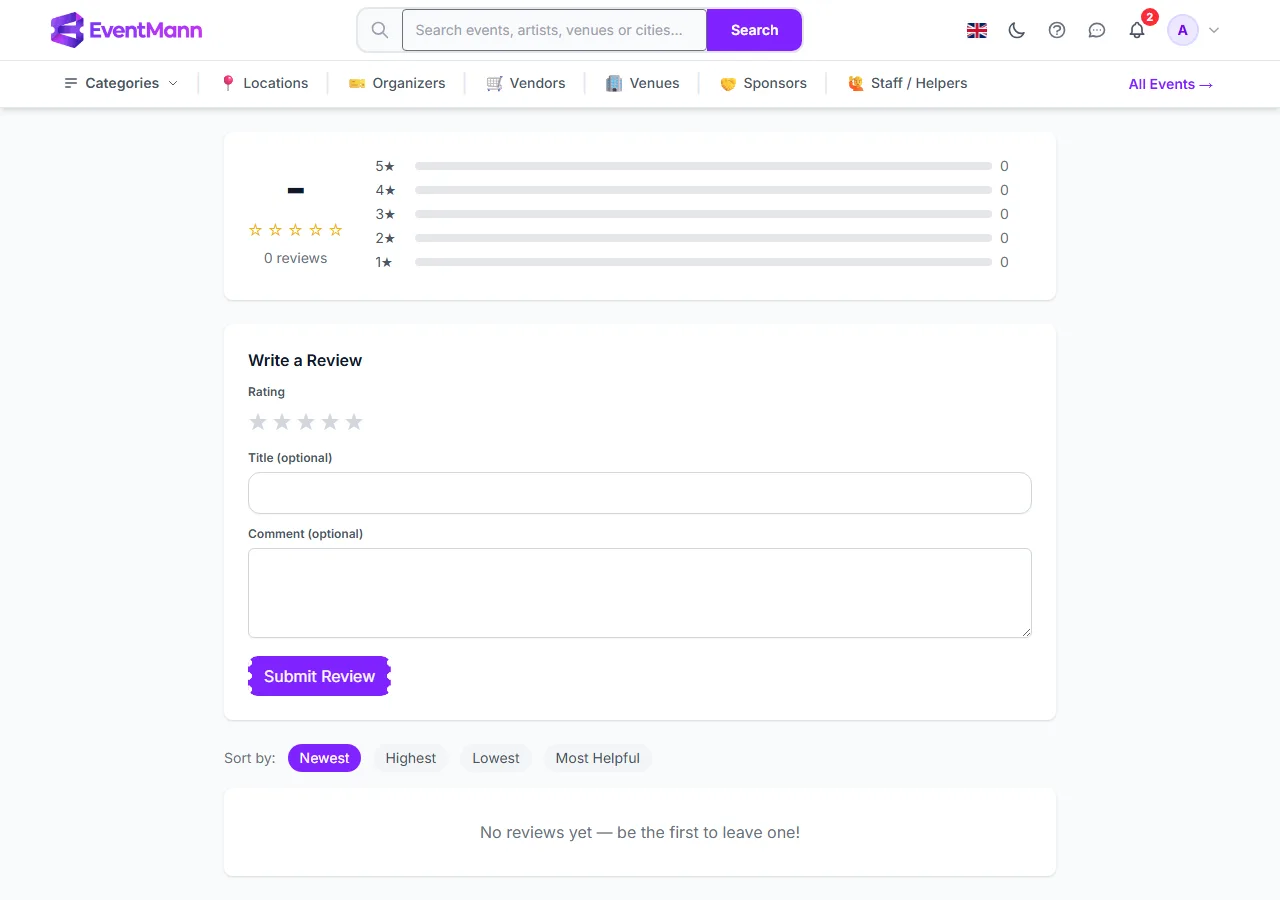
- Choose the stars under Write a Review ①.
- Add a Title and a Comment if you like (both optional) and press Submit Review ②.
You can write one review per event, and only if you hold a confirmed booking for it. Reviews can be sorted by Newest, Highest, Lowest and Most Helpful, and the organizer may reply under yours.
Good to know
- If the ticket button is greyed out or missing, sales have not opened yet or have closed, or everything is sold out. The page tells you which.
- Prices already include the active discounts. A free ticket for volunteers does not make an event look free in lists or search.
- You can follow the organizer and write to them without buying anything.
- You can write a review once the event has started and you hold a confirmed booking for it. You can write one review per event, with a star rating and an optional title and comment, under Reviews or from your order in My Tickets.
Troubleshooting
- All ticket types say Sold Out — the booking button stays disabled. Check whether the organizer offers a waitlist.
- The price changed since my last visit — prices follow the organizer’s rules and time-limited sales, and the panel always shows the current price.
- I cannot find where to review — the form only appears after the event has started and only for people with a confirmed booking.
- I want to report a problem with the listing — use Report this event.