




Refund Requests
Help articles may not be fully accurate — they can lag behind the app due to frequent updates and automated translation. If in doubt, please contact support.
On this page
Refund Requests is the queue of refunds your attendees asked for from their own booking. You see the reason they gave and what your cancellation terms would return today, then approve or decline. Find it under Attendees → Refunds; it is the first tab of the Refunds strip, and the sidebar shows a number badge while requests are waiting.
What you can do here
- Read each request: the order’s reference, the buyer, the amount they asked for, the order total and the reason they wrote.
- See what your cancellation terms return for that order today.
- Approve & Refund or Decline, with an optional note to the buyer.
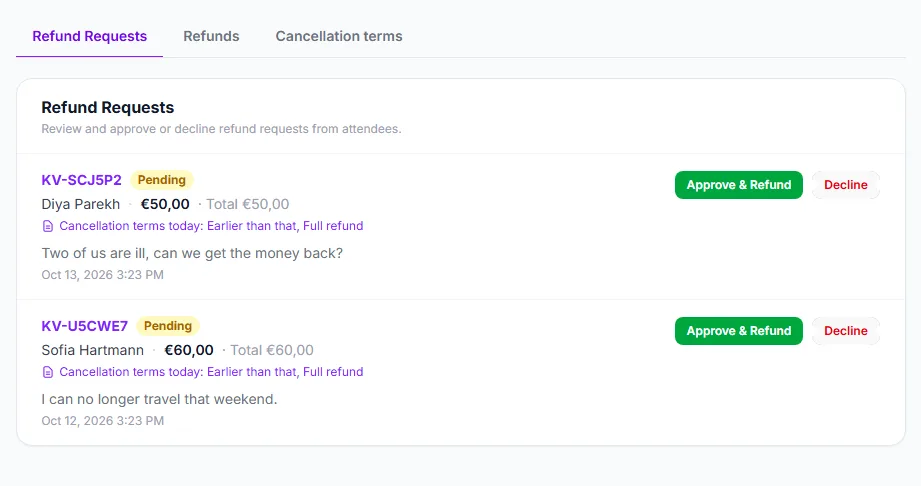
The strip at the top ① switches between this queue, the manual Refunds page and your Cancellation terms. Under each request the line Cancellation terms today ② tells you which step of your terms applies right now and what it keeps. Approve & Refund ③ sends the money back through Stripe; Decline ④ closes the request without paying.
How to handle a request
- Open Attendees → Refunds. Pending requests are listed first.
- Read the reason and the terms line under it.
- Click Approve & Refund and confirm. The dialog states the amount that will be refunded.
- Or click Decline and, if you like, write a note. The buyer is told either way.
How much gets refunded
- The refund is the smaller of what the buyer asked for and what your cancellation terms return today. You cannot refund more through a request than the terms allow — use the Refunds page to refund a different amount yourself.
- If your terms return nothing for this order right now (for example “no refund within 48 hours”), Approve is refused and the page suggests declining.
- If the amount reaches everything that is left, it is a full refund: the order is cancelled, its places go back on sale and the next person on the waitlist is considered. Anything less is a partial refund and the tickets stay valid.
- A request is decided once. After approval or a decline, the buttons disappear.
Refunds that are still on their way
Some payment methods settle slowly. While a refund is in progress the request shows Refund in progress and the order is not released yet; the places are freed when the refund completes. If your Stripe balance is too low to fund a refund on an older order, see the banner described in Order Detail & Timeline.
Good to know
- Attendees can only ask while the event allows cancelling and your terms return something. If cancelling is switched off for the event, buyers cannot ask at all, though you can still refund any order yourself.
- Whether a buyer’s own cancellation is refunded automatically or waits for you is the Refundable setting on Details & dates. Requests are always decided by you.
- You need the permission to manage refunds.
Troubleshooting
- No Approve button — the request was already decided, or a refund is in progress.
- “Nothing left to refund” — the order has already been refunded up to its total.
- The queue is empty — no buyer has asked, or the event does not allow cancelling.