




Venue Services & Packages
Help articles may not be fully accurate — they can lag behind the app due to frequent updates and automated translation. If in doubt, please contact support.
On this page
- 1. What you can do here
- 2. The services page
- 3. Add a service
- 4. Switch off, edit or delete
- 5. Packages
- 6. Good to know
- 7. Troubleshooting
- 8. Related
A service is something you can add to a hire — stage lighting, a cloakroom attendant, use of the kitchen, parking. A package bundles several services at one price. Organizers choose from both when they send a request, and the public page of your venue lists them. You manage both from a venue’s page: My Venues → View → Services or Packages.
What you can do here
- Add, edit, switch off and delete services, grouped by category.
- Bundle services into packages with their own price.
- See the number of services, how many are active, and the average price.
The services page
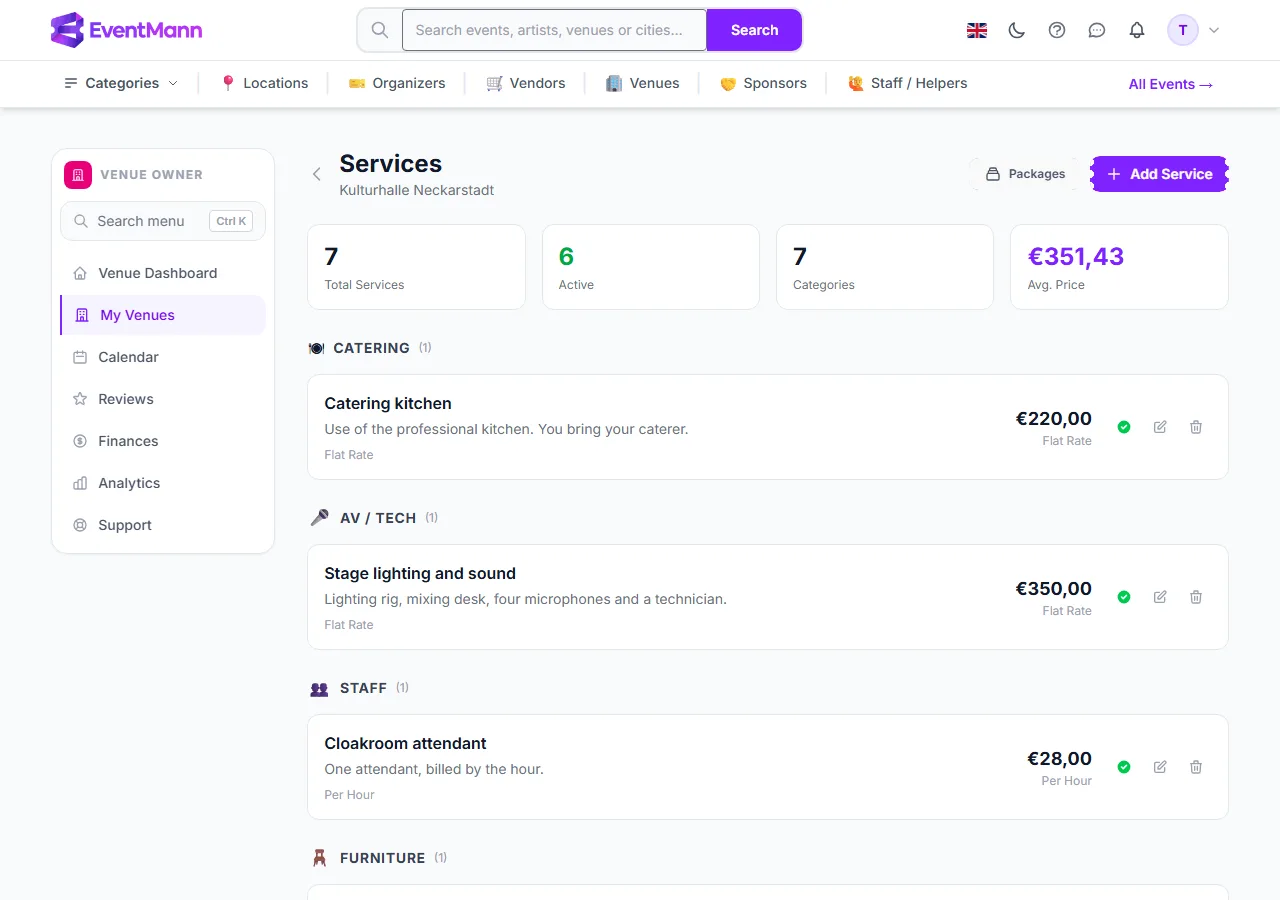
The page is titled Services with the venue name underneath. Four cards summarise it: Total Services, Active, the number of categories and Avg. Price. Below them the services are grouped by category: Catering, AV / Tech, Decor, Staff, Furniture, Parking, Photography and Other. Each row shows the name, description, the pricing type and maximum capacity, the price, and three icons: a green tick (click to switch the service off or on), a pencil (edit) and a bin (delete).
Add a service
- On the services page click Add Service.
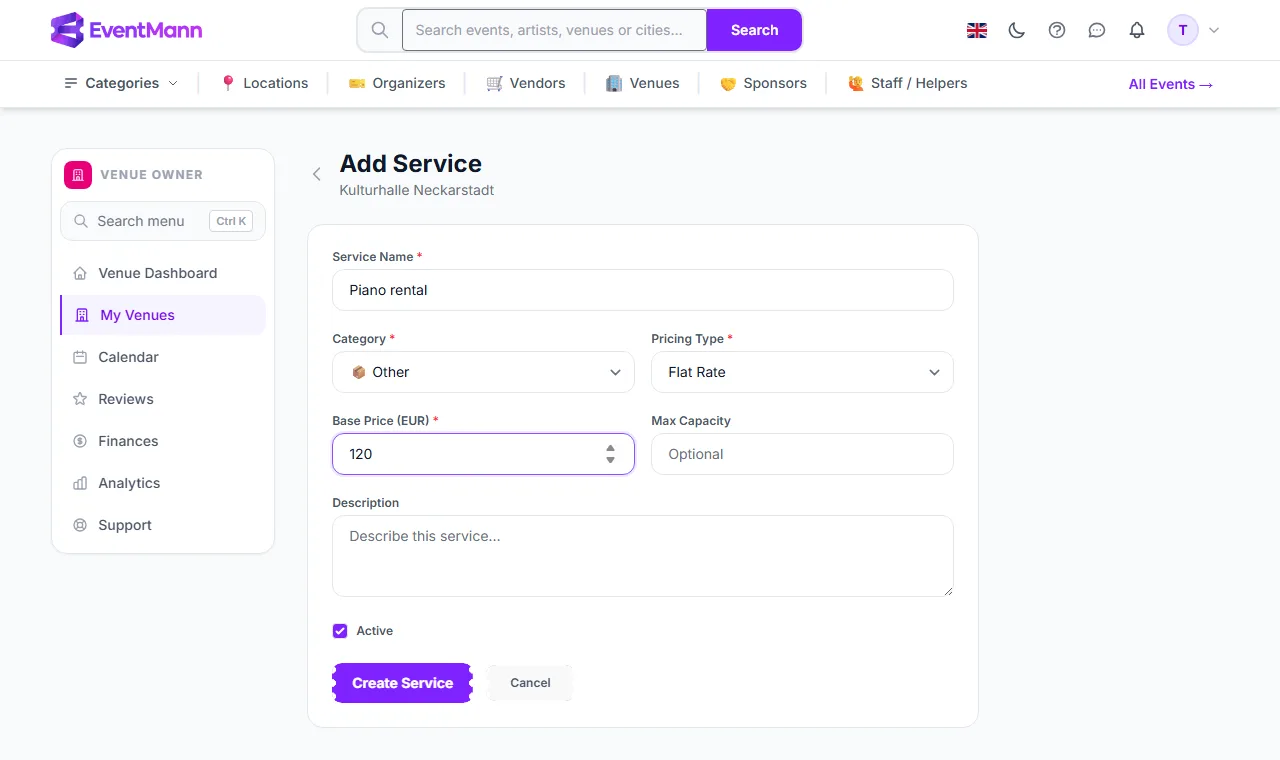
- Enter the Service Name ① (required) and choose the Category ② and the Pricing Type ③: Flat Rate, Per Person, Per Hour or Custom / Quote.
- Enter the Base Price ④. For a flat rate it is the price of the service; for per person or per hour it is the price of one unit; for Custom / Quote enter 0 and agree the price in the request.
- Optionally set a Max Capacity (for example 40 cars) and a Description of up to 2,000 characters.
- Leave Active ticked so the service can be requested, then click Create Service.
Switch off, edit or delete
- Green tick — switches the service off (a grey Inactive label appears) or on again. A switched-off service is hidden from organizers’ request forms and from the public page, but kept for later.
- Pencil — opens the same form to change anything.
- Bin — deletes the service after a confirmation. Deleting is permanent; prefer switching off when you may need it again.
Packages
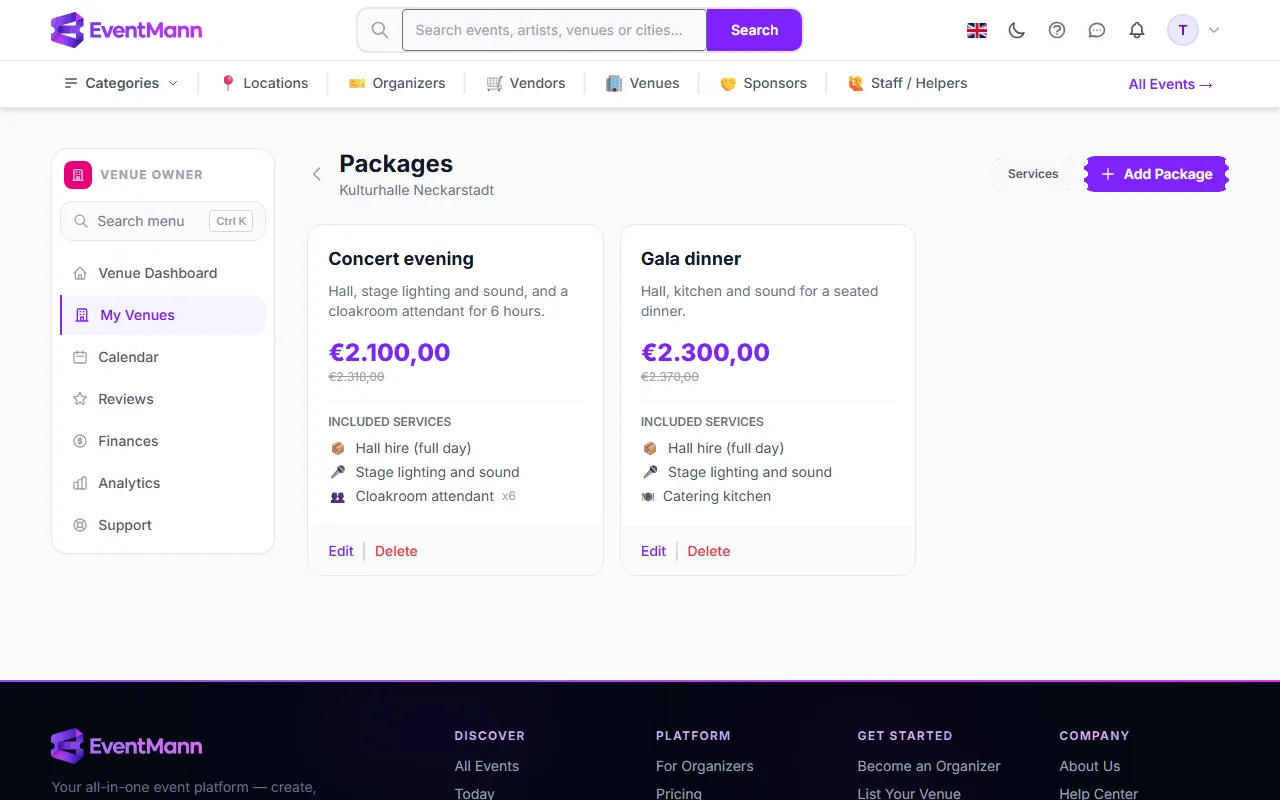
The Packages button on the services page opens the list of packages. A package has a name, a description, a Package Price and a list of services with a quantity each. The price is yours to set; it does not have to equal the sum of the services, so you can offer a discount for the bundle.
- On the packages page click Add Package.
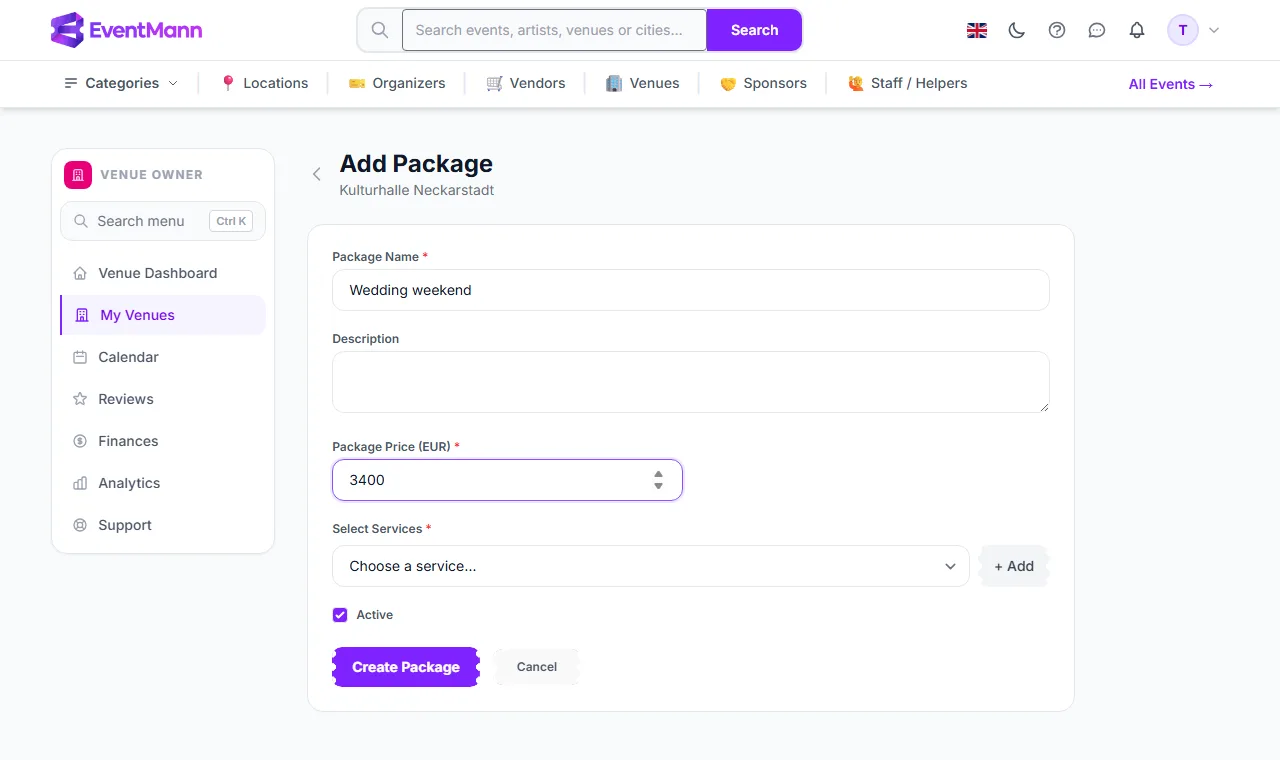
- Enter the Package Name ① and optional description, and the Package Price ②.
- Under Select Services choose a service from the list, set the quantity and click Add ③. Repeat for every service in the bundle. At least one is required.
- Leave Active ticked and click Create Package.
Good to know
- Only services of the same venue can go into its packages. Changing a service’s price later does not change the package price you set.
- A package is a bundle for requests. It is shown with its included services on your public venue page.
- Prices have no currency of their own. The form label names the currency of your own account (euro for a venue-owner account), and amounts are displayed with the currency of whoever looks at them, without any conversion. Name the currency in your message to the organizer.
- The dashboard counts Bookable services from services that are active, at venues that are listed.
Troubleshooting
- A service is not offered to organizers — it is switched off, or the venue is not listed. See Approval and Your Public Listing.
- The package will not save — it needs a name, a price and at least one service with a quantity of 1 or more.
- The service list in the package form is empty — create services first.