




Organizer Settings
Help articles may not be fully accurate — they can lag behind the app due to frequent updates and automated translation. If in doubt, please contact support.
On this page
- 1. What you can do here
- 2. Billing
- 3. Email Preferences
- 4. Good to know
- 5. Troubleshooting
- 6. Related
Everything about your organizer account that is not tied to one event lives under Settings in the organizer sidebar (the group at the bottom, labelled “Organizer settings”). On any settings page the group is open and lists nine screens; this article says what each one is for and where to read more.
What you can do here
| Screen | What it is for |
|---|---|
| Account ① | Your personal login: name, email, phone, bio, preferred timezone, language, password and two-factor authentication. It is the same page for every role you hold on EventMann. The timezone is how event dates and times are shown to you; the language is used for the emails we send you and as the site language unless you pick another with the language flag. |
| Public Profile ② | What attendees see about your organization: logo, name, public address, tagline and bio. See Public Profile. |
| Teams ③ | Invite people, give them a role and see what each can do. See Team Management, Custom Roles and Permissions grid. |
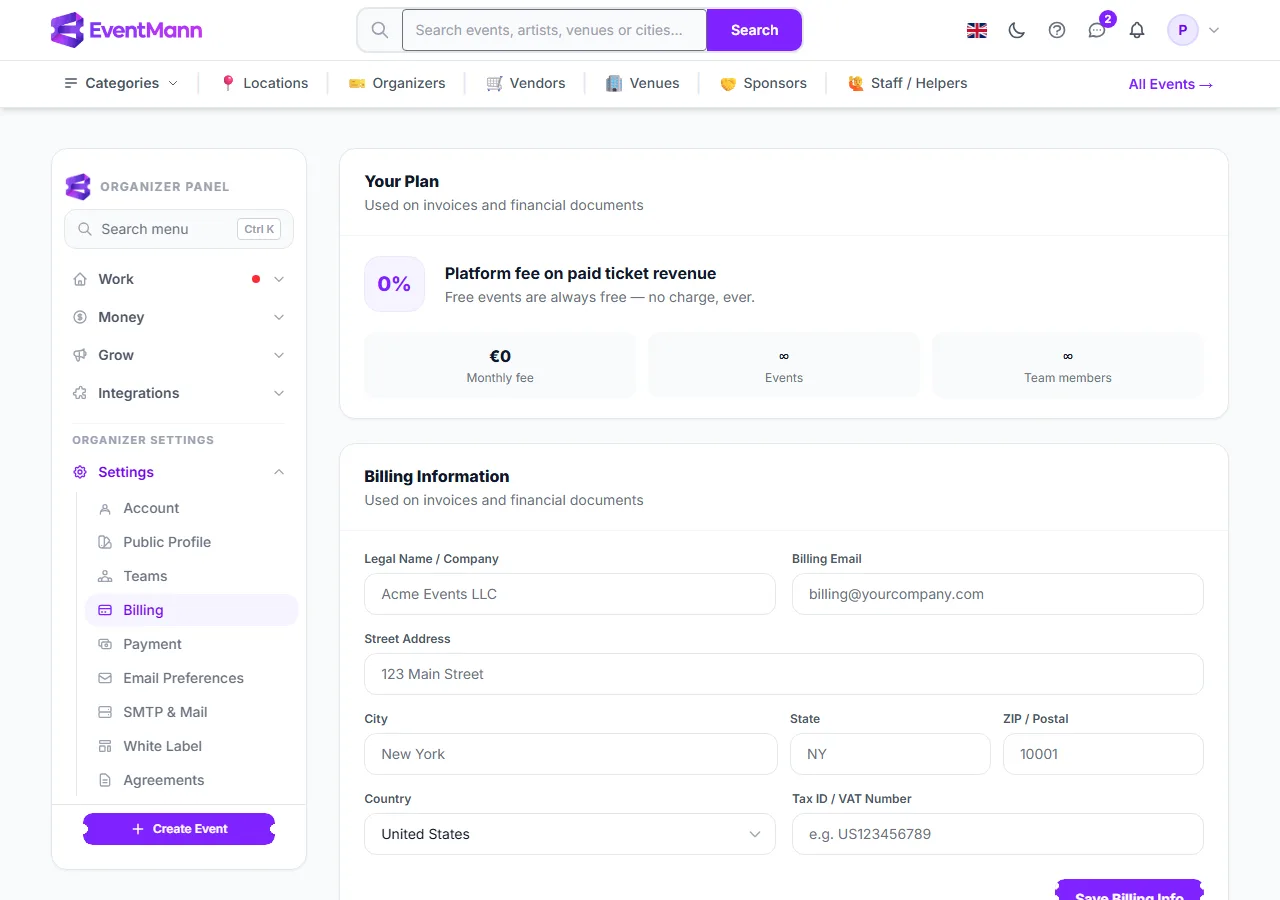
| Billing | Your company details (address, tax ID), the plan terms that apply to you and an invoice history. |
| Payment | Your default display currency and which payment methods your buyers are offered. Getting paid is handled by Stripe; see Setting Up Stripe Connect. |
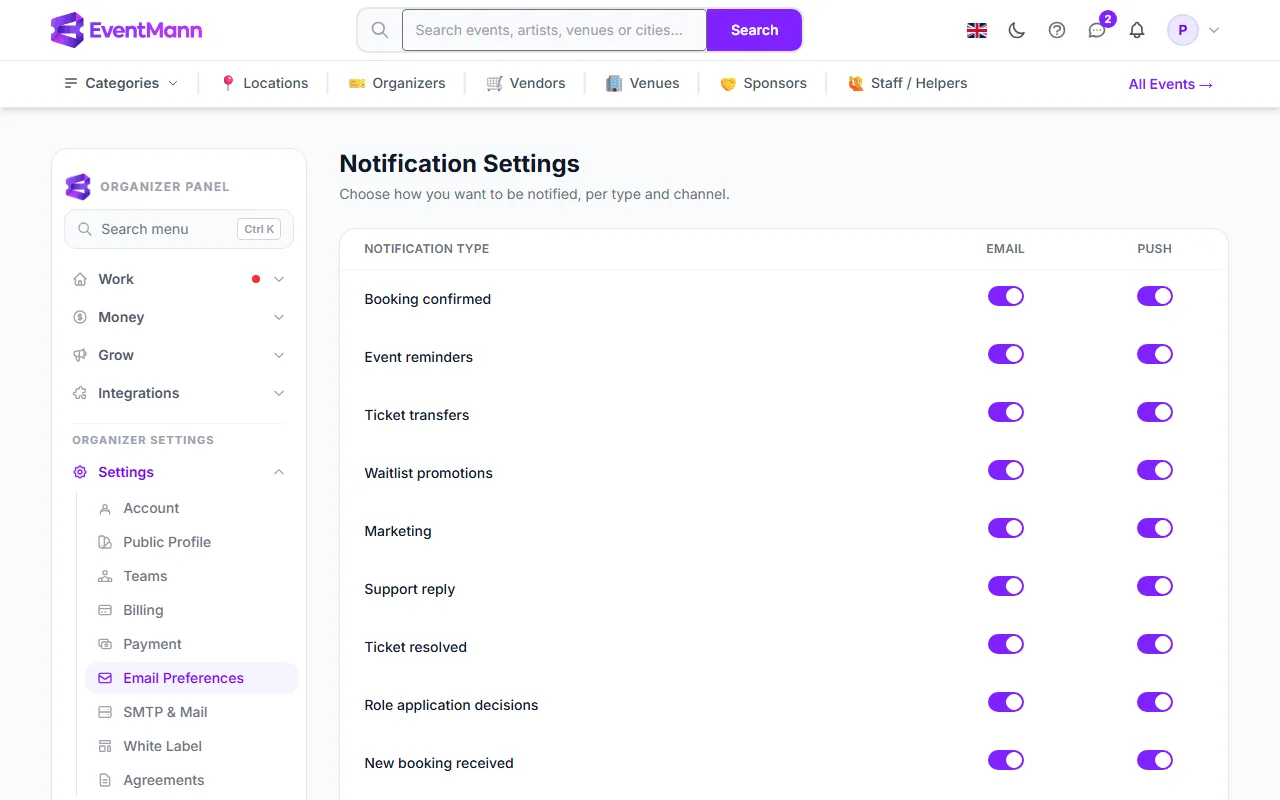
| Email Preferences | Which notifications you personally receive, per type, by email and by push. |
| SMTP & Mail ④ | The mailbox your attendees’ tickets, reminders and invoices are sent from. See Who your emails are sent from. |
| White Label | Your own brand name, logo, colours and fonts on your event pages. See White Label. |
| Agreements | Platform contracts you accept once per version. See Agreements. |

One more settings screen sits in the Integrations group: AI Settings. AI features are off by default; while they are off nothing about your events is sent to an AI provider. Turn them on there, and optionally enter your own API key so usage is billed to your own account with that provider.
Billing
The billing form (legal name, billing email, address, tax ID or VAT number) holds your company details. The address and the tax ID or VAT number are printed in the seller block of the invoices your buyers receive (the tax ID can be switched off in the invoice design, under Finance → Invoices); invoice numbering and wording are set there too. The same screen shows your plan terms and a history of invoices addressed to you.
Email Preferences
A table of notification types with an Email and a Push switch for each: bookings, cancellations and refunds, waitlist activity, event status changes and approvals, capacity and low-stock alerts, revenue milestones, Stripe and payout alerts, disputes, weekly and daily summaries, team and volunteer news, and more. A dash means that channel does not exist for that notification.
Good to know
- Your session signs itself out after a period of inactivity, and connecting or disconnecting a Stripe account emails you straight away with the IP address — the two protections on the screens that touch money.
- Password, login email and two-factor authentication live only on the Account page. There is no organizer-only copy.
- The public page URL (“handle”) and the logo belong to Public Profile, not Account.
- Payment settings do not move money: EventMann does not hold or release your funds. Stripe pays you out on the schedule set in your own Stripe account.
Troubleshooting
- I cannot find where to change my password — Settings → Account, in the Change Password card.
- The sidebar shows only the group names — click a group (Work, Money, Grow, Integrations, Settings) to open it; the group of the page you are on opens by itself.
- I do not get an email I expect — check its row in Email Preferences first.