




Items: adding, finding and looking after them
Help articles may not be fully accurate — they can lag behind the app due to frequent updates and automated translation. If in doubt, please contact support.
On this page
- 1. Add an item
- 2. Settings explained
- 3. Where is it?
- 4. More on the item page
- 5. Good to know
- 6. Troubleshooting
- 7. Related
An item is one kind of thing you keep, with a quantity: “Folding chairs, 420”. This article covers adding an item, saying where it is, borrowed items, and the other things you can do on an item’s page. Open Inventory in the Work group and click Add Item, or Edit on an existing row.
Add an item
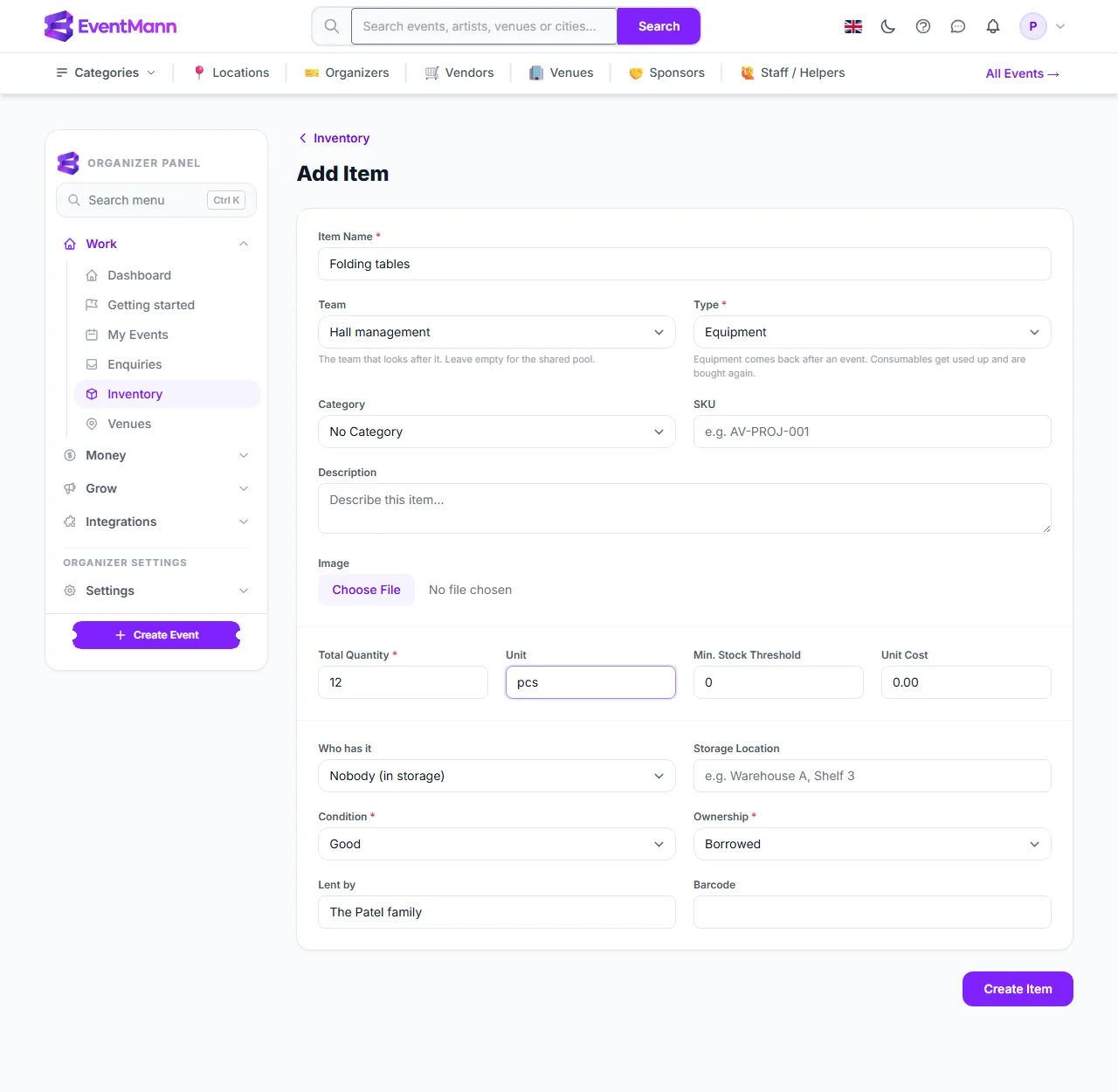
- Click Add Item on the Inventory page and type the Item Name. It is the only text that is required, together with the quantity, condition and ownership.
- Choose the Team ② that looks after it. Leave it on Shared pool if nobody in particular does. A team lead adding an item on their own page cannot choose: it is always their team.
- Choose the Type ③: Equipment comes back after an event, a Consumable gets used up and is bought again.
- Enter the Total Quantity ④ and, if you like, a Unit ⑤ such as pcs, kg or rolls. Put a Min. Stock Threshold ⑥ on anything you buy again; when the stock falls to that number the item appears on the shopping list.
- Say where it is under Who has it ⑦ (a person from your volunteer roster) or Storage Location.
- Choose the Condition (New, Good, Fair, Poor, Damaged, Retired) and the Ownership ⑧. For Borrowed items a field Lent by ① appears: write whose it is, for example the Patel family. Rented and Owned have no such field.
- Optionally add a category, SKU, description, barcode, picture and the Unit Cost (used for the total value), then click Create Item.
Settings explained
- SKU — your own code. It must be unique among your items.
- Min. Stock Threshold — zero means “do not warn me”. Above zero, the item is low stock when the available number is at or below it.
- Active (on an existing item) — switch it off for something you no longer keep. It leaves the list, the shopping list, the labels and the packing list picker. Show inactive items on the Inventory page finds it again.
- Image — JPG, PNG or WebP, up to 2 MB.
Where is it?
Open an item with Edit. The Where is it panel ① tells you in a sentence: “With Ravi Patel”, “At Association office”, or that nobody has noted where it is, plus who lent it. Change it with the person list ② and the place field ③, then click Save. You can use both: a person and a place.
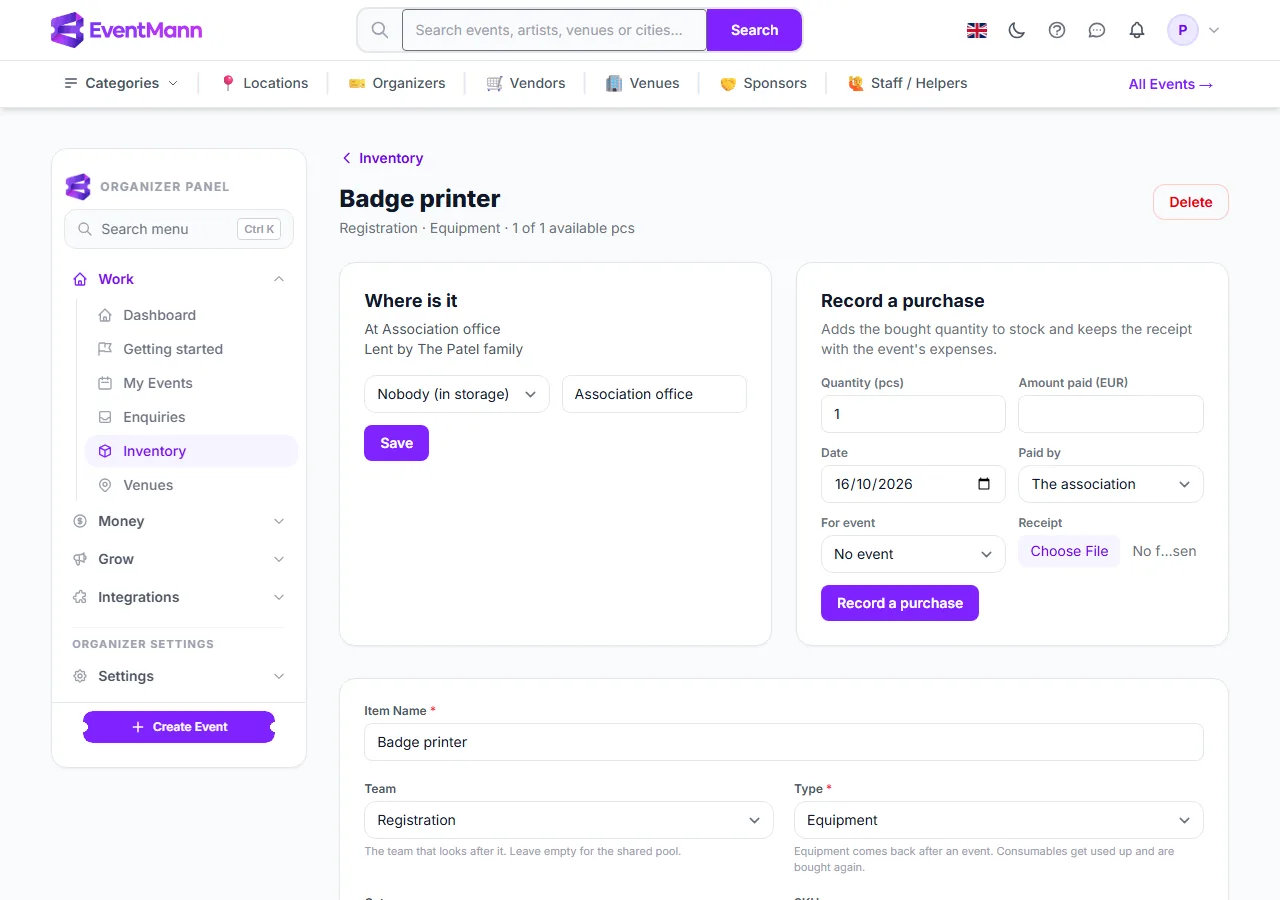
Next to it, Record a purchase ④ adds stock together with the receipt; see Purchases, receipts and the shopping list.
More on the item page
- Booked at events — appears when the item is on the packing list of a current or coming event. It has quick buttons for Taken and All back; see QR labels.
- Restock — adds a quantity with an optional note, without a purchase. Use it for stock that was found, donated or counted again.
- Maintenance — log a Service, Repair or Inspection with a date, a cost and the date of the next service.
- Transaction history — the latest movements: taken to an event, returned, used up, restocked.
- Delete — asks for confirmation. It is refused while any quantity is still checked out to an event.
Good to know
- Changing the team of an item moves it to that team’s list, and its lead can then manage it.
- Quantities are whole numbers. The available figure is the total minus what is planned or out on event packing lists, minus damaged, used-up and missing items.
- The per-unit cost is only for the Total Value tile. The money you actually spend is recorded as purchases.
Troubleshooting
- The SKU is refused — another of your items already uses it.
- Lent by does not appear — choose Borrowed under Ownership first.
- I cannot choose a person under Who has it — the list shows your volunteer roster. Add the person under Volunteers first.