




How to Buy Tickets
Attendee Guide
4 min read
Help articles may not be fully accurate — they can lag behind the app due to frequent updates and automated translation. If in doubt, please contact support.
On this page
- 1. Step by step
- 2. Different kinds of events
- 3. Good to know
- 4. Troubleshooting
- 5. Related
This is the whole journey from an event page to tickets in your hand. Most events let you check out as a guest, so you do not have to create an account first. Each step has its own article with the details; this one shows how they fit together.
Step by step
- Open the event. Check the date, time and venue, and read the Ticket conditions box lower on the page: it says whether you can cancel, change the names, transfer a ticket, and what you get back if you cancel (see How to Get a Refund).
- Choose tickets. In the Ticket Types panel set a quantity for each type with the + and − buttons. The button under the panel reads Select Tickets until you choose something, then Book Now with the total; press it. A type that says Sold Out cannot be chosen; a type with a closed sale window says so.
- Check out. The checkout page opens with your quantities already filled in (see Checkout Process).
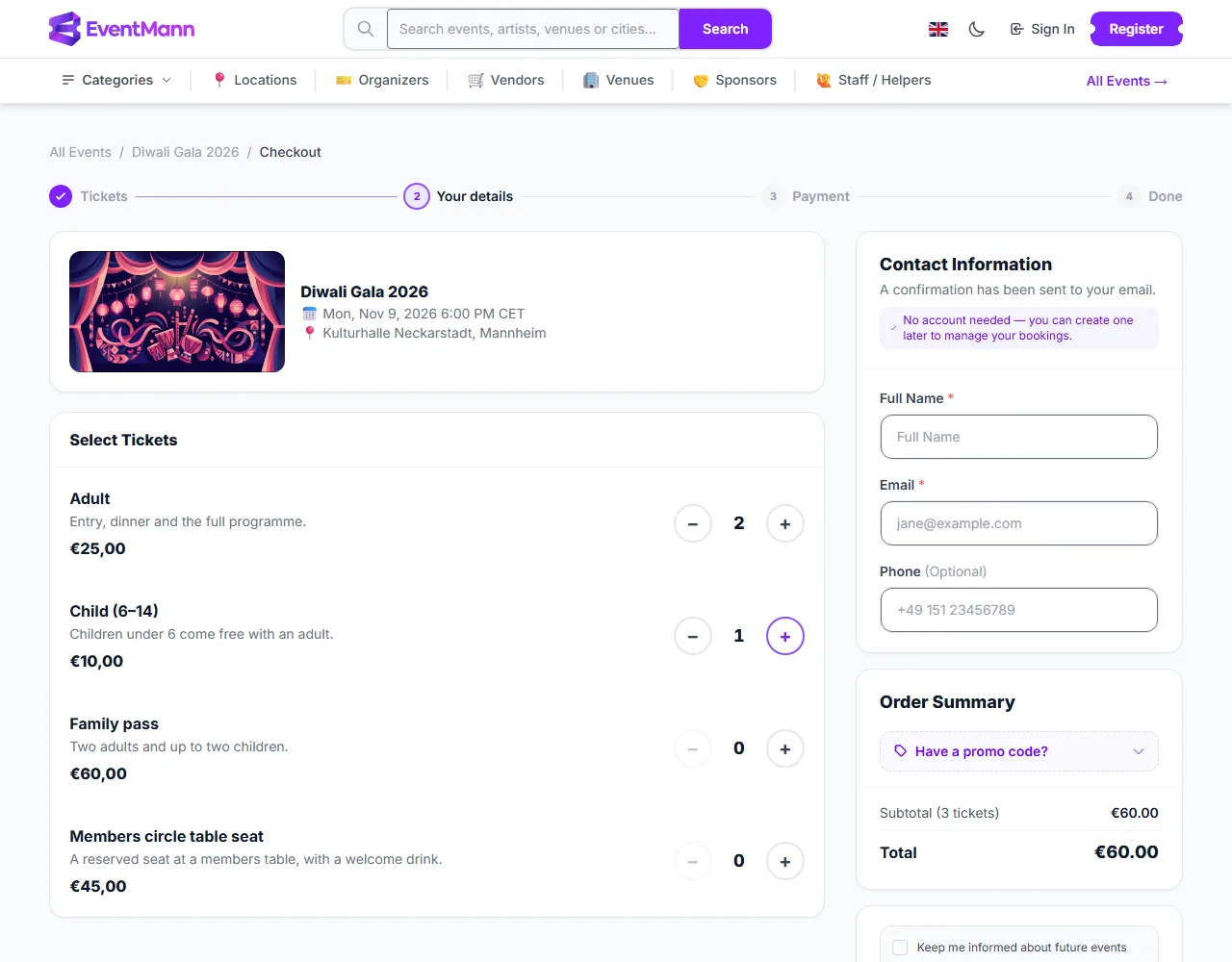
- Review the tickets ① and change a quantity with the plus button ② if you need to.
- Fill in your details ③. A guest enters a name and an email address (phone is optional). The confirmation and the tickets are sent to that email address, so type it carefully. If you are signed in, your details are filled in for you.
- Use a promo code ④ if you have one: open Have a promo code?, type it and press Apply.
- Decide whether to hear from the organizer. Above the button is an unticked box, “Keep me informed about future events from … by email”, naming the organizer. Tick it only if you want to; you can buy without it.
- Check the total ⑤, then press Proceed to Payment (or Complete Booking when there is nothing to pay).
- Pay. On the payment page choose how to pay in the secure form provided by Stripe and press Pay (see Checkout Process for the payment methods and what to expect).
- Done. You land on the confirmation page with your tickets and receive an email with the tickets attached (see Booking Confirmed).
Different kinds of events
- Free events — there is no payment page. Complete Booking confirms the booking at once.
- Events that need approval — the organizer decides on each order. Your card is only authorised, not charged, until they approve. See Pending Bookings.
- Seated events — you pick your seats on a map during checkout. Seats you click are held for you for 15 minutes.
- Members-only and volunteer-only tickets — shown as locked rows unless you are a member or a confirmed volunteer of that event. Members may also pay a lower price, get free tickets or book before everyone else (see Memberships).
- Sold-out events — when the organizer has switched the waitlist on, a sold-out type offers Join Waitlist. You choose every ticket you need in one go — for a family, adults and children together — and you are listed in My Tickets and emailed when you are admitted (see Pending Bookings).
Good to know
- You do not need an account unless the organizer has turned on “require login” for that event. With an account, the order also appears in My Tickets.
- Nothing is booked until you pay or, for an approval event, authorise your card. Leaving checkout half way costs nothing and leaves no order behind.
- You can buy for other people: the email you enter receives the confirmation, and each ticket can carry its own attendee name where the organizer asks for it.
- There is a limit on how many tickets you may buy per order, and sometimes per person; the checkout tells you when you hit it.
Troubleshooting
- The ticket I want is greyed out — it is sold out or outside its sale window, or it is members-only or volunteer-only.
- My card was declined — nothing is charged. Your order is kept for a short time, and My Tickets shows Complete payment so you can try again or use another method.
- I paid but have no email — open Where Are My Tickets?.
- The checkout says tickets are no longer available — someone else bought the last ones first. Choose a different quantity or type.