




Order Detail & Timeline
Help articles may not be fully accurate — they can lag behind the app due to frequent updates and automated translation. If in doubt, please contact support.
On this page
The order page is where you look after one booking: who it is for, what was bought, what has happened to it and what you can still do. Open it from Attendees → Orders by clicking an order’s reference (it looks like KV-ABC123).
What you can do here
- See the tickets, the buyer’s contact details, the answers to your checkout questions, the price breakdown and a timeline of everything that happened.
- Resend the tickets, correct names and contact details, add internal notes.
- Cancel the order, refund it, or cancel only some of its tickets.
- Decide a request that is waiting for you, copy a payment link, or mark an order paid.
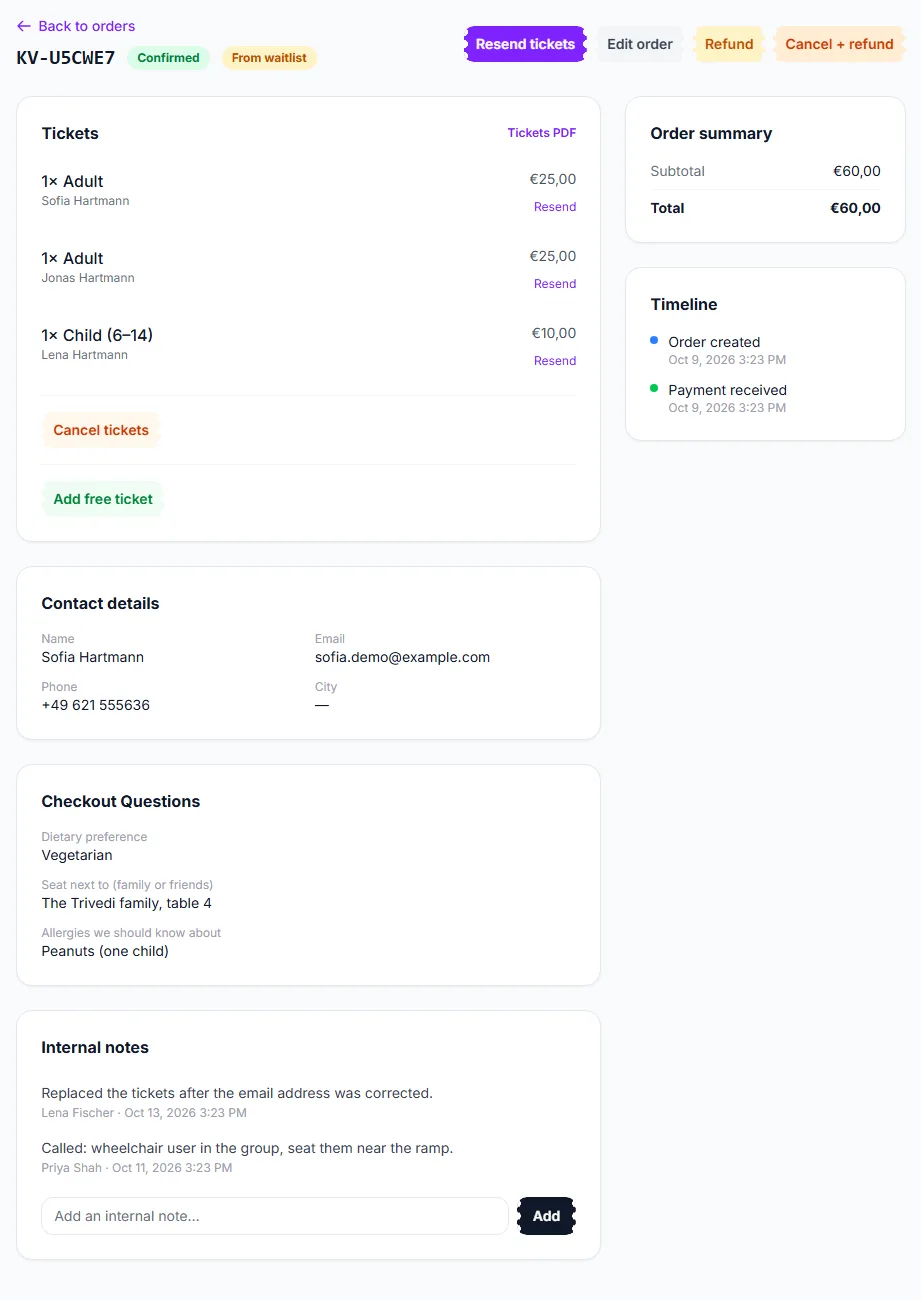
The buttons in the header — Resend tickets ①, Edit order ②, Refund ③ and Cancel + refund ④ — change with the order’s status and with your permissions. Below, the Tickets card has Cancel tickets ⑤, Internal notes ⑥ are a private log for your team, and the Timeline ⑦ lists what happened and when.
Which buttons you see
| Button | When it appears |
|---|---|
| Resend tickets | Confirmed orders with an email address. Each ticket also has its own Resend link, and Tickets PDF downloads them. |
| Copy Payment Link | Orders that are waiting for payment (Pending, Approved or a failed payment). It copies the buyer’s own payment page, ready to paste into a chat. |
| Mark Paid | Pending or Approved orders, for a payment you received outside EventMann. Needs permission to edit the event. |
| Approve / Reject | Pending orders (Reject also on Approved ones). Needs the orders-desk permission. See Booking Approvals. |
| Edit order | Confirmed, Pending and Approved orders. |
| Refund | Confirmed orders that were paid. Opens a confirmation; see Event Refunds. |
| Cancel + refund / Cancel order | Confirmed, Pending and Approved orders. The label says “+ refund” only where money can really go back. |
| Delete | Only orders that took no money. A paid order is cancelled or refunded instead so its record stays. |
| Invoice | Paid orders, when you issue invoices. See Invoices. |
Correct who an order is for
Typos happen: a misspelt email address means the buyer never gets their tickets. Edit order corrects the people, never the money — what was bought and the payment stay as they are.
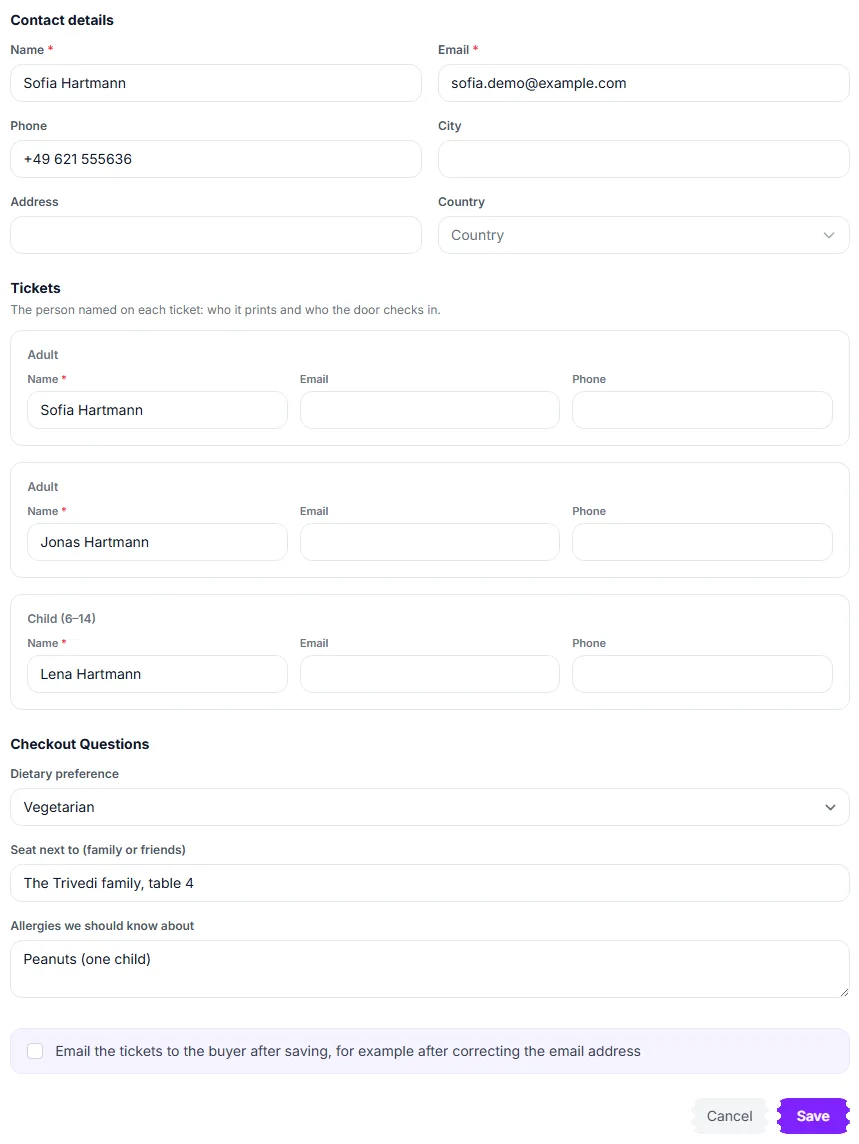
- Click Edit order in the header; the form opens above the tickets.
- Correct the buyer’s contact details ① — name, email, phone, city, address and country.
- Type the name printed on each ticket ②. This is who the ticket shows and who the door checks in.
- Fill in or fix the answers to your checkout questions.
- Tick Email the tickets to the buyer after saving ③ if the address was wrong, then click Save.
Cancel the whole order
Click Cancel + refund (or Cancel order when no money can go back) to open the cancel dialog. The buyer is emailed in every case.
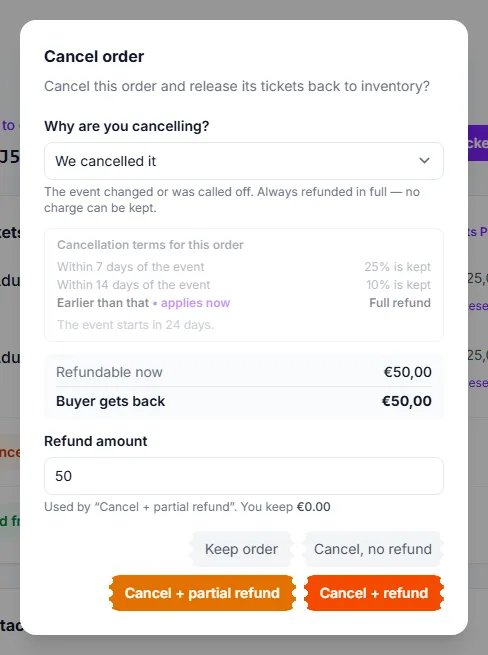
- Choose Why are you cancelling? ①. We cancelled it always refunds in full; Attendee asked to cancel applies the terms; Does not meet the event requirements keeps no charge unless you tick the box.
- Read Cancellation terms for this order — the terms that were shown when it was bought, with the step that applies now marked — and Refundable now / Buyer gets back.
- Pick what to do: Keep order closes the dialog; Cancel, no refund cancels and returns nothing; Cancel + partial refund refunds the Refund amount you typed; Cancel + refund ② cancels and refunds the full amount shown.
Cancelling releases the tickets and any held seat. Orders from before 17 September 2026 may wait for your Stripe balance (see below).
Internal notes
Type a note under Internal notes and click Add. Notes show who wrote them and when, are visible to your team only and never to the buyer. System entries are labelled System.
The timeline
The timeline lists, in order: Order created, Payment received, Order approved, each refund with its amount and outcome (refunded, pending or failed), tickets cancelled on their own, free tickets added later, a cancellation, a reinstatement, and — if the buyer disputed the payment with their bank — the chargeback and how it ended. An order can be cancelled, brought back and cancelled again; each step is listed so the page never reads as if the first never happened.
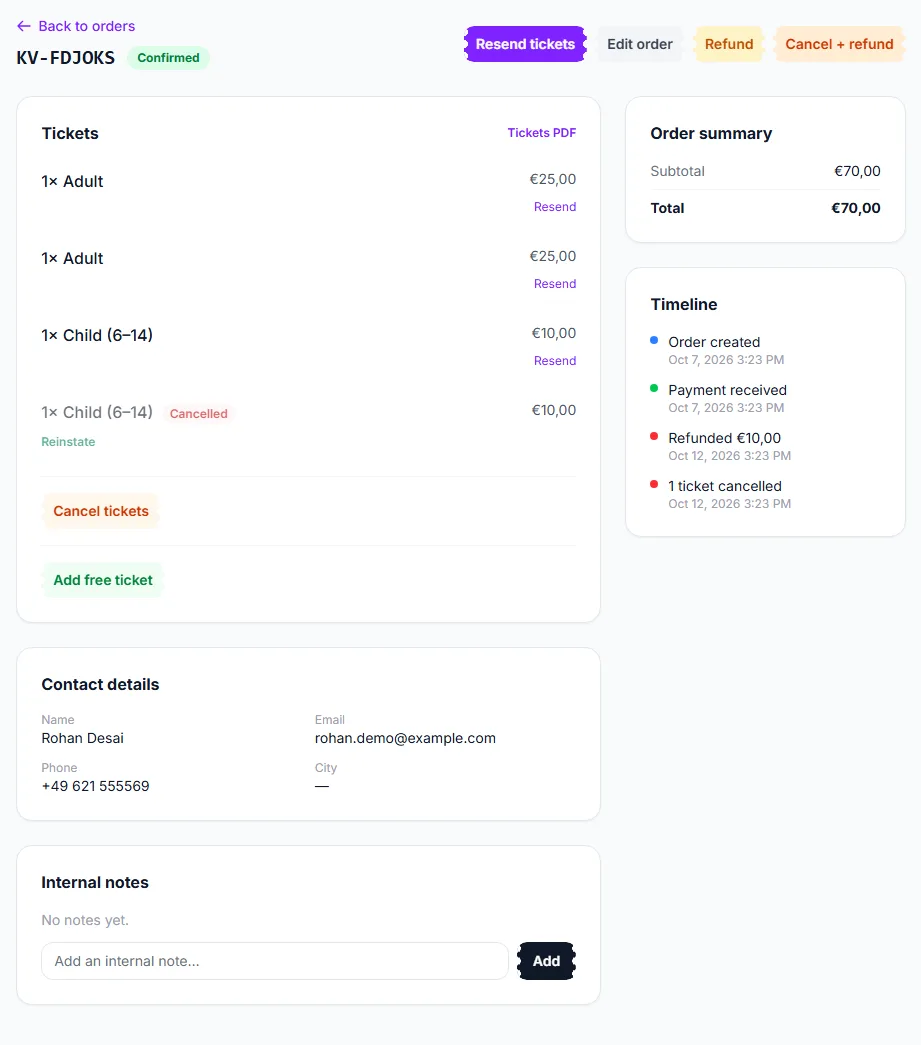
This order shows the badge ① and the timeline ② after one of its tickets was cancelled on its own and ten euros were refunded.
Orders you raised by hand, and orders waiting for payment
An order raised through Manual order carries a banner saying who raised it and, if you allowed it, that it went past the remaining capacity. While it waits for payment you can hand over the link yourself.
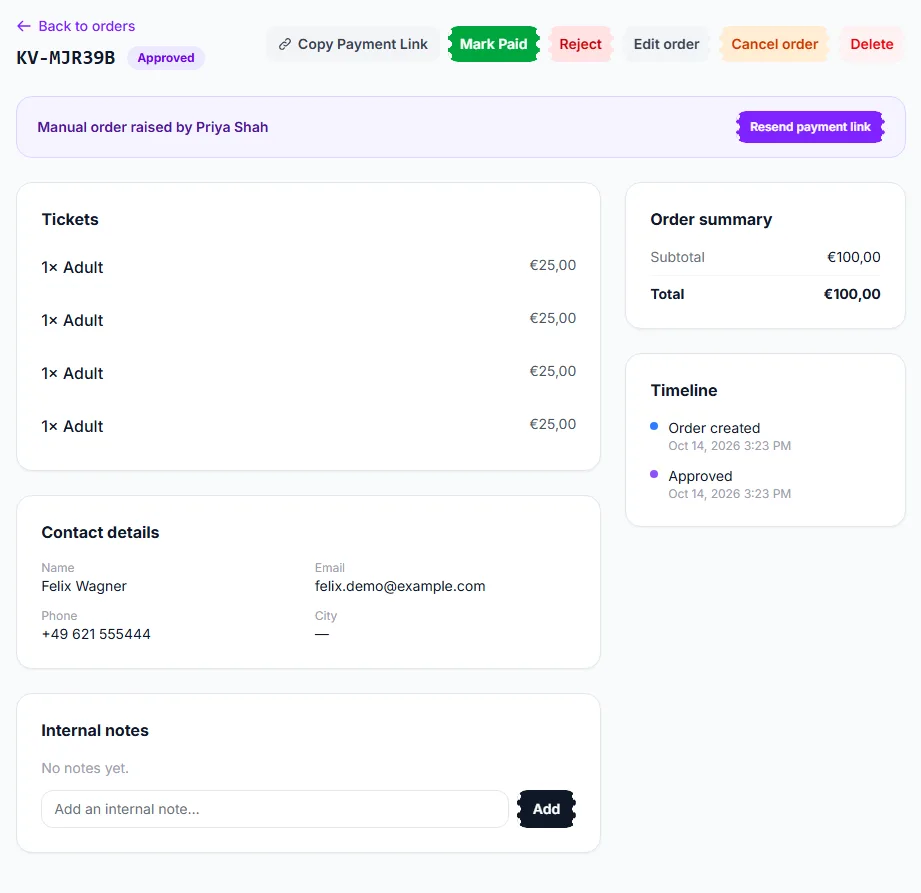
- Click Copy Payment Link ① and paste it into WhatsApp or an email. It is the buyer’s own payment page and works without their logging in.
- If the buyer paid you in cash or by bank transfer, click Mark Paid ②.
- To email the link to the address on the order again — which also revives an order whose hold has expired — click Resend payment link ③.
A refund waiting for your Stripe balance
Some older orders, paid before 17 September 2026, were charged in a way that makes Stripe take the refund from your own Stripe balance. If that balance is too low a yellow banner appears on the order.
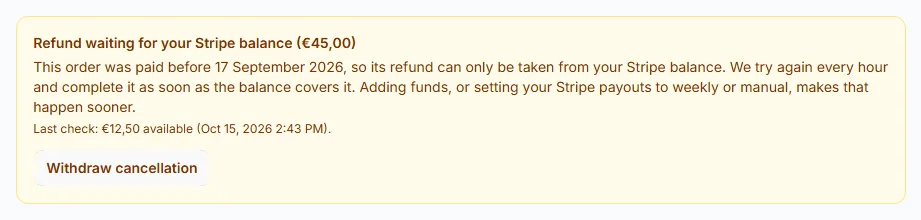
- EventMann tries again every hour, and again as soon as Stripe reports new available funds. The banner shows the last balance it saw.
- Adding funds, or setting your Stripe payouts to weekly or manual, helps it complete sooner.
- Changed your mind? Click Withdraw cancellation ① (only for a cancelled order, needs permission to cancel).
Good to know
- When a buyer accepted your own terms at checkout, the order shows Organizer’s terms with the date accepted and a link to the text they saw.
- Seat-mapped events show the seat beside each ticket.
- An order that has a refund in flight, or an open dispute, blocks some actions. The page says why instead of failing silently.
Troubleshooting
- No Edit order button — the order is cancelled, refunded or expired. Those are closed records.
- Refund is missing — nothing was paid (free, cash or comp orders), or the order is not Confirmed.
- The buyer says they never got their tickets — check the email address under Contact details, correct it with Edit order and tick the email option.