




Answering an invitation
Help articles may not be fully accurate — they can lag behind the app due to frequent updates and automated translation. If in doubt, please contact support.
On this page
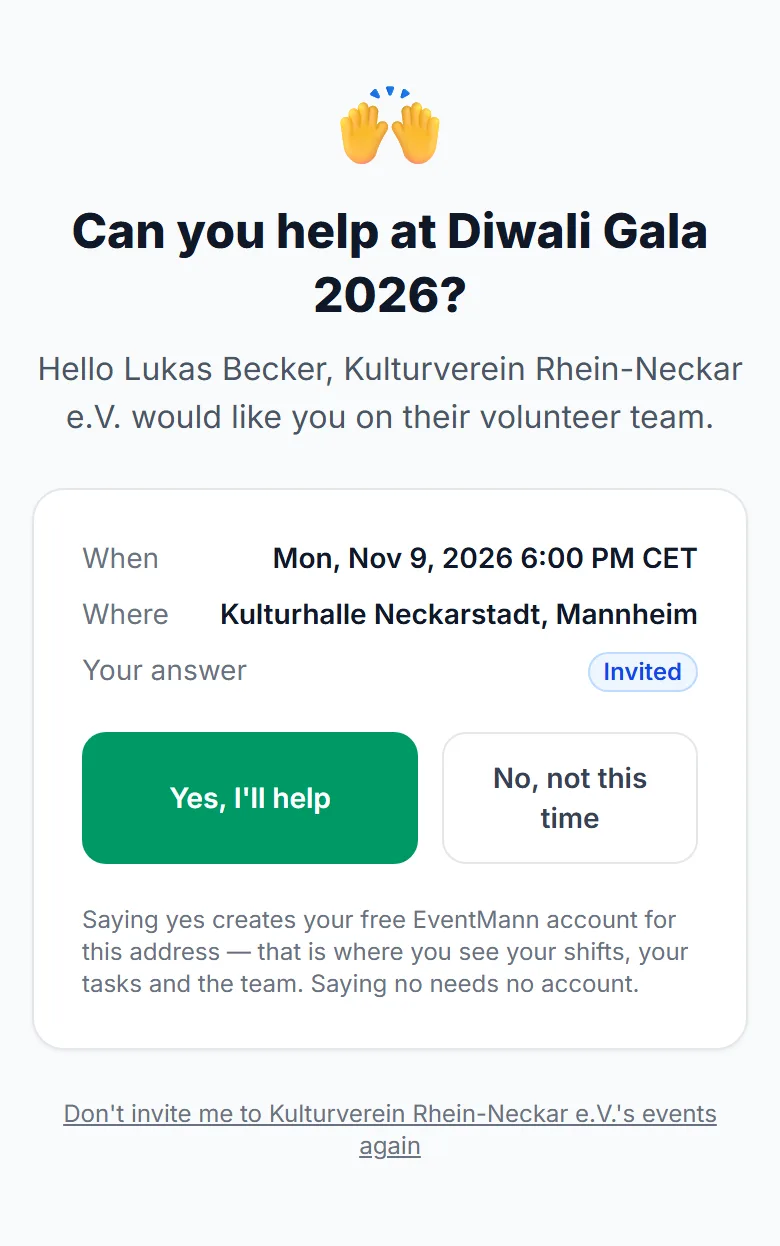
When an organizer invites you to help at an event, you get an email “Can you help at …?” with a button Answer the invitation. The button opens a page just for you. Saying no takes one click and needs nothing else. Saying yes means having a free EventMann account on the address the invitation was sent to: that account is where you see your shifts, your tasks and the team. The link is personal: do not forward it.
Answer the invitation
- Open the link in the email. The page shows the event, when and where it is, and your current answer (Invited).
- Tap Yes, I’ll help ① to join the team, or No, not this time ② to decline. The line under the buttons ③ tells you what a yes needs from you.
- What happens after Yes depends on your account:
- No account on that address yet — the page opens a short account form, described below.
- You already have an account — you are taken to the sign-in page with your address filled in. After signing in you come straight back to the invitation, and your yes is recorded.
- You are already signed in with that address — your yes is recorded at once.
- Your address is not confirmed yet — you are asked to confirm it first. Your yes is recorded when you come back to the invitation.
- You are signed in as somebody else — the page says so and offers Sign out and continue. A yes is never recorded for a different account.
- Once your yes is recorded you see a thank-you, the organizer is told, and you receive an email “You’re on the team”. The organizer then puts you on shifts and gives you tasks, and you are told by email each time.
Create your account and say yes
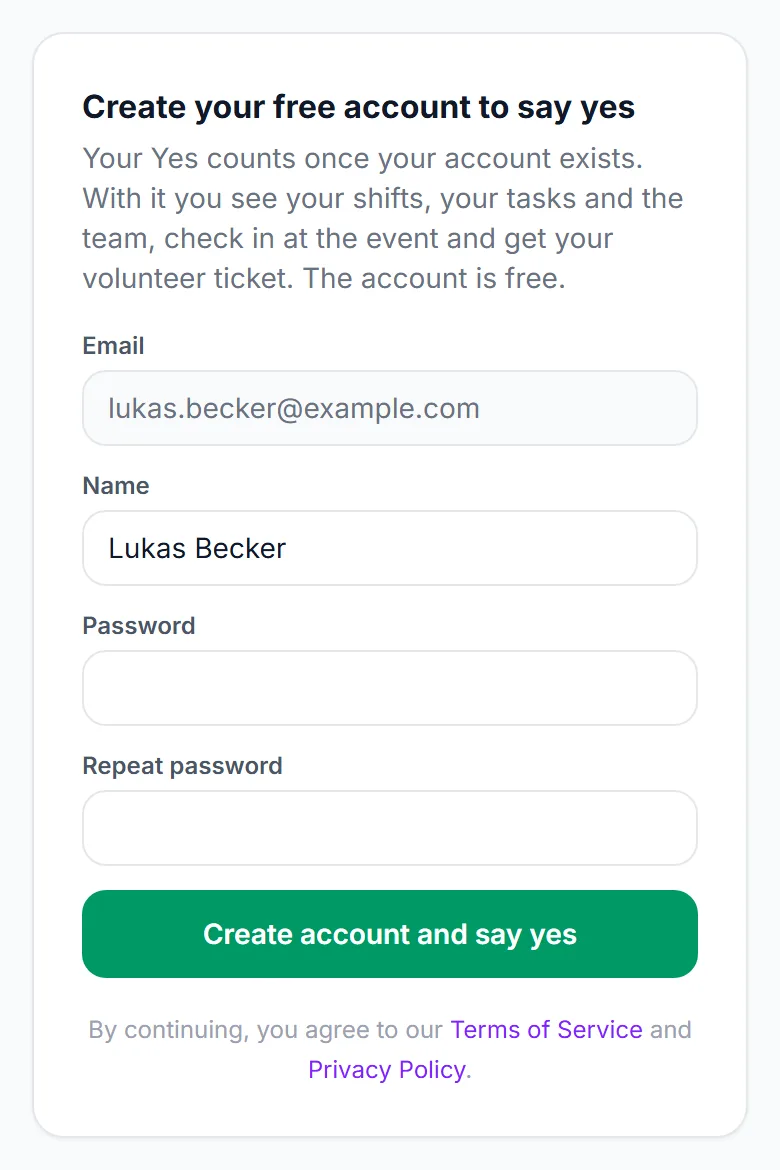
- Under Create your free account to say yes check your name ①; the email address is fixed to the one the invitation was sent to.
- Choose a password ② and repeat it.
- Tap Create account and say yes ③.
- You are signed in and land on My Volunteering, already on the team. The account is confirmed straight away, because you reached it through the link sent to that address.
A link can never set a new password for an account that already exists: if somebody already has an account on that address, the page sends them to sign in instead.
Confirmed by the organizer
Sometimes the organizer or a team lead confirms you without waiting for your answer, because you already said yes on the phone. If you have no account yet, your “You’re on the team” email says so and its button Set up my account opens the same account form. The organizer can also send you that link again with Send sign-up link. Until you set up the account you are on the team, but you cannot see your shifts and tasks.
Change your mind
- Open the same link again. After a yes the button reads I can’t make it after all; you are asked to confirm and your shifts are freed for somebody else.
- After a no that you gave yourself, you can still choose Yes — with your account, as above. A sign-up the organizer declined cannot be reopened by you, and neither can an invitation that was removed.
- Once the event is over or cancelled the page takes no more answers.
Stop receiving invitations
The line Don’t invite me to …’s events again ④ at the bottom stops volunteer invitations from this organizer, after you confirm. It needs no account. An invitation still open is declined. It does not affect other organizers. If you later sign up yourself on one of their event pages, that lifts the opt-out again.
Good to know
- The organizer is told about your yes only once it is recorded — after you have created your account or signed in. Until then you are still Invited on their list.
- The account is an ordinary, free EventMann account. You can use it to book tickets too.
- The link works from any device. Saying no or opting out needs no sign-in.
- My Volunteering lists the same invitation with the same two buttons while you have not answered.
Troubleshooting
- “That answer is no longer possible here” — the organizer already changed your status, for example removed you. Contact them.
- No Yes button — you already said yes, the sign-up was declined, the event is over, or you are signed in as somebody else (sign out first).
- I signed in but my answer is still Invited — you signed in with a different address. Sign out and sign in with the address the invitation was sent to, then open the link again.
- I forgot the password of my existing account — use Forgot your password? on the sign-in page, then open the invitation link again.
- The link says not found — the event was deleted, or you opened a shortened or altered link. Use the button in the email.