




Event Translations
Help articles may not be fully accurate — they can lag behind the app due to frequent updates and automated translation. If in doubt, please contact support.
On this page
Translations adds your event’s content in more languages, so visitors who browse EventMann in German, French or another language read your title, description, ticket names and checkout questions in that language instead of your original text. Open the event, then Event Setup → Translations. Your original text is what visitors see in English and in every language you have not translated, so this page adds the other languages only.
What you can do here
- Translate the event: the title, the description and the confirmation message shown after booking.
- Translate every ticket type: its name and description.
- Translate every checkout question: its label and placeholder.
- Draft a translation with AI, then review it and save, when AI features are available to you.
- Delete a translation of one language.
Add a translation
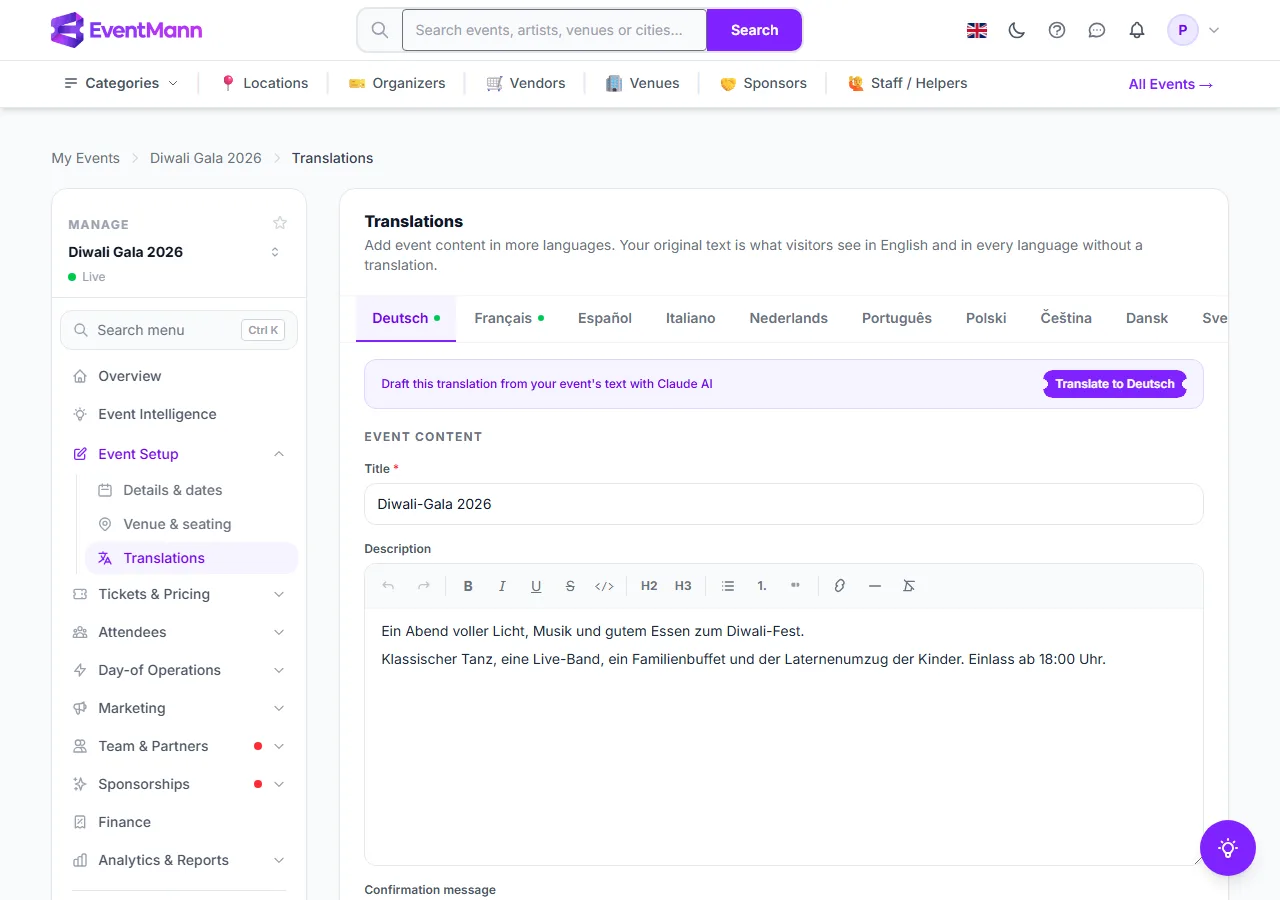
- Choose the language tab, for example Deutsch ①. A green dot after a language means a translation is already saved for it. The tabs offer the languages EventMann is published in other than English, which is your original text — Deutsch, Français, Español, Italiano, Nederlands, Português, Polski, Čeština, Dansk and Svenska — and you can scroll the strip sideways to reach the last ones.
- Optionally click Translate to Deutsch ③ in the purple bar to have Claude AI draft the fields from the event’s text. This only fills the form: nothing is saved until you click Save Translation, and it overwrites what you had typed in fields it translates. The bar is missing when AI features are not available to you.
- Fill in the Title ④. It is required.
- Write the Description in the editor and the Confirmation message shown to attendees after a successful booking.
- Translate the Ticket types and the Checkout questions further down.
- Click Save Translation. The tab gets its green dot and the line below the button reads “Deutsch translation saved”.
The fields
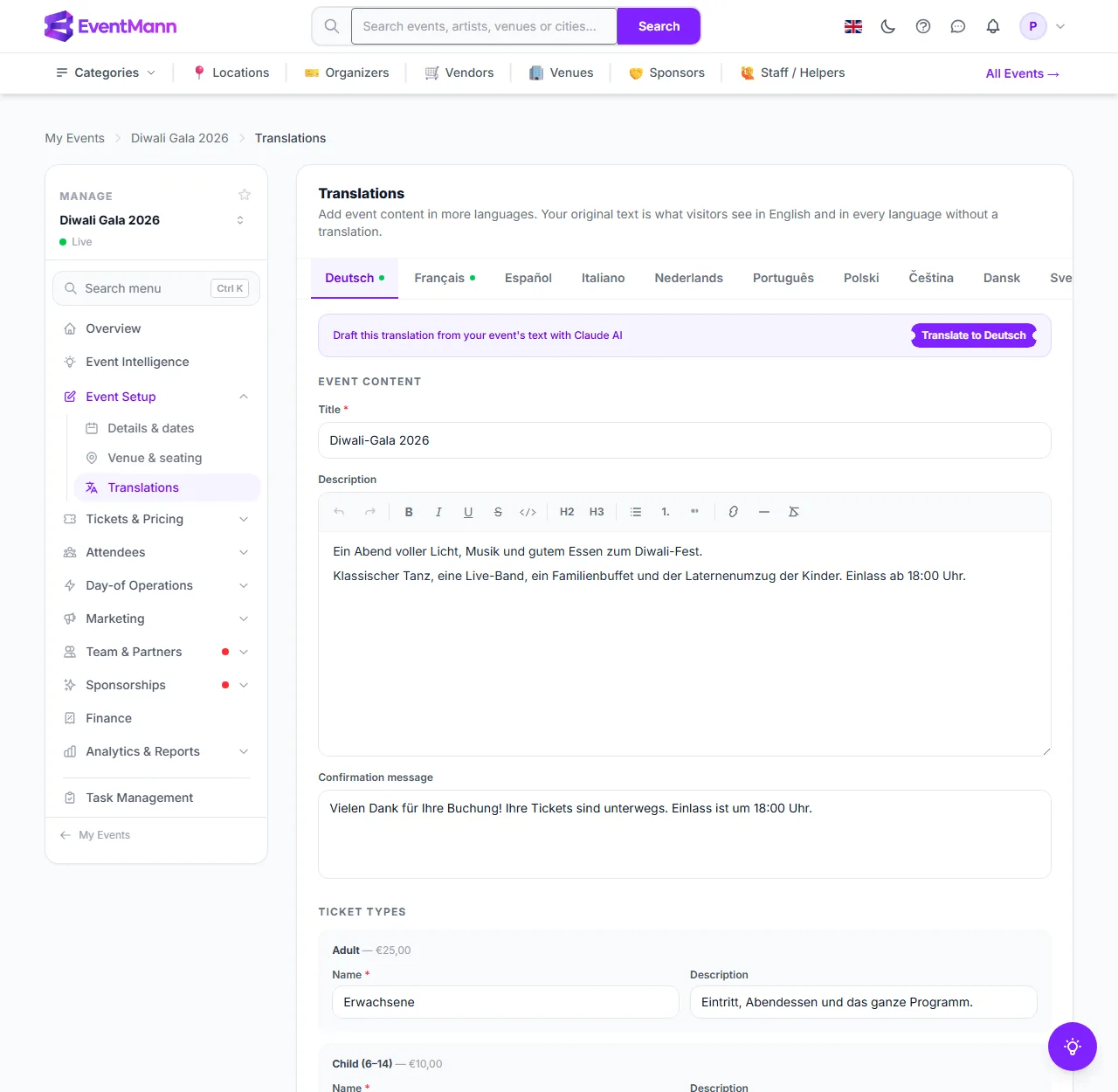
The Title ① (up to 255 characters) is required. The Description is a rich-text editor; leave it empty and visitors in that language see your original description. The Confirmation message ② (up to 5,000 characters) replaces the confirmation text of your checkout settings for that language. Each ticket type shows its original name and price; type the translated Name ③ (required) and Description ④.
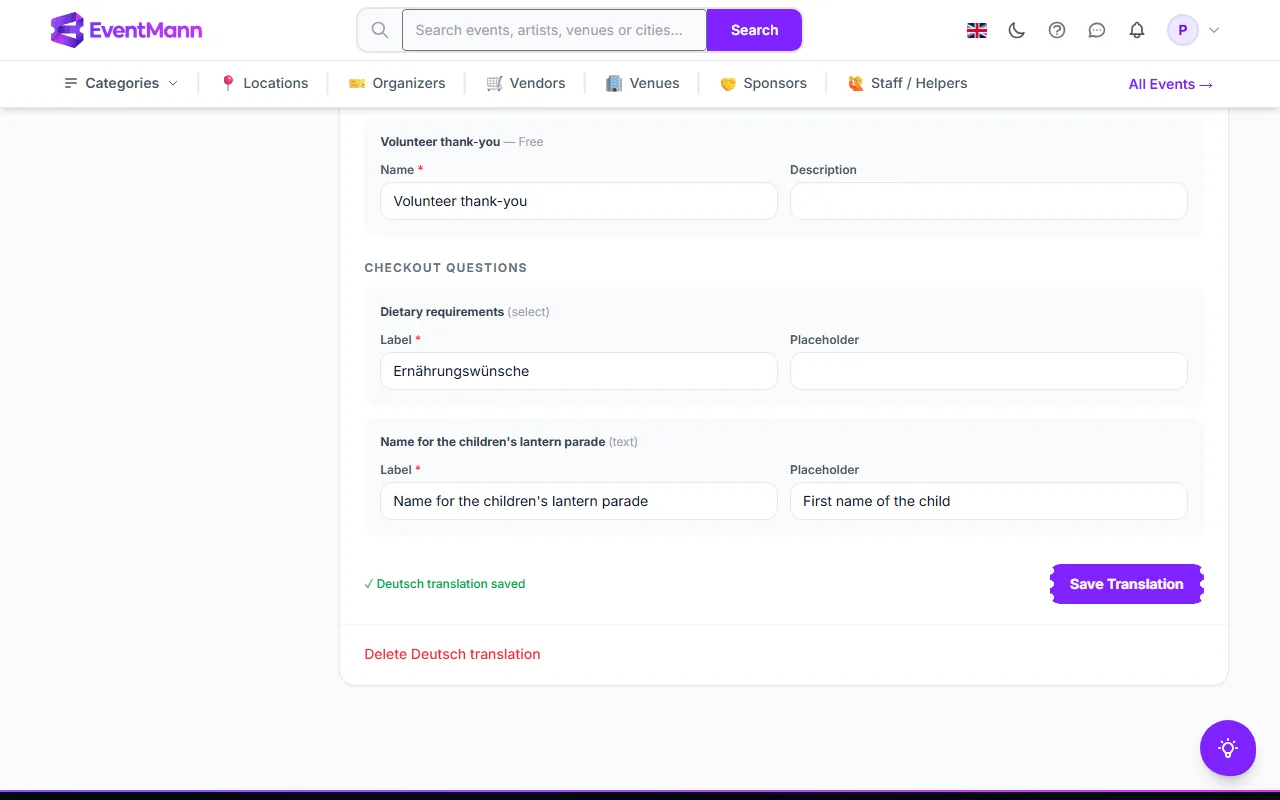
Further down, each checkout question has a Label ① and a Placeholder ②. Click Save Translation ③ when you are done. Delete Deutsch translation ④ removes the translation of that language after a confirmation: the event text, all its ticket-type texts and all its question texts for that language go with it, and this cannot be undone.
Settings explained
- Title — the only required field of the event itself.
- Ticket type name and question label — also required, but prefilled with your original text, so you only change what you want to translate. An item you leave as it is is saved as a copy of the original.
- Descriptions, placeholders and the confirmation message — optional. Left empty, the visitor sees your original text for that field.
- Options of choice questions — cannot be translated here; they stay in your original wording.
Where visitors see a translation
- On the public event page: the title and the description.
- At checkout: ticket names and descriptions, and question labels.
- After booking: the confirmation message.
- In the language switcher and the search-engine language links of the event page: the event is offered in your original language and in each published language you have saved a translation for, and in no others.
Not everything follows the visitor’s language yet: event cards in listings and search, the browser tab title, the ticket list on the event page itself (it uses your original ticket names; the translations show at checkout), checkout question placeholders, emails and the ticket PDF keep your original text.
Good to know
- Everyone with the Settings view permission can open the page; saving and deleting need the permission to edit the event. A team member who lacks it gets an error when saving.
- Languages that EventMann has not published (Japanese, Turkish and Chinese) are not offered, and cannot be saved. Translations saved earlier in such a language stay hidden.
- The AI draft uses your event’s stored text as its source and sends the title, description, confirmation message, ticket types and questions in one request. Check every field before you save. A very long event may still be too much for one request; the bar then shows an error and nothing is filled in. The AI bar appears only when AI is switched on for the platform and for your account and a key is available.
- Copying an event copies its translations with it.
Troubleshooting
- Saving does nothing — a required field is empty: the title, a ticket name or a question label. Fill it in and save again.
- Visitors still see my original text — no translation is saved for their language, or they are looking at a place that does not use translations (see above).
- The Translate button is missing — AI features are not switched on for your account, or the platform has no key.
- A language is missing from the tabs — it is not published on EventMann.