




Event Intelligence
Help articles may not be fully accurate — they can lag behind the app due to frequent updates and automated translation. If in doubt, please contact support.
On this page
Event Intelligence is a checklist and a to-do list for one event. It turns the event’s real state into a readiness score, tells you what is still missing, and warns you about things that need attention while the event is selling. It is pinned right under Overview in the event sidebar, and a shorter version appears on the event Overview page.

- Open the event and click Event Intelligence ① in the sidebar.
- The ring at the top is the readiness score. Under At a glance ② you see tickets sold against capacity, the share of capacity filled, confirmed revenue (after refunds) and the time to the doors.
- What to do next ③ lists the things to act on, most urgent first, each with a button that takes you to the right page.
- AI briefing ④ is an optional short written summary of the numbers above. Click Write briefing ⑤ to create it.
The setup checklist
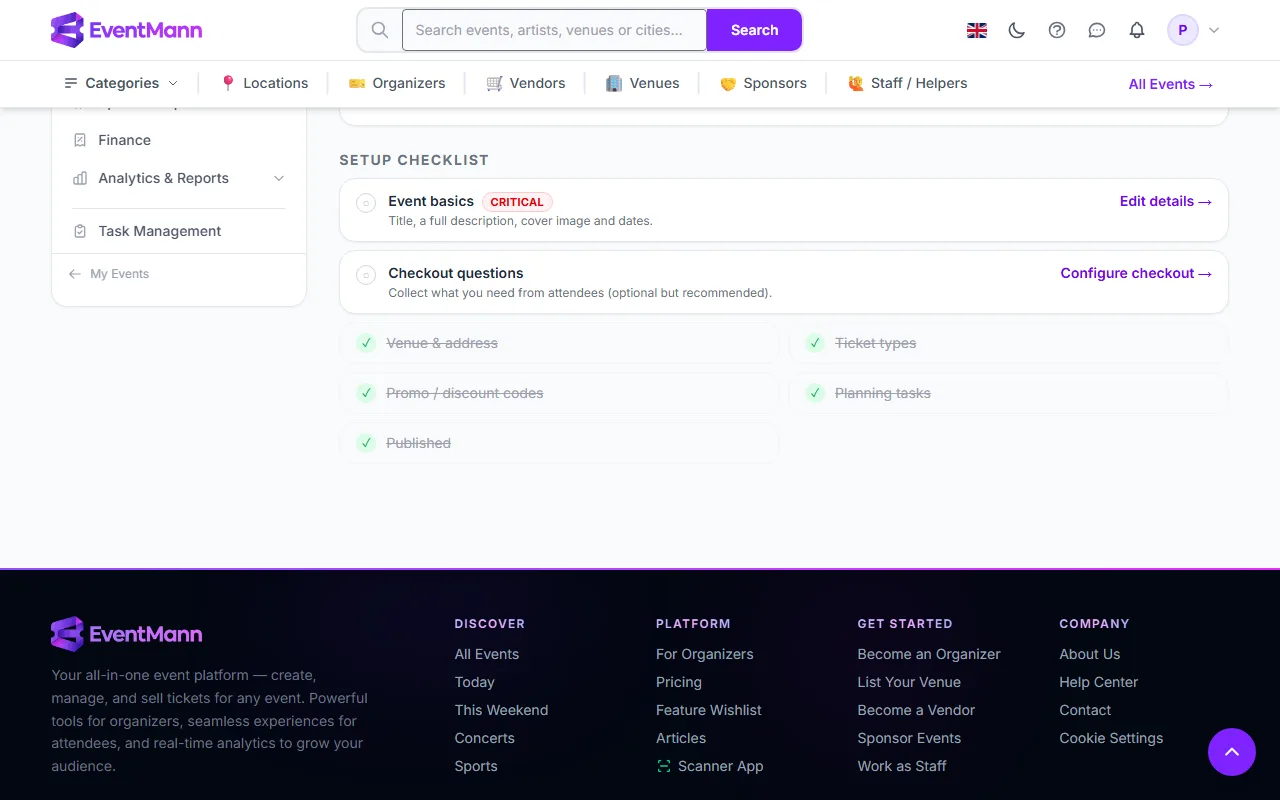
- The Setup checklist ① lists seven checks. A tick means done.
- Event basics ② needs a title, a description of at least 50 characters and a cover image. It is marked critical.
- Each open item has a button, for example Edit details ③, that opens the page where you fix it.
| Check | Counts for | Critical |
|---|---|---|
| Event basics (title, description, cover image) | 3 | Yes |
| Venue and address, or the streaming link for an online event | 2 | Yes |
| At least one active ticket type | 3 | Yes |
| Checkout questions | 1 | No |
| Promo or discount codes | 1 | No |
| Planning tasks | 1 | No |
| Published (the event is Live) | 2 | No |
The score is the share of the weight that is done. When all three critical checks pass and the event is not live yet, a Publish recommendation appears.
What the recommendations are
- Add tickets (critical) — no ticket type is active.
- Publish (high) — the event is ready and still unpublished.
- Near capacity (high) — a live event is 85% sold or more.
- Slow sales (high) — a live event is less than 40% sold with 14 days or fewer to go; it points you to discount codes.
- Pending payments (medium) — real orders are waiting for payment. Abandoned checkouts are not counted.
- Overdue tasks (medium) — planning tasks past their due date.
The AI briefing
The briefing is written from exactly the figures and checklist you see. It never invents numbers. It is created when you ask for it, in your language, and kept for six hours per exact combination of score, checklist and sales, so it is not regenerated needlessly; Regenerate makes a new one. It only appears when AI is switched on (AI-Powered Tools); if the AI service is unavailable the rest of the page keeps working.
Good to know
- The score and the recommendations are fixed rules over your real data, recalculated every time you open the page. They are not AI. Only the briefing is.
- Publishing counts for 2 of 13 points, so a live event can still show under 100% while optional items are open.
- Publishing is also guarded by other checks: a verified email address, a connected payment account for paid events and agreed platform terms. If the Publish recommendation fails, the message tells you which.
Troubleshooting
- The score did not change after I fixed something — reload the page; it is recalculated on load.
- A recommendation will not go away — the data behind it has not changed yet, for example the overdue tasks are still open.
- There is no Write briefing button — AI is off for your account, or no key is available. Everything else still works.
- The briefing says the service failed — try again in a moment.