




Attendee Announcements
Organizer Guide
3 min read
Help articles may not be fully accurate — they can lag behind the app due to frequent updates and automated translation. If in doubt, please contact support.
On this page
- 1. Write and send one
- 2. Settings explained
- 3. Good to know
- 4. Troubleshooting
- 5. Related
An announcement is a one-way message to people who already hold a ticket: a venue change, new doors time, parking advice. Find it under Manage → Marketing → Attendee comms and click the Announcements tab (the other tabs are Attendee Messages, Reminders, After the event, Email Templates and Ticket attachments).
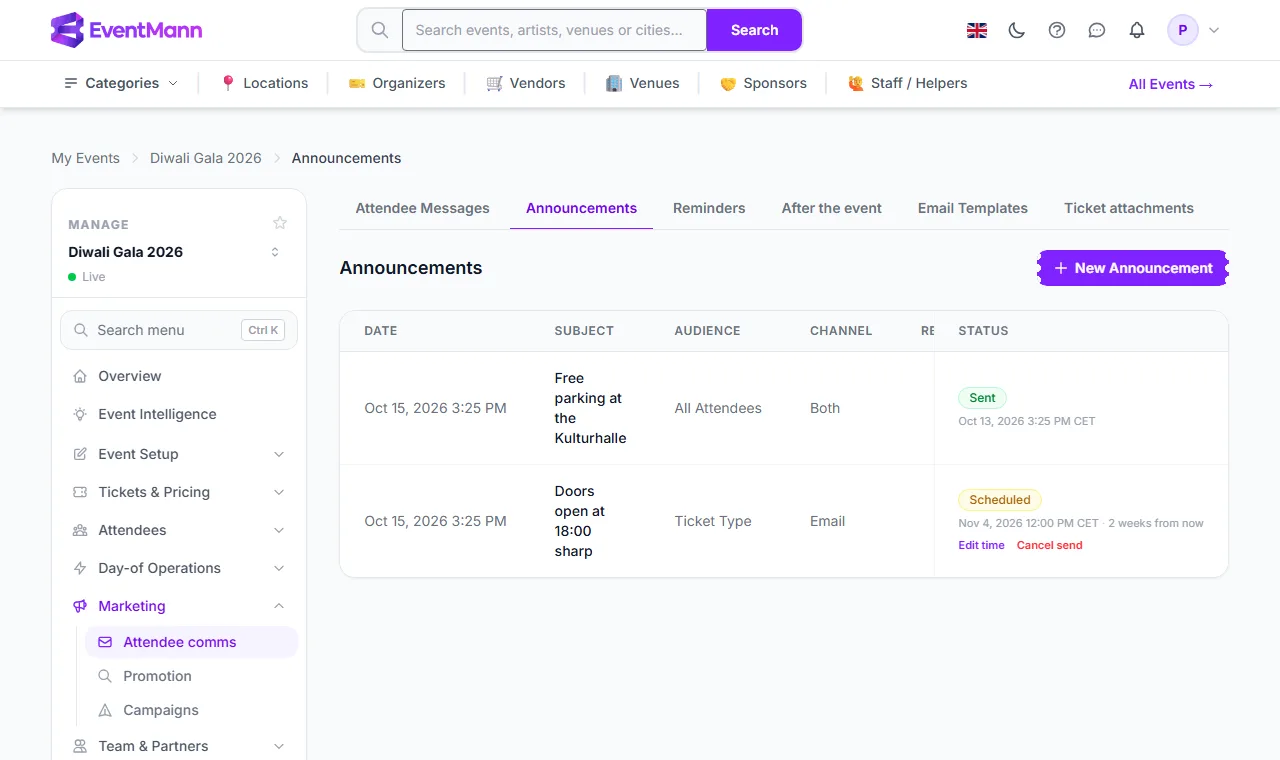
- Click New Announcement ① to write one.
- The list shows what happened: Sent, or Scheduled ② with the time and how long until it goes out. After sending, the Recipients column shows how many people it reached.
- While an announcement is scheduled, Edit time ③ changes when it goes out and Cancel send ④ stops it for good.
Write and send one
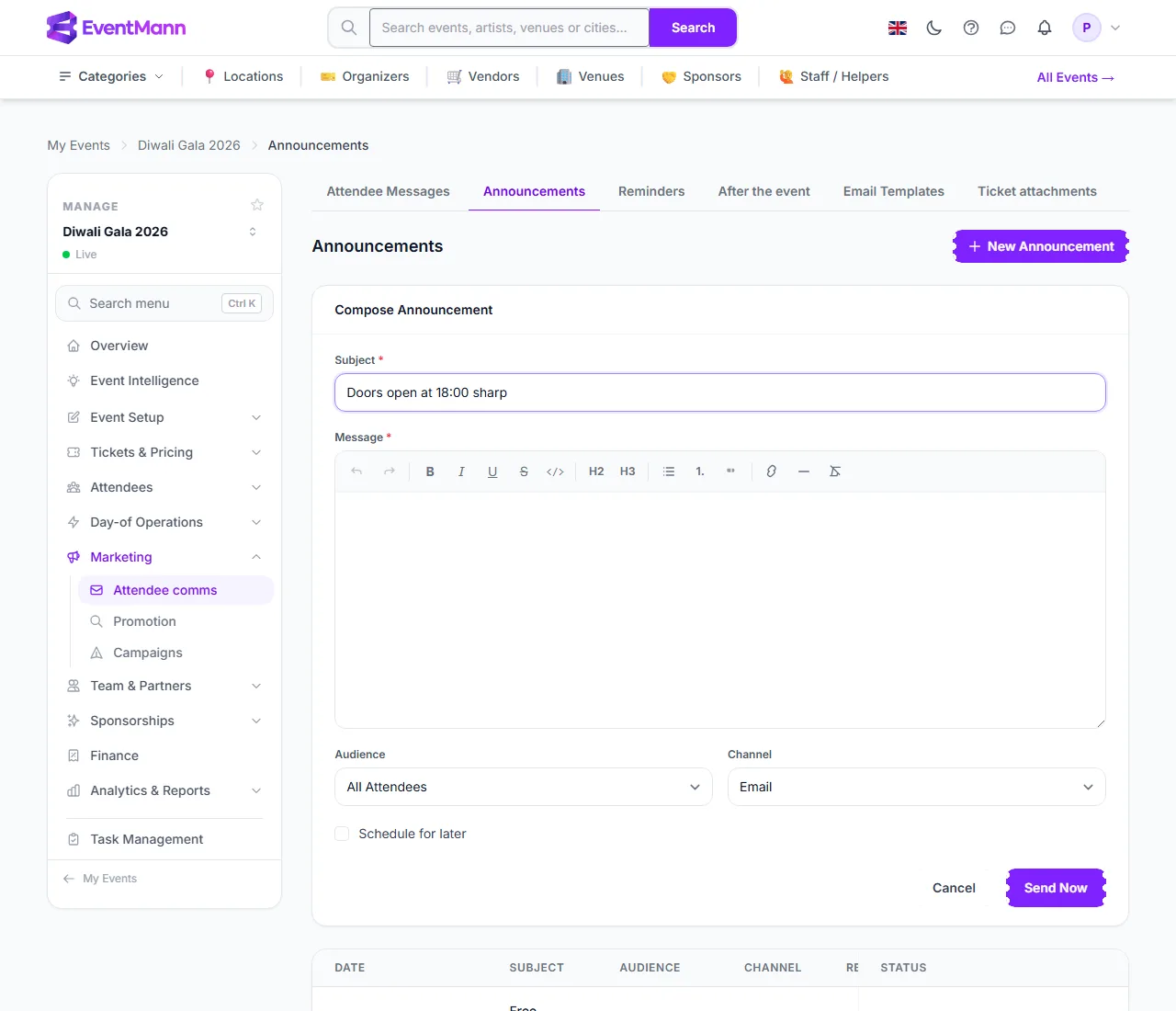
- Type the Subject ①.
- Write the message in the editor ②. It has bold, italics, headings, lists, quotes and links. The text is cleaned of unsafe markup when it is saved and can be up to 10,000 characters.
- Choose the Audience ③: All Attendees, By Ticket Type (then pick the type), Checked In or Not Checked In.
- Choose the Channel ④: Email, In-App (the notification bell) or Both.
- To send later, tick Schedule for later ⑤ and set a date and time. The time is in the event’s own time zone, which the form names.
- Click Send Now ⑥. An immediate send asks you to confirm first. When Schedule for later is ticked the button reads Schedule instead and saves the announcement to go out at that time.
Settings explained
- All Attendees — everyone with a confirmed booking at this event.
- By Ticket Type — holders of one type, for a change that only affects one tier. With no type chosen it reaches nobody.
- Checked In / Not Checked In — split by whether any of the order’s tickets has been scanned. Useful on the day: “gate 3 is now open” to those not yet in.
- Scheduled time must be in the future. A job picks up due announcements every five minutes, so expect it within a few minutes of the time you set.
Good to know
- Guest buyers are reached by email. A buyer who checked out without an account gets the email at the address on their order; they have no notification bell, so an In-App-only announcement does not reach them. Somebody who bought both as a guest and with an account gets one copy.
- An announcement is an operational message, not marketing, so it does not look at marketing opt-outs. Addresses that bounced, and guests who unsubscribed from your mail, are skipped.
- An immediate announcement cannot be recalled. A sent announcement stays in the list as the record of what attendees received and cannot be edited or deleted.
- An announcement is a broadcast. To talk with one person, use Attendee Messages.
Troubleshooting
- Recipients shows 0 or a small number — the audience is narrow (a ticket type nobody holds, or Checked In before the doors opened), or the channel is In-App only and most buyers are guests without an account.
- A scheduled announcement was a few minutes late — expected; the scheduler runs every five minutes.
- Attendees say they did not see it — check the channel. An email-only announcement does not appear in the bell, and an in-app one is not emailed.
- I cannot edit it — a sent announcement is history. Send a new one.