




Export Reports
Sponsor Guide
2 min read
Help articles may not be fully accurate — they can lag behind the app due to frequent updates and automated translation. If in doubt, please contact support.
On this page
- 1. What you can do here
- 2. Download a report
- 3. What is in the file
- 4. Good to know
- 5. Troubleshooting
- 6. Related
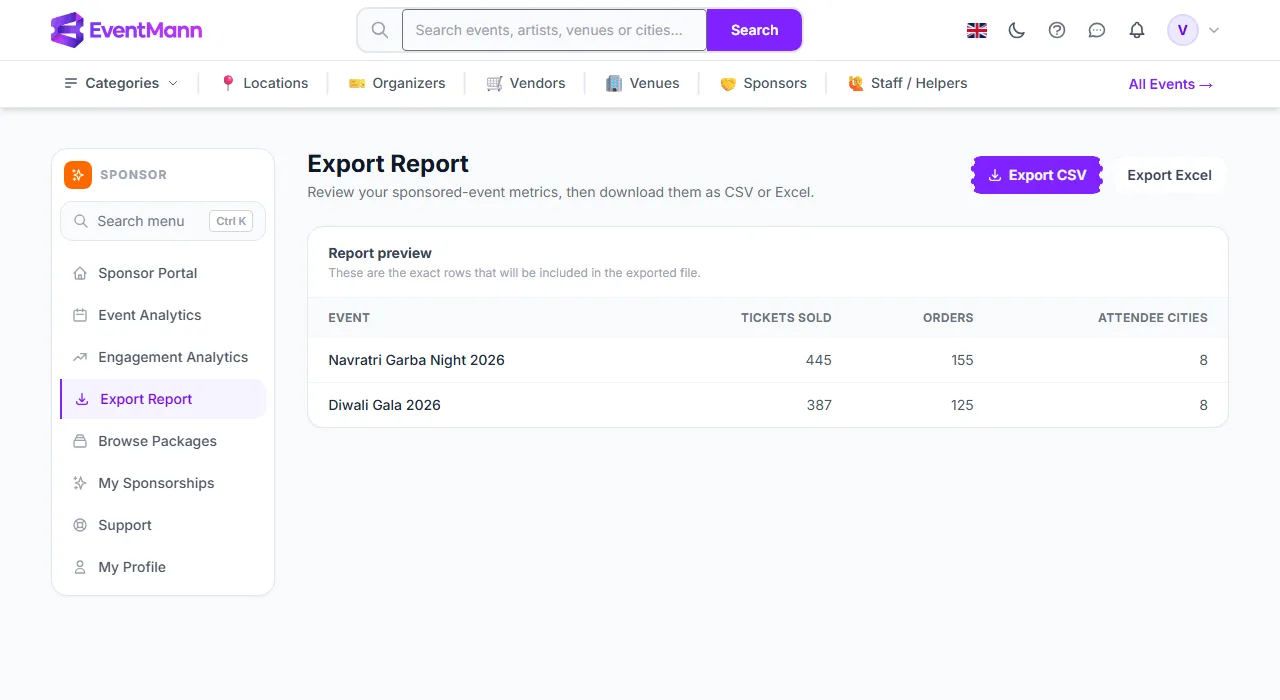
Export Report (sponsor sidebar) lets you download the figures from Event Analytics as a file for your own records, your finance team or a renewal discussion. The page first shows exactly which rows will be in the file; nothing is downloaded until you press a button.
What you can do here
- Preview the rows of the report.
- Download them as CSV ① or Excel ②.
Download a report
- Open Export Report. The heading reads “Review your sponsored-event metrics, then download them as CSV or Excel.”
- Check the Report preview ③ table. These are the exact rows that go into the file.
- Click Export CSV ① for a plain comma-separated file, which opens in any spreadsheet or can be imported into other tools, or Export Excel ② for a ready-made workbook.
- The file is named
sales-report-followed by today’s date. In the Excel workbook the sheet is titled Sponsor Analytics.
What is in the file
| Column | Meaning |
|---|---|
| Event | The event title. |
| Tickets sold | Tickets on confirmed orders. |
| Orders | Confirmed orders. |
| Attendee cities | Different cities buyers entered at checkout. |
There is one row per event where your sponsorship is Active or Completed. The same download buttons are also on Event Analytics and Engagement Analytics; they produce the same file.
Good to know
- The file is a snapshot of the moment you download it. Download again later for newer figures.
- There are no date filters and no per-sponsorship filter: the report always covers every qualifying event.
- The report has no cost, value, impression or ROI columns, because EventMann does not record those. See Measuring Sponsorship ROI for how to add your own.
- The buttons only appear when there is something to export. Without data the preview says “No analytics data to export yet.”
Troubleshooting
- There are no download buttons — you have no Active or Completed sponsorship yet, so the report is empty.
- An event is missing from the file — its sponsorship is not yet paid, or it was cancelled or rejected.
- Excel shows the numbers as text — use the Excel button instead of opening the CSV, or import the CSV with the comma as the separator.
- The numbers differ from the dashboard — the dashboard refreshes about every ten minutes; the report is read live. Both cover the same sponsorships.