




Messages to your volunteers
Help articles may not be fully accurate — they can lag behind the app due to frequent updates and automated translation. If in doubt, please contact support.
On this page
- 1. What you can do here
- 2. Send a message
- 3. Read what was sent
- 4. Good to know
- 5. Troubleshooting
- 6. Related
The Messages tab writes to the people who help at one event: everybody who is confirmed, one team, the people on one shift, or the people who have not answered yet. The same words can be copied for your WhatsApp group. Open the event, then Team & Partners → Volunteers → Messages.
What you can do here
- Send one email to a chosen group of volunteers, with a subject and a message.
- Copy the same text, ready to paste into WhatsApp.
- Read what was sent before, to whom and by whom.
Send a message
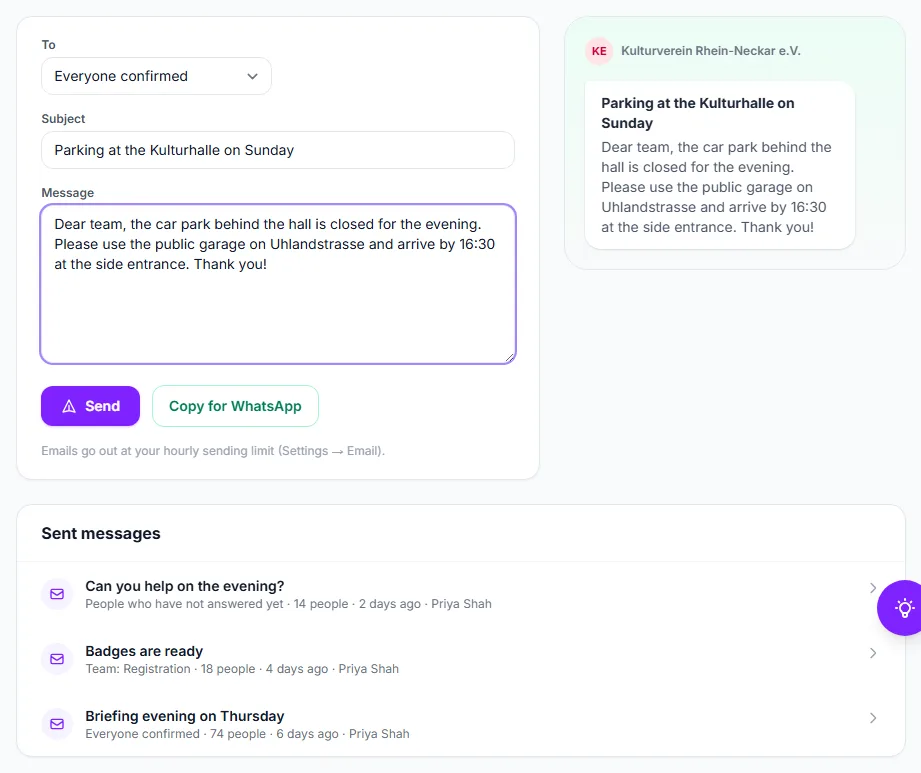
- Under To ① choose who receives it:
- Everyone confirmed — every confirmed volunteer of this event. Only the organizer and volunteer coordinators can pick this.
- One team — the confirmed people of the team you choose next.
- One shift — the confirmed people on the shift you choose next.
- People who have not answered yet — everyone who was invited or applied and is still waiting.
- Type a Subject ② of up to 200 characters.
- Write the Message ③, up to 5,000 characters. Plain text with line breaks is best.
- Click Send ⑤ and confirm that the message goes to everyone in the chosen group. The page tells you how many people it was sent to.
To post the same words in a WhatsApp group, click Copy for WhatsApp ④ before or after sending. It copies the subject in bold followed by the message, ready to paste.
Read what was sent
Under Sent messages ⑥ the latest messages are listed with their subject, who they went to, how many people, when and by whom. Click a line to read the message.
Good to know
- Emails are sent at your own hourly sending limit (Settings → Email), the same limit as invitations and reminders, and they are spread so the last one leaves before the event ends. A large message can therefore take some hours to reach everybody.
- If nobody is in the chosen group — a team with no confirmed people, a shift that is empty — nothing is sent, and you are told so.
- A team lead can write only to their own teams and the shifts of those teams, and to people of their teams who have not answered. They do not see Everyone confirmed, and their history shows only their own messages and those to their teams.
- Messages go to the address on your roster. They are about helping at the event; for tickets and orders use Attendee Messages and Attendee Announcements instead.
- The message cannot be taken back once it is sent. Read it through before you confirm.
Troubleshooting
- “Nobody is in that group yet” — the group is empty. Confirm people under People or choose another group.
- “You can only write to your own teams” — you are a team lead and chose a group outside your teams.
- Somebody says nothing arrived — the email may still be waiting for your hourly limit, or be in spam. Send them the WhatsApp copy.
- I cannot choose Everyone confirmed — only people who manage all volunteers (organizer, volunteer coordinator) can write to everybody.