




Waitlist
Help articles may not be fully accurate — they can lag behind the app due to frequent updates and automated translation. If in doubt, please contact support.
On this page
When a ticket type sells out, people can join its waiting list instead of walking away. This screen is where you decide who gets a seat when one frees up — you admit them, one by one, rather than the platform booking whoever has waited longest. Find it under Attendees → Attendee tools, on the first tab (Waitlist, Transfers, Group Import). The sidebar shows a badge with the number of people waiting.
What you can do here
- See everyone waiting: their name, email, the tickets they want — an entry is a basket like an order, for example 2× Adult · 2× Child — the total, and how long they have been queuing.
- Each entry shows a status — Waiting, Rejected or Expired — and, once you have admitted it, what became of the order it created: Confirmed (free tickets), Payment link sent with the pay-by time, Paid, Awaiting your approval, Payment window lapsed, Order cancelled or Refunded. The order number under it opens the order.
- Approve an entry to give that person every ticket in it. This creates one real order for the whole basket on the spot — all of it or nothing, never half a family.
- Reject an entry. They are emailed, and they cannot rejoin this queue afterwards.
- Switch the list on, cap it, and choose how long an admitted person has to pay — all under Event Setup → Details & dates, in the waitlist settings.
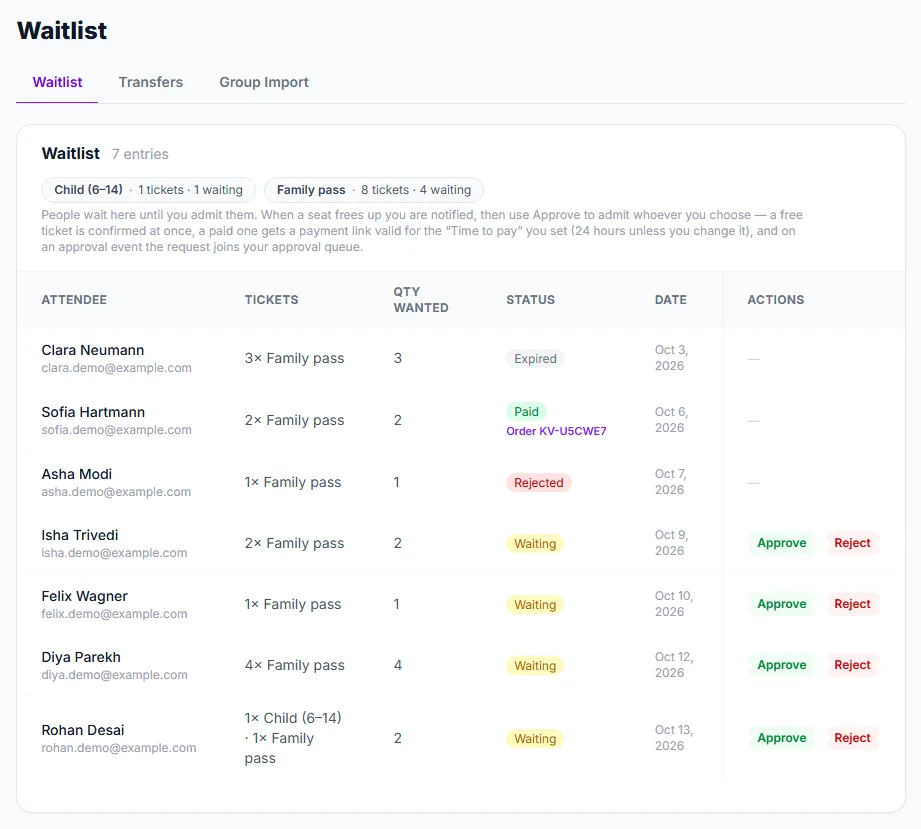
The Transfers tab ① is next door. The chip ② shows, per ticket type, how many tickets and how many people are waiting — counted from every basket, so a family waiting for a Family pass and a child ticket counts once under each. The Tickets column ③ shows each entry’s basket. Entries that are still Waiting have Approve ④ and Reject ⑤.
How approving works
- Find a Waiting entry and click Approve.
- If every ticket type in the entry has enough free places, the order is created at once. If one of them does not, EventMann asks first (see below).
- One order is created for the whole basket, and the seats come off public sale straight away. Nobody else can buy them while the order stands.
- If the ticket is free, the order is confirmed at once and their tickets are emailed.
- If the ticket is paid, they are emailed a payment link. They hold the seat until the payment window you set runs out.
- If the event uses request and approve, the order joins your approval queue instead, and you make the usual decision there. For paid tickets the person is sent a payment link once you approve it there, as for any request without a card hold.
- If they do not pay in time, the order is cancelled automatically, every seat in it goes back on sale, and the entry is marked Expired. You do not need to tidy anything up.
Admitting beyond the ticket quantity
Sometimes you want to let a family in although the ticket type is still sold out — you know the room has space, or two places will not be used. Approve lets you do that, the same way a manual order can, but it never does it without asking.
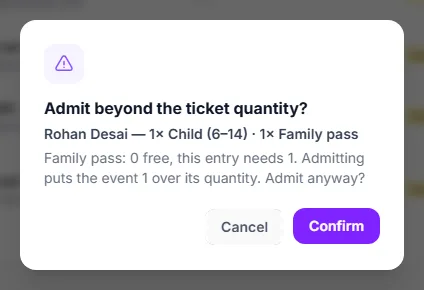
- Click Approve on the entry. When a ticket type in it has fewer free places than the entry asks for, a confirmation opens ① instead of creating the order.
- It names the shortfall for each type ② — for example Family pass: 0 free, this entry needs 1 — and how far over its quantity the event will go.
- Click Confirm ③ to admit them anyway, or Cancel to leave them waiting.
The order then works exactly like any other admission: free tickets are confirmed and emailed, paid ones get a payment link for your Time to pay, and on an approval event the request joins your approval queue. The sold count shows the oversell honestly (for example 252 of 250), the type stays sold out on the event page, and cancelling or an expired payment window puts the count back.
Settings explained
- Enable Waitlist — whether people may queue for a sold-out ticket type at all.
- Book waitlisted people automatically — leave this off (the default) to admit people yourself with Approve. Switch it on and the platform books the longest-waiting person the moment a seat frees, without asking you. Events created before this setting existed keep booking automatically until you change it.
- Time to pay — how long somebody you admit has to pay for a paid ticket, from half an hour to three days (the default is 24 hours). Their seat is held until then, so a long window keeps the rest of the queue waiting. A free ticket is confirmed at once and ignores it.
- Waitlist limit — the cap is per ticket type, so a full queue on one popular tier does not lock people out of the others. It counts tickets, not people, across every basket: a family waiting for 2 adult and 2 child tickets uses two places of the adult limit and two of the child limit, and a limit of 50 means fifty seats’ worth of demand.
Good to know
- Approving does reserve the seats. They are held for that person for the length of the payment window, so two people cannot be admitted into the same last seat.
- Approving is refused, with a reason, if the event is no longer selling — not live, a ticket type in the entry switched off or outside its sale window, the person cannot buy one of the types, or the basket breaks a per-order limit. This is checked for every type in the entry at the moment you click, not when they joined. Not enough free places is the one reason you can overrule, with the confirmation above.
- The note above the list says which way the event works: the first in line is booked automatically, or everybody waits for your Approve. Either way a paid ticket gets your Time to pay.
- Members are placed ahead of non-members in the queue, if you sell memberships and have given them waiting list priority.
- A ticket that cannot be booked on its own — a child or carer ticket — can only be waited for beside another ticket in the same entry, exactly as at checkout. A family joins with 2× Adult and 2× Child in one entry; a child ticket on its own is refused when they join.
- Automatic booking (when you switch it on) never goes beyond the ticket quantity. It admits an entry only when every type in it has room, and otherwise keeps it waiting — smaller entries further down can go first.
- You are notified when seats free up on a type that has people waiting, so you do not have to watch this screen.
- Rejecting is final from the attendee’s side: they see the outcome on their own bookings page and cannot queue again for that ticket type.
Troubleshooting
- “Where is the Notify button?” — there is no longer one. Notifying sent an invitation and reserved nothing, so two people could be invited into one seat and the loser was told it had gone. Approve gives the seat to the person you choose and holds it for them.
- Approve is refused — the message says why. If it says a type is sold out, places were taken between loading the page and clicking: click Approve again and the confirmation shows the shortfall so you can admit them anyway, or raise the quantity under Ticket Types. The other reasons it names: the event is not live, a ticket type is switched off or outside its sale dates, or the person cannot buy one of the tickets (a members-only or volunteer-only type).
- An entry says “Needs another ticket” — it holds only child or carer tickets, from before entries could hold several types. It cannot be admitted on its own; reject it and ask the person to join again with an adult ticket in the same entry.
- An entry says Payment link sent but no money has arrived — that is a paid admission inside its payment window; the row shows the pay-by time. It resolves itself either way: they pay and the row says Paid, or the window closes, the seats are released and the row says Payment window lapsed.
- I cannot find the admitted order in Orders — Orders opens on the Confirmed tab. A paid admission waiting for payment is on the Approved tab, and one awaiting your approval on Pending; every one of them is on All and carries a From waitlist badge. The order number on the waitlist row takes you straight to it.
- Somebody you rejected asks to be added again — delete their entry and ask them to rejoin; the block is tied to the rejected entry.