




My Events
Organizer Guide
3 min read
Help articles may not be fully accurate — they can lag behind the app due to frequent updates and automated translation. If in doubt, please contact support.
On this page
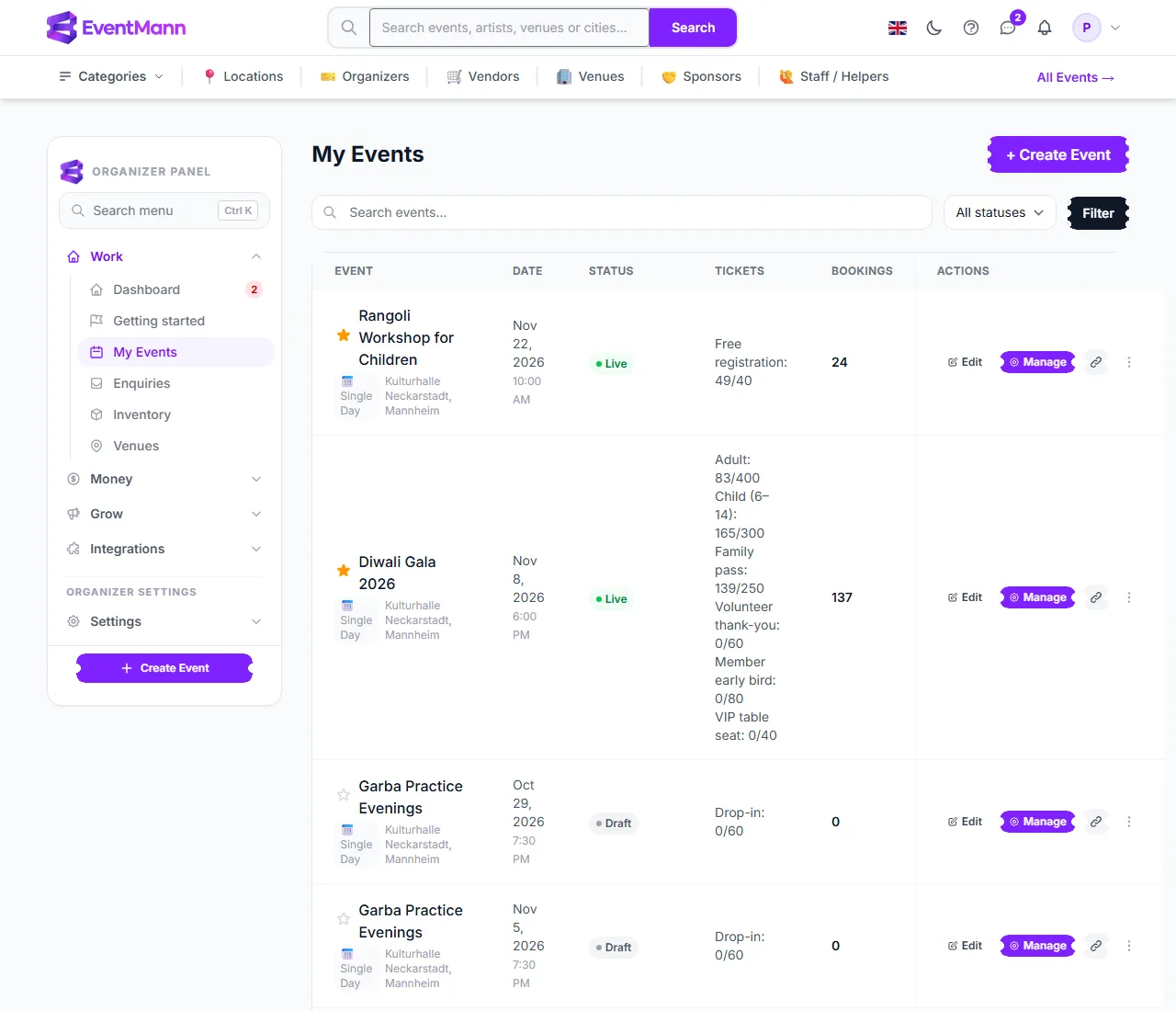
My Events lists every event you created, with quick links into each one. Open it from the sidebar under Work → My Events, or press g then e. It is also where you land after duplicating an event.
What you can do here
- Type in Search events… ① to match a title, venue or city, and choose a lifecycle status in the list ② (Draft, Scheduled, Live, Paused, Cancelled, Completed). Click Filter to apply and Clear to reset.
- Click the star ③ beside a title to pin the event. Pinned events are listed first and also lead the event switcher in the Manage area. Click again to unpin.
- Click Manage ④ to open the event’s Overview. Edit opens Details & dates (the Information tab).
- Click the link icon to copy the event’s public URL to the clipboard. It only appears once the event has a URL.
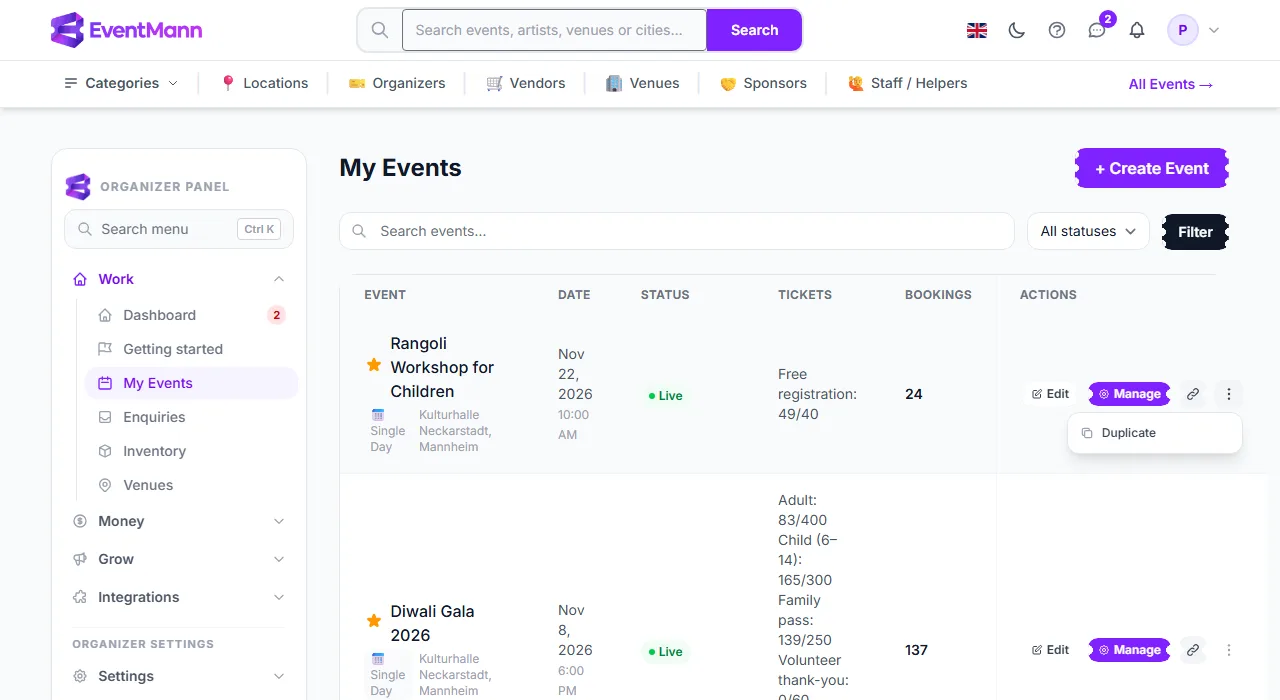
- Open the ••• menu ⑤ and choose Duplicate to copy the event. The menu only appears if you hold the duplicate permission for that event.
- Click + Create Event to start the event wizard.
The row menu holds Duplicate ①; see Duplicate an event and save templates.
Reading the table
- Event — the title, the event type (Single Day, Multi-Day, Recurring, Series or Hybrid) and the venue and city.
- Date — start date and time in the event’s own timezone.
- Status — the lifecycle badge. A Scheduled event also shows its go-live time. An event waiting for the platform’s review shows the review state (pending, changes requested or rejected) under the badge.
- Tickets — one line per ticket type: sold / capacity.
- Bookings — the number of real orders. An abandoned checkout, such as a declined card, is not an order and is not counted.
Event lifecycle at a glance
| Status | Meaning | Can move to |
|---|---|---|
| Draft | Not visible to the public; still being set up | Scheduled, Live |
| Scheduled | Goes live automatically at the time you chose | Live, Cancelled |
| Live | Published and selling | Paused, Cancelled, Completed |
| Paused | Hidden from public discovery and booking | Live, Cancelled |
| Completed | The event is over; final | — |
| Cancelled | The event will not happen; final | — |
The details of each move — and what blocks publishing — are in Event status: publishing, pausing, cancelling.
Good to know
- The list shows the events you own, newest first (pinned ones above them), 10 per page. Events of another organizer that you help run as a team member are reached through your Manage work area, not through this list.
- A recurring series lists its first date and every generated date as separate events — see Recurring events.
- Your plan may limit the number of events; the limit is checked when you press Create Event. The standard plan has none.
- An event that has orders, or that is Live, cannot be deleted — pause it, or cancel it so that attendees are told and refunded.
Troubleshooting
- Duplicate is missing from the menu — you or your team role lack the duplicate permission for that event.
- An event I help run is not listed — only events you own appear here.
- Create Event sends me back with an error — your plan’s maximum number of events has been reached.
- The ticket column is very long — every ticket type is listed; an event with many types makes a tall row.