




Venue & seating
Help articles may not be fully accurate — they can lag behind the app due to frequent updates and automated translation. If in doubt, please contact support.
On this page
Venue & seating links an event to one of your saved venues and, for seated events, holds its seat map. Open it from Manage → Event Setup → Venue & seating. The page has two tabs: Venue (this article) and Seat Map (see Seat Map). Venues themselves are created separately under Work → Venues; see Venues.
What you can do here
- Move between Venue and Seat Map with the tabs ①.
- Read the venue card ②: its name, city and country, its capacity and its own timezone when set, and a link to the venue’s page.
- To remove the link click Remove venue from this event ③ and confirm. The event is then not tied to a saved venue; the address typed on Details & dates stays as it is.
- To assign or change the venue, choose it in Select Venue ④ and click Save.
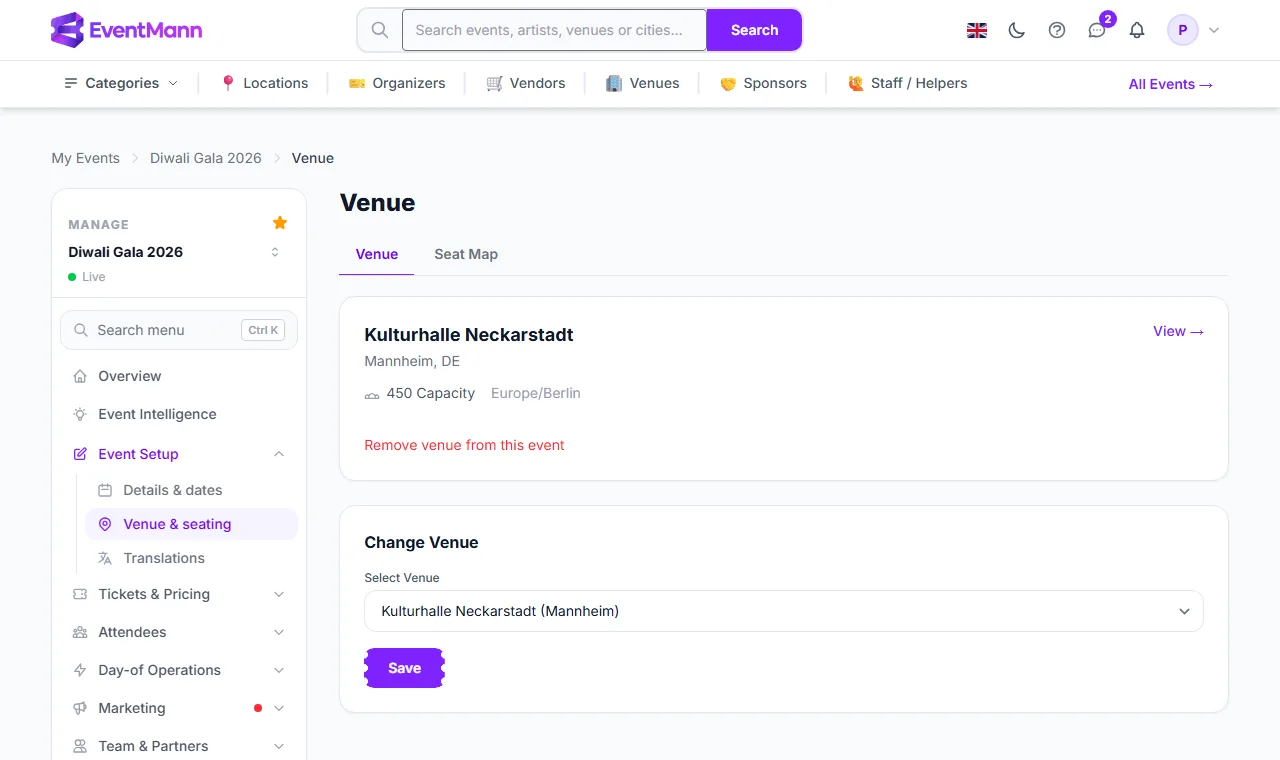
Availability check
When you pick a venue the page checks it against the event’s start and end. You see either Venue is available for this event or Another event or block overlaps these dates. The warning covers your other events at that venue and blocks the owner has set. It is a warning: you can still save. If the dates are wrong, fix them on Details & dates first and come back.
Which venues you can choose
- Venues you created that are active.
- Venues of other owners that you booked through a venue request and the owner approved. They appear under the group Booked venues, and the card notes that the venue was booked through a venue request.
- If you have no venue yet, the page links to Create Venue.
Clone the venue layout into the seat map
If the assigned venue has seating zones, a Clone layout action appears: it copies the venue’s blueprint into this event’s seat map so you can adjust it for this event without touching the venue’s own layout. It replaces the current seat map, so you are asked to confirm, and it is refused once seats have been sold.
Good to know
- Assigning a venue does not rewrite the venue, address and city shown to attendees; those come from Details & dates.
- Team members with the venue-manager role can assign venues, even though the venues belong to the organizer.
- Removing a venue does not delete a seat map you already created.
Troubleshooting
- The list is empty — you have no active venue yet; use Create Venue.
- I see an overlap warning right after assigning — another event of yours or a block of the venue owner overlaps these dates. Change the dates or the venue.
- Clone layout is not offered — the venue has no seating zones.
- Cloning the layout says seats are already sold — the layout cannot be replaced while seats are sold.