




The volunteer thank-you ticket
Help articles may not be fully accurate — they can lag behind the app due to frequent updates and automated translation. If in doubt, please contact support.
On this page
A thank-you ticket lets your volunteers attend the event they help at, free or at a reduced price. It is an ordinary ticket type with Volunteers only switched on. Everybody can see it on the event page, but only people who are confirmed volunteers of that event can buy it. You create it under Tickets & Pricing → Ticket Types in the event’s Manage menu; the volunteer Settings tab tells you whether the event has one.
What you can do here
- Offer your volunteers a ticket at no cost, or at a price of your choosing.
- Limit it to one per volunteer, or allow a plus-one.
- Show volunteers your own thank-you where they buy it.
Create the ticket
- Open Tickets & Pricing → Ticket Types and click Add ticket type, or click Edit on an existing one.
- Give it a name such as “Volunteer thank-you” and set the Price ①. Zero makes it free.
- Set the Capacity ② to about as many tickets as you have volunteers.
- Tick Volunteers only ③: “Shown to everybody; only this event’s confirmed volunteers can buy it (one each)”.
- Under Max per person ④ leave the field empty for one ticket per volunteer, or enter a higher number to allow a plus-one.
- Click Save Changes, or add the ticket type.
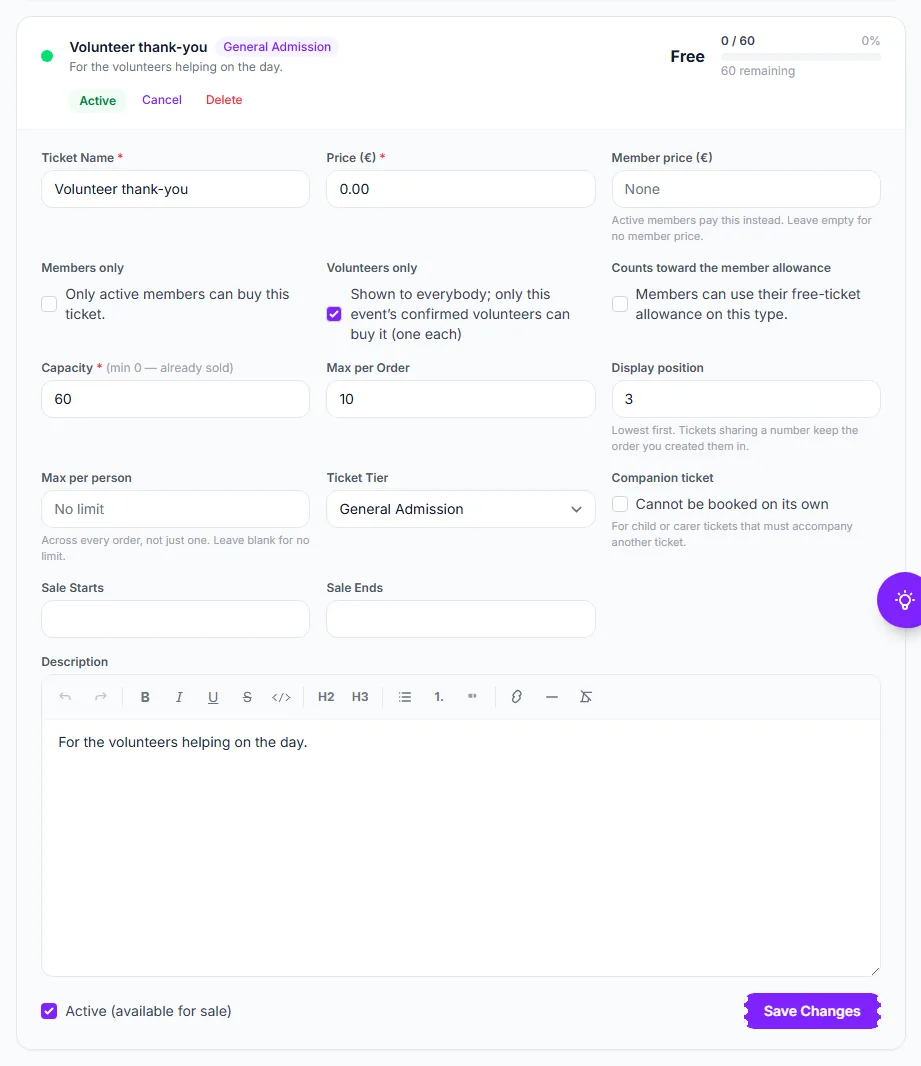
What visitors and volunteers see
On the public event page the ticket sits in the list with a green Volunteers only label ①, the way members-only tickets show. A visitor who is not signed in reads “For this event’s volunteers — sign in to get it”; a signed-in person who is not a confirmed volunteer reads “For this event’s confirmed volunteers”, with a link to volunteer if you have switched on the sign-up. A confirmed volunteer finds the ticket unlocked, with your thank-you message above the list.
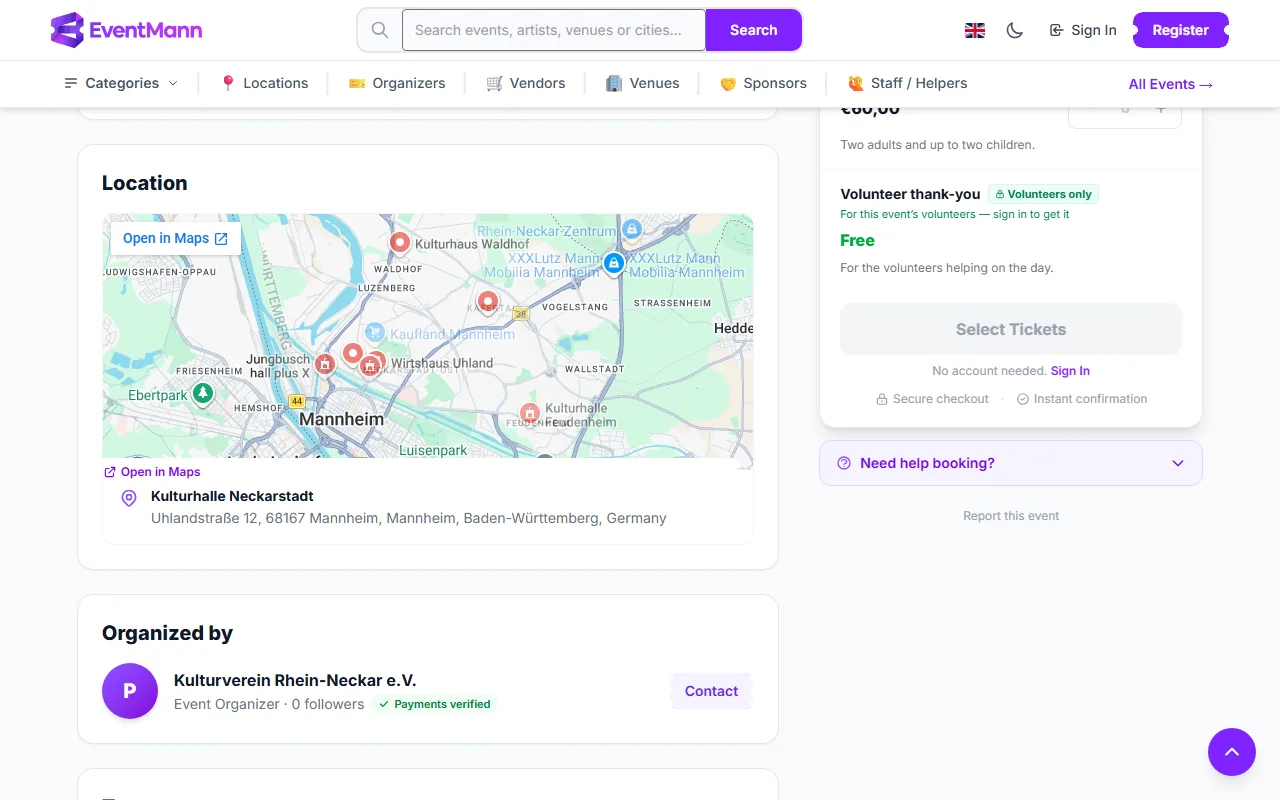
The volunteer buys it like any other ticket, signed in, through the normal checkout. For a free ticket no payment is taken. Your thank-you message also appears beside the ticket at checkout and in the confirmation email.
Settings explained
- Price — zero for a free ticket, or any price for a reduced one.
- Max per person — counted across all their orders. Empty means one per volunteer.
- Thank-you message — set on the volunteer Settings tab, up to 300 characters, with
{name}for the volunteer’s name. See Recruiting with join links, sign-up and copied setups.
Good to know
- The ticket does not change the price your event advertises. It is left out of listings, search results, price ranges and feeds, so a free volunteer ticket cannot make a paid event look free.
- Only confirmed volunteers can buy it. Somebody who was only invited, or who stepped back, cannot. The volunteer must be signed in with the email address on your roster; the invitation email lets them create that account.
- The ticket is the same as any ticket afterwards: it has a QR code and is scanned at the door.
- Volunteers also find a Get my ticket button on their My Volunteering page when you have one for them.
- The ticket counts against the event’s capacity like every other ticket.
Troubleshooting
- A volunteer cannot see or buy the ticket — they must be Confirmed on this event and signed in with the email address you invited. Accounts are linked to roster entries only on a confirmed email address.
- The Settings tab says there is no volunteer ticket — no ticket type of this event has Volunteers only ticked. Use Go to tickets to make one.
- A volunteer needs two tickets — raise Max per person on the ticket type.