




My Venues
Help articles may not be fully accurate — they can lag behind the app due to frequent updates and automated translation. If in doubt, please contact support.
On this page
- 1. What you can do here
- 2. Read the list
- 3. The venue page
- 4. Delete a venue
- 5. Browse Venues
- 6. Good to know
- 7. Troubleshooting
- 8. Related
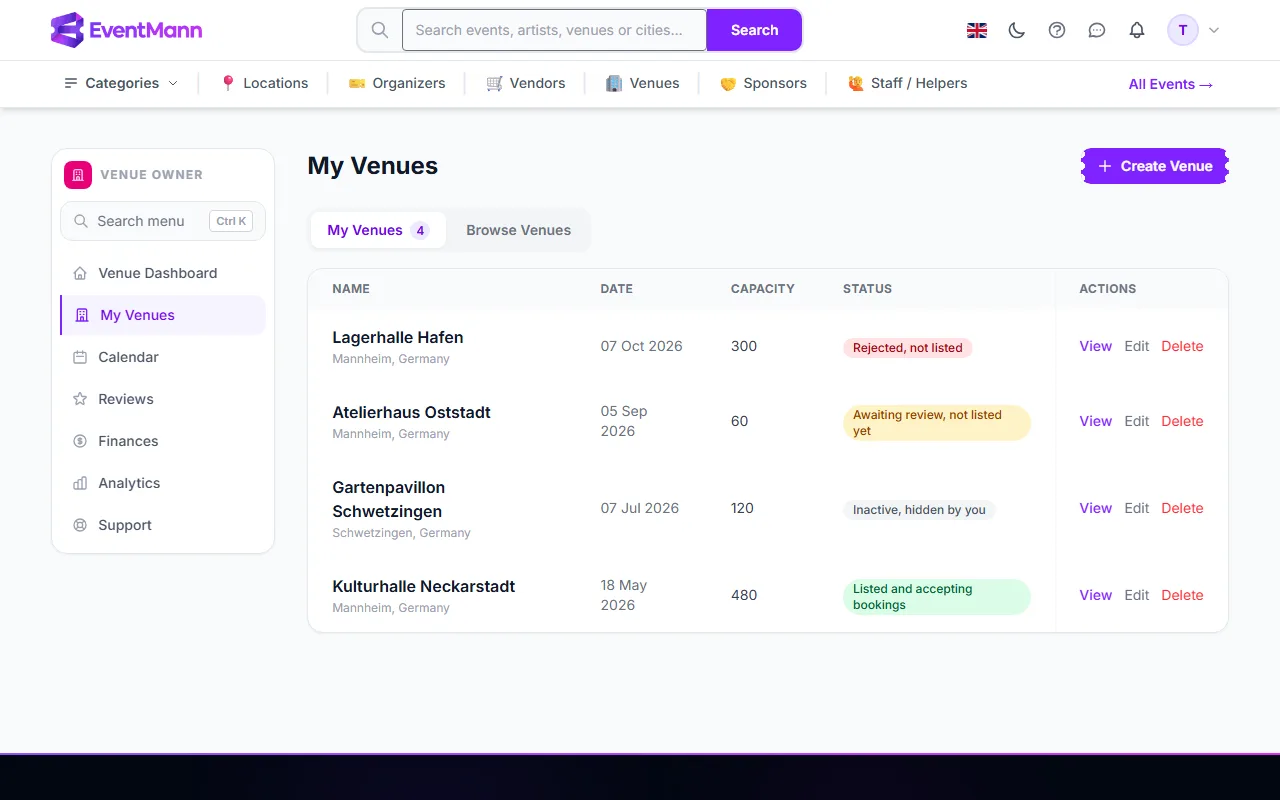
My Venues (sidebar) lists every venue you own, with its status, and is the way in to each venue’s own pages. From a venue’s page you reach its details, layout designer, services, packages, availability and booking requests.
What you can do here
- See all your venues with capacity and listing status.
- Create a new venue with Create Venue ①.
- Open (View), change (Edit) or remove (Delete) a venue.
- Look at other owners’ listed venues on the Browse Venues tab ②.
Read the list
The tab My Venues carries a counter with the number of venues you own. The table has one row per venue:
- Name — with city and country underneath. Click it to open the venue.
- Date — the day you created the venue.
- Capacity — the number you entered, or a dash.
- Status ③ — one of four badges: Listed and accepting bookings, Awaiting review, not listed yet, Inactive, hidden by you and Rejected, not listed. Hover a rejected badge to read the administrator’s note.
- Actions ④ — View, Edit and Delete.
The venue page
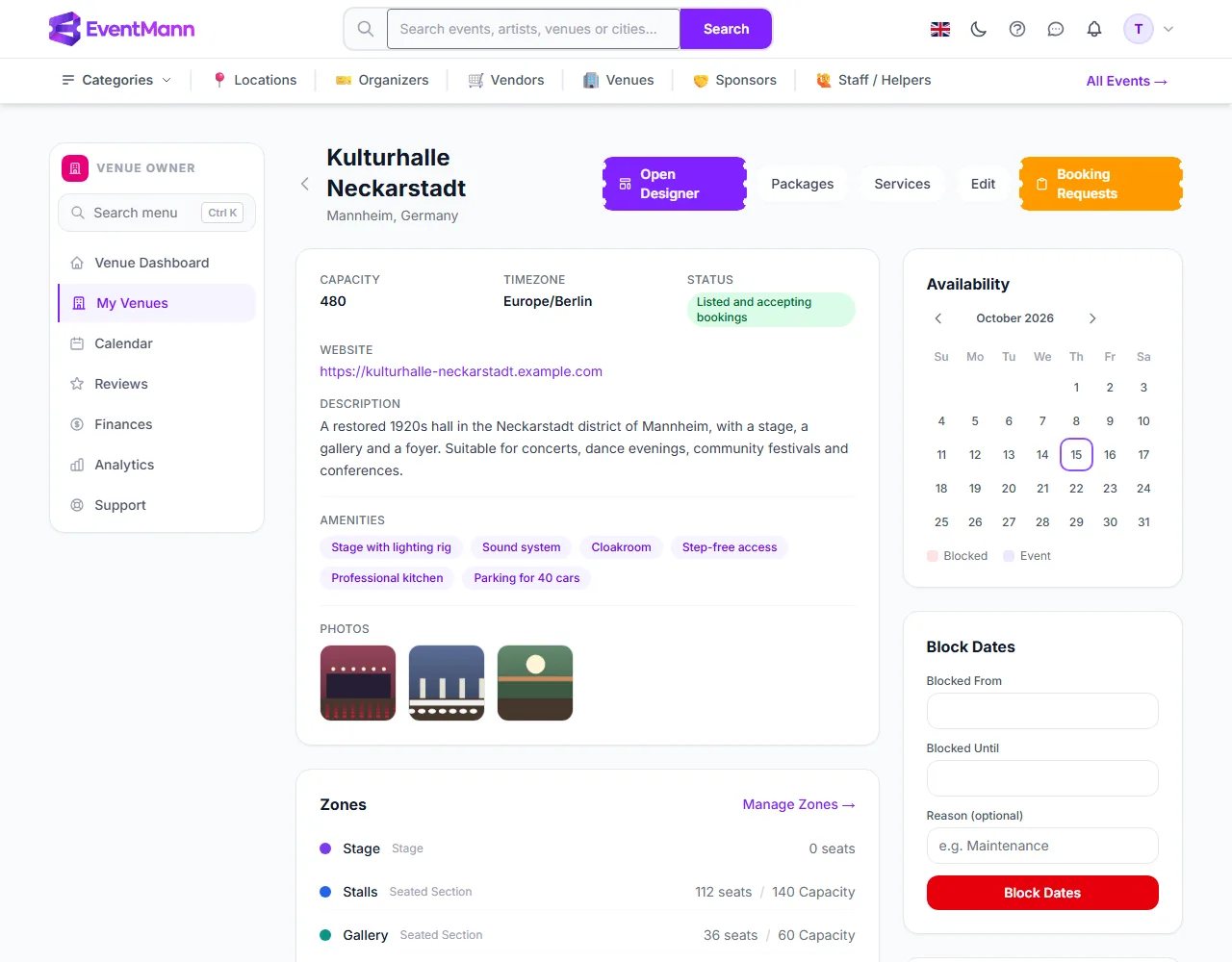
View opens the page of one venue. At the top are the buttons Open Designer ①, Packages ②, Services ③, Edit ④ and Booking Requests ⑤. Below are the capacity, time zone, status, website, description, amenities and photos, the Zones of your layout, and on the right the availability calendar with the form to block dates.
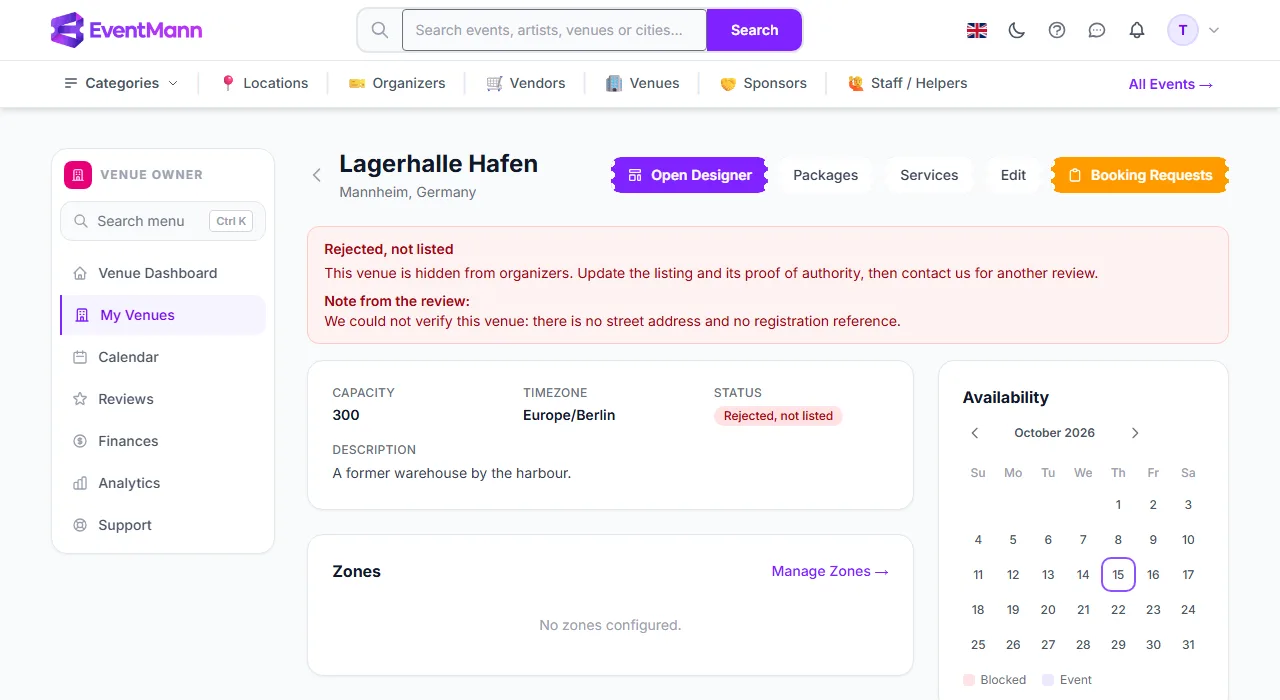
If the venue is not listed, a coloured notice ① above the details explains why and what to do. For a rejected venue it also prints the administrator’s note ②:
Delete a venue
- Click Delete in the row and confirm.
- The venue is removed together with its services, packages, zones and seats, availability blocks, reviews and booking requests. Events that were linked to it stay and simply lose the venue link.
Deleting cannot be undone. To take a venue off the market without losing anything, switch it off instead: untick Active under Edit.
Browse Venues
The second tab lists approved and active venues of other owners, with photo, capacity, amenities and a search box. It shows what organizers see when they look for a place. Booking a venue is something organizers do, so a venue-owner account sees the cards without a Book venue link.
Good to know
- You can own several venues. Every listing is reviewed on its own.
- The status badge combines two facts: the administrator’s decision (pending, approved, rejected) and your own Active switch. A rejected or pending venue is never shown to organizers, whatever the switch says.
- Changing a venue’s name changes its public web address, because the address is made from the name.
- Editing an approved venue does not send it back for review.
Troubleshooting
- The venue is not in the Browse tab or on the public site — it must be approved and active. See Approval and Your Public Listing.
- You deleted a venue by mistake — it cannot be restored. Create it again.
- You cannot find the Create button — it is at the top right of the page, next to the title.