




Staff Payroll
Help articles may not be fully accurate — they can lag behind the app due to frequent updates and automated translation. If in doubt, please contact support.
On this page
Staff Payroll turns the hours your staff worked into pay you owe them: it collects the checked-out shifts of a date range into a pay period, adds overtime, lets you add bonuses and deductions, and walks the period through a fixed review before you export it. Open the event, then Team & Partners → Manage Staff → the Payroll tab. It covers Event Staff only; volunteers are unpaid and never appear here. EventMann prepares the figures and the export; it does not transfer any money.
What you can do here
- Generate a payroll period for a date range from the shifts that were worked.
- Add a bonus or a deduction to one line while the period is still open.
- Lock, approve and mark as paid to record your review.
- Export the period as a CSV file.
- Delete a period that is still open or locked.
The pay periods
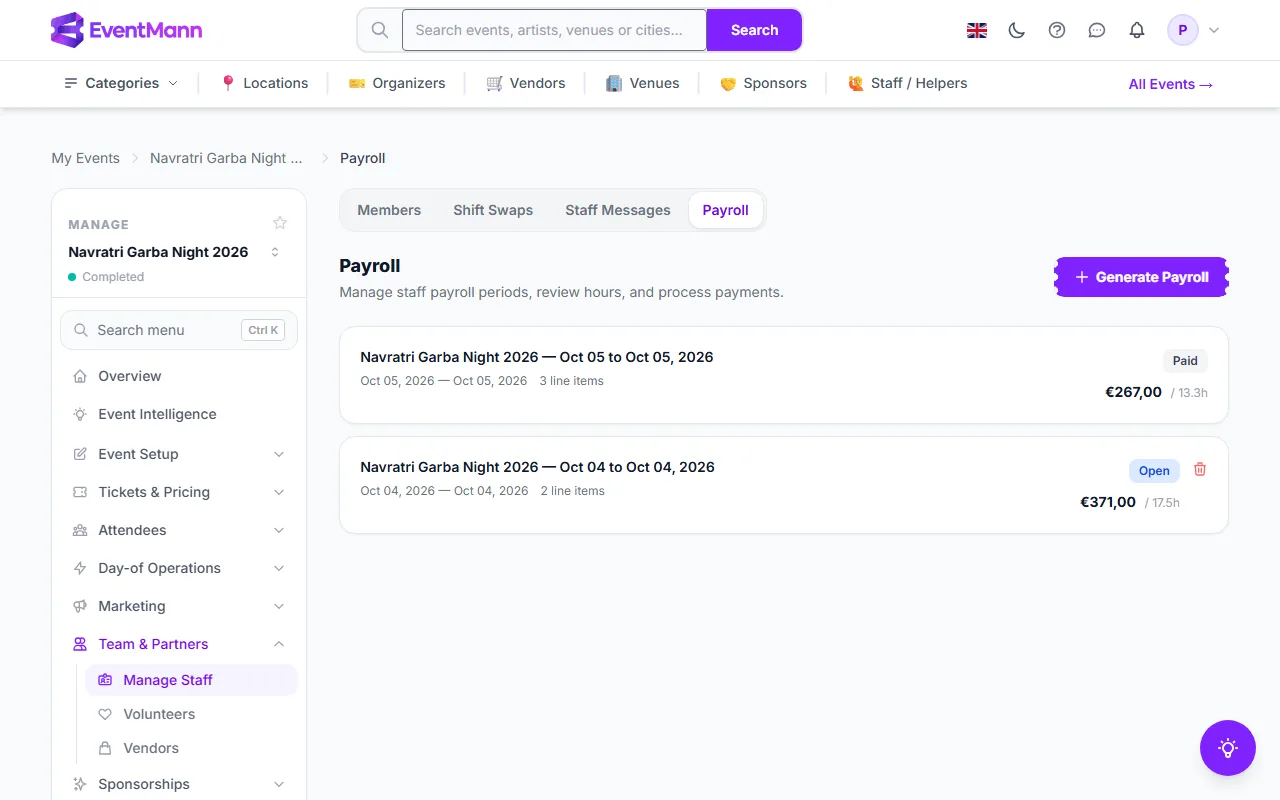
The Payroll tab lists the periods of the event, newest first, each with its dates, its number of line items, its status and its total pay and hours. Generate Payroll ① starts a new one. A period that is still Open ② can be edited and deleted; a Paid ③ one is closed for good.
Generate a period
- Click Generate Payroll.
- Choose Period From ① and Period To ②. The end may be the same day. The range may not overlap another period of the event.
- Set Overtime after (hours per shift) ③ — 8 unless you change it — and the Overtime multiplier ④ — 1.5 unless you change it (between 1 and 5).
- Click Generate Payroll ⑤.
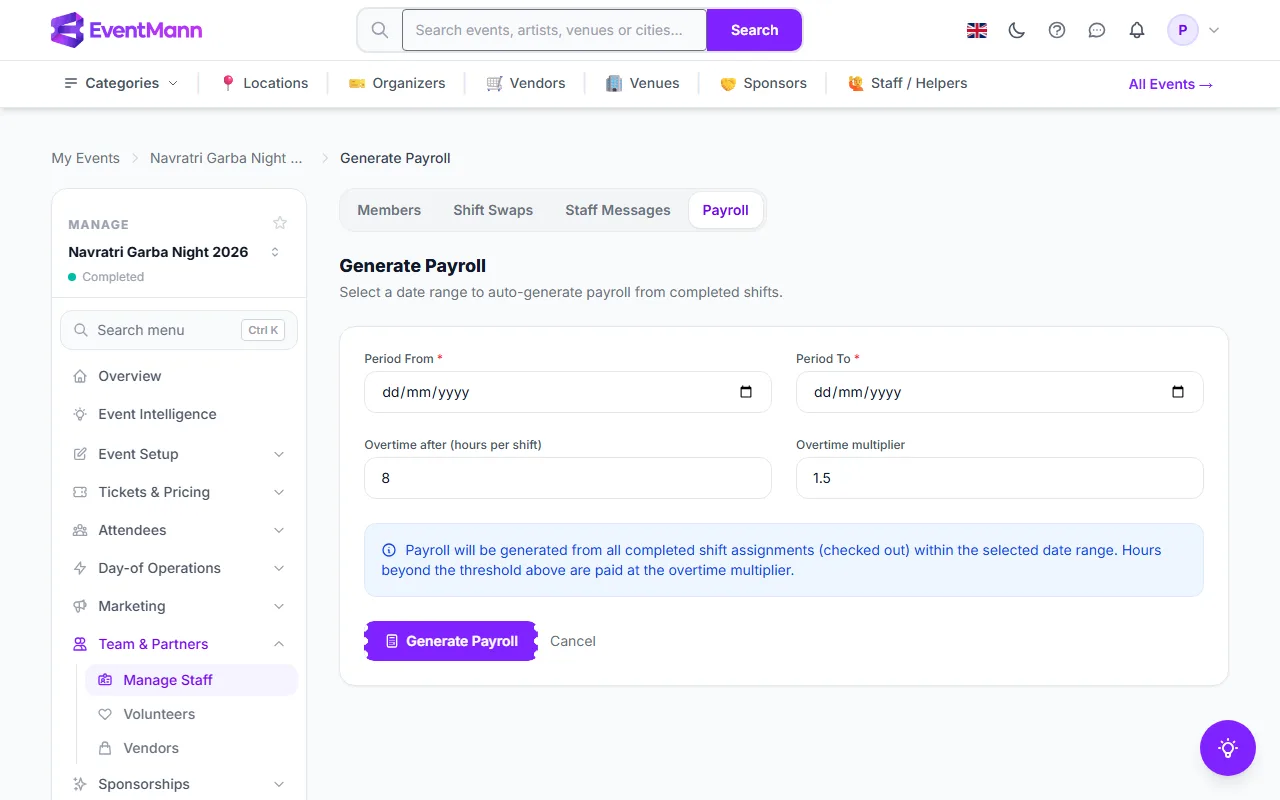
EventMann takes every shift of this event in the range where the staff member checked out and has recorded hours. If nobody qualifies, no period is created and you are told why. If some people were left out because they have no hourly rate, the new period opens with a warning naming them.
How pay is calculated
- Only completed shifts count. A shift that was never checked out is skipped, not paid as zero.
- People with no hourly rate are skipped too. Set a rate on their entry under Manage Staff first if you want to pay them.
- Within one shift, the hours up to the overtime threshold are paid at the agreed hourly rate, and the hours beyond it at the rate times the multiplier.
- Base pay and overtime pay add up to the line’s total. A bonus you add goes on top and a deduction comes off. The total of the period is the sum of its lines.
The hours on a line are what the staff member recorded when checking out, capped at the length of the shift plus a two-hour allowance, so a forgotten check-out cannot book days of pay. The amounts use the currency of the event.
Review a period
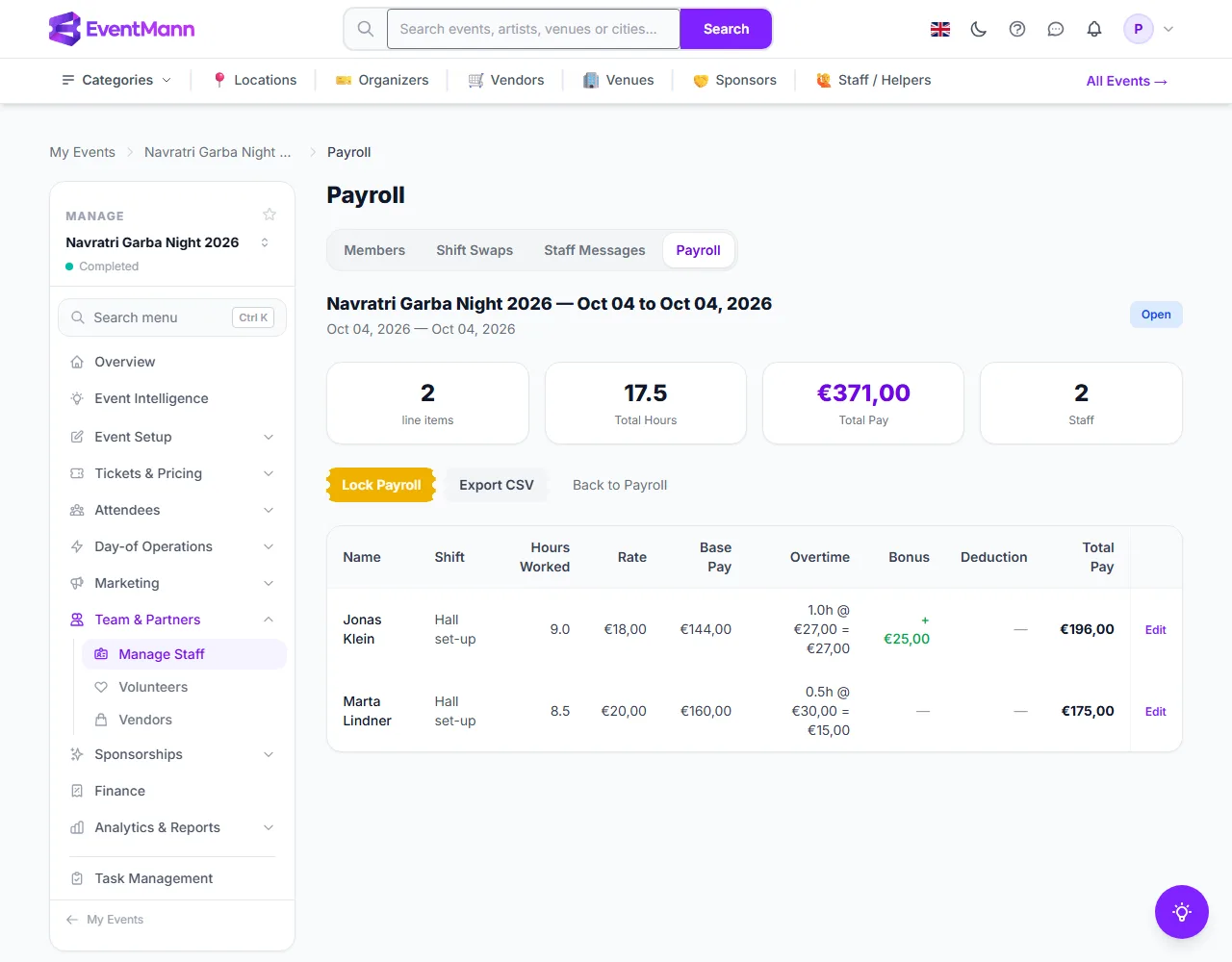
The period page shows four figures — the line items, the total hours, the total pay and the number of staff — and one table with a line per shift worked: the hours, the rate, the base pay, any overtime, the bonus, the deduction and the total. Open periods offer Lock Payroll ①, and every period offers Export CSV ②. The Overtime column ③ shows the hours beyond the threshold, their rate and the pay, and the Bonus column ④ shows what you added. Edit ⑤ on a line changes its bonus and deductions.
Add a bonus or a deduction
- In an open period, click Edit on the line.
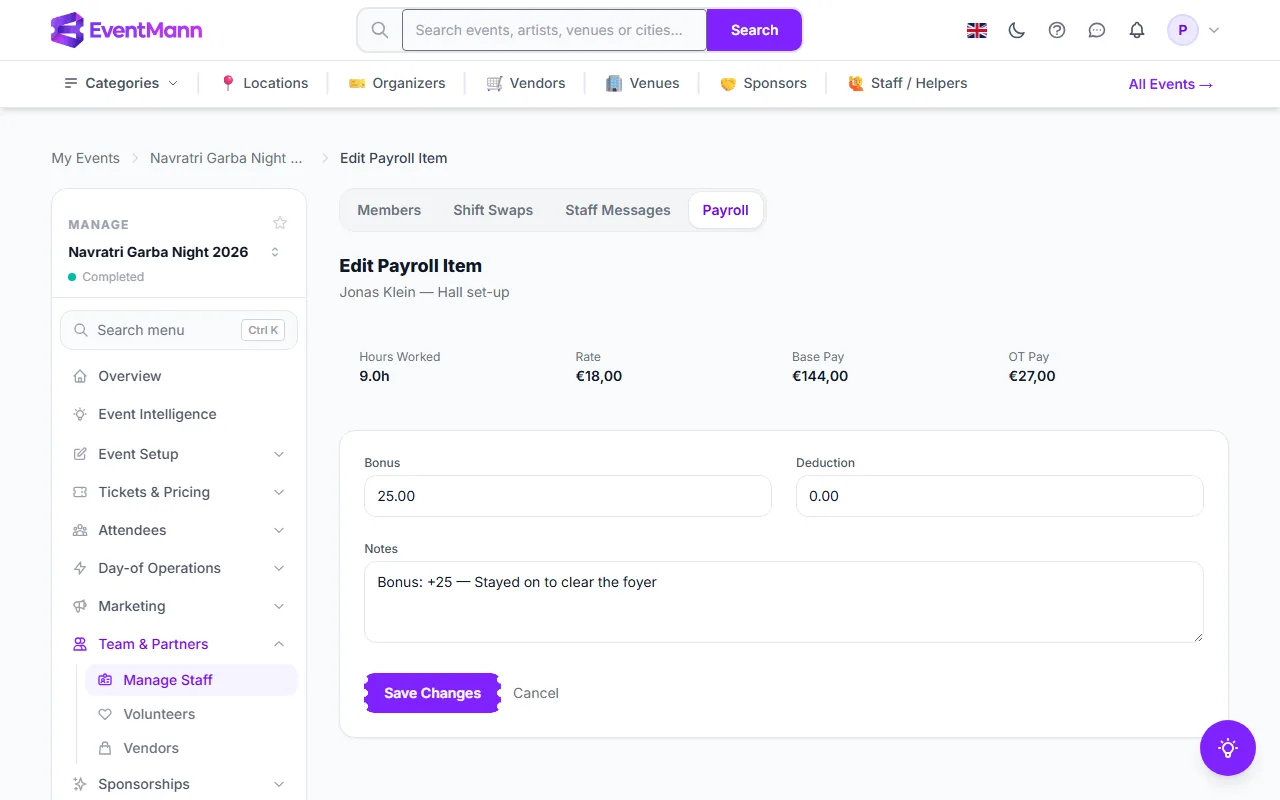
- Enter a Bonus ① or Deductions ② as a positive number.
- Add a short note ③ saying why.
- Save ④. The line and the period are recalculated.
Lock, approve and pay
A period moves in one direction only: Open → Locked → Approved → Paid.
- Lock Payroll recalculates the totals one last time and stops further edits.
- Approve Payroll (only on a locked period) records who approved it and when.
- Mark as Paid (only on an approved period) records the date. It is a record for your books: EventMann does not pay anybody, so make the transfers yourself first.
- Export CSV downloads the lines with the name, event, shift, date, hours, rate, base pay, overtime hours, overtime pay, bonus, deduction and total pay.
Settings explained
- Period From / Period To — the shift dates to include. A range overlapping an existing period of this event is refused.
- Overtime after (hours per shift) and Overtime multiplier — per run. The values you enter are kept on the lines, so changing them later does not affect an existing period.
- Bonus / Deductions — per line, editable only while the period is Open.
Good to know
- Deleting is possible only while a period is Open or Locked, and it removes all its lines; an Approved or Paid period cannot be deleted.
- Shifts worked before somebody was removed from the event stay payable.
- Payroll needs the permission to edit the event. A team member without it cannot see this tab.
Troubleshooting
- A staff member is missing from the period — they never checked out of the shift, the check-out recorded no hours, or they have no hourly rate. The warning after generating names the people skipped for a missing rate.
- “No completed shifts were found in this date range” — no shift in the range has been checked out yet. Pick another range, or ask staff to check out.
- “Nothing to pay: every completed shift in this range was worked by a team member with no hourly rate” — set their rates on the Manage Staff page and generate again.
- “A payroll period already exists for this date range” — another period of this event already covers part of the range.
- Edit is missing on a line — the period is no longer Open.
- Approve does nothing — a period has to be Locked first, and Approved before it can be marked Paid.