




Reschedule an event
Organizer Guide
3 min read
Help articles may not be fully accurate — they can lag behind the app due to frequent updates and automated translation. If in doubt, please contact support.
On this page
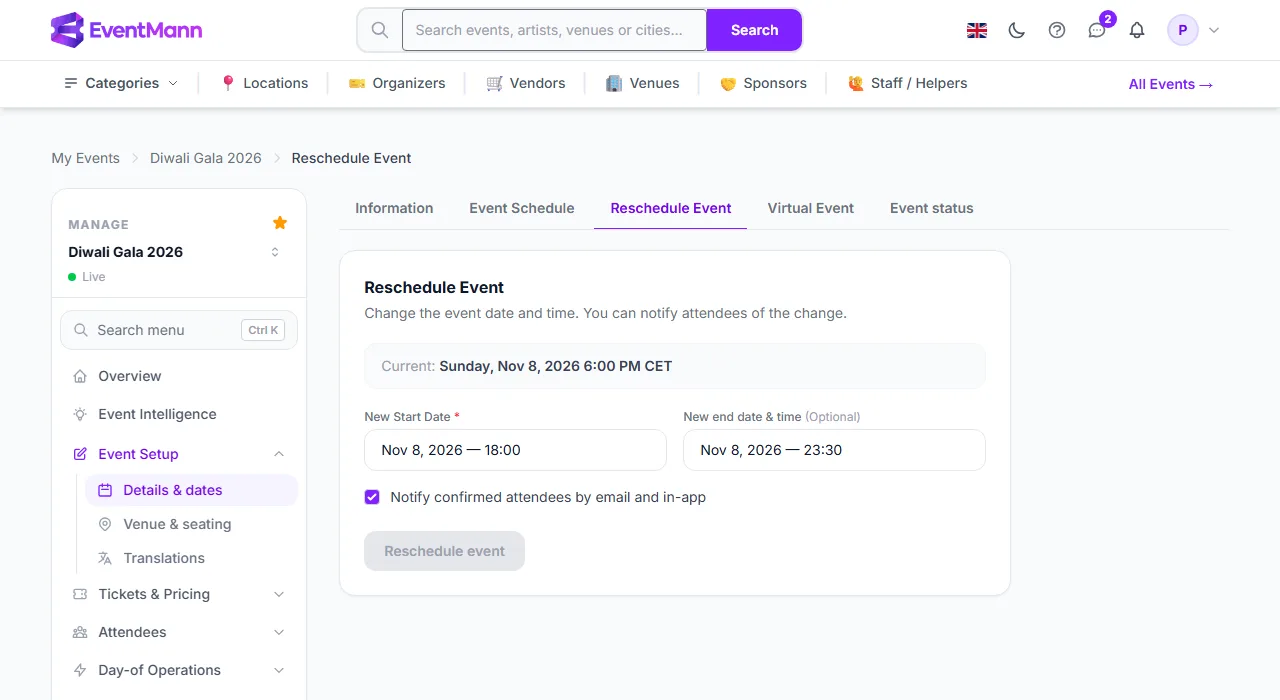
Reschedule Event moves an event to a new date and time and, where people already hold tickets, tells them. Open it from Manage → Event Setup → Details & dates → Reschedule Event.
What you can do here
- Check the line Current: at the top: the event’s present date and time in its own timezone.
- Enter the New Start Date ① (required) and the New end date & time ② (optional). Both are filled in with the present values, so change what you need; clear the end to keep the present end. A new end must be after the new start.
- Decide on Notify confirmed attendees by email and in-app ③. Tick it to send them the new date.
- Click Reschedule event ④. You land back on the Overview with a confirmation.
Who is told, and when notification is not optional
- The notice goes to the people with confirmed orders. It says the event moved and reminds them that they may be entitled to a refund.
- If any order on the event has been paid, the notice is sent even if you leave the box unticked. A change of date gives buyers a right to a refund under consumer law, and whether to tell them is not the organizer’s choice.
- For a free event with no payments the box is honoured: untick it to move the date quietly.
- If nobody has a confirmed order, there is no one to tell.
Safeguards
- If you save without changing anything the page says there was no change, and nothing is sent. Dates are compared to the minute.
- Once an event has paid orders its start cannot be moved to a date in the past; the form refuses it. An event that has already taken place keeps its date.
- Every change is recorded with the number of orders and the amount affected. A second change of the same paid event within 30 days alerts the platform team, and your next paid event may be reviewed before it can go live.
Good to know
- Changing the dates on Details & dates has the same effect on attendees as this page; this page is the focused version.
- The sessions of the agenda, the booking window and any go-live time are not moved. Check them after rescheduling.
- Attendees can see what changed after they booked, on their order page.
- To change the venue or switch between online and in person, use Details & dates; that also notifies ticket holders.
Troubleshooting
- “No change” message — the new start and end equal the current ones.
- “The start date cannot be moved into the past” — the event has paid orders; choose a future date, or cancel the event.
- Attendees were notified although I unticked the box — the event has paid orders, so the notice is mandatory.