




Virtual & Hybrid Events
Help articles may not be fully accurate — they can lag behind the app due to frequent updates and automated translation. If in doubt, please contact support.
On this page
An event can be held online, or in a hall with an online audience. You switch the event to online on Details & dates, and prepare the stream or meeting on the Virtual Event tab next to it (Manage → Event Setup → Details & dates → Virtual Event).
Online, hybrid and in-person
- Online only — on Details & dates switch Online Event on. The venue fields are hidden and a stream or meeting URL is required. The event page shows “Online Event” and “Link shared after registration” instead of an address.
- Hybrid — choose the event type Hybrid in the wizard. It asks for the physical venue and for a Stream / Meeting URL, which is required, and the event is flagged as online.
- In person — leave Online Event off. An in-person event has no join link; switching an event from online back to in-person clears the old link.
Switching between online and in-person, or changing the link, is a material change: ticket holders are notified like for a new date. See Details & dates.
Set up the stream
- Open the Virtual Event tab and pick the Platform ②: Zoom, Microsoft Teams, YouTube Live, Vimeo or Custom / Other.
- Fill in what applies: Meeting / Join URL ③, Meeting ID, Meeting Password, Stream Key and Embed URL. None is mandatory, but attendees need at least a join URL or an embed URL to get in.
- Optionally set Max Virtual Attendees ④ — a ceiling on viewers at the same moment. Blank means no limit.
- Click Save Configuration.
- When the session starts, click Go Live ① at the top; click End Stream when it is over. The card shows the status (Not Started, Live, Ended) with the start time, end time and duration.
- Afterwards add a Recording URL to offer a replay.
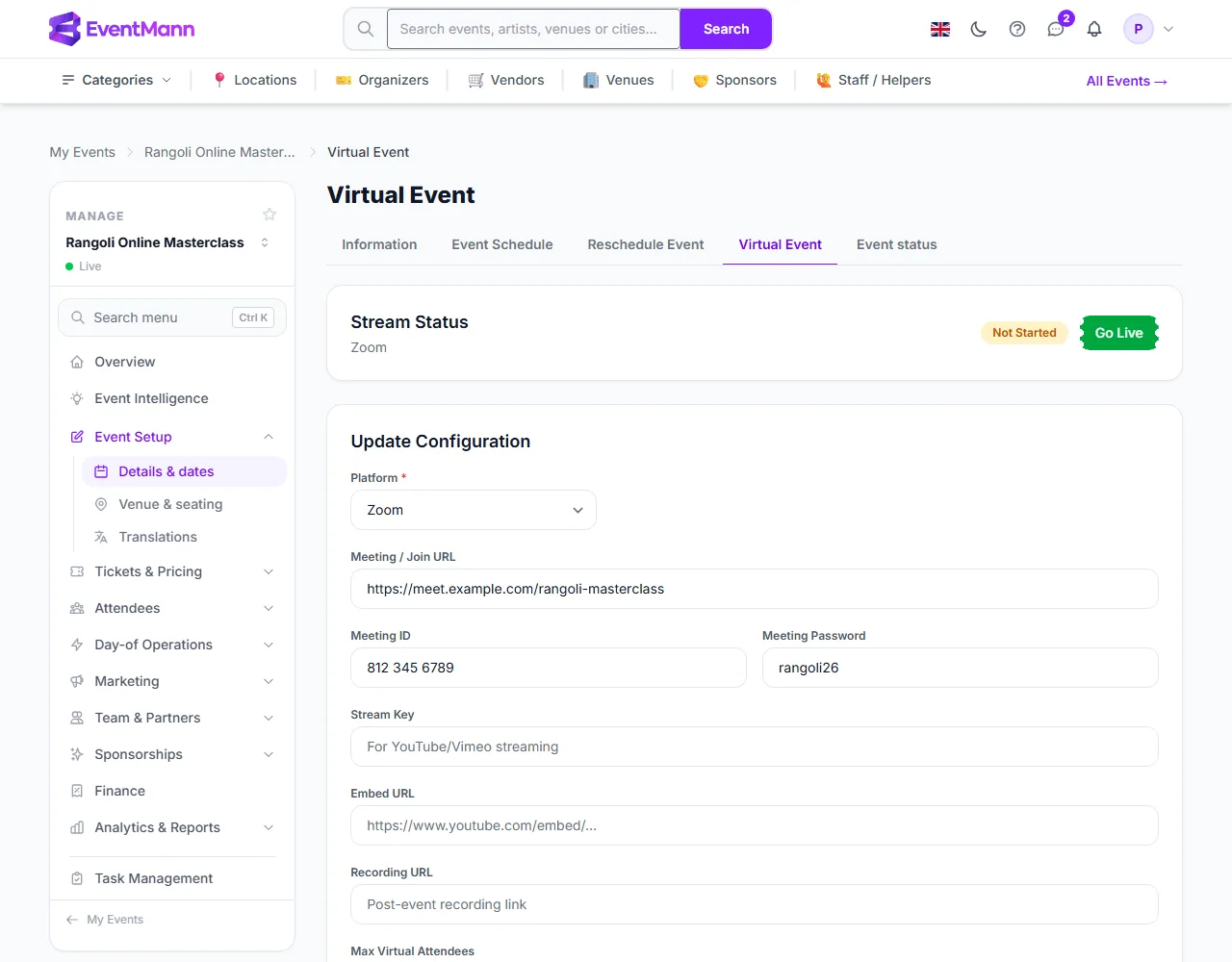
Settings explained
- Meeting / Join URL — the direct link, for example a Zoom link. For YouTube and Vimeo it is used when no Embed URL is set.
- Embed URL — an embeddable player link, shown directly on the viewing page (YouTube and Vimeo).
- Meeting ID / Password — for platforms that need them. Stream Key is for your own streaming software and is kept in the configuration.
- Recording URL — once set, confirmed ticket holders can watch the replay.
- Max Virtual Attendees — when this many people are watching, the next one is told that the limit has been reached and can try again in a few minutes. People who manage the event are never turned away.
What attendees see
- The viewing page is signed-in only and open to people with a confirmed order for the event and to your team. It shows the player (YouTube and Vimeo) or a button to open the meeting (Zoom and Teams), and a note that the stream has not started until you click Go Live.
- Joining and leaving is recorded (with the device type). It drives the live viewer count on the viewing page and the attendee limit. There is no attendance report screen yet.
- After the event, if you set a Recording URL, a replay is offered.
The viewing page address is the event’s address followed by /virtual, using the event’s number: https://<your site>/events/<number>/virtual, where the number is the one in your own Manage page addresses. EventMann does not add this link to tickets or reminder emails by itself, so send it to your attendees yourself, for example in an announcement or a custom reminder.
Good to know
- The status reflects what you clicked, not what is happening on Zoom or YouTube. Forgetting End Stream leaves the event marked Live.
- The meeting link is not published in the event’s page source or in calendar files; those point to the event page.
- Configuring a stream does not need a special event type, so an in-person event can have an online audience too.
Troubleshooting
- An attendee gets “forbidden” opening the page — they are not signed in, or their order is not confirmed yet (waiting for payment or approval).
- “This virtual event has reached its attendee limit” — raise or clear Max Virtual Attendees, or ask the person to retry shortly.
- The recording link gives an error — no Recording URL has been saved, or the order is not confirmed.