




Ticket Details
Help articles may not be fully accurate — they can lag behind the app due to frequent updates and automated translation. If in doubt, please contact support.
On this page
- 1. What you can do here
- 2. What is on the ticket
- 3. Good to know
- 4. Troubleshooting
- 5. Related
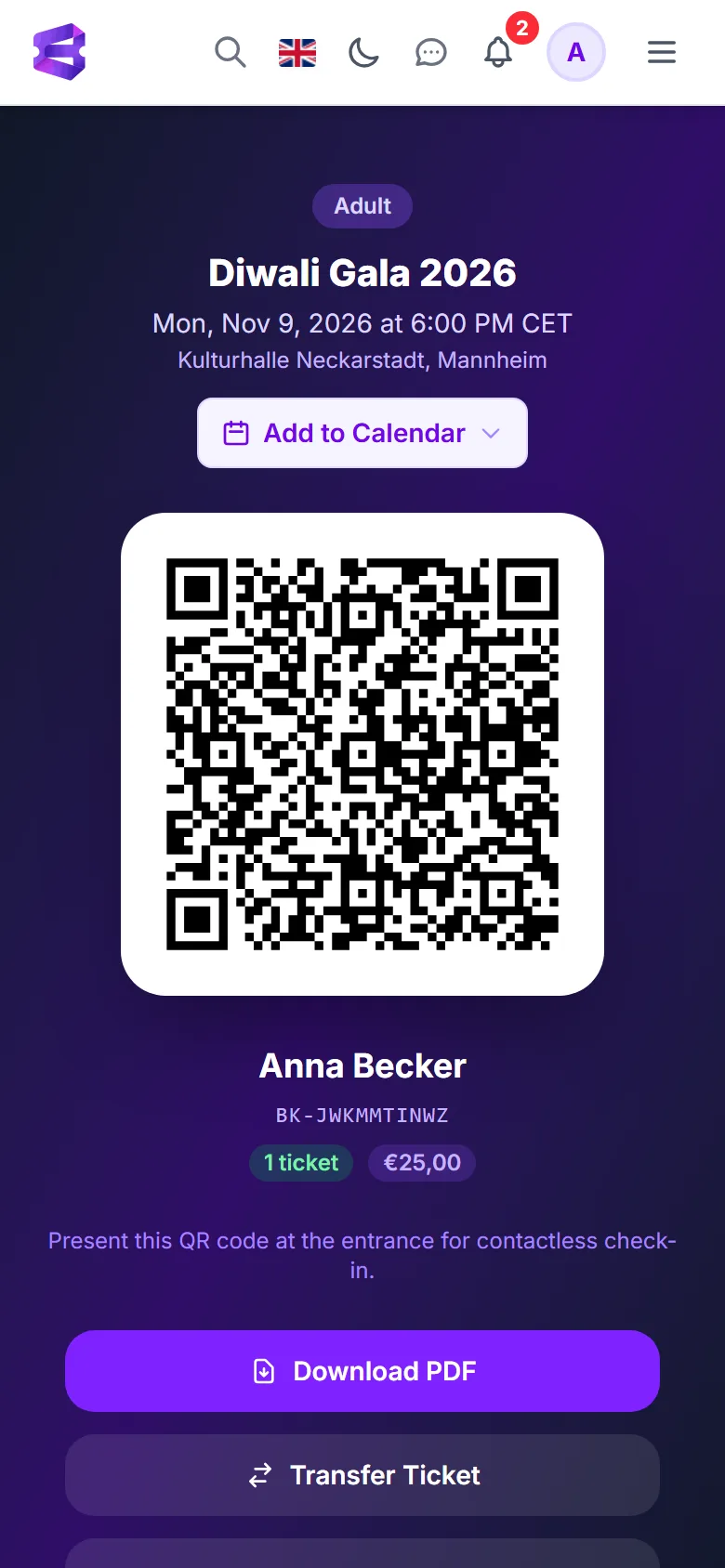
Every ticket has its own page. It shows the ticket as the organizer designed it, with a QR code that is scanned at the door, and buttons to download, print or pass it on. You get there with the ticket icon on an order in My Tickets, with View Ticket on the confirmation page, or with the link in your confirmation email.
What you can do here
- Show the QR code — on a phone, open the page and hold the screen towards the scanner. The page tells you to present the QR code at the entrance. Each code is unique to one ticket. Turn the screen brightness up if the scanner has trouble.
- Download the PDF ① — the same ticket you received by email, ready to save or print. If the organizer updates the ticket design, downloading again gives you the current design.
- Print / Save PDF — on a computer, a second button opens the PDF in the browser so that you can print it.
- Transfer the ticket ② — Transfer Ticket sends it to someone else by email, where the organizer allows it. See How to Transfer Tickets.
What is on the ticket
The event title, date, time and venue, the ticket type, the name of the attendee, the price, your booking reference and the QR code. Each organizer designs the look, so an event may also show the organizer’s logo, sponsor and partner logos and the seat for a seated event. The ticket PDF is printed in the language of your account.
Good to know
- Treat the ticket link like cash. Anyone who has the link can open the page and see the QR code. That is what lets a friend hold your phone at the door, but do not post the link or a screenshot of the code anywhere public. The first scan admits the holder; a second scan of the same code is refused.
- The page is not shown for an order that is not confirmed, or for a ticket the organizer cancelled on its own.
- When you transfer a ticket and the recipient accepts, it gets a new code. The old link and QR stop working for you and the new holder opens it from their own account.
- A ticket that was already scanned cannot be transferred or cancelled any more.
- The PDF and the page always show the same ticket, and the PDF attached to your email matches the download.
Troubleshooting
- The page says the ticket cannot be found — the order is not confirmed any more (cancelled or refunded), or the ticket was transferred away, or the link was copied incorrectly.
- The QR code will not load — check your connection or use Download PDF. It is wise to save the PDF before you leave home in case there is no signal at the venue.
- I do not see Transfer Ticket — see How to Transfer Tickets for the conditions.
- The name on the ticket is wrong — use Edit attendee details on the order in My Tickets, if the organizer allows edits and the event has not started.