




Your public organizer page and followers
Help articles may not be fully accurate — they can lag behind the app due to frequent updates and automated translation. If in doubt, please contact support.
On this page
- 1. Edit your public profile
- 2. Followers
- 3. Good to know
- 4. Troubleshooting
- 5. Related
Every organizer has a public page that lists their upcoming events, a short introduction and links. People find it from your event pages, from the Organizers directory, and from your own short link. You edit what it says under Settings → Public Profile.
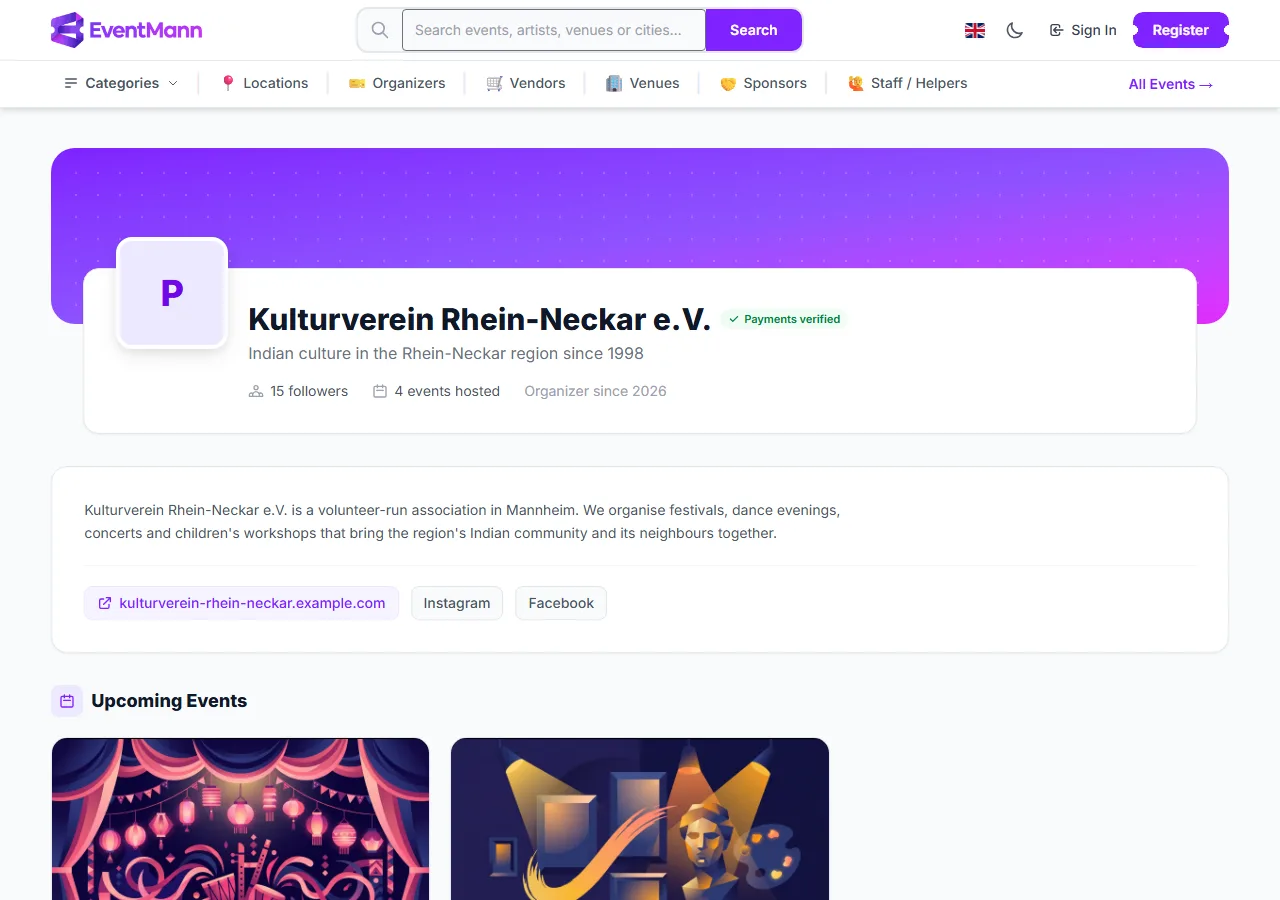
- The follower count ① shows how many people follow you.
- The Payments verified badge ② appears once you have finished Stripe Connect and can receive payments. You cannot set it by hand.
- The line with events hosted ③ counts your live and completed public events. Drafts are never counted.
Below the introduction the page shows your Upcoming Events (public, live and not yet over, nine to a page), then up to six Past Events, so a visitor can see that your events really happen. If you sell memberships and can take payments, your plans appear too. Private or unlisted events never show on this page.
Edit your public profile
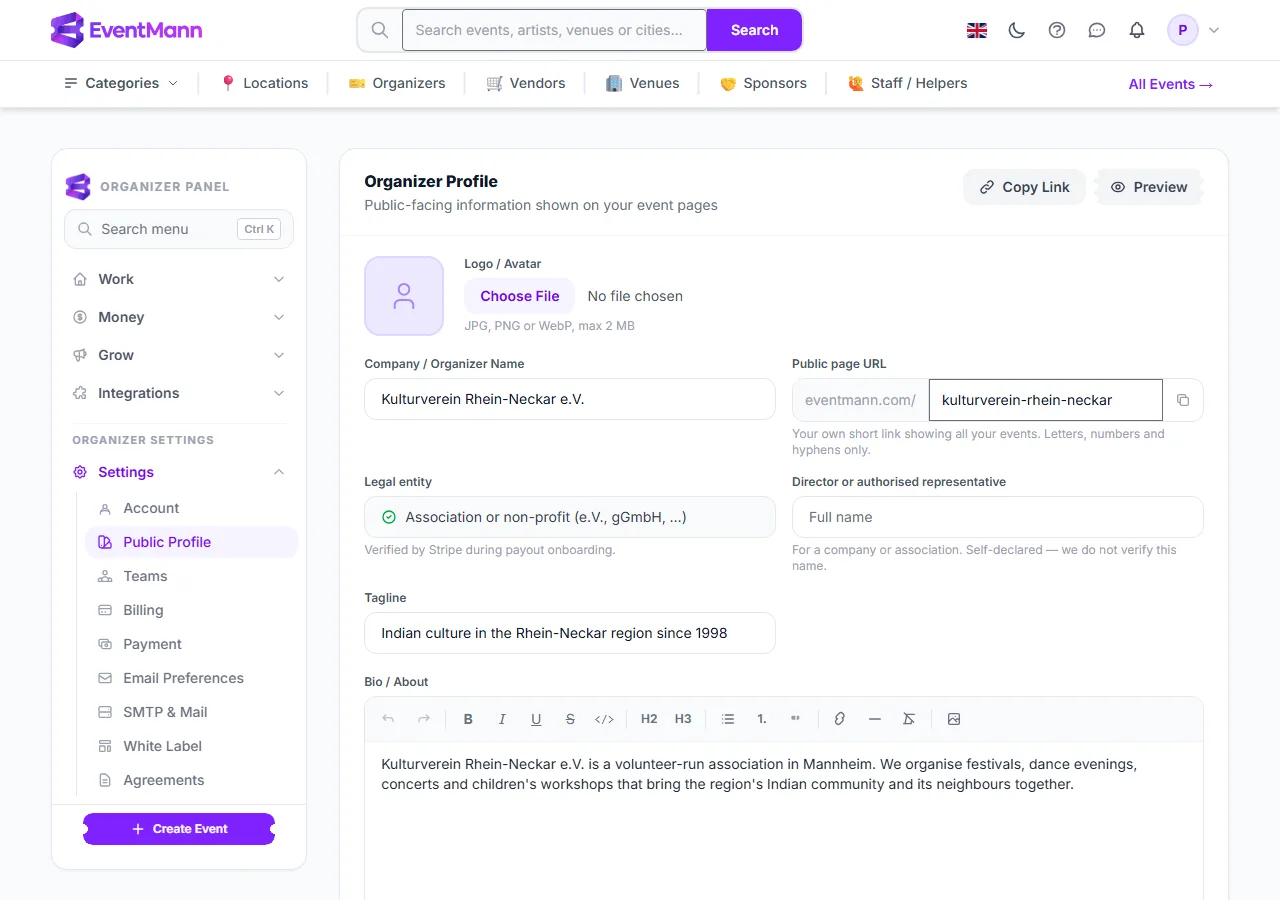
- Open Settings → Public Profile ①.
- Set the Company / Organizer Name ②. This is the name buyers see on tickets, invoices and your public page. Without it, your personal account name is shown.
- Choose a Public page URL ③ (your handle): 3 to 50 letters, digits and hyphens, not starting or ending with a hyphen. Your page is then
eventmann.com/your-handle. A handle that is taken, or a reserved word, is refused. - Write a short Tagline ④ (up to 160 characters).
- Write your Bio / About ⑤ (formatted text, up to 5,000 characters).
- Add your website and Facebook, X or Instagram addresses, and upload a Logo / Avatar (JPG, PNG or WebP, up to 2 MB; you can crop it as you upload).
- Click Save Profile.
Followers
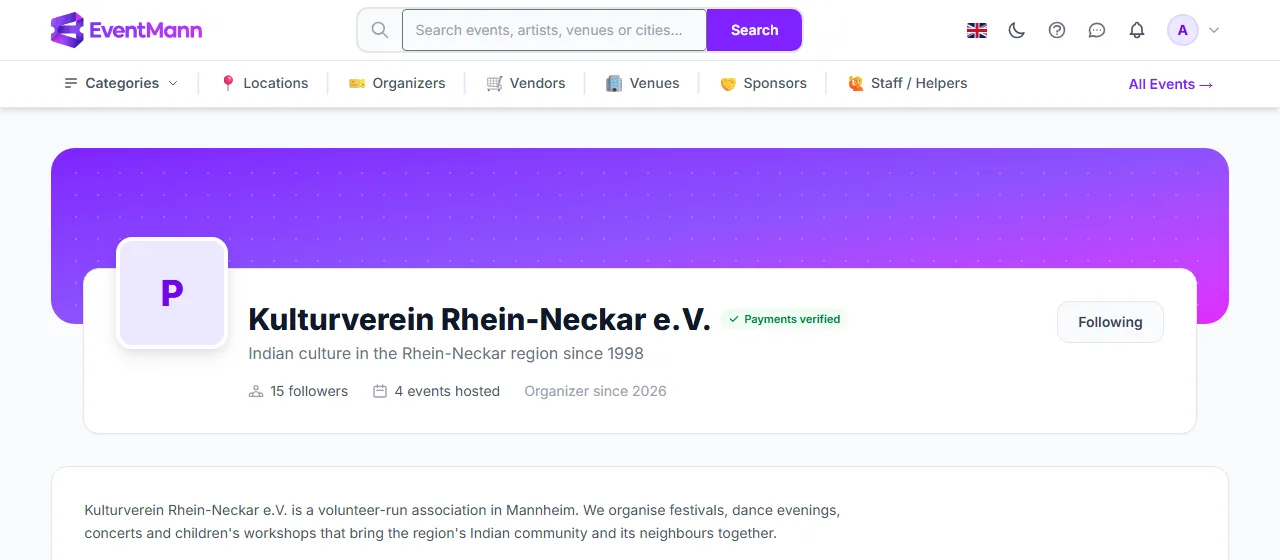
People who are signed in see a Follow button ① on your page (and on your events). Following is one click and can be undone with Following.
What following does, exactly:
- It adds the person to your public follower count.
- It adds you to the Following list in that person’s own attendee account.
- It does not send them emails or notifications about your events, and EventMann does not show you a list of your followers. To reach people, use email campaigns to your customers, or share your page link.
- You cannot follow yourself.
Good to know
- Your page address
/organizers/<number>always works, with or without a handle. The handle is the friendly alternative. - With white label switched on, your own branding applies to your event pages and booking flow; the organizer page is EventMann’s standard profile.
- Your personal email address is never shown on your public pages. Visitors who want to ask you something use the contact form on your event pages, and you answer from Enquiries.
Troubleshooting
- My handle is rejected — it is already used, it is a reserved word, or it has characters other than letters, digits and hyphens.
- The badge is missing — finish Stripe Connect under Money → Stripe Connect.
- An event is not listed — only live, public, upcoming events appear. Check its status and visibility under Event Information.
- The follower count went down — someone clicked Following to unfollow.