




Check-in & Check-out
Help articles may not be fully accurate — they can lag behind the app due to frequent updates and automated translation. If in doubt, please contact support.
On this page
On your shift, the Check In and Check Out buttons on My Shifts (sidebar → My Shifts) are how EventMann records the hours you worked. They are the only source for the hours that later turn into pay.
How to check in and out
- Open My Shifts and find your shift. When you are working, press Check In ② — the green button.
- The card now shows Checked In and the time. The button turns into an orange Check Out ①.
- When you finish, press Check Out ①. The card shows Done ⑥ with the hours worked, for example Done (4.50h). There is nothing left to press.
When the button is there
- Clock-in opens two hours before the shift starts and stays open until four hours after it ends. Before that the card shows a grey line such as Clock-in opens Sun 8 Nov, 14:30. ④; after it, Clock-in for this shift has closed.
- You must still be approved for the event. If the organizer has taken you off the team, the grey line says so.
- You can only check out after you checked in, and only once.
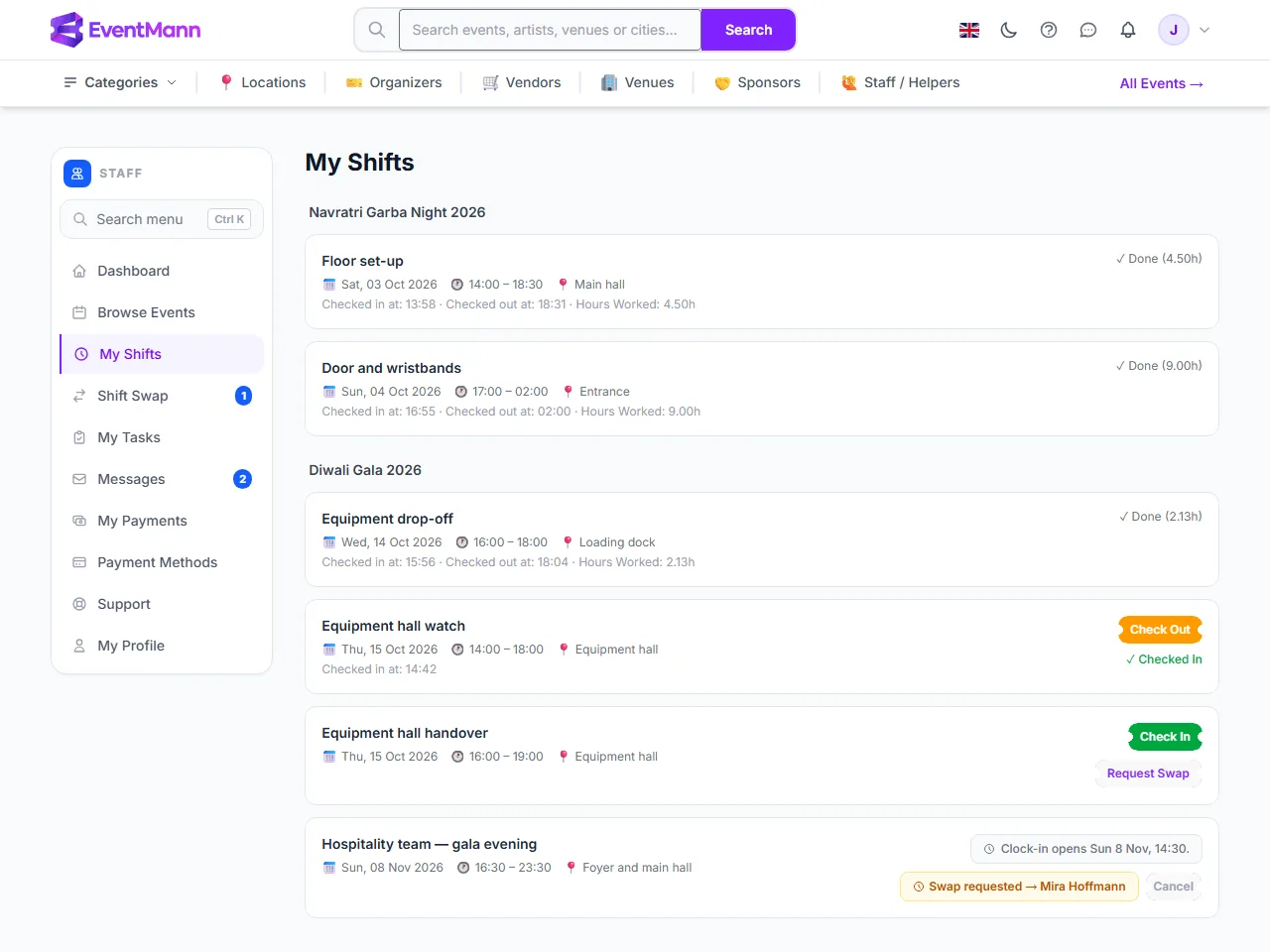
How the hours are worked out
- Hours are the time between the two taps, in hours with two decimals.
- Paid hours are capped at the length of the scheduled shift plus two hours. If you forget to check out on Friday and do it on Monday, you are credited the shift plus the two-hour grace, not the days in between.
- There is no break timer, no location check and no QR code. If you check in early or leave late, that time counts, up to the cap.
On your phone
The same page works on a phone. Open it from the sidebar menu (the Menu bar at the top of the page) and tap the button: Check Out ① for the shift in progress, Check In ② for the next one, and a grey note ③ when clock-in has not opened yet.
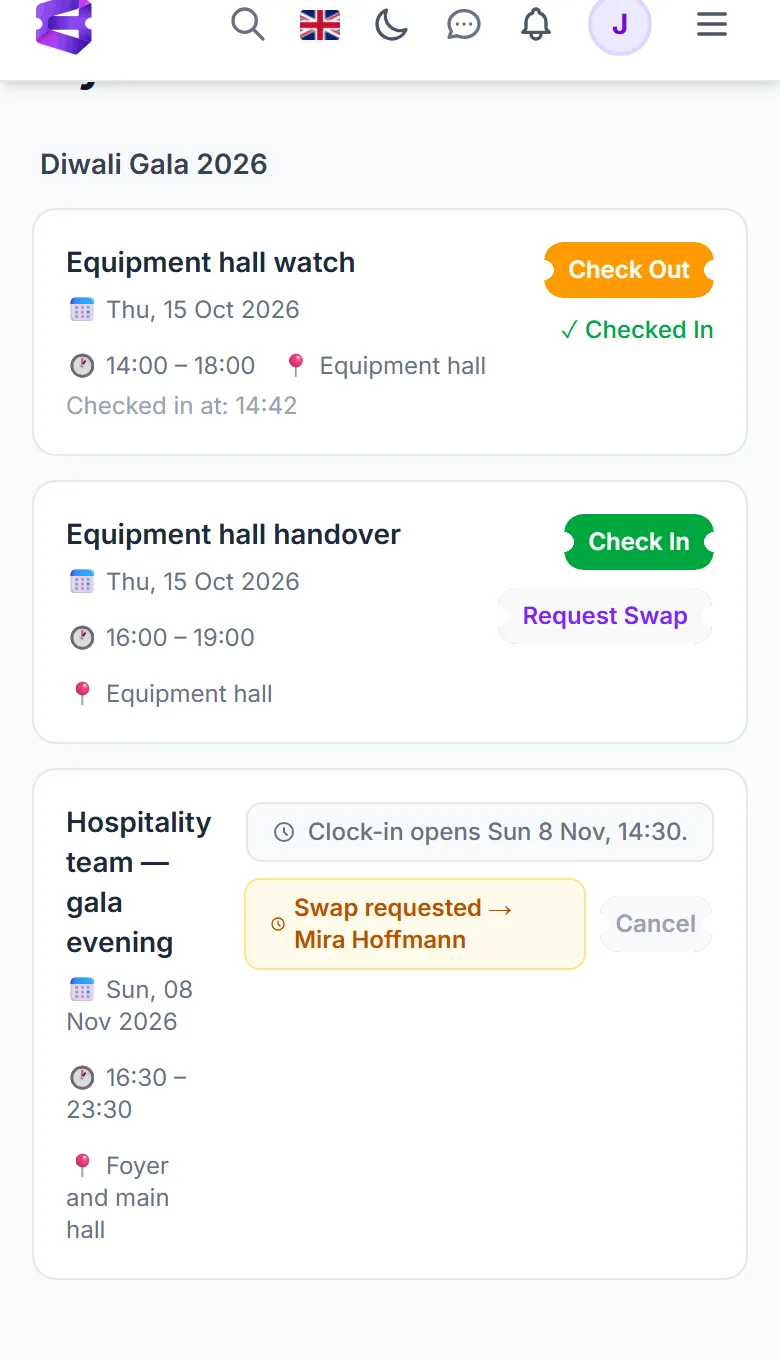
Good to know
- A shift appears here only after an organizer assigned you to it. Approved for an event is not the same as being on a shift.
- The organizer can also check you in from their staff page, with the same time window.
- You cannot change a check-in or check-out afterwards. If something went wrong, ask the organizer.
- Whether hours turn into pay depends on the organizer: they need to have set your hourly rate and to run payroll. See Understanding Your Pay.
If you forget to check out
Nothing happens automatically: the shift stays checked in, never checked out, and no hours are calculated for it because hours are only worked out when you press Check Out. Payroll skips a shift that has no hours. Message the organizer through Messages as soon as you notice, so it can be sorted out before payroll is generated.
Troubleshooting
- There is no Check In button. Read the grey line in its place — it names the time clock-in opens, says it closed, or says you are no longer on the team. If the card shows Check Out or Done you already checked in.
- My hours look lower than the shift. Hours run from your check-in to your check-out, not from the scheduled times, and are capped at the shift length plus two hours.
- The shift never reached My Payments. If it shows no check-out time it has no hours, and payroll skips it.