




My Profile
General
3 min read
Help articles may not be fully accurate — they can lag behind the app due to frequent updates and automated translation. If in doubt, please contact support.
On this page
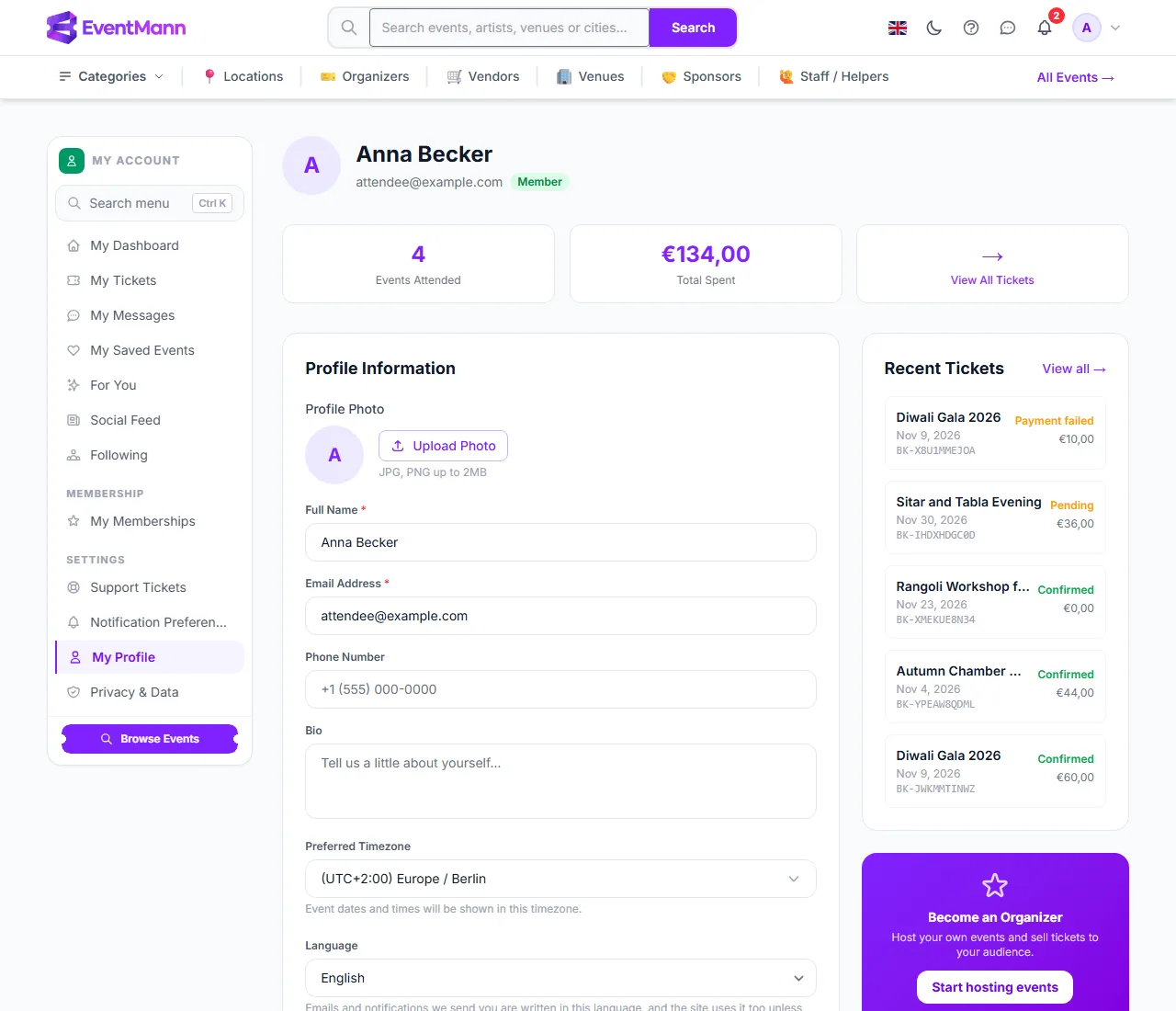
Every account on EventMann, whatever roles it holds, keeps the same core details on one page: My Profile. Open it from your avatar menu in the top right corner, or from My Profile in the sidebar of your portal. This article covers what lives there for everybody. Attendee-specific details are in Account Settings & Password.
What you can do here
- Profile photo ① — upload a JPG or PNG up to 2 MB, or remove your photo to go back to your initial. The old file is deleted when you replace or remove it; there is no undo beyond uploading again.
- Full Name — required. It appears on your bookings and, for organizers, may appear with the events you publish.
- Email Address ② — required. Changing it makes your address unverified until you confirm the new one with the emailed link (valid 72 hours); messages and features that need a verified address pause until then.
- Phone Number and Bio — optional. For organizer accounts the bio may be shown publicly.
- Preferred Timezone — the zone in which event times are shown to you. It never changes an event’s actual schedule, which always runs on the venue’s own time.
- Language ③ — the language for the site, the emails and notifications we send you and your ticket PDFs. The flag in the top bar changes the language for the page you are on without saving anything.
- Save Changes ④ stores the form. The light/dark switch (the moon icon in the top bar) is separate: it saves at once.
Below the form
- Change Password, Set up Two-Factor Authentication and the Danger Zone (delete account). See Account Security & Two-Factor Authentication and Privacy & Data.
- What else the page shows depends on your role: an attendee sees a ticket count, the total spent and recent tickets; an organizer sees event totals; an admin sees platform figures.
- A card invites attendees to become an organizer. Its Start hosting events button turns your account into an organizer account at once, with no approval, as soon as your email address is verified (see Getting Started).
Other places that belong to your account
- Notification Preferences — in your avatar menu. See Notification Preferences.
- Active Sessions — the browsers signed in to your account; linked from the Sign-in & access card on your profile page. See Account Security.
- API Tokens — personal tokens for scripts or the scanner app, in the same card. A token is shown once when you create it; copy it then.
- Accessibility Settings — contrast, text size and motion, also in that card. See Accessibility.
- Role switcher — if you hold more than one role, switch from the avatar menu.
Good to know
- Your account has one name and one email for every role.
- Social sign-in accounts (Google, Facebook, LinkedIn) have the same profile page. Their password form does not ask for a current password.
Troubleshooting
- I changed my email and stopped getting some mail — confirm the new address with the verification email.
- My timezone change did not move an event — expected: it only changes how times are shown to you.
- The photo will not upload — use a JPG or PNG under 2 MB.
- I cannot find Active sessions or API tokens — they are not in the menus; open the addresses above.