




SEO Settings
Organizer Guide
2 min read
Help articles may not be fully accurate — they can lag behind the app due to frequent updates and automated translation. If in doubt, please contact support.
On this page
- 1. Good to know
- 2. Troubleshooting
- 3. Related
SEO settings control how one event appears in search results and when it is shared in a messaging app or on social media. Open them from Manage → Marketing → Promotion; SEO Settings is the first tab of that page. Team members need the SEO permission.
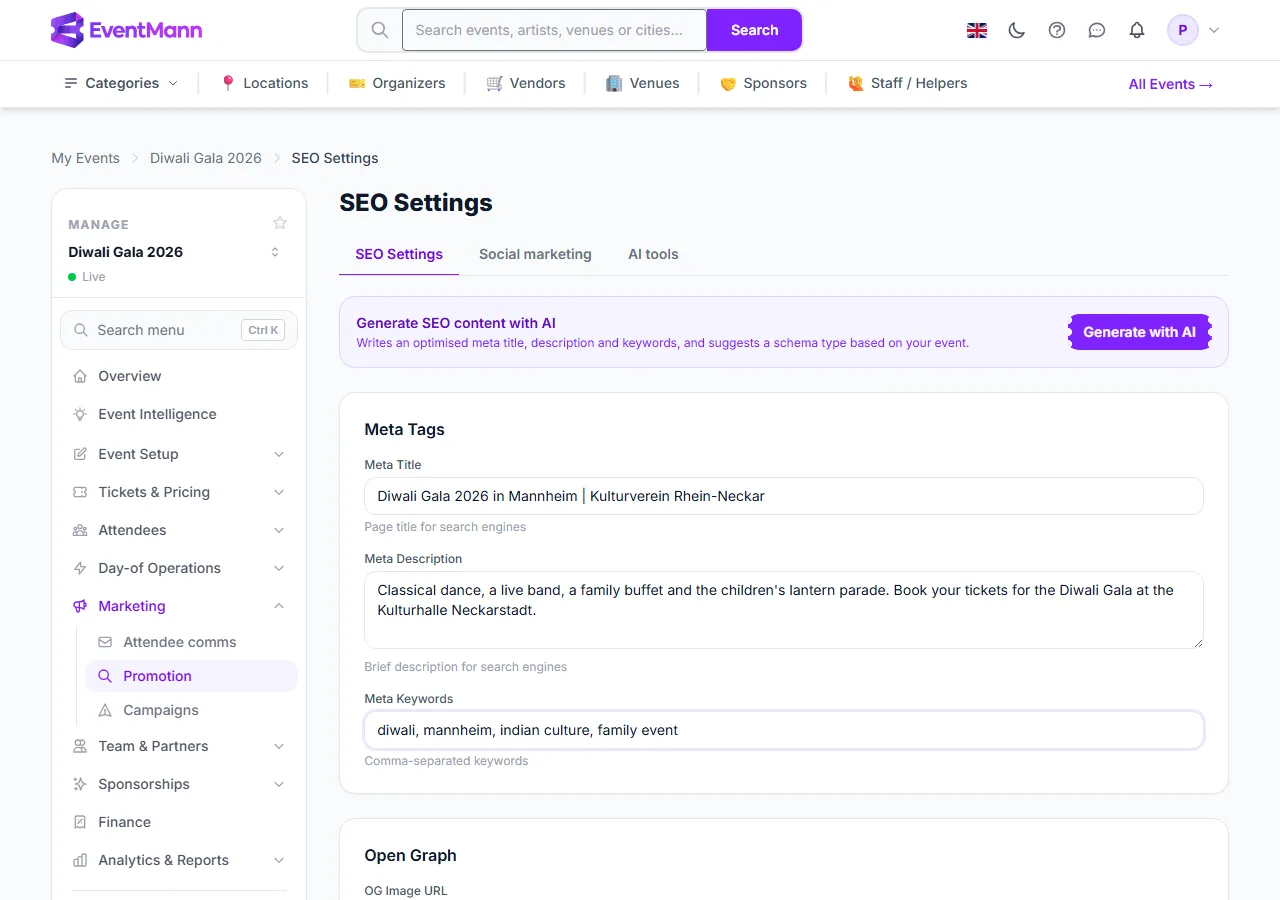
- Open Marketing → Promotion ① in the event sidebar.
- Write a Meta Title ② — the title search engines show for the event.
- Write a Meta Description ③ — the short text under it.
- Add Meta Keywords ④ if you like (comma separated).
- Or click Generate with AI ⑤ to draft a title, description, keywords and a schema type from the event, then review them. The button only appears when AI is on for your account (AI-Powered Tools).
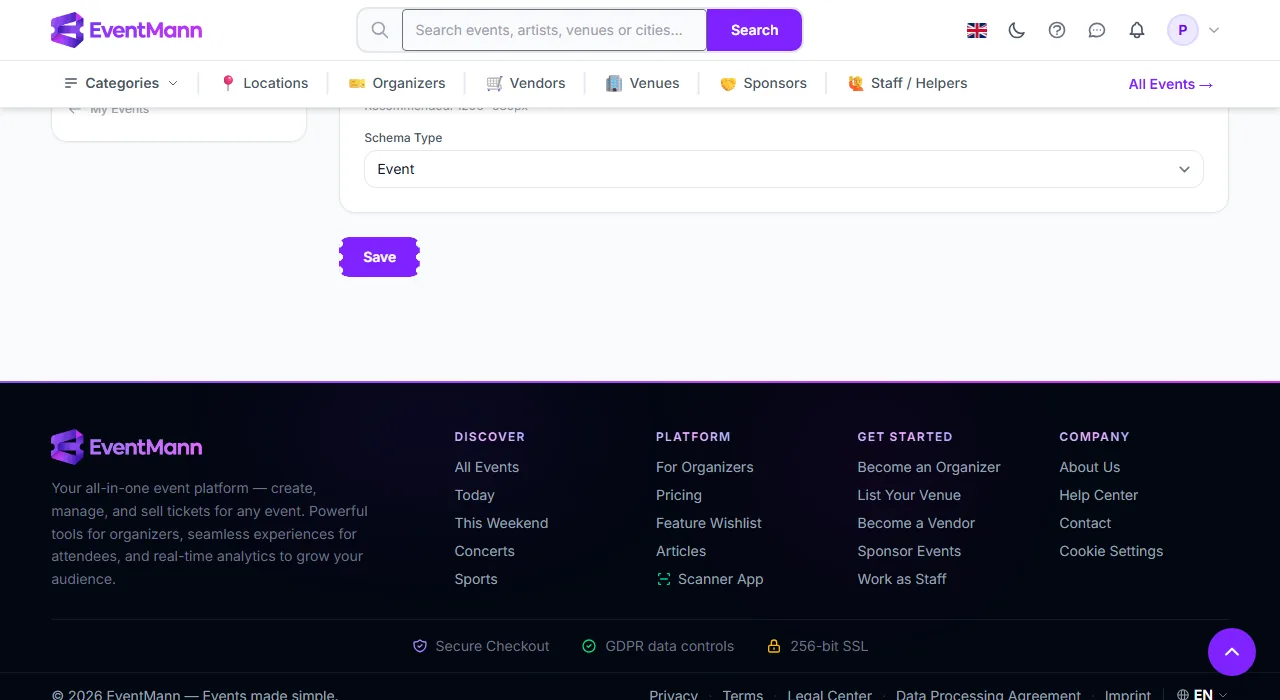
- Under Open Graph, paste the address of an image in OG Image URL ①. It is the picture shown when the event is shared. It must be a direct link to an image that is already online; it is not an upload.
- Choose the Schema Type ② that fits: Event, Music, Sports, Education, Food, Business or Social event.
- Click Save.
Good to know
- Leave a field blank and the page falls back sensibly: the title to the event title, the description to the start of the event description, the share image to the event’s own cover image or the generated cover for its category.
- Ticket prices, availability and, once the event has reviews, a star rating are added to the page’s structured data for you. You do not enter them here.
- Changes are served at once. Search engines and messaging apps keep their own copy for a while, so an old title or picture can linger.
- These fields apply to the event page. For everything EventMann does automatically, see Search Visibility on EventMann.
Troubleshooting
- Google still shows my old title — search engines re-read pages on their own schedule. The new text is already live.
- The shared link shows the wrong image — the sharing app cached the preview. Use that app’s link debugger or wait.
- The Generate with AI button is missing — AI is off for your account. The fields still work by hand.
- The image is not accepted — the field takes a web address (
https://...), not a file.