




Sponsor Dashboard
Sponsor Guide
3 min read
Help articles may not be fully accurate — they can lag behind the app due to frequent updates and automated translation. If in doubt, please contact support.
On this page
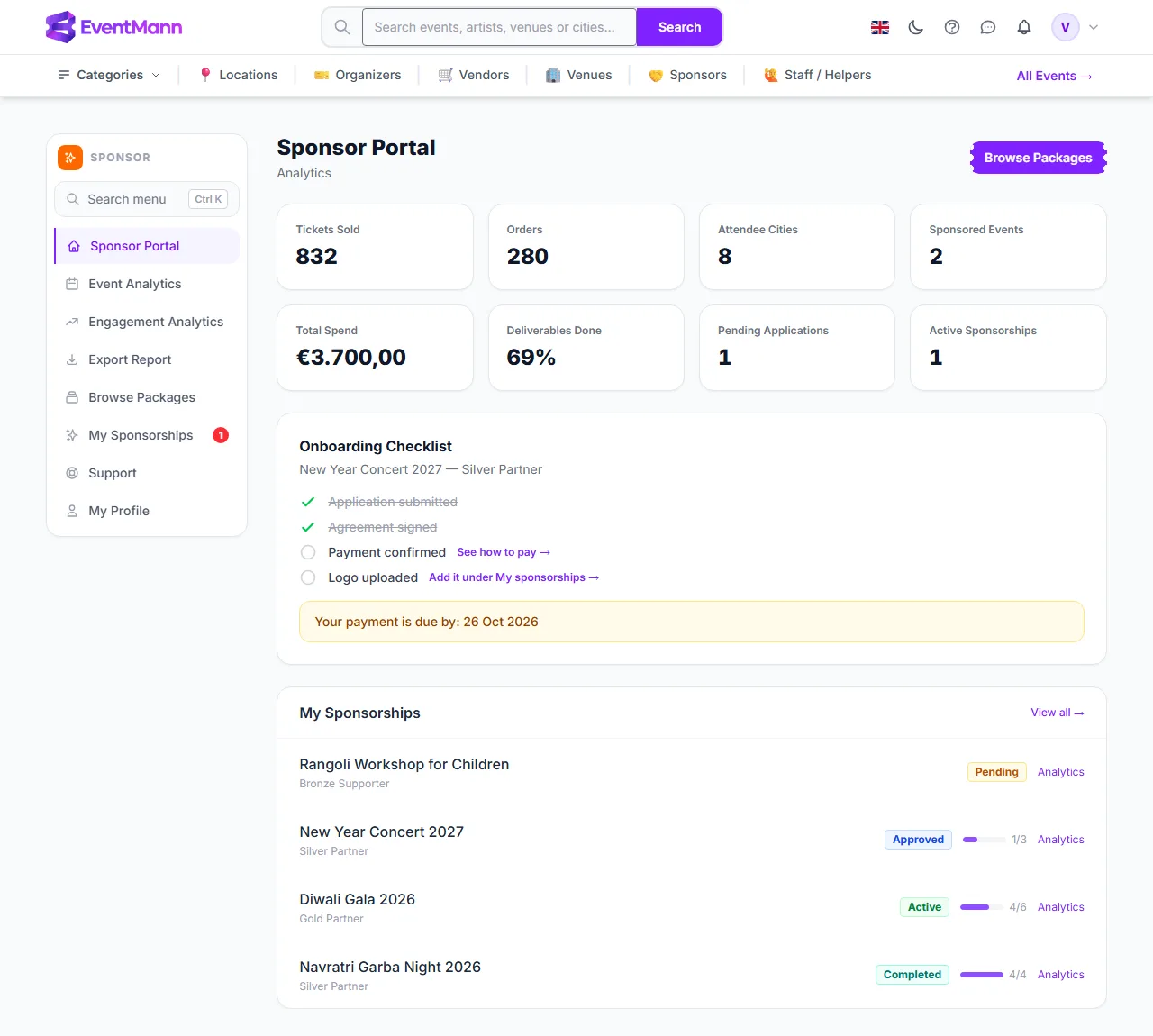
The Sponsor Portal is the first page you see after signing in (Sponsor Portal in the sidebar). It answers three questions at a glance: does anything need my attention, what have I paid for, and how big is the audience at the events I back. There is nothing to configure here — every figure is read from your sponsorships.
What you can do here
- Read eight figure cards for your sponsorships.
- Follow the Onboarding Checklist for your newest approved or active sponsorship, including the payment deadline.
- See your five most recent sponsorships with their status and deliverable progress, and jump to My Sponsorships or the analytics.
- Go to Browse Packages ① to apply for another event.
The figure cards
| Card | What it counts |
|---|---|
| Tickets Sold ② | Tickets on confirmed orders, summed over the events of your Active and Completed sponsorships — the same sponsorships the analytics pages cover. |
| Orders | Confirmed orders for the same events. One order can contain several tickets. |
| Attendee Cities | The number of different cities buyers gave at checkout, across those events. Only orders that carry a city count. |
| Sponsored Events | How many of your sponsorships are Active or Completed. |
| Total Spend ③ | The amounts recorded as paid on your sponsorships, shown per currency when you sponsor in more than one. |
| Deliverables Done | Completed deliverables divided by all deliverables across all of your sponsorships. It reads 100% while no deliverables exist yet. |
| Pending Applications | Applications the organizer has not yet approved or rejected. |
| Active Sponsorships | Sponsorships that are paid and live. |
The checklist and the recent list
- The Onboarding Checklist ④ follows your newest approved or active sponsorship and shows four rows: Application submitted, Agreement signed, Payment confirmed and Logo uploaded. Rows that are not done link to the place where you finish them (See how to pay or Add it under My sponsorships).
- While an approved sponsorship is unpaid, a yellow bar shows the date your payment is due.
- The My Sponsorships list ⑤ shows your five newest sponsorships. Each row carries a status badge, a small progress bar with completed/total deliverables, and an Analytics link. View all opens the full list.
Good to know
- Tickets Sold, Orders, Attendee Cities and Sponsored Events count Active and Completed sponsorships — paid and running, or finished. That is the same rule as Event Analytics, so the two agree apart from the refresh delay. Total Spend and Deliverables Done cover all of your sponsorships.
- An Approved sponsorship you have not paid yet is not in these figures; it appears once the payment is confirmed and it becomes Active.
- These cards are refreshed about every ten minutes, so a ticket sold a moment ago may not show yet. The analytics pages read live figures.
- EventMann does not measure how often your logo is seen or clicked. The portal shows what is actually recorded: tickets, orders, cities and your own spend. See Measuring Sponsorship ROI.
Troubleshooting
- The cards show zero, and the list says you are not associated with any events — you have not applied yet, or every application was rejected, expired or withdrawn. Open Browse Packages.
- Attendee Cities is lower than expected or zero — the city comes from the address buyers enter at checkout. If the event does not ask for an address, there is nothing to count.
- The payment row will not tick — it turns green once the organizer has recorded your payment or the Stripe invoice has been paid. See Paying for a Sponsorship.