




Financial Exports
Help articles may not be fully accurate — they can lag behind the app due to frequent updates and automated translation. If in doubt, please contact support.
On this page
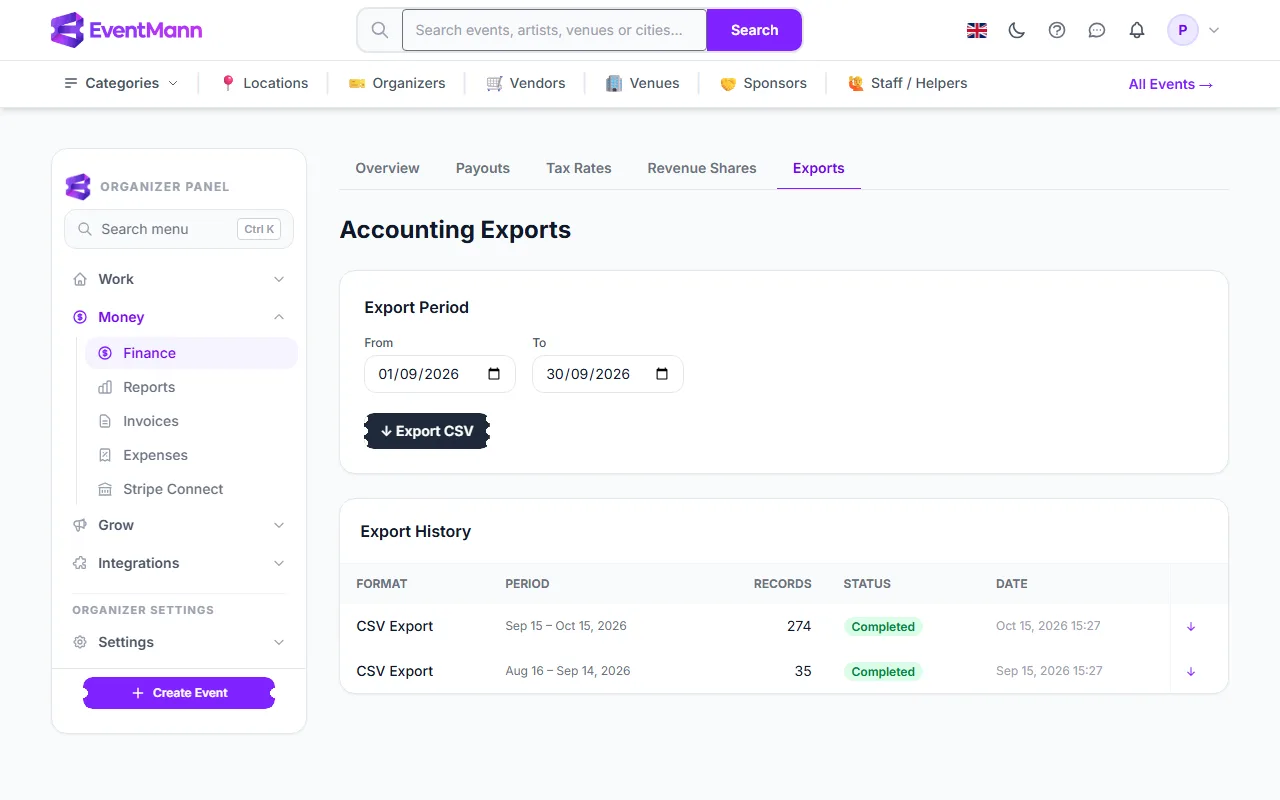
Exports give you your sales and fees as a spreadsheet for your accountant. There are two: the Accounting Exports page under Money → Finance → Exports, which writes one row per paid order for a period you choose, and the CSV and Excel buttons at the top of the Finance Overview, which download the per-event reconciliation. Order lists for one event are covered in Export attendee data.
What you can do here
- Export every confirmed or refunded order paid in a date range as a CSV file.
- Keep a history of the exports you ran, with the period, number of orders and status.
- Where your EventMann has the Xero connection switched on, a Connect Xero / Sync Xero button appears next to Export CSV. If you do not see it, Xero is not available to you.
How to run an export
- Open Money → Finance → Exports.
- Set the From and To dates ①. They start on last month.
- Click Export CSV ②. The file is built straight away.
- A new row appears in Export History ③ with the period, the number of orders in it and the status Completed (or Failed if something went wrong).
What is in the CSV
| Column | Contents |
|---|---|
| Reference, Event | The order reference and the event title |
| Date, Status | The day the order was paid, and its status (confirmed or refunded) |
| Currency | The event’s currency |
| Gross | What the buyer paid |
| Refunds | What was refunded, including partial refunds |
| Platform Fee | The commission and fees EventMann kept, after refunds |
| Stripe Fee | Stripe’s processing cost, as reported by Stripe |
| Net | Gross minus Refunds minus Platform Fee minus Stripe Fee |
| Gateway | Where the payment went through, or manual for orders without one |
Orders are picked by the date they were paid, and pending, cancelled and never-paid orders are left out. Each order is its own row, in its own currency; the file does not add currencies together.
The Finance Overview download
The CSV and Excel buttons on the Finance Overview download one row per event: Event, Gross, Refunds, Platform fees, Stripe fees and Net, over everything you have ever sold. They give exactly the table on that page.
Good to know
- Both exports contain money figures and buyer references. Keep the files private.
- Your figures will not match your bank statement row for row: Stripe pays out in batches on its own schedule, while the export is by order date. See Payouts.
- Only the organizer account can use the Exports page.
Troubleshooting
- Download a file again later. Click the ↓ arrow on its row in Export History. Each row keeps its own file, and only your organizer account can download it.
- The export has 0 orders. No order was paid in that period. Check the dates.
- The row says Failed. Run the export again; if it keeps failing, contact support.
- No Xero button. The Xero connection is not switched on for your EventMann.