




Recruiting with join links, sign-up and copied setups
Help articles may not be fully accurate — they can lag behind the app due to frequent updates and automated translation. If in doubt, please contact support.
On this page
This article covers the ways people find their way onto an event without you inviting them one by one: a join link for each team, an open sign-up on the event page, and the option to start from last year’s setup. It also explains every option on an event’s Settings tab. You find all of it under Team & Partners → Volunteers in the event’s Manage menu.
What you can do here
- Say how many people each team needs at this event and watch the count fill up.
- Give each team a join link that its lead can post in a WhatsApp group.
- Open the sign-up on the public event page, with your own text.
- Let confirmed volunteers pick their own shifts.
- Write the thank-you message volunteers read.
- Copy team sizes, shifts, team tasks and packing lists from another event.
Team sizes and join links
On the People tab, the box Teams at this event has one card per team. The team’s name ① opens the list filtered to that team. The figure ② reads confirmed people against what the team needs, for example 10 / 18; it is amber while the team is short and green once it is full, and without a target it shows the confirmed people only. Below it, 10 confirmed · 2 waiting for an answer counts the people who have been asked but have not answered.
- Type the number the team needs in Needs ③ and click Save. Leave it empty or zero for no target.
- Click Create join link ⑧. The card now shows the Join link ④.
- Click Copy ⑤ to put it on your clipboard, or Share on WhatsApp ⑥ to open WhatsApp with a ready-made message such as “Help with Registration at Diwali Gala 2026? Sign up here:”.
- To stop the link working, click Switch off ⑦. Anyone who still has it can no longer join. Creating a link again gives a new address.
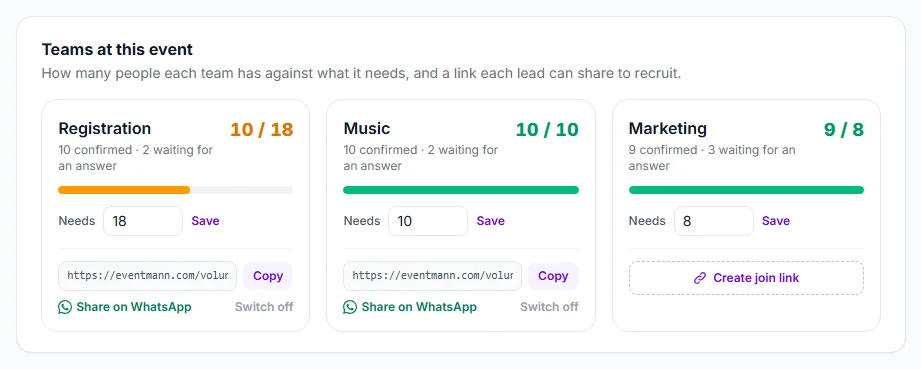
Whoever opens a join link signs in (or registers), checks their details and joins. They land as Applied in that team, and the team’s leads and you get a bell notice. Nobody becomes a volunteer without your or the lead’s Accept. A join link works even when the public sign-up below is switched off, and stops working when the event is a draft, cancelled or over. Team leads can set targets and links for the teams they lead; the other teams are not shown to them.
Open sign-up on the event page
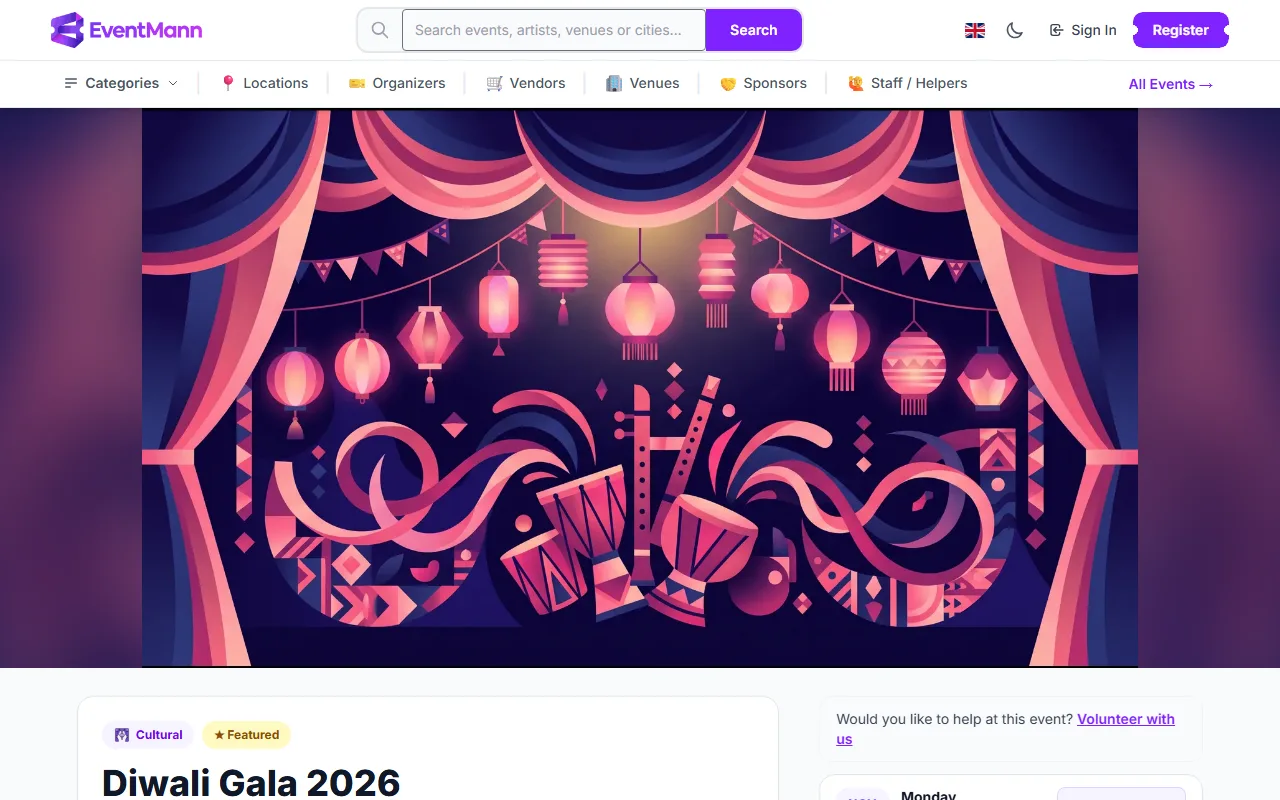
When Volunteer sign-up on the event page is on and the event is live, the public event page shows “Would you like to help at this event? Volunteer with us”. Signed-in visitors with a confirmed email address can apply.
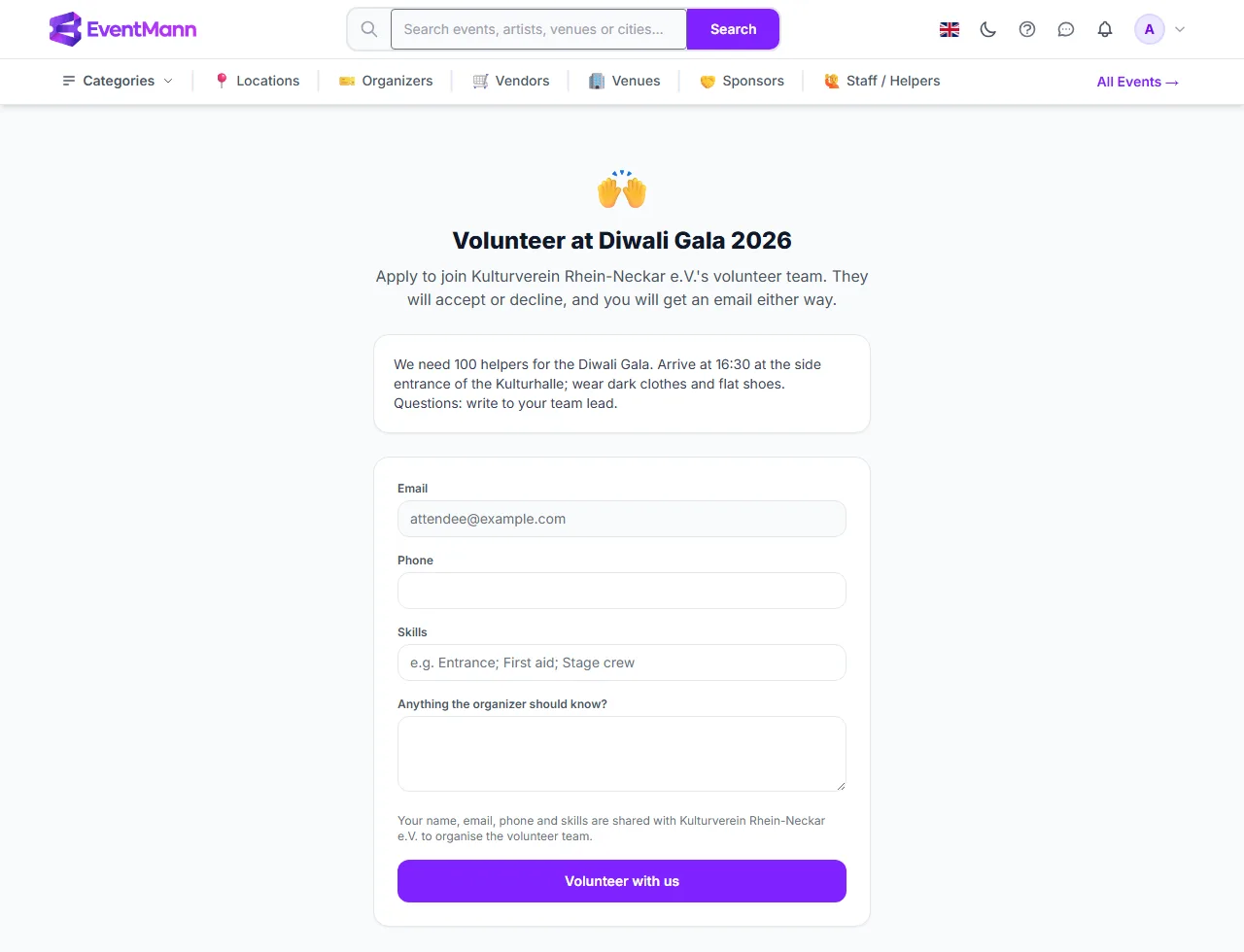
The banner ① links to a short form with a phone number, skills and a message. It starts with the text you wrote.
The visitor adds a phone number ①, skills ②, anything the organizer should know ③ and sends the form ④. They are added to your roster if they were not there yet, and appear on People as Applied. You decide with Accept or Decline; nobody is confirmed automatically, and the applicant gets an email either way. A visitor who was already invited and applies is confirmed straight away.
Settings explained
Open the Settings tab.
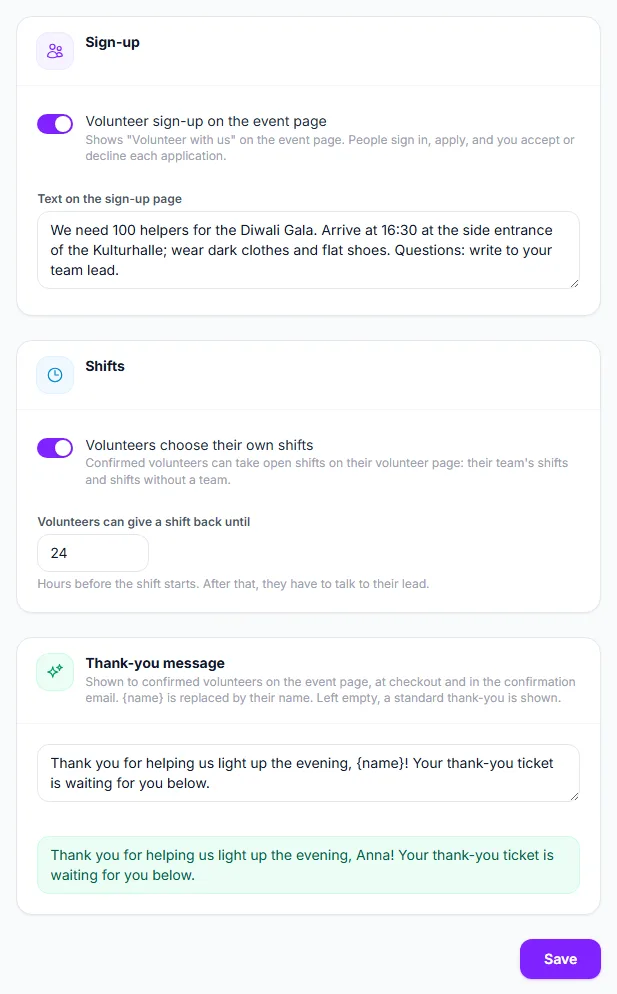
- Volunteer sign-up on the event page ① — off by default. Switches the banner and the form on for visitors. It only works while the event is live.
- Volunteers choose their own shifts ② — lets confirmed volunteers take open shifts on their own My Volunteering page. They can take shifts of their own team and shifts without a team, never one that overlaps a shift they already have, and never one that has started.
- Volunteers can give a shift back until ③ — hours before the shift starts, 0 to 720, 24 unless you change it. After that they have to talk to their lead. Giving a shift back tells the team’s leads and you.
- Text on the sign-up page ④ — up to 1,000 characters: what helping involves, when to arrive, who to ask.
- Thank-you message ⑤ — up to 300 characters, shown to confirmed volunteers on the event page, at checkout beside the volunteer ticket and in their confirmation email.
{name}is replaced by the volunteer’s name. Empty means a standard thank-you in their language. The green line ⑥ previews it with a sample name. - Click Save ⑦. Clearing a text field and saving removes the text.
Copy setup from another event
Further down the Settings tab, Copy setup from another event uses an earlier event as a template.
- Choose the event under Copy from ①. It lists your other events, newest first.
- Tick what to copy: Team sizes ②, Shifts ③, Team tasks and Packing lists.
- Click Copy setup ④ and confirm.
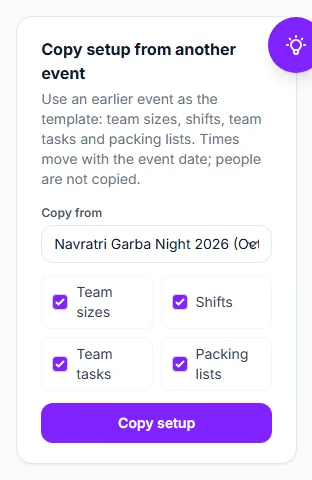
Times move with the event date: a shift that started two hours before last year’s doors starts two hours before this year’s. Nothing that already exists is replaced and nobody is emailed. People are not copied — the core team arrives by itself and everybody else is invited afresh. Tasks given to one named person, or tied to a shift, are not copied either, because that person may not be helping this time. Packing lines are copied only as far as the stock allows.
Good to know
- Every way onto an event as a volunteer ends with an account: a join link and the sign-up need one, and a yes to an invitation creates one or signs in. Only people you confirm yourself can be confirmed without one — see Volunteers without an account.
- Visitors need an account with a confirmed email address to sign up or join. Signing up creates a roster entry with the source “signed up” and sets the opt-out of invitations back to off.
- The join link is a credential: whoever has it can apply. Posting it in a private group is fine; if it spreads further, switch it off and make a new one.
- A team’s target is a goal for you and the leads. It does not stop people joining.
- The Settings tab needs the Volunteers permission; a team lead sees the other tabs but not Settings.
Troubleshooting
- The banner does not show on the event page — the sign-up setting is off, or the event is not live (a scheduled event has no banner yet; a join link already works).
- A join link says the page cannot be found — the link was switched off or replaced, or the event is a draft, cancelled or over.
- Copy setup is not offered — you have no other event to copy from.
- The copy did not bring any people — by design. Invite them from People.