




Team lead guide
Help articles may not be fully accurate — they can lag behind the app due to frequent updates and automated translation. If in doubt, please contact support.
On this page
A team lead runs one standing team of an association, such as Registration or Hall management, at every event. As a lead you recruit people into your team, confirm them, plan the team’s shifts and tasks, write to your people, and look after the team’s stock. You do this from your account, not from an organizer panel of your own. This guide is the overview; each part links to its details.
What you can do here
- Recruit from the organizer’s roster, with a join link or by adding somebody new.
- Confirm applicants and decide whether somebody you invite is confirmed at once.
- Plan shifts and tasks for your team and put your people on them.
- Follow the day on the run sheet and the live page, and message your team.
- Look after your team’s inventory: items, shopping list, purchases and receipts. See Your team’s inventory.
Open your events
- Open the menu of your avatar. Under Event work, choose your role, or open My work.
- Click the button on the event: Volunteers, or another button if your team also carries a role such as Box office.
- In the sidebar choose Volunteers. A lead sees the tabs People, Shifts, Tasks, Run sheet, Live, Messages and Roster. There is no Settings tab: event-wide settings stay with the organizer.
Recruit people
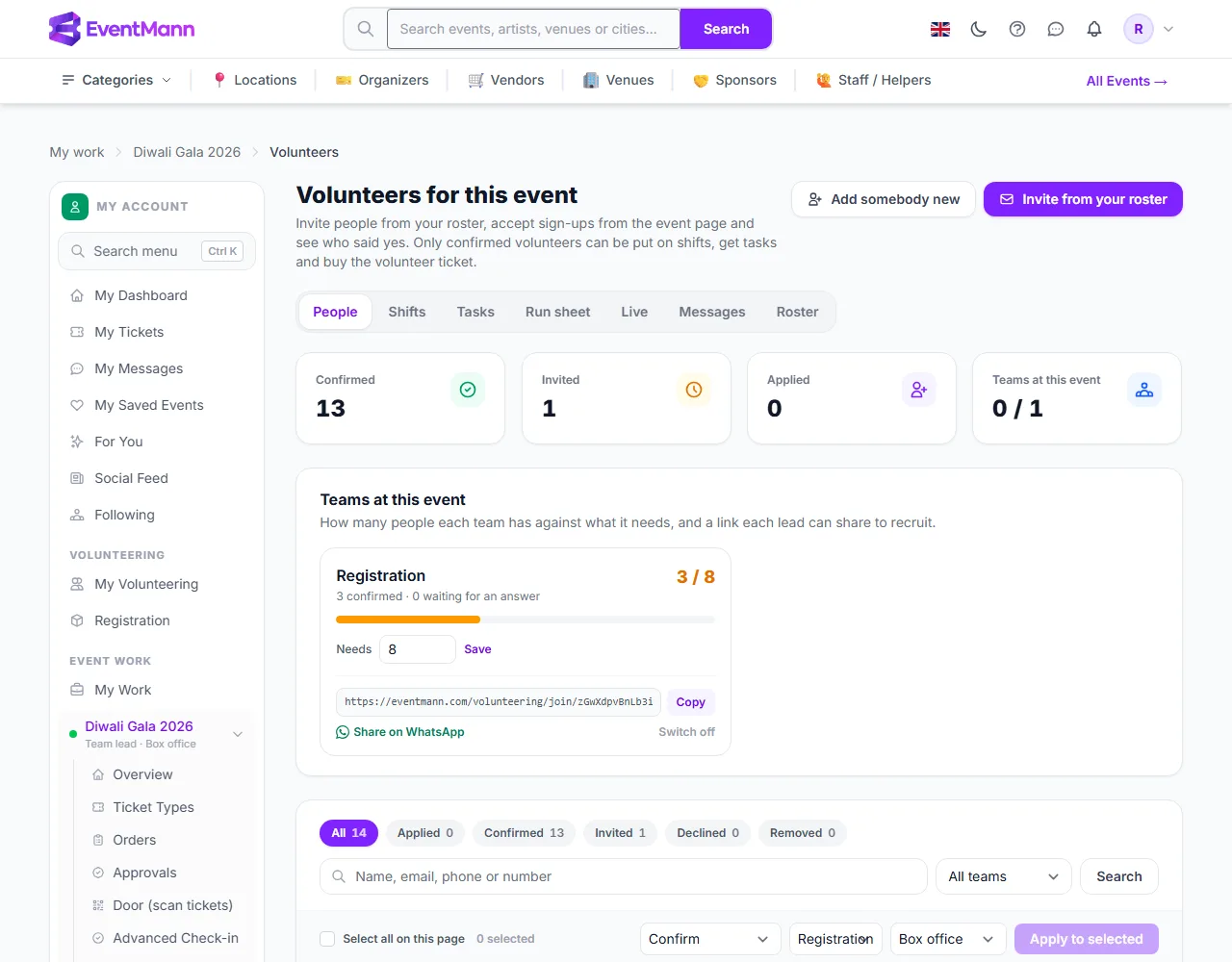
On People, the block Teams at this event shows each team you lead: how many are confirmed against what the team needs, and how many have not answered yet.
- Set how many people your team needs in Needs and tap Save.
- Under Join link ② create a link and use Copy or Share on WhatsApp. People who open it sign in and apply to your team; you accept them. Switch off stops the link; a new link replaces the old one. See Sign up or join a team.
- Click Invite from your roster ③ at the top of the page to ask people the organizer already knows.
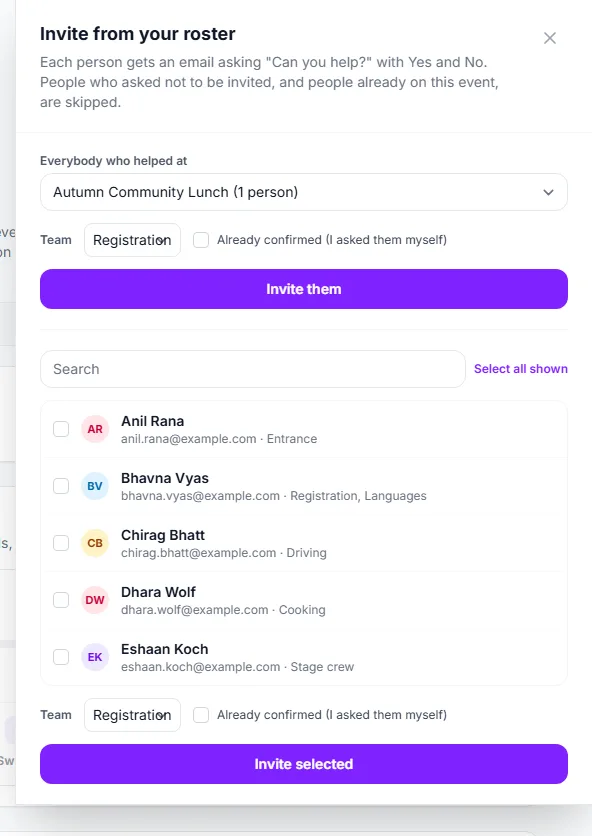
Invite from the roster: invite or confirm now
- Choose people in the list (search, Select all shown), or — in the first part ① — everybody who helped at one of the organizer’s earlier events.
- The Team ② lists only your teams. You must choose one.
- Leave Already confirmed (I asked them myself) ③ off to send the normal invitation “Can you help?”; the person answers Yes or No, and a yes asks them to create a free account or sign in before it counts. Tick it when somebody already agreed with you: they are confirmed straight away and receive “You’re on the team” instead of an invitation. If they have no account yet, that email carries a Set up my account button, and on People they show No account yet with a Send sign-up link button until they do.
- Click Invite them or Invite selected. A result line says how many were invited and how many skipped (already on the event or asked not to be invited).
The same choice is on Add somebody new, which adds a person to the roster and invites them in one step. Invitations go out at the organizer’s hourly sending pace, so a large group is mailed over time.
Shifts and tasks
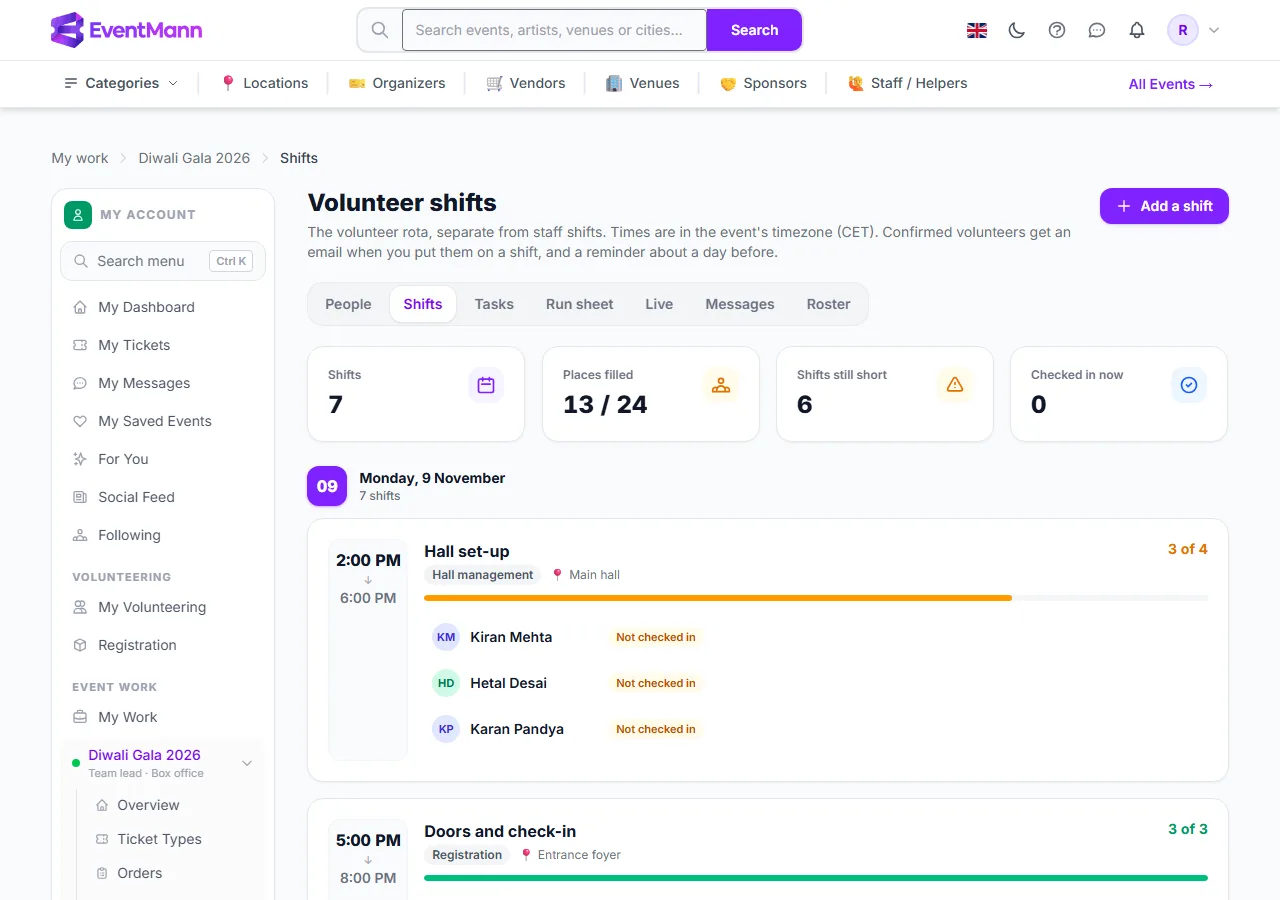
On Shifts you see every shift, but you add, change or fill only those of your teams. A new shift or task must be given to one of your teams.
- Open Add a shift ① and fill in what, when, where and how many people you need.
- Add confirmed members of your team to it. A person already on another shift at that time is skipped.
- On a shift of your team you can check people in or out, or Take off ② someone.
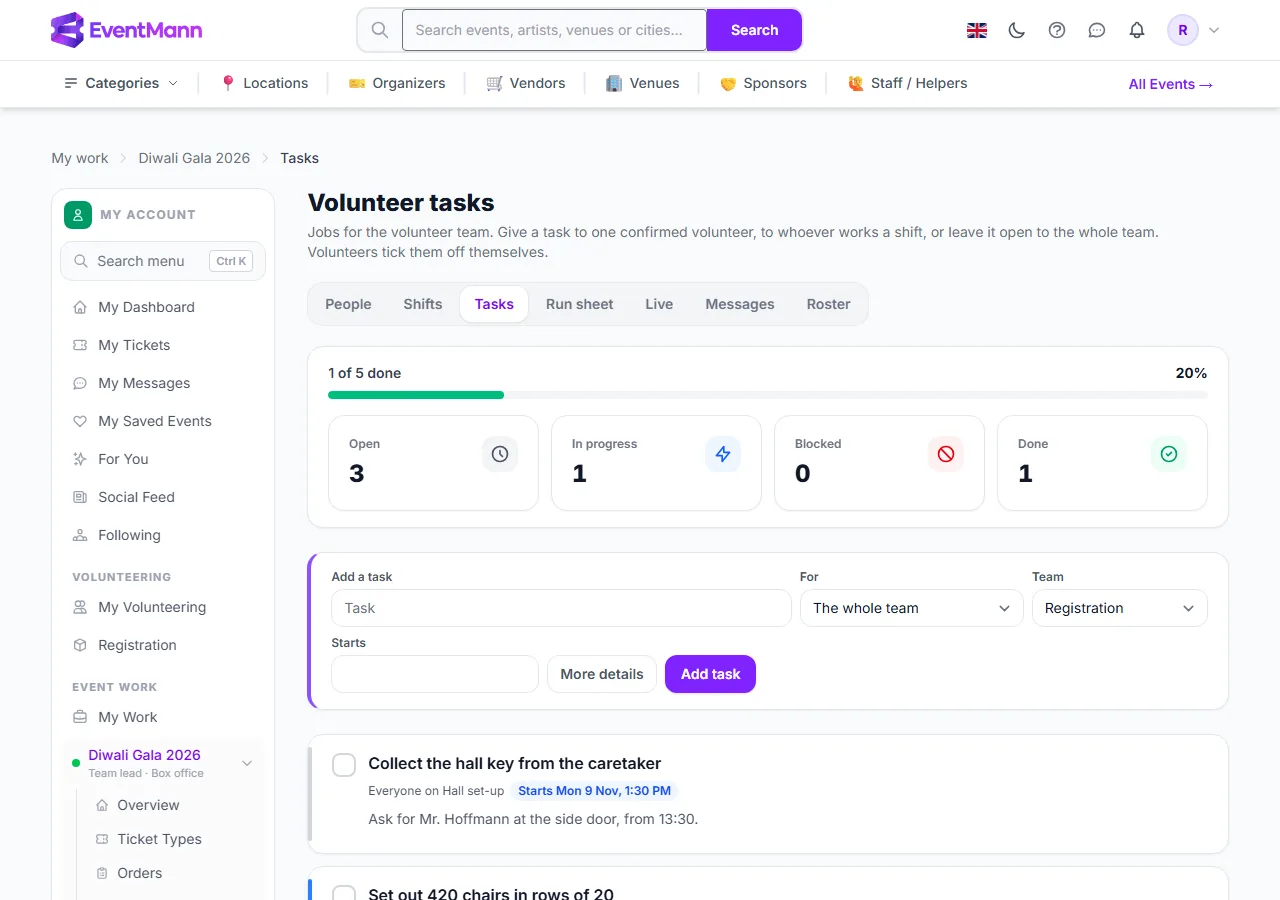
On Tasks, add a task with Add task ①, for one person, a shift or the whole team, with a start time, a due time and a checklist. Tasks ② show their status, checklist and comments, which your people write from My Volunteering.
Read-only and editable
- You see everything, you change your team. You see the whole People list and the roster — you recruit from it — but you confirm, decline, resend, remove, set a team and message only people in your own teams. You may claim people who have no team yet into your team with the bulk action Set team.
- Messages can go to your own teams and their shifts only.
- Roles you can give are limited to those you hold yourself.
- Copying the setup of an earlier event, and the event settings (sign-up, thank-you text, self-service shifts), stay with the organizer or a coordinator.
- On the organizer’s own pages you cannot change categories, move an item to another team or mark purchases as paid back.
Good to know
- Leads are on the core team of their group: at each event a lead is added as confirmed automatically, with the invitations of the other core members sent once the event is published.
- When one of your people gives a shift back, you and the organizer receive a notice.
- If the organizer attached a role to your team (the lead role), you hold it at every event you work, for example Box office.
Troubleshooting
- I see no join link — create one under Teams at this event; there is none until you do.
- A person is greyed out or skipped — already on this event in some status, or asked the organizer not to invite them.
- An action is refused — the person or shift belongs to another team.