




Shifts and the volunteer rota
Help articles may not be fully accurate — they can lag behind the app due to frequent updates and automated translation. If in doubt, please contact support.
On this page
- 1. What you can do here
- 2. Add a shift
- 3. Read the rota
- 4. Put people on a shift
- 5. Settings explained
- 6. Good to know
- 7. Troubleshooting
- 8. Related
The Shifts tab is the volunteer rota of an event: what has to be done, when, where and by how many people, and who is on it. It is separate from the staff rota under Manage Staff, because volunteers are unpaid and never go through payroll. Open the event, then Team & Partners → Volunteers → Shifts. All times are in the event’s own timezone, which the page names at the top.
What you can do here
- Add the slots you need people for, with a place and the number of people needed.
- Put confirmed volunteers on a shift, one or many at a time.
- Check people in and out from the rota, for the ones who cannot do it themselves.
- Let volunteers choose and give back shifts themselves.
- See at a glance which shifts are full: 8 of 8 is green, 2 of 3 is amber.
Add a shift
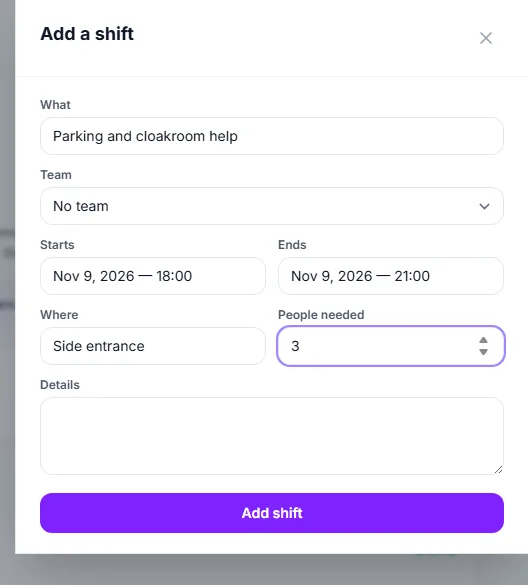
- Click Add a shift to open the form.
- Type What ① it is, for example “Registration desk”.
- Choose the Team ② it belongs to. A team lead has to choose one of their own teams; you may leave it empty, which makes it a shift for anybody.
- Set Starts ③ and Ends ④. They start with the event’s start and three hours later; the end must be after the start.
- Optionally add Where ⑤ and some Details. Set People needed ⑥, between 1 and 500.
- Click Add shift ⑦.
Read the rota
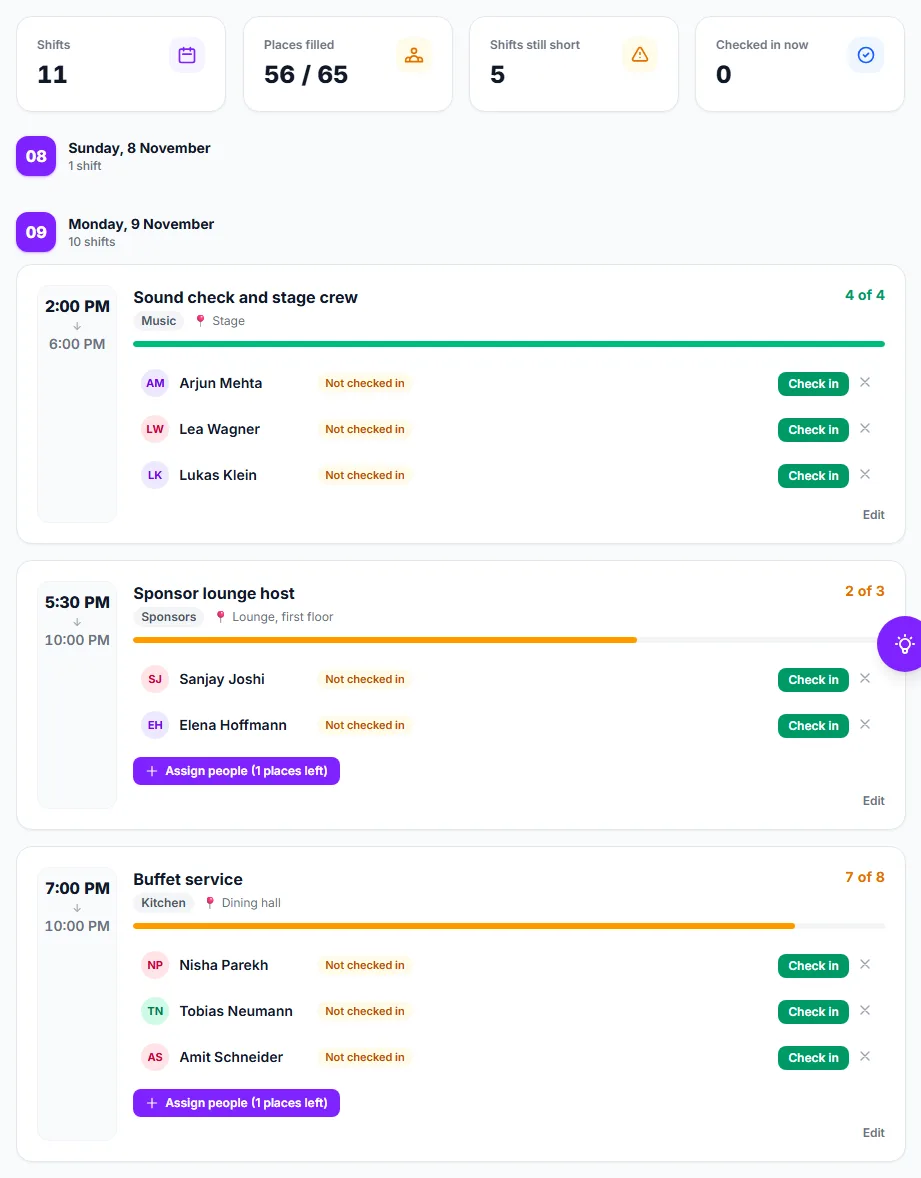
Each shift is a card with its title ① and team badge, how many places are filled ②, and one line per volunteer with their status ③: Not checked in, Checked in 17:02, or the checkout time with the hours worked. Check in ④ marks them present, then the same link reads Check out; a third press says Reopen for the person who was checked out by mistake. Take off ⑤ removes them from the shift. Edit changes the shift or deletes it. Where a shift still has free places, Assign people ⑥ puts more people on it.
Put people on a shift
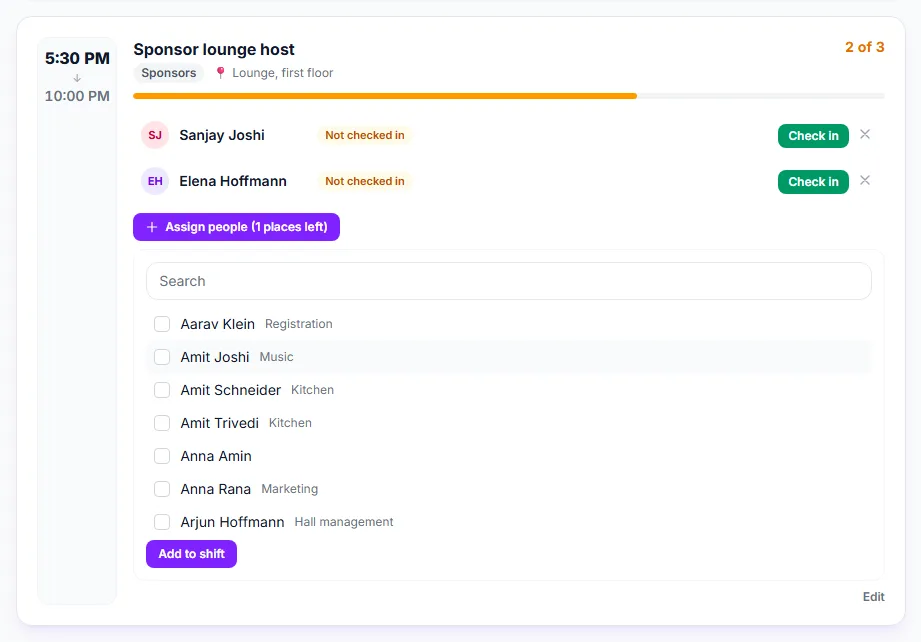
Under the list of people, Assign people (N places left) ② opens a picker of confirmed volunteers. It only appears while the shift has free places.
- Click Assign people ② — the button shows how many places are left.
- Search ③ by name, team or skill and tick the people ④. A lead sees only the people of their own teams.
- Click Add to shift ⑤.
The page tells you how many were added. Somebody is skipped when they are already on the shift, when they are on another shift of this event at an overlapping time, or when the shift is full by then — two coordinators filling the last places at once can never both succeed. Every person who was added gets an email, and about a day before the shift starts they get a reminder, once.
Settings explained
- People needed — cannot be set below the number of people already on the shift. Take somebody off first.
- Team — shows as a badge, decides which lead may change the shift, and which volunteers may take it themselves.
- Delete shift — in the shift’s Edit panel. The volunteers on it are taken off it.
- Volunteers choose their own shifts and give a shift back until — on the Settings tab, see Recruiting with join links, sign-up and copied setups.
Good to know
- Only confirmed volunteers can be put on shifts. If the picker says nobody has confirmed yet, confirm people under People first.
- Volunteers check themselves in from My Volunteering. Check-in opens an hour before the shift and closes when it ends, so there is no check-in for a shift that is over, and checking out needs a check-in first.
- Hours are counted from check-in to check-out. A shift checked into but never out counts nothing until you close it with Check out here.
- Putting somebody on the rota emails them. Moving or deleting a shift does not email them again; tell them with a message.
- Shifts with a team and tasks with a team are also what a team lead sees on their run sheet and Live view.
Troubleshooting
- “Is already on another shift at that time” — each person can hold one shift at a time. Shorten one shift or choose another person.
- Nobody to choose from — everybody who is confirmed is already on the shift, or (for a lead) nobody in your teams is confirmed yet.
- The count cannot be lowered — the shift already has more people on it; take some off first.
- The hours are wrong — check the shift for missing check-outs; use Check out or Reopen on the line.