




My Dashboard
Attendee Guide
3 min read
Help articles may not be fully accurate — they can lag behind the app due to frequent updates and automated translation. If in doubt, please contact support.
On this page
- 1. What you can do here
- 2. Good to know
- 3. Troubleshooting
- 4. Related
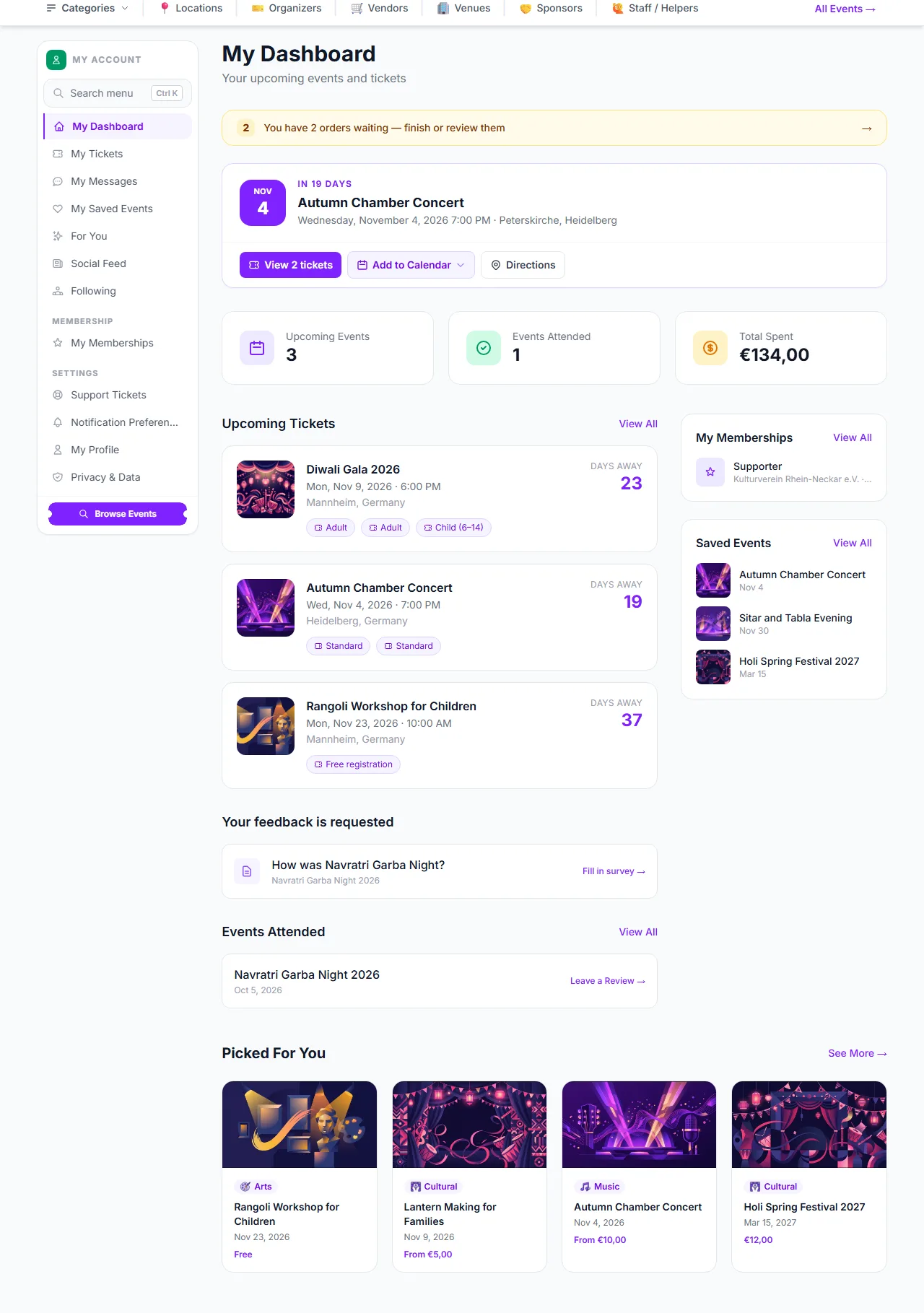
The dashboard is the first page you see after signing in with an attendee account. It gathers your next event, your tickets, anything waiting for an answer from you and a few suggestions in one place. Open it from My Dashboard at the top of the account sidebar.
What you can do here
- Finish or review waiting orders — when you have orders that are not confirmed yet — waiting for the organizer, for payment to clear, or for you to complete payment after an approval or a declined card — a yellow strip tells you how many ①. It opens My Tickets with the Pending filter already set (see Pending Bookings).
- See your next event — the card under the strip shows the soonest event you hold confirmed tickets for, with a countdown. View 2 tickets ② opens the order, Add to Calendar offers a calendar file and Directions opens the venue in Google Maps.
- Check your totals ③ — three figures: Upcoming Events (the upcoming bookings listed below, at most three), Events Attended (events you held a confirmed booking for that have already taken place, each counted once) and Total Spent (all your confirmed bookings, including ones for events still to come).
- Open your tickets — Upcoming Tickets lists your next three confirmed bookings in the order you bought them. Each ticket type is a small button that opens that ticket.
- Answer a survey ④ — when an organizer has an open survey for an event you booked and you have not answered it yet, it appears under Your feedback is requested with a Fill in survey link (see Surveys & Polls).
- See your memberships ⑤ — active memberships are listed in a side card with the organizer and the date they end. View All opens My Memberships.
- Pick up saved events and suggestions ⑥ — the three most recent saved events, and a row of events under Picked For You (see For You).
- Review past events — events you have already been to are listed with Leave a Review →, or Reviewed once you have written one.
Good to know
- The dashboard is for attendee accounts. If you are signed in as an organizer, vendor, staff member, sponsor or venue owner, My Dashboard takes you to that role’s own dashboard instead. Switch roles from your avatar menu.
- Only confirmed bookings are counted. An order that is still pending, waiting for payment or waiting for the organizer’s approval shows in the yellow strip, not in the totals.
- A review can be written once the event has started and you hold a confirmed booking for it; you do not have to have been scanned at the door. You can write one review per event.
- Picked For You is built from the events you booked, your preferences and the organizers you follow. It never suggests an event you already hold tickets for.
Troubleshooting
- A booking I just made is missing — it only appears here once it is confirmed. Check My Tickets for its status.
- The dashboard sent me somewhere else — your active role is not attendee. Use the role switcher in the avatar menu to switch back.
- No survey is shown although I got an email — the survey may be closed, or you may have answered it already. Closed surveys show a short note instead of questions.