




Booking Confirmed
Attendee Guide
3 min read
Help articles may not be fully accurate — they can lag behind the app due to frequent updates and automated translation. If in doubt, please contact support.
On this page
- 1. What you can do here
- 2. What happens next
- 3. Good to know
- 4. Troubleshooting
- 5. Related
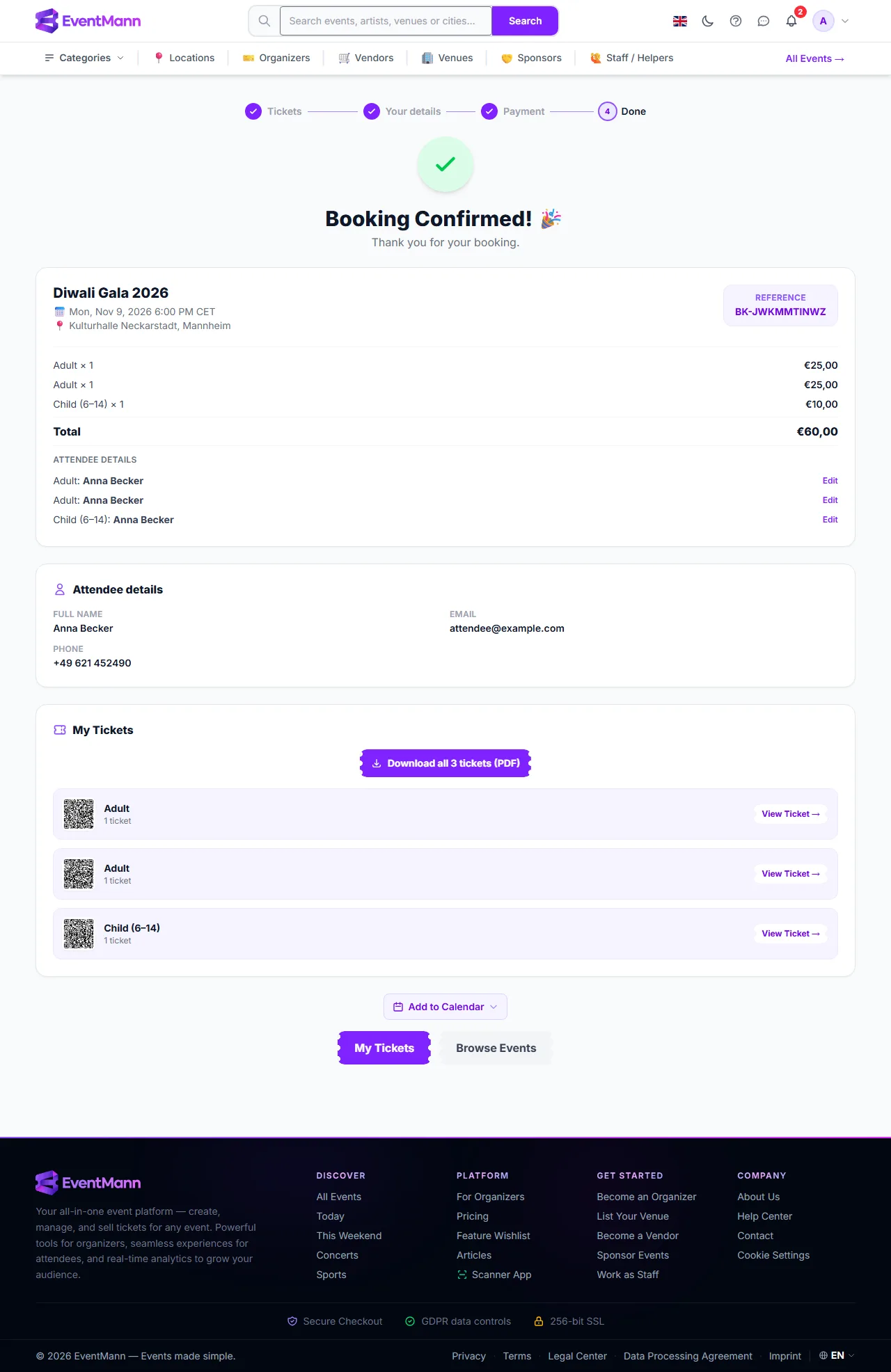
When a booking is confirmed — right after payment, after a free booking, or after the organizer approves your order — you land on the Booking Confirmed page. It brings your order together in one place: what you bought, who the tickets are for, and the tickets themselves.
What you can do here
- Check the order ① — the event, date and venue, your Reference (it starts with
BK-), every ticket with its price and the total. Keep the reference: the organizer, the door staff and Support all use it to find your order. - Name the ticket holders ② — Attendee details lists one row per ticket. Click Edit on a row, change the name or email and press Save. This is available while the organizer allows ticket edits and until the event starts. The name appears on the ticket.
- Download your tickets ③ — Download all 3 tickets gives one PDF with every ticket. Under it each ticket shows its QR code and a View Ticket link. The QR code is what is scanned at the door.
- Add the event to your calendar ④ — Add to Calendar offers a calendar file or link for your calendar app.
- Read a message from the organizer — if the organizer wrote a confirmation message (parking, entrance, what to bring), it appears at the top of the page.
- Create an account — if you checked out as a guest, a box offers Create free account so that this and future bookings are saved under My Tickets.
What happens next
- A confirmation email goes to the address you booked with, with your tickets attached as a PDF. The PDF is built after the booking confirms, so allow a few minutes. If it has not arrived, look in your spam folder, then see Where Are My Tickets?.
- If you are signed in, the booking is in My Tickets straight away.
- A booking made as a guest is reachable with the link in your email. The link stays valid until 90 days after the event.
- If the organizer later changes the date, venue or format of the event, a box titled This event changed after you booked appears on this page. Your ticket stays valid, and the box tells you how to ask for a refund if the change no longer suits you.
Good to know
- Nothing more is charged after this page. To cancel or ask for money back, see How to Get a Refund.
- You can open this page again at any time from My Tickets, or from the link in your email. Opening an order that is cancelled, refunded or still waiting sends you to My Tickets instead.
- Names are for the organizer’s records and the ticket design. A ticket can still be handed on with the transfer function, which is separate (see How to Transfer Tickets).
Troubleshooting
- I did not get the confirmation email — check spam, then confirm the email address shown under Attendee details. If you typed it wrongly, use Edit; or open your tickets from My Tickets.
- The QR code does not load — reload the page, or open the ticket with View Ticket.
- There is no Edit button next to a name — the organizer has switched off ticket edits, or the event has started.
- I closed the page — use the link in your email or sign in and open My Tickets.