




Managing Your Availability
Vendor Guide
3 min read
Help articles may not be fully accurate — they can lag behind the app due to frequent updates and automated translation. If in doubt, please contact support.
On this page
- 1. What you can do here
- 2. Block a period
- 3. What organizers see
- 4. Settings explained
- 5. Good to know
- 6. Troubleshooting
- 7. Related
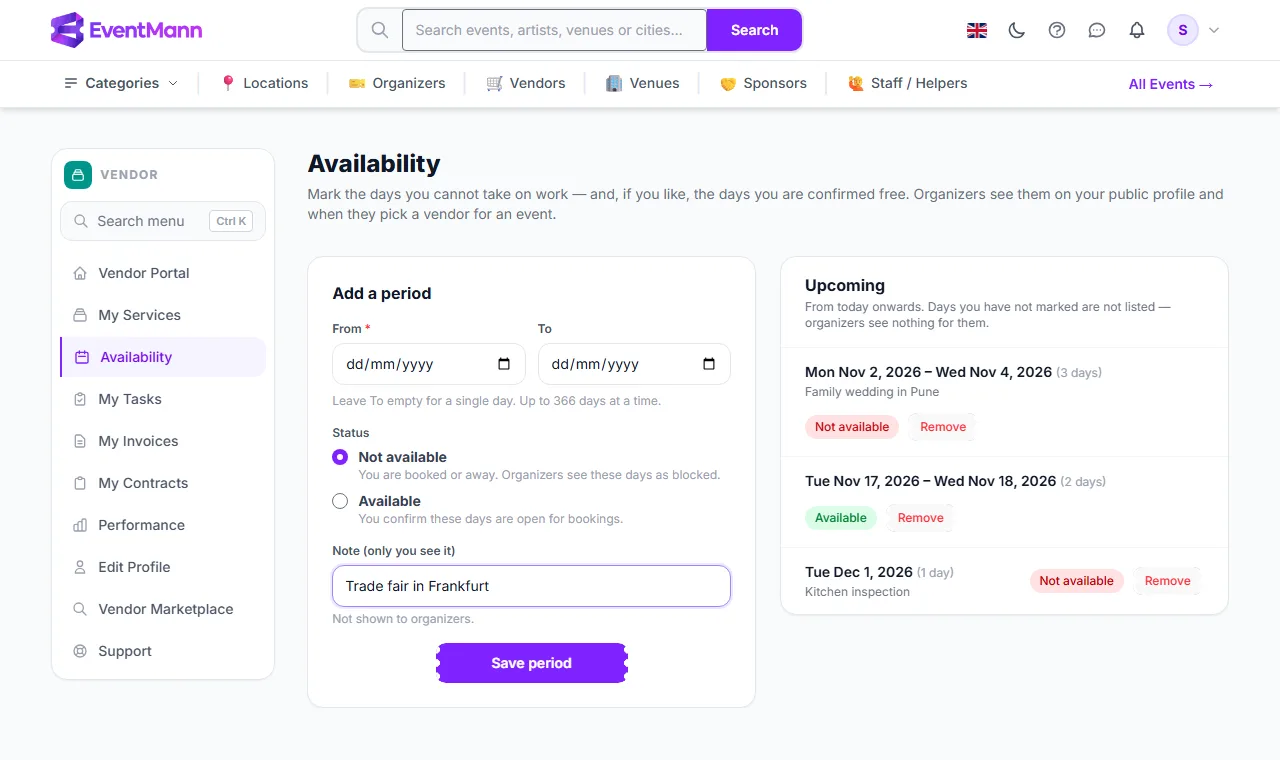
Availability (sidebar → Availability) is your calendar of the days you cannot take on work — and, if you like, the days you have confirmed you are free. Organizers see it on your public profile and in the list they pick a vendor from when they assign one to an event, so a blocked day saves both of you an invitation you would only decline.
What you can do here
- Add a period of one or more days with Add a period ①: a From date, an optional To date, a status and a private note.
- Read your Upcoming periods ③ from today onwards, each with its number of days, its note and a Not available or Available badge.
- Take a period off again with Remove ④.
Block a period
- Open Availability in the sidebar.
- Choose the From date. For more than one day choose the To date too; leave it empty for a single day.
- Keep Not available ② selected. Choose Available instead to confirm that days are open for bookings.
- Optionally write a Note (only you see it), such as “Wedding in Heidelberg”.
- Press Save period. The period appears under Upcoming.
What organizers see
- On your public profile, an Availability section lists the periods you marked for the next six months, each as Not available or Available. Your notes are never shown. A signed-in organizer also sees their own upcoming events there, each with “Not available on …” when it falls on a day you blocked.
- When an organizer assigns a vendor to an event, your name in the vendor list carries “Not available on …” with the dates if you blocked any day of that event. The same line appears on your row once you are assigned.
Settings explained
| Field | What it does |
|---|---|
| From | Required. Today or later. |
| To | Optional; the same day or later. One period covers at most 366 days. |
| Not available / Available | Not available blocks the days. Available confirms them as open. |
| Note (only you see it) | Up to 255 characters, for your own reference. Not shown to organizers. |
Good to know
- A day you have not marked says nothing either way. It is not listed anywhere and is not shown as available.
- Saving a period over days you had already marked replaces their status and note.
- Remove takes away the whole period as listed. To shorten a period, remove it and add the days you still need.
- A blocked day does not stop an organizer from inviting you — it warns them. If you are invited anyway, decline (see Responding to Event Requests) or talk to the organizer.
- Your calendar belongs to your company profile: until you have saved Edit Profile once, the page asks you to do that first.
- To pause a whole service for a while instead, untick Active (visible to organizers) on it in My Services. See Service Catalog.
Troubleshooting
- “The from field must be a date after or equal to …” Past days cannot be marked; start from today.
- “A period can cover at most 366 days.” Split the period in two.
- A period is missing from Upcoming. It has ended — the list starts today.
- An organizer says they did not see my block. They see it only for the days of their event; check the dates under Upcoming.