




Staff Dashboard
Staff & Volunteers
2 min read
Help articles may not be fully accurate — they can lag behind the app due to frequent updates and automated translation. If in doubt, please contact support.
On this page
- 1. What you can do here
- 2. The four counters
- 3. Good to know
- 4. Troubleshooting
- 5. Related
The Dashboard is the first page of the staff portal (sidebar → Dashboard). It gives you four counters and your next shifts, so you can see at a glance whether something needs you.
What you can do here
- Read the counters at the top. Upcoming Shifts ① is the number of shifts assigned to you that are dated today or later.
- Look at the Upcoming Shifts list ②. It shows your next five shifts with the event, the date and the times. A green Checked in label means you are clocked in right now; Done means you have checked out. View All opens My Shifts.
- Check Active Events ③: every event you are approved for, with the status badge. This list shows up to six events.
- Use the sidebar badges ④. Messages carries the number of unread messages; Shift Swap carries the number of swap requests waiting for your yes or no.
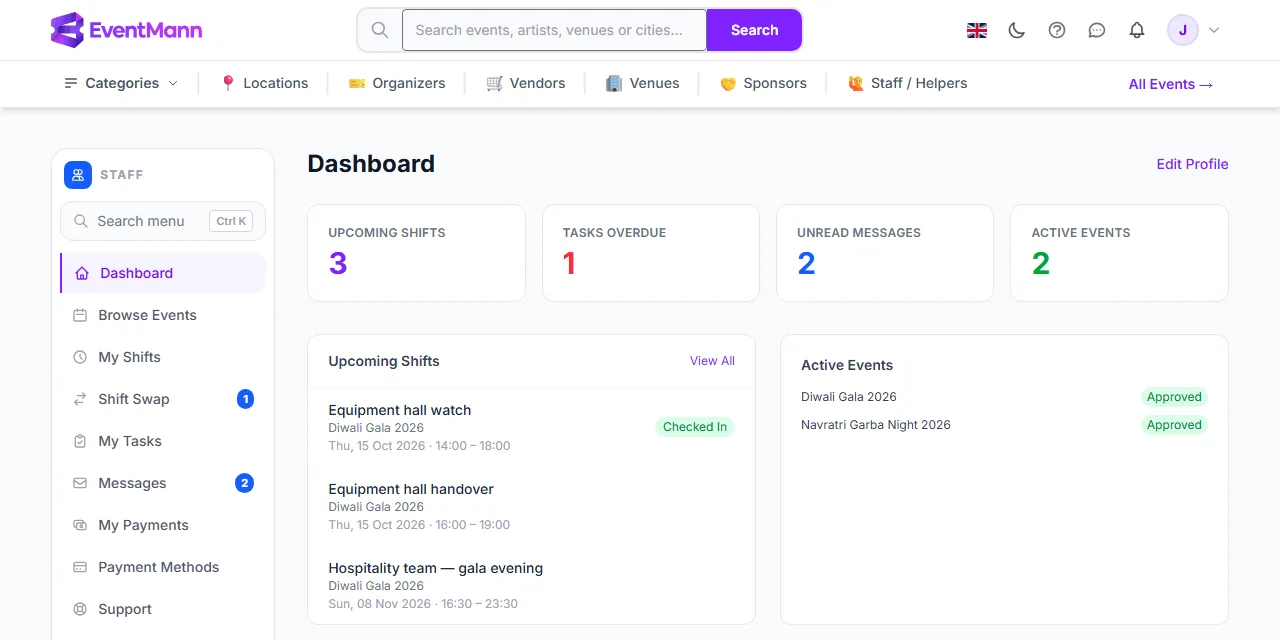
The four counters
| Counter | What it counts |
|---|---|
| Upcoming Shifts | Shifts assigned to you with a date of today or later (including ones you already checked into today). |
| Tasks Overdue | Only tasks that are overdue — the due date has passed and the task is not completed. Tasks due in the future are not counted here; find them on My Tasks. |
| Unread Messages | Messages sent to you that you have not opened yet, replies included. |
| Active Events | Events where the organizer has approved you. |
Good to know
- If your account is still waiting for approval by an administrator, a yellow Your account is pending admin approval. label appears beside the title. You can already fill in your profile.
- Edit Profile at the top right opens Staff Profile.
- The dashboard does not show pay. Open My Payments for that.
Troubleshooting
- The shift counter is 0 but I was approved. Approval is not a shift. The organizer still has to assign you to one — check again later or send a message.
- An event is missing under Active Events. Only approved events are listed. An application that is still waiting, or one that was declined, shows on Browse Events instead.