




My Sponsorships
Sponsor Guide
4 min read
Help articles may not be fully accurate — they can lag behind the app due to frequent updates and automated translation. If in doubt, please contact support.
On this page
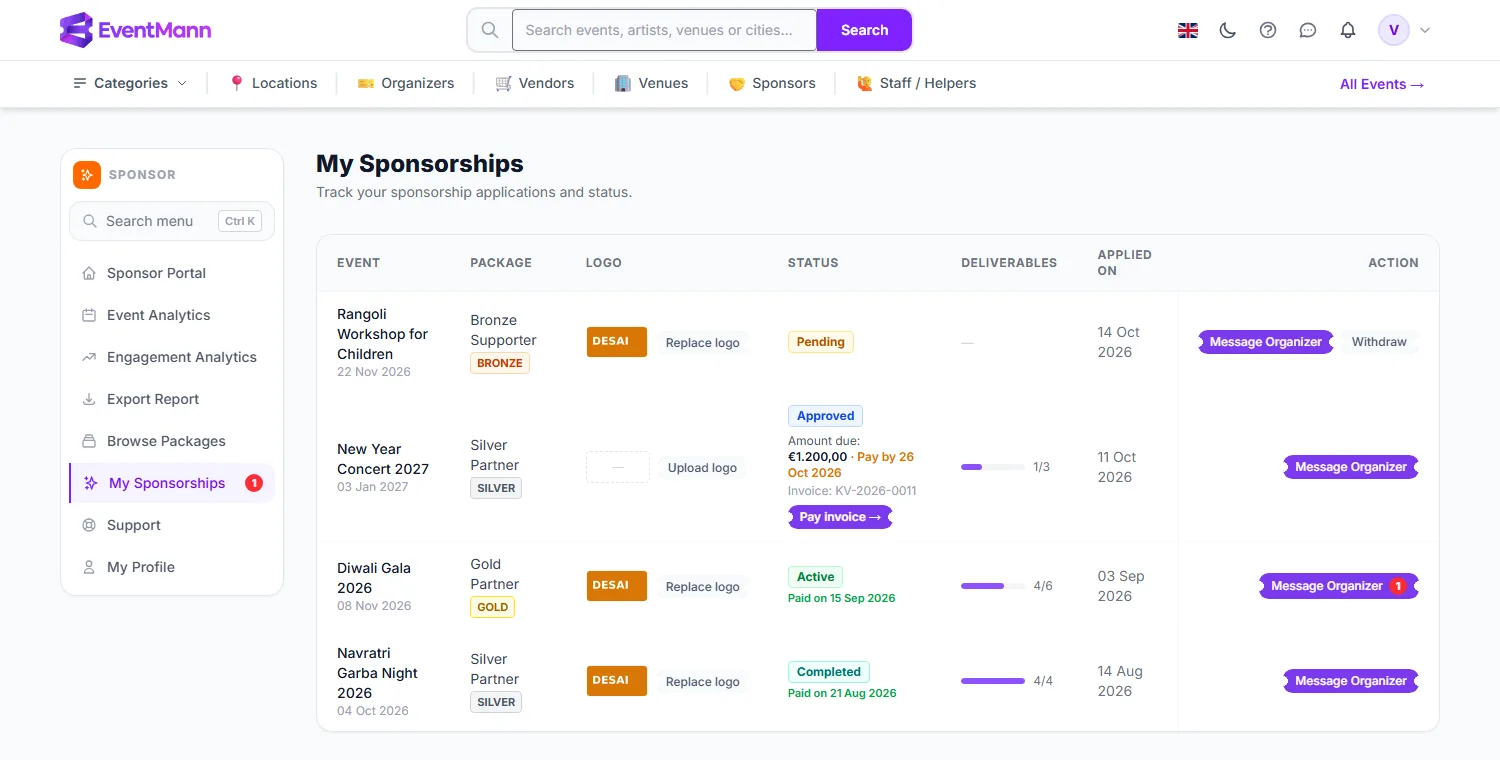
My Sponsorships (sidebar) lists every sponsorship application you have made, whatever its status. It is where you see what has been decided, pay an approved sponsorship, upload your logo, follow deliverable progress, write to the organizer and withdraw an application that is still pending.
What you can do here
- Read the status of each application and what is expected of you next.
- Pay an approved sponsorship or see how to pay it.
- Add or replace your logo.
- Open the message thread with the organizer.
- Withdraw a pending application.
Read the list
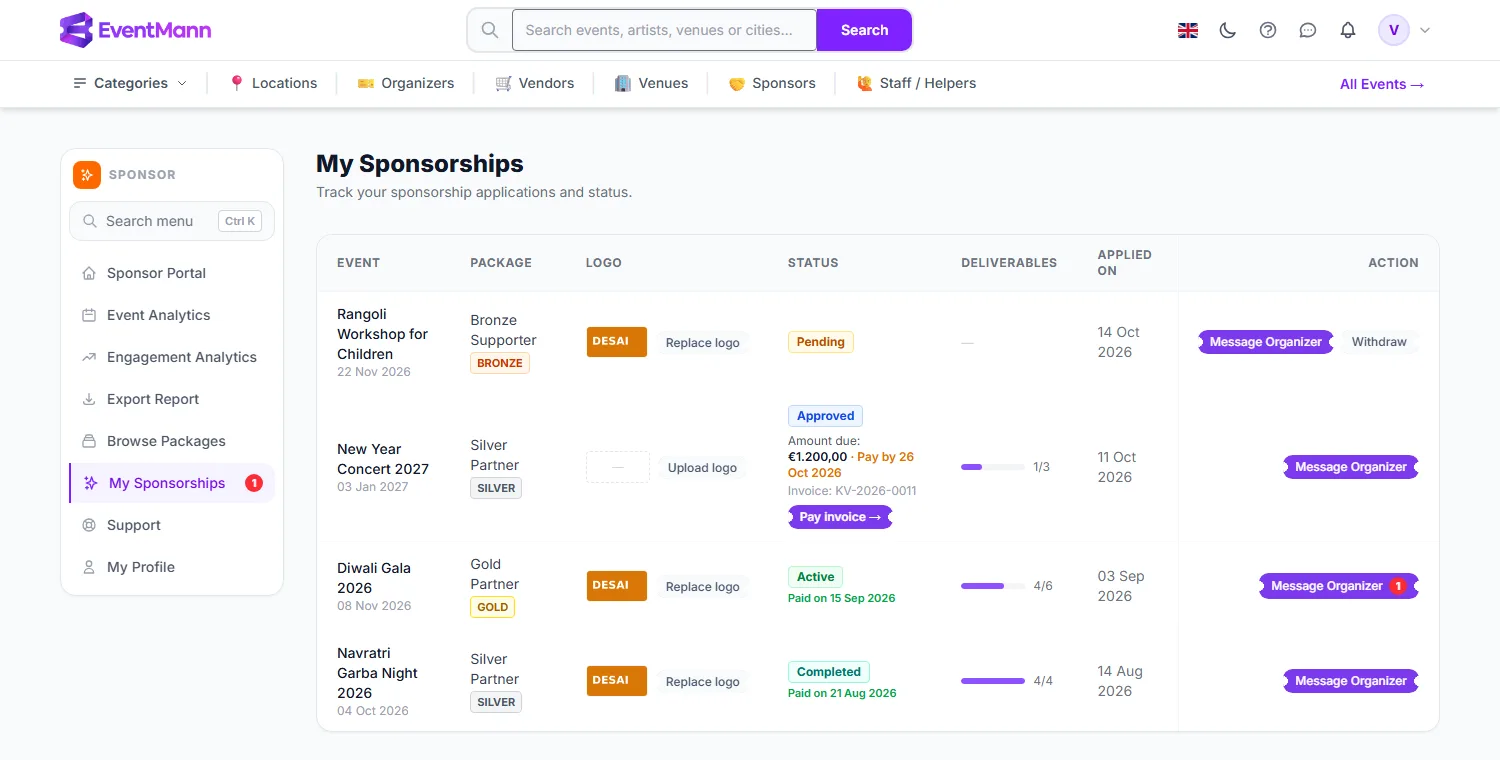
The table shows one row per application, twenty per page, newest first. Its columns are:
- Event — the event title and its date.
- Package — the package name and its tier badge.
- Logo ① — your logo, with Upload logo or Replace logo next to it.
- Status ② — see the table below. Under Approved you also see the amount due, the date to pay by and the payment button; under Active or Completed the date you paid; under Rejected the organizer’s reason, if they gave one.
- Deliverables ③ — a progress bar and a count such as 4/6. It shows how many of the organizer’s deliverables for your sponsorship are done; the logo and payment lines tick themselves when you upload and when the payment is recorded. See Sponsorship Deliverables.
- Applied On — the day you submitted the application.
- Action — Message Organizer ④, with a red number when the organizer has written something you have not read, and Withdraw ⑤ for pending applications.
| Status | Meaning | What you do |
|---|---|---|
| Pending | Waiting for the organizer. | Wait, message the organizer, or withdraw. |
| Approved | Accepted, not yet paid. You have 14 days from approval. | Pay it. See Paying for a Sponsorship. |
| Active | Paid and live. | Provide what the organizer asks for and follow the figures. |
| Completed | The organizer closed it, which they can only do once every required deliverable is done. | Download your figures if you need them. |
| Rejected | The organizer declined it. | Read the reason if there is one. |
| Expired | Approved but not paid by the deadline. | Contact the organizer if you still want it. |
| Cancelled | You withdrew it, or the organizer cancelled it. | A withdrawn application can be submitted again. |
Add or replace your logo
- Find your row. In the Logo column click Upload logo (or Replace logo) ①.
- Choose a JPG, PNG or WebP file of up to 2 MB. It is uploaded as soon as you pick it — there is no separate save button.
- The confirmation says the logo now shows on the event page and, where the organizer enables it, on tickets. The old file is removed.
- If the organizer has a Logo Upload deliverable on your sponsorship, it is ticked at the same time, so the Deliverables bar moves without waiting for them.
Withdraw a pending application
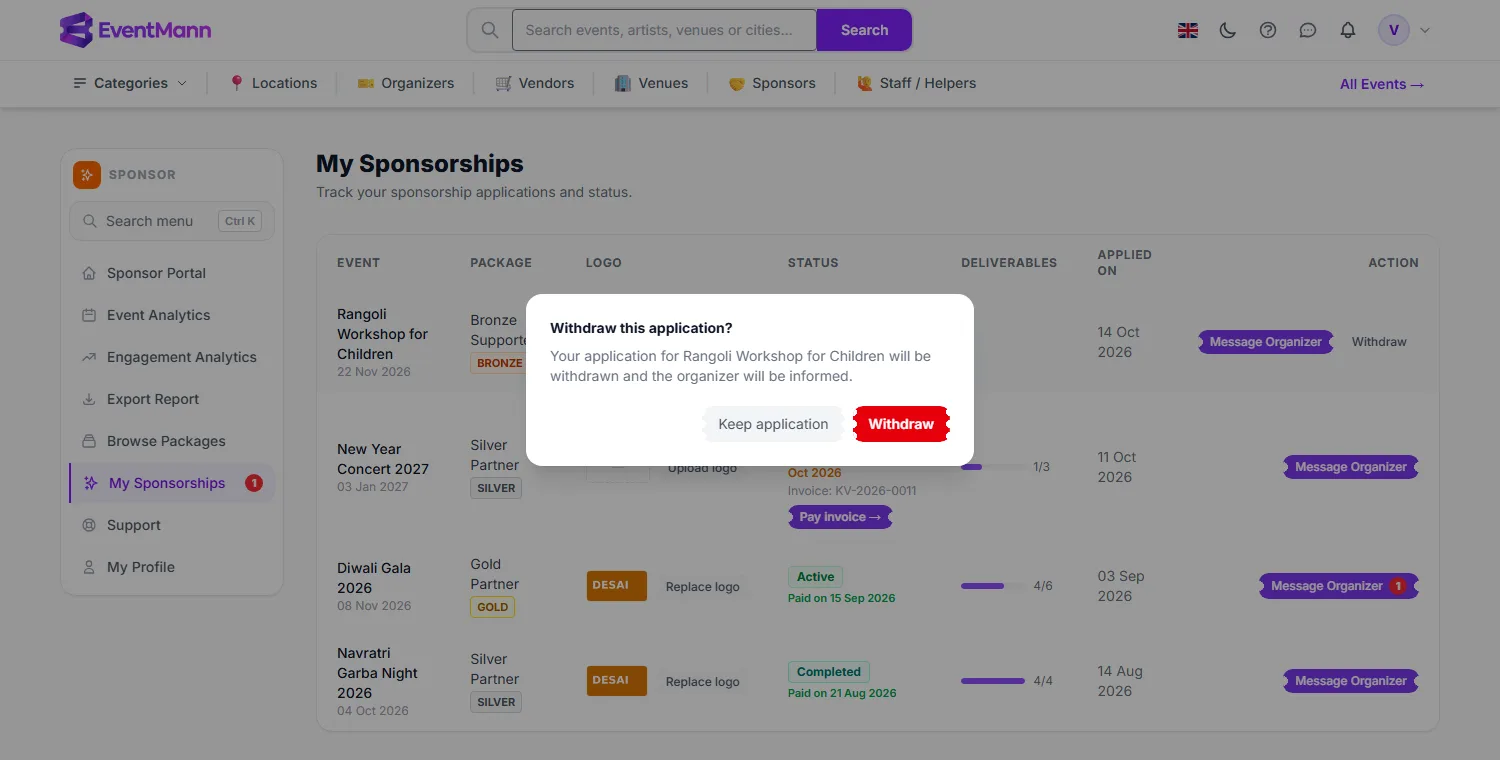
- On a Pending row click Withdraw.
- The dialog ① says “Your application for … will be withdrawn and the organizer will be informed.” Click Withdraw ③ to confirm, or Keep application ② to leave it as it is.
- The status becomes Cancelled and the organizer is notified in the bell and by email.
Good to know
- Only Pending applications can be withdrawn by you. Once the organizer has approved, there is an agreement and possibly an invoice behind it, so changes go through the organizer — use Message Organizer.
- The sidebar shows a red number on My Sponsorships for unread organizer messages.
- Rejected, expired and cancelled rows show no logo upload and no message button.
- Your payment appears under the status as soon as it is recorded — by Stripe when you pay a Stripe invoice, or by the organizer when you pay them directly.
Troubleshooting
- The list is empty — you have not applied yet. Use Browse Packages.
- There is no Withdraw button — the application is no longer pending. See the note above.
- The logo upload says it failed — the file must be JPG, PNG or WebP and at most 2 MB; SVG is not accepted.
- A payment you made is not shown — if you paid the organizer directly, they have to confirm it. Message them with the date and reference.