




Checkout Process
Help articles may not be fully accurate — they can lag behind the app due to frequent updates and automated translation. If in doubt, please contact support.
On this page
Checkout is the page where you confirm your tickets, give your details and, for paid events, move on to payment. You reach it with Book Now on an event page. A progress bar at the top shows the four steps: Tickets, Your details, Payment and Done.
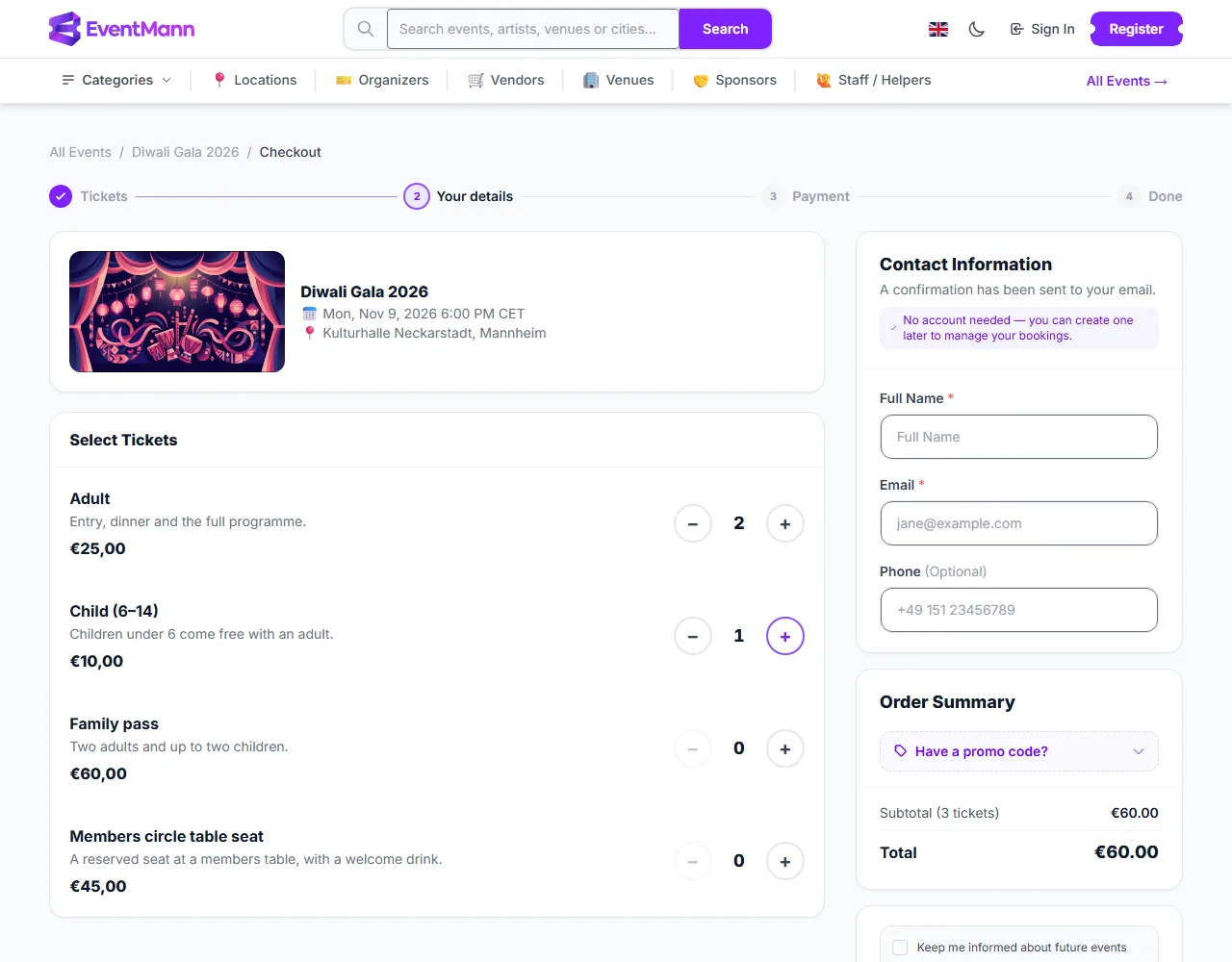
What is on the checkout page
- Select Tickets ① — every ticket type with its price and + / − buttons. A type shows Sold Out or a sales-window message (Ticket sales have not opened yet, Ticket sales have closed) when you cannot buy it.
- Bundle Deals — if the organizer offers any, choose one instead of picking single tickets. Only one offer applies per order and choosing another replaces it.
- Seat Map — for seated events, click your seats on the map. They are held for you for 15 minutes.
- Contact Information ③ — Full Name and Email are required; Phone is optional unless the organizer asks for it. Some events also ask for a postal address, or for a name on every ticket (“exactly as it appears on their ID”).
- Additional Information — the organizer’s own questions, for example dietary needs. A field marked with a red star is required.
- Age confirmation — a checkbox for events with a minimum age.
- Organizer’s terms — where the organizer has added terms, you see the cancellation terms for this event and a checkbox to accept them before you can continue. Read them: they decide what you get back if you cancel.
- Keep me informed — an optional, unticked box to hear from the organizer about future events by email. See Hearing from the organizer below.
- Order Summary ⑤ — updates as you change quantities. Have a promo code? ④ opens a field for a discount code; codes are not case sensitive.
What the total is made of
| Line | Meaning |
|---|---|
| Subtotal | Ticket (or bundle) prices multiplied by quantity. If you are a member, member prices already apply here. |
| Discount | What a valid promo code takes off. |
| Member allowance | Free tickets your membership includes, shown as a negative line. See Memberships. |
| Platform Fee / Service fee | Only shown when the organizer passes these on to the buyer. By default the organizer pays them and you see no extra line. |
| Tax | Shown when the organizer charges tax. |
| Total | What you pay. |
Hearing from the organizer
Next to the button that completes your order is a box that reads “Keep me informed about future events from organizer by email. You can unsubscribe at any time.” It names the organizer who sells this event, and it covers that organizer only — not EventMann and not other organizers.
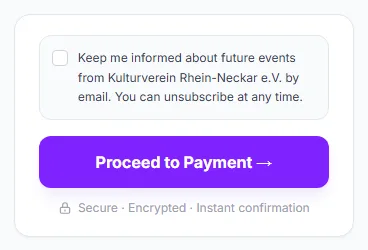
- The box ① is never ticked for you and it is not required. Leave it empty and you can still buy; press Proceed to Payment ② or Complete Booking as usual.
- If you tick it, your consent is recorded with this order, with the date. The organizer sees you as Opted in on their audience list.
- For a paid order your choice is kept while you pay and recorded when the order is created; if you leave without paying, nothing is recorded.
- Your tickets, the confirmation and messages about the event you booked come whether or not you tick it.
- Changed your mind? Use the unsubscribe link at the bottom of any marketing email from the organizer, or, if you have an account, switch off Marketing email in Notification Preferences. Either one counts for more than a box you ticked earlier.
Paying
For a paid order, Proceed to Payment opens the payment page. It shows your order and a secure payment form from Stripe, our payment provider. Your card details go to Stripe and never pass through EventMann.
- Which payment methods you see is decided by Stripe, from your country, the amount, the currency and what the organizer’s Stripe account accepts. Typically that is cards, wallets such as Apple Pay or Google Pay where your device supports them, and local methods such as SEPA direct debit or iDEAL. If a method you expect is missing, it is not available for this order.
- Press Pay (the button shows the amount). If your bank asks you to confirm in its app or on a bank page, complete that step; you are brought back automatically.
- Some methods, such as bank debits, confirm days later. You see a message that your payment is being processed. The booking stays pending and the tickets are issued when the money is confirmed; you are emailed.
- If a payment fails, nothing is charged and your tickets stay reserved for a short time. Try again or use another method.
- For an event where the organizer approves orders, the button reads Authorise: your card is only reserved. See Pending Bookings.
The payment is made to the organizer, who sells the ticket to you; EventMann only takes a fee from the organizer. If an organizer has not finished setting up payments, the page says Payment temporarily unavailable and nothing can be paid.
Free events and totals of zero
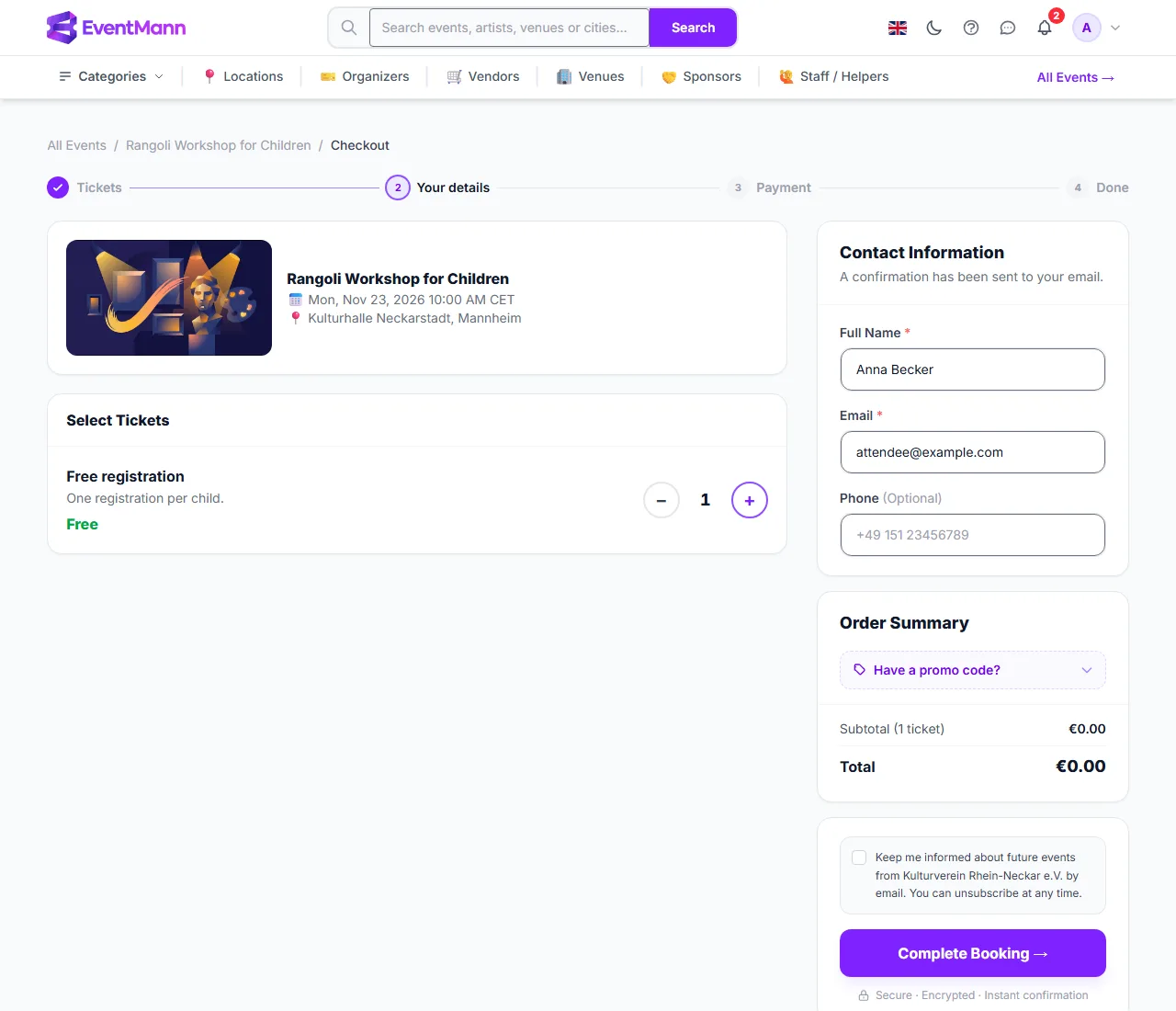
When there is nothing to pay, because the event is free or your membership covers the tickets, there is no payment page. The button reads Complete Booking and the booking is confirmed straight away.
Good to know
- Nothing exists as an order until you pay or authorise your card. Your selection is kept while you pay, but only for a short time (about half an hour); a seat you chose stays reserved for that long too.
- Prices, promo codes and availability are checked again when you pay. If a code ran out or a type sold out in the meantime, you are told before any money moves.
- Signed in? Your name and email are filled in, member prices apply automatically and the order lands in My Tickets. A guest order is tied to the email you enter.
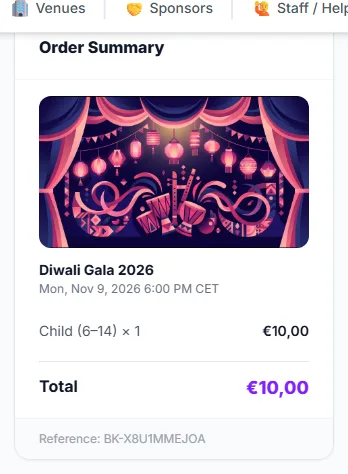
- Your order reference starts with
BK-. Keep it when you contact the organizer.
Troubleshooting
- A required question will not let me continue — fill in every field with a red star under Additional Information, and tick the age and terms boxes if they appear.
- My promo code is invalid — check that it belongs to this event, has not expired or been used up, and matches the event currency for fixed amounts.
- The payment form does not load — disable any ad blocker for the page or reload it.
- It says a ticket is no longer available — it sold out first. Choose a different type or quantity.
- I expected to pay but there is no payment page — the total is zero, or the event needs approval and holds your card.