




My Volunteering: shifts and check-in
Help articles may not be fully accurate — they can lag behind the app due to frequent updates and automated translation. If in doubt, please contact support.
On this page
My Volunteering is your page for everything you do as a volunteer. Sign in and choose My Volunteering in the menu of your account. There is one card per event, coming events first and finished events after them. Each card shows the event, the date, the organizer, your team and your status.
If you are a core member of one of the organizer’s standing teams, the page starts with a block Your teams: one card per team with all of the team’s tasks and a link to the team’s Inventory. See Your volunteer tasks and Your team’s inventory. If you lead a team, the block is called Teams you lead instead.
What a card tells you
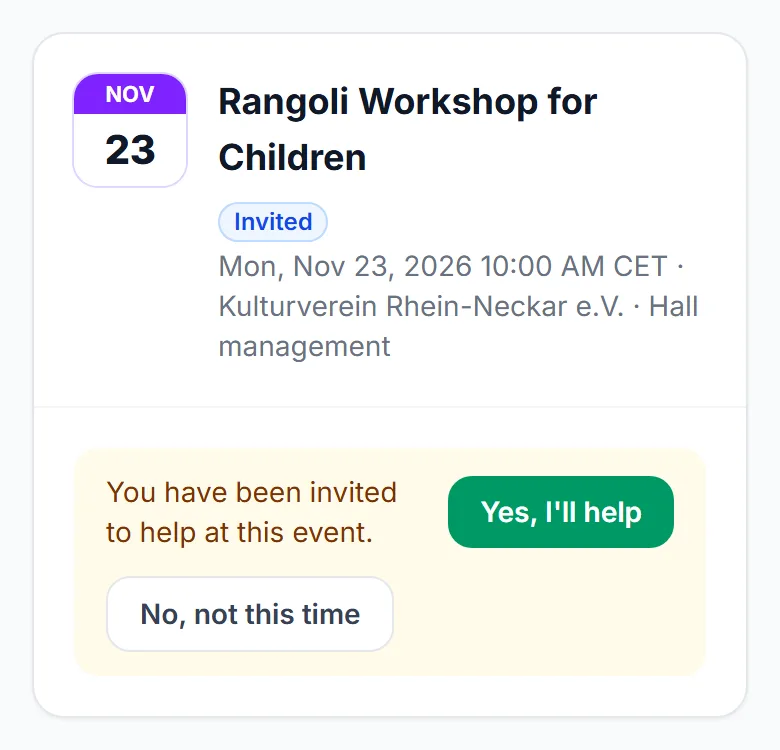
- Invited — the card asks you to answer with Yes, I’ll help or No, not this time.
- Applied — your sign-up is with the organizer. You get an email when they decide.
- Confirmed — you are on the team. The card shows the organizer’s thank-you, your shifts and tasks, open shifts you may take, your availability and your hours.
On an invited card, tap Yes, I’ll help ① or No, not this time ②.
Check in and out
Your hours count from check-in to check-out, so do both.
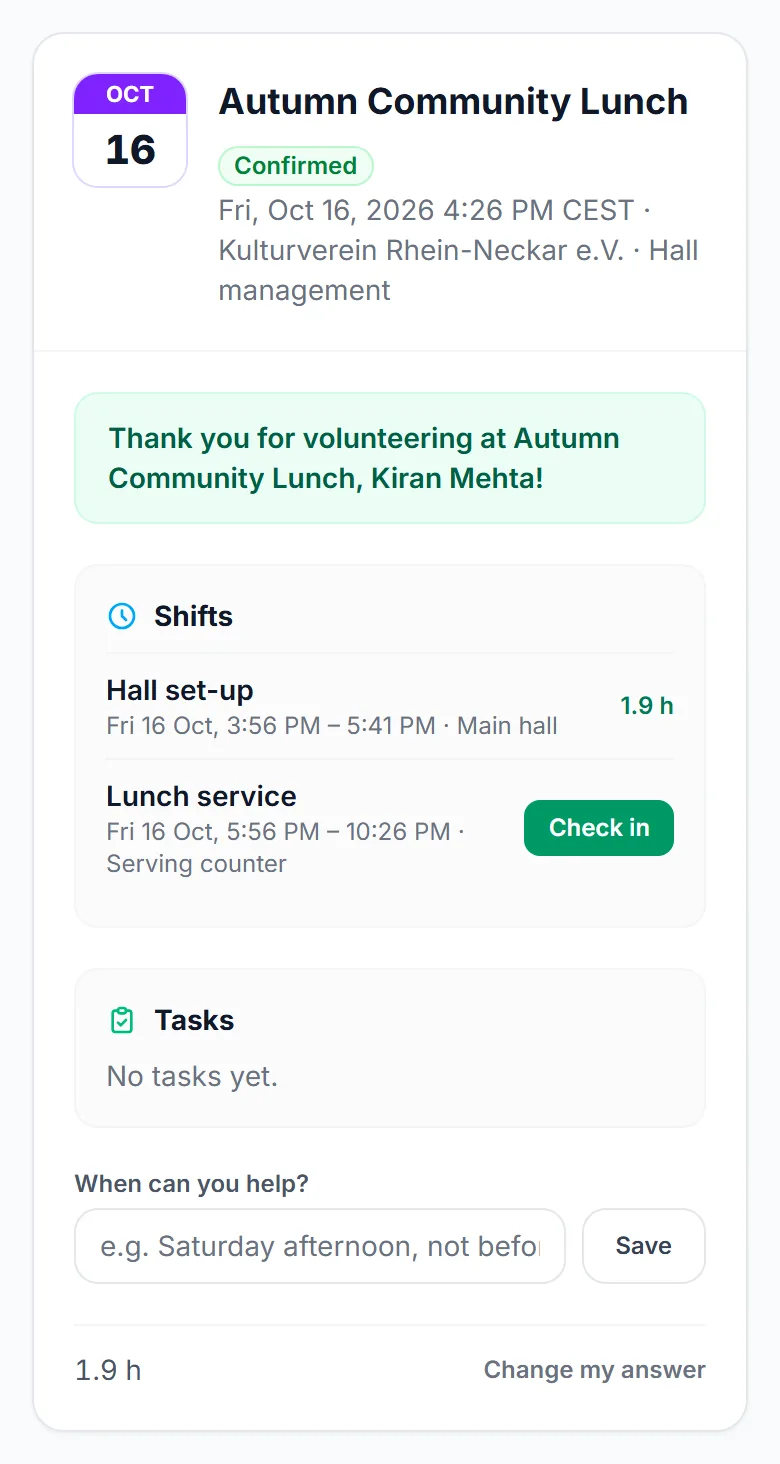
- Open the card of today’s event; its title ① names the event. Each shift lists its title, time and place.
- Under Shifts find the shift ② and tap Check in ③ when you arrive. The button is available from an hour before the shift starts until it ends.
- When you finish, tap Check out. The shift then shows the hours you worked.
- Your total for the event is at the bottom of the card.
A shift never checked out counts nothing until you or the organizer closes it.
Give a shift back
When the organizer lets volunteers choose their own shifts, you see Give back ② next to each of your shifts.
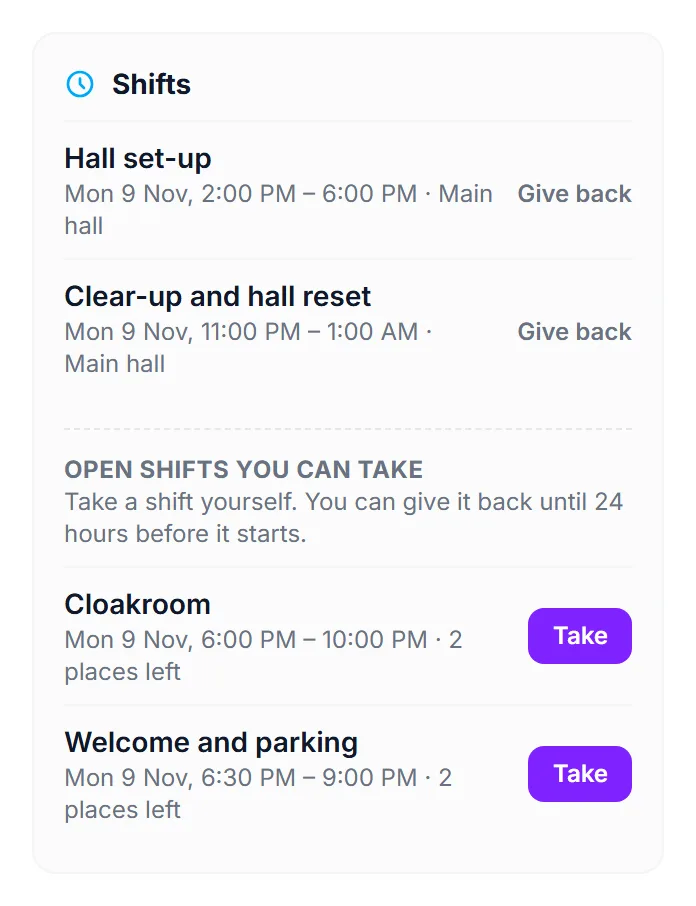
- Tap Give back beside the shift ① and confirm.
- Your team’s leads and the organizer are told that the shift has a gap again.
You can give back until the cutoff the organizer set, 24 hours before the shift by default, and never after you have checked in. After that, talk to your lead; the button is gone on purpose.
Take an open shift
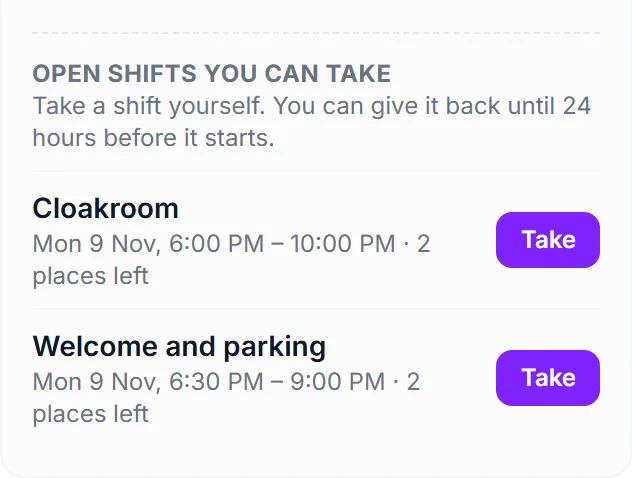
If the organizer switched on Volunteers choose their own shifts, the card has the block Open shifts you can take.
- Read the block ① — it says how long before the start you can still give the shift back.
- Tap Take ② on the shift you want.
You see your own team’s shifts and shifts that belong to no team, only those that have not started and still have places. A shift is refused if it overlaps one of yours, is full by the time you tap, or belongs to another team.
Say when you can help
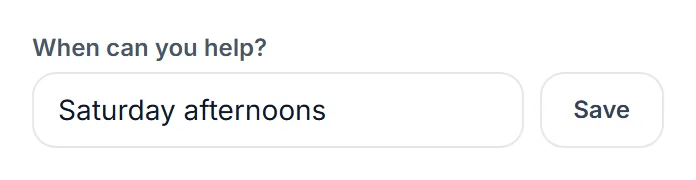
The field When can you help? on each card is free text for the organizer or your lead, for example “Saturday afternoons”. Type it and tap Save.
Enter your text ① and tap Save ②. It holds up to 500 characters.
Good to know
- Change my answer at the bottom of a card opens your invitation page, while the event still takes answers.
- The volunteer ticket appears as a note with Get my ticket while the event has not ended.
- You get a reminder email about a day before each shift, with the tasks for that shift.
Troubleshooting
- No Check in button — it opens one hour before the shift. Outside that window ask your lead to check you in.
- No Give back button — the event does not allow it, the cutoff has passed, or you have already checked in.
- No open shifts — the organizer has not switched self-service on, or nothing is left for your team.
- No Your teams block — you are not a core member of a team, or you lead it (then you see Teams you lead). Ask the organizer.