




How to Transfer Tickets
Help articles may not be fully accurate — they can lag behind the app due to frequent updates and automated translation. If in doubt, please contact support.
On this page
- 1. Before you start
- 2. Send a ticket
- 3. What the recipient does
- 4. While the offer is open
- 5. Cancel an offer
- 6. Good to know
- 7. Troubleshooting
- 8. Related
Cannot make it to an event? If the organizer allows transfers, you can hand any single ticket to someone else by email, from the ticket page. The new holder accepts it in their own account and gets their own ticket. Whether an event allows it is stated in the Ticket conditions box on the event page (You can transfer your ticket to someone else); organizers have to switch it on, it is off until they do.
Before you start
The Transfer Ticket button is shown only when all of this is true:
- you are the person whose account made the booking;
- the organizer allows transfers for this event;
- the order is confirmed and the event has not ended;
- the ticket has not been scanned at the door and has not already been transferred;
- no other offer is pending on that ticket.
Send a ticket
- Open the ticket: the ticket icon on the order in My Tickets, View Ticket on the confirmation page, or the link in your email.
- Press Transfer Ticket.

- Enter the Recipient Email ① and, if you like, a Message (optional) ② of up to 500 characters.
- Press Send Transfer Request. You see Transfer request sent successfully!
You cannot send a ticket to your own email address, and each ticket takes one offer at a time. Tickets are transferred one by one: for an order with three tickets, send three offers if you want to give three away.
What the recipient does
- They receive an email with a button to accept. The offer is valid for 7 days.
- They must sign in, or create an account, with exactly the email address you typed, and that address must be verified. If someone else is signed in, they are told the offer was sent to a different address (shown partly hidden) and asked to sign in with the right one. A forwarded link is useless to anyone else.
- On acceptance the ticket moves to their account. It gets a new code: the QR code and link you had stop working, and they open the ticket from their own My Tickets. You are told by email and, if you use it, by a push message.
While the offer is open
Your ticket is not locked: until the recipient accepts, it is still yours and the old code still works. On My Tickets the ticket shows a Transfer pending badge in place of its buttons, with the recipient’s address as a tooltip, and a Cancel Transfer link next to it. After it is accepted the badge changes to Transferred, and the ticket no longer counts as yours.
Cancel an offer
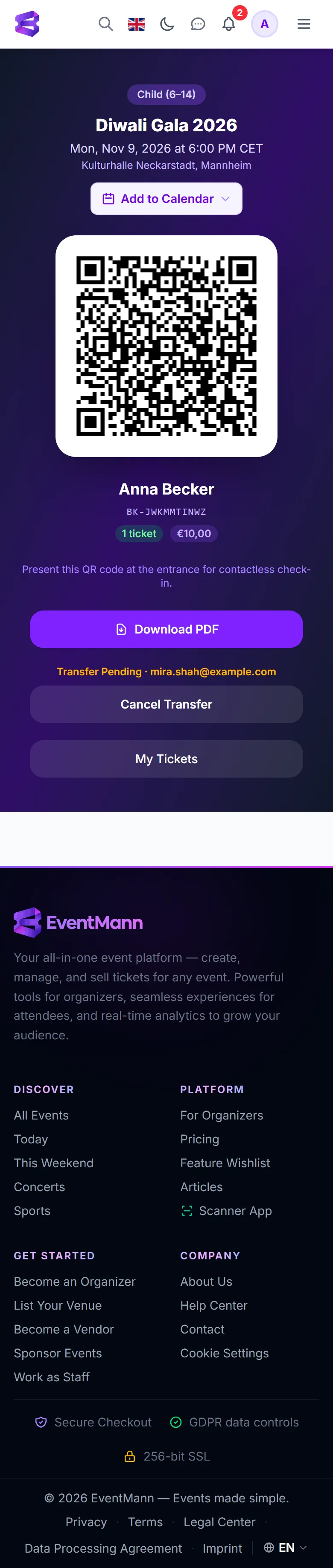
- Press Cancel Transfer next to the Transfer pending badge in My Tickets, or open the ticket page (from the confirmation page, your dashboard or your email) and press Cancel Transfer ① there.
- Confirm. The recipient’s link stops working at once and you can send the ticket again, to the same or another address.
This only works while the offer is pending. An offer that is not accepted within 7 days simply expires, and the ticket stays with you.
Good to know
- Transferring is handing a ticket over, not selling it. EventMann does not move money between people, so anything you agree with the recipient is between the two of you.
- An order that contains a ticket you gave away, or one you received, cannot be cancelled or refunded from My Tickets. Transfer the ticket instead.
- Checks are repeated when the recipient accepts: if you were refunded, the ticket was scanned, the event ended or the organizer switched transfers off in the meantime, the offer is refused with This ticket can no longer be transferred.
- You are not told by email if the recipient never answers; the offer simply lapses after 7 days.
Troubleshooting
- There is no Transfer Ticket button — the organizer has not enabled transfers, the ticket was already transferred or scanned, an offer is pending, the event has ended, or you are not the account that made the booking.
- The recipient says the link does not work — they must sign in with the address you entered; a typo or a different address blocks it. Cancel the offer and send a new one to the correct address.
- The recipient did not get the email — ask them to check spam; the offer can also be accepted from the link again within the 7 days.
- It says a transfer is already pending — cancel the open offer first, or wait for it to expire.