




Standing teams, leads and the core team
Help articles may not be fully accurate — they can lag behind the app due to frequent updates and automated translation. If in doubt, please contact support.
On this page
Teams are the departments of your association — Registration, Music, Marketing, Sponsors, Hall management, Kitchen — that exist from event to event. A team has leads, members and a core, and it is what lets a lead run their own part of an event without touching anyone else’s. You set them up under Grow → Volunteers → Teams. Only you, the organizer, can create or change teams.
What you can do here
- Create the teams you run events with and choose what their leads and members may open at an event.
- Add people from your roster to a team, as members, as leads and as core members.
- Rename a team, change its access, take people out of it or delete the team.
Lead, core and member
- Member — belongs to the team. At an event, the person is placed in a team when you invite them or when they join through a team’s link.
- Lead — runs the team at every event they help at. A lead recruits people into the team, confirms them, plans the team’s shifts and tasks and writes to the team. A lead sees the whole People list and the roster, but changes only their own teams. See Volunteer roles and team leads.
- Core — is on every event automatically, and sees the team’s whole picture: on My Volunteering, under Your teams, every task of the team at the events they are confirmed for, and a read-only view of the team’s stock and packing lists. A lead is always core.
The same person can be in several teams. At an event, their main team is a team they lead, otherwise the first team they are core in.
Add a team
- Open Teams and click Add a team.
- Type the Team name ①. Each name can be used once.
- Under Leads get access to ② choose what a lead of this team may open at every event they help at, for example Box office for the Registration leads. Nothing extra leaves them with their volunteer tools only.
- Under Members get access to ③ choose the same for ordinary members, for example Door / check-in. Members get it only at events where this is their team.
- Click Create team ④.
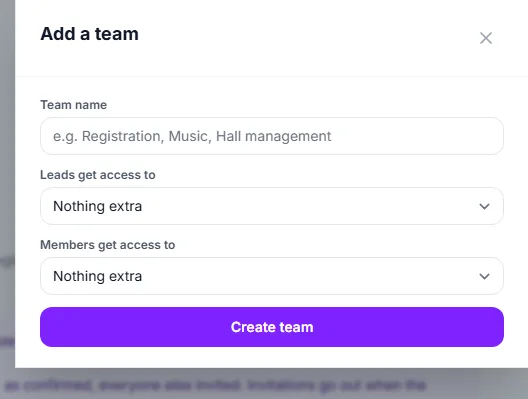
The choices are the roles you can give volunteers at an event — Volunteer coordinator, Box office, Door / check-in, Venue manager, Marketing, Finance — and any custom role you have made. What each opens is explained in Volunteer roles and team leads. The access works only at the events a person helps at, and for 30 days after they end.
Put people in a team
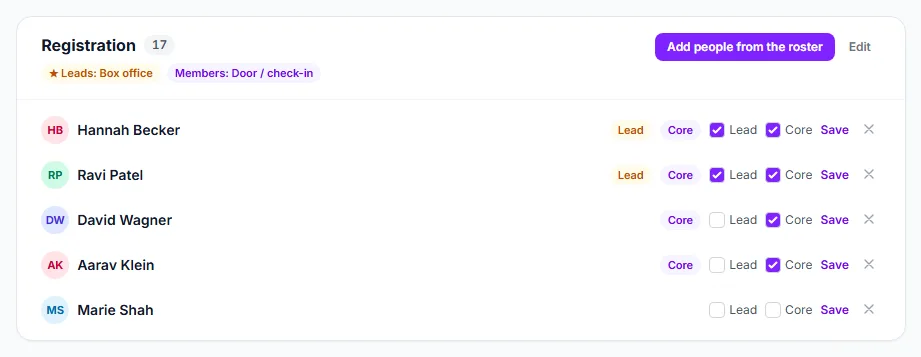
Each team has its own card with its people. Leads come first. On a person’s row, a Lead badge ① and a Core badge show their standing. Tick Lead ② or Core ③ and click Save to change it, or click the cross ④ to take them out of the team. At the top of the card are Add people from the roster ⑤ and Edit ⑥, which renames the team and changes its access.
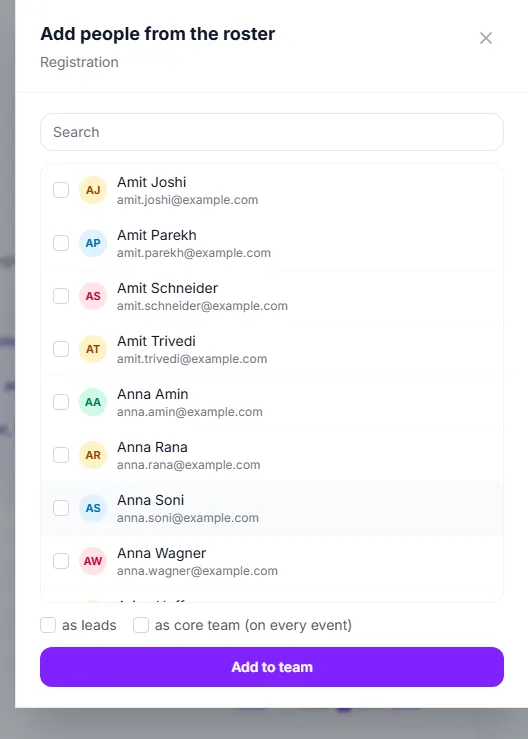
- Click Add people from the roster to open the list beside the page.
- Use the search box ① to find people by name, email or volunteer number and tick them ②.
- Tick as leads ③ if they run the team, or as core team (on every event) ④ if they should be on every event.
- Click Add to team ⑤. Up to 500 people can be added at once.
The core team is on every event
Core members and leads are added to every one of your events that has not ended, so you do not invite the same fifty people again each time.
- A lead is added as confirmed, because they run the team. They can still step back.
- Any other core member is added as invited and answers Yes or No from their email.
- Nobody is emailed while the event is a draft. The invitations go out when the event is first published, so a draft you delete never reaches anyone.
- When you make somebody core or a lead, they are added to all your upcoming events at once.
- Somebody who is already on an event in any status — declined, removed — is never added again. Their answer stands.
What a core member can do
- Team tasks — every task you or a lead gave the team, not only their own: they move a task along (Open, In progress, Blocked, Done), tick its checklist and write comments. They cannot add, delete or reassign a task; that stays with you and the team’s leads.
- Team inventory — the team’s items with quantity, condition, who holds each one or where it is stored, the low-stock warning, and the team’s packing list for their coming events. They cannot edit items, restock or record purchases.
- Only their own team: a core member of Hall management sees nothing of Registration’s tasks or stock. An ordinary member sees only the tasks given to them, their shift or the whole team.
Good to know
- Taking a person out of a team, or leaving the core team, does not remove them from events they already agreed to.
- Deleting a team keeps its people on your roster and on every event. Only the team goes; the team’s shifts and tasks become “no team”, and its people show no main team at the events.
- Only the organizer defines teams. A team’s access reaches every event, so an event coordinator who holds one event cannot set it.
- People who opted out of your invitations are skipped when the core team is added.
- Each team can also look after its own stock between events; see Team inventory.
Troubleshooting
- A core member was not invited to my new event — the event is still a draft (they are invited when you publish), the event is cancelled or over, or the person opted out of your invitations.
- A lead cannot open the event — a lead needs a confirmed place on the event, and an account on their roster email address with a confirmed email.
- The team name is refused — you already have a team with that name.