




Understanding Your Schedule
Staff & Volunteers
3 min read
Help articles may not be fully accurate — they can lag behind the app due to frequent updates and automated translation. If in doubt, please contact support.
On this page
This article explains how to read the dates and times on My Shifts and the dashboard, what the organizer can and cannot do with your schedule, and what to do when it changes.
Reading a shift
- Date and times are the event’s local time. A shift for an event in Mannheim at 16:00 is 16:00 in Mannheim, wherever you are looking at it. The event page also prints the time zone abbreviation next to the event time.
- An overnight shift that starts at 17:00 and ends at 02:00 finishes on the next calendar day. The card shows the date it starts on.
- Location is a free-text line the organizer typed (for example “Loading dock”).
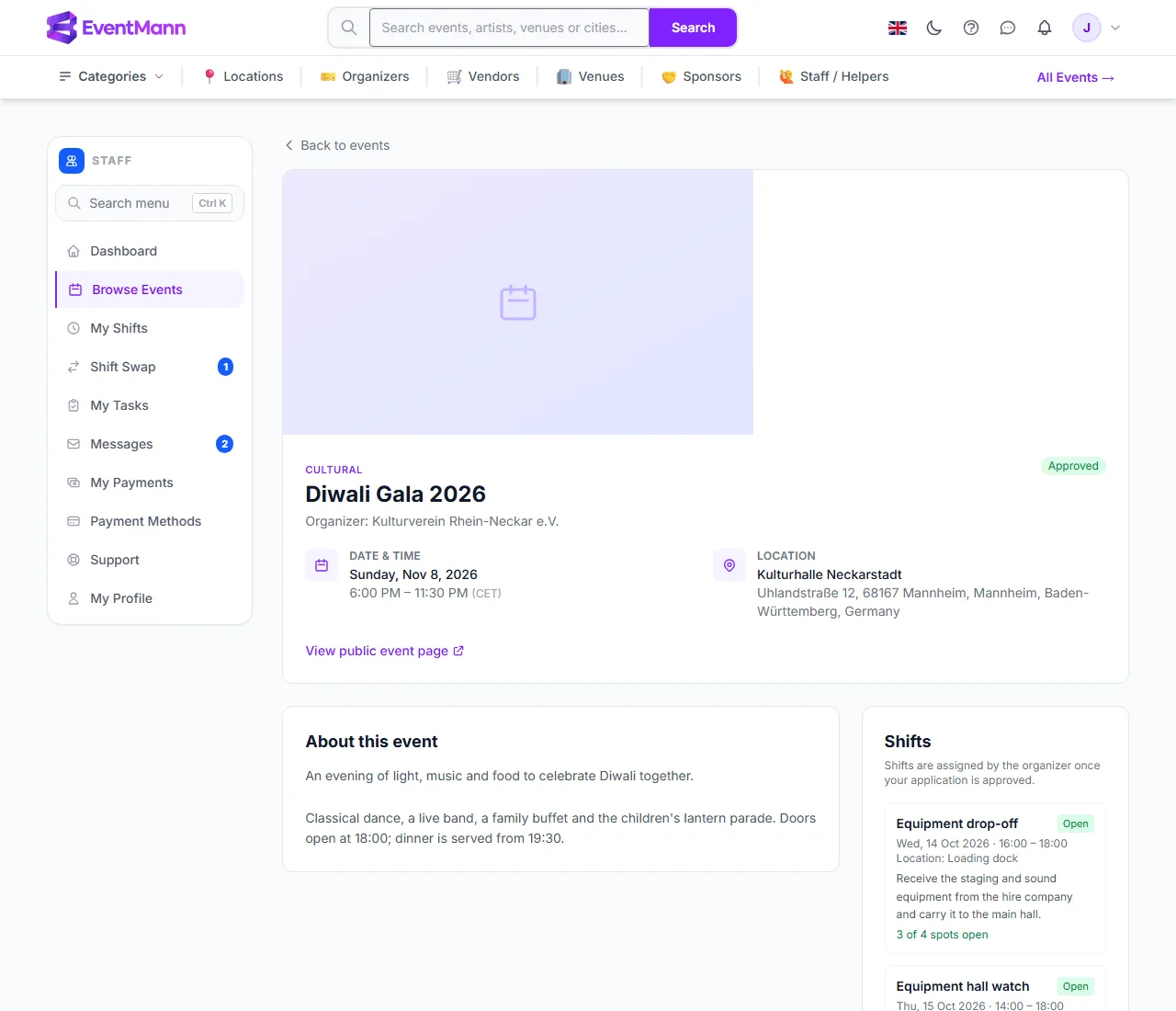
- A shift’s own status — Open, Full, Closed or Cancelled — is what the organizer sees. You see Open and Full on the event page; cancelled shifts are hidden there.
In the picture: your Approved badge ①, the Shifts panel ②, a shift’s status Open ③ and its free places ④.
What the system checks for you
- The organizer cannot assign you to two shifts that overlap on the same date; the assignment is refused.
- A shift that is already full takes nobody else, and a suspended staff profile cannot be assigned at all.
- A direct swap that would put someone on two overlapping shifts is refused when the organizer approves it.
When your schedule changes
| Change | How you find out |
|---|---|
| You are put on a shift or taken off it | You are not notified. Check My Shifts; the dashboard counter changes too. |
| The organizer changes a shift’s time or place | No automatic message. Organizers can write to you from the staff page; watch Messages. |
| You are removed from the event team | You get a bell notification and an email. Shifts that had not started are released; ones you already worked stay. |
| A swap is approved or declined | Both people involved get a bell notification and an email. |
Good to know
- There is no calendar export and no reminder email for staff shifts. Put the times in your own calendar.
- Your Availability on Staff Profile (Mon to Sun) is information for the organizer; it does not block assignments.
- If the event itself moves, ask the organizer to tell you directly — do not rely on an automatic message reaching you.
Troubleshooting
- My shift times look an hour off. Compare with the event’s time zone on the event page, not with your phone’s.
- Two shifts look like they overlap. Tell the organizer, and ask them to remove one. Assignments made before the overlap check existed can still be there.