




Discount Codes
Help articles may not be fully accurate — they can lag behind the app due to frequent updates and automated translation. If in doubt, please contact support.
On this page
- 1. Create a code
- 2. Settings explained
- 3. Edit a code
- 4. What the buyer sees
- 5. Good to know
- 6. Troubleshooting
- 7. Related
A discount code lets a buyer take money off an order by typing a code at checkout. Each code belongs to one event. Open it from Manage → Tickets & Pricing → Pricing & offers and click the Discounts tab; the other tabs on that page (Pricing Rules, Flash Sales, Bundles) are the other ways to change a price.
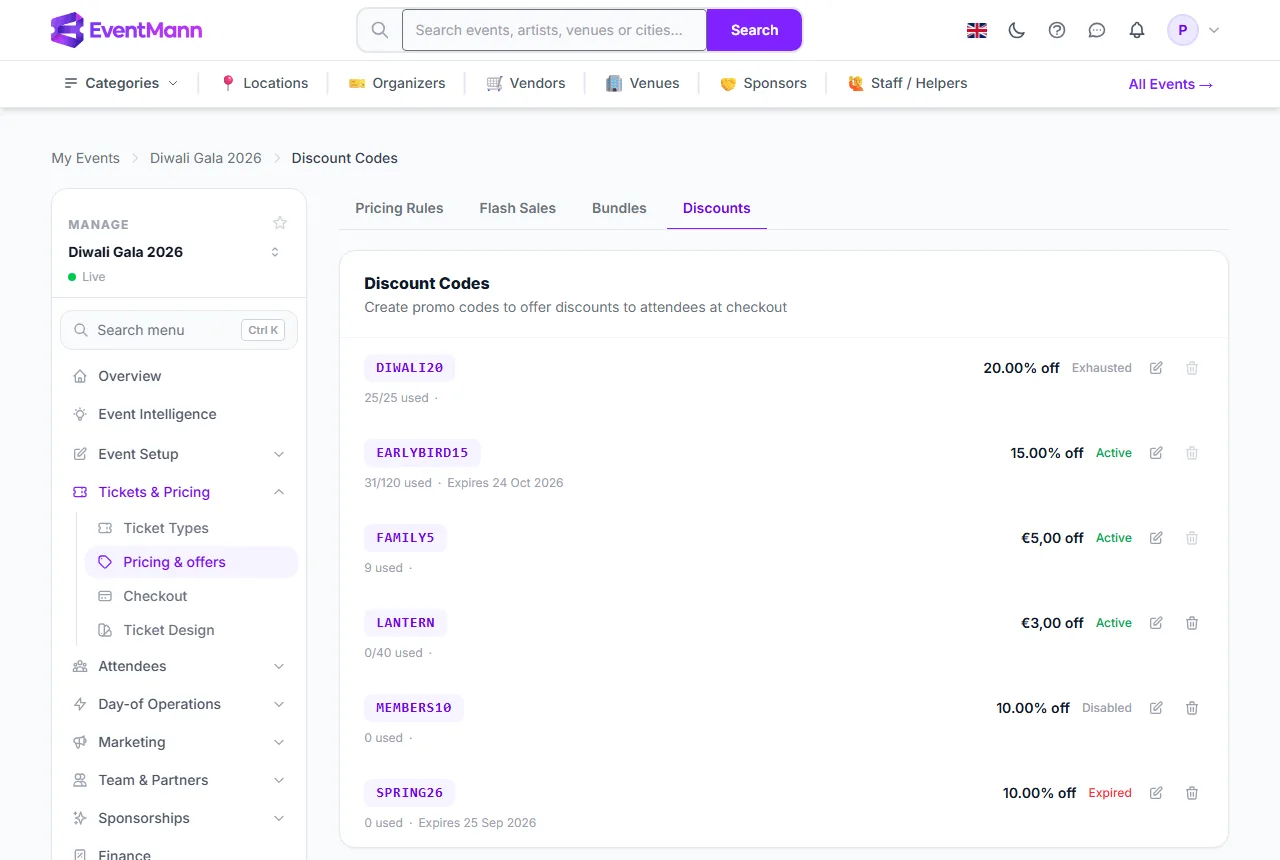
- Click the Discounts tab ①.
- Each code shows its size, how often it has been used and a status ②: Active, Disabled, Expired or Exhausted.
- Use the pencil ③ to edit a code.
- A greyed trash can ④ means the code has been used and cannot be deleted. Deactivate it instead.
Create a code
The Create Discount Code form is below the list.
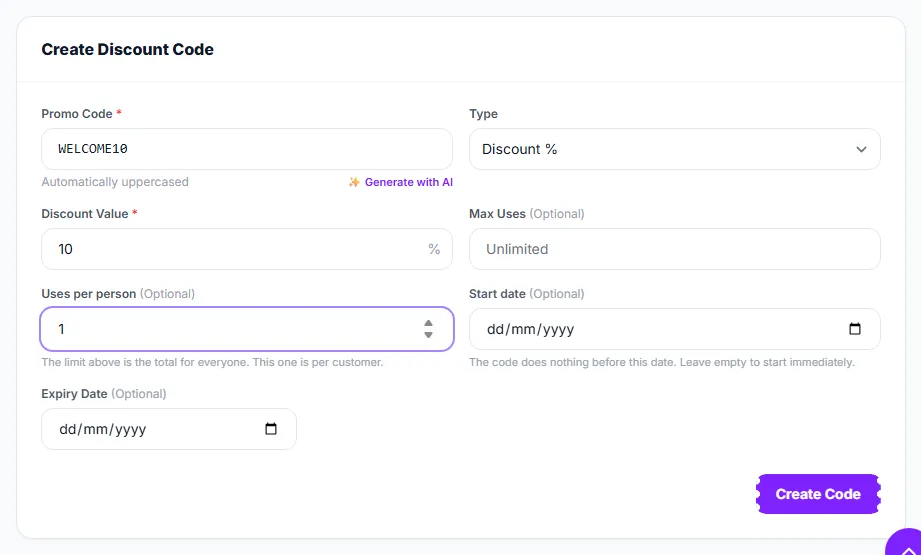
- Type the Promo Code ①. It is turned into capital letters automatically and compared without regard to case, so a buyer typing
welcome10still matches. With AI switched on, Generate with AI suggests a memorable name. - Choose the Type ②: a percentage, or a fixed amount in the event’s currency.
- Enter the Discount Value ③. A percentage can be up to 100.
- Optionally set Max Uses ④ — the total for everybody.
- Optionally set Uses per person ⑤ — how often one customer may use it.
- Optionally set a Start date ⑥. Before that day the code does nothing.
- Optionally set an Expiry Date ⑦. For a new code it must be at least tomorrow.
- Click Create Code. The code is active at once.
Settings explained
- Percentage or fixed. A percentage takes that share off the order. A fixed amount takes a flat sum off and never takes an order below zero. A fixed code remembers the event’s currency, so a euro code cannot discount an order in another currency.
- Max Uses is the total. When uses reach it, the status reads Exhausted and checkout refuses the code.
- Uses per person counts by account when the buyer is signed in and by email address otherwise. Orders that are confirmed, approved or still being paid count, so a buyer cannot use the code twice in parallel.
- Start date and Expiry Date are whole days in the event’s time zone. A code starts at the beginning of its start day and is valid through the whole of its expiry day.
- Active (edit screen) switches a code off and on without deleting it.
Edit a code
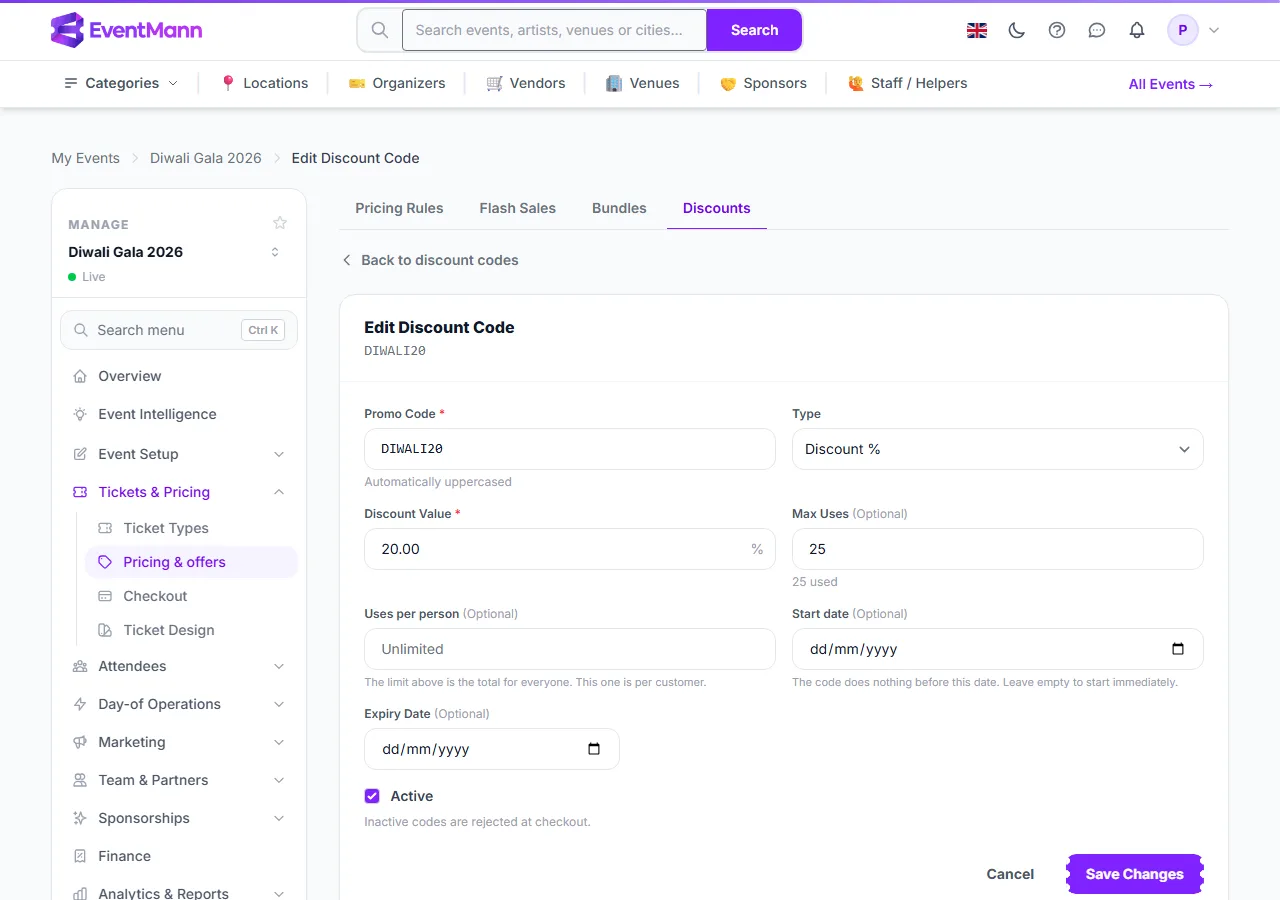
- Click the pencil next to a code. The form is the same as for a new code, with the current values filled in.
- Under Max Uses the form says how often the code has been used ①.
- The Active checkbox ② switches the code on or off. A switched-off code reads Disabled in the list and checkout refuses it, but nothing is lost.
- Click Save Changes. You can change the value, limits and dates at any time; orders that already used the code keep what they were given.
What the buyer sees
Buyers enter the code in the Promo Code box of their cart and press Apply. One code applies at a time; entering another replaces it. They are told plainly when a code is not active yet (with the date), has expired, or has already been used by them. A code that is disabled, used up or typed wrongly shows as “Invalid or expired promo code”, so check the status column before assuming a code is broken.
Good to know
- The discount also applies to a bundle’s own price.
- If an order that used a code is refunded in full, the use is given back and a used-up code can work again. A partial refund does not give it back.
- A code that has been used cannot be deleted, because the order is the only record of why that buyer paid less. Switch it off with the Active setting instead.
- A code cannot be limited to one ticket type; it applies to whatever is in the cart.
- Every order that used a code is recorded. The Promo Code Usage card on Marketing shows uses and revenue per code, and the Discount codes report in Reports shows the discount given.
Troubleshooting
- A buyer says the code does not work — open the list and read the status. Disabled, Exhausted and an unknown code all read the same to the buyer.
- The code is not accepted before its start date — that is the Start date at work; the buyer sees the date it becomes active.
- The save was refused — the code already exists on this event, or the expiry date is not in the future.
- The delete button is greyed — the code has been used. Edit it and switch off Active.