




Integrations
Help articles may not be fully accurate — they can lag behind the app due to frequent updates and automated translation. If in doubt, please contact support.
On this page
- 1. What is available
- 2. Connect Google Calendar
- 3. Good to know
- 4. Troubleshooting
- 5. Related
Integrations in the sidebar has three tabs: Connected Apps (this article), Webhooks and Tracking Pixels. Connected Apps lists the outside services EventMann can work with and shows which of them are set up for you.
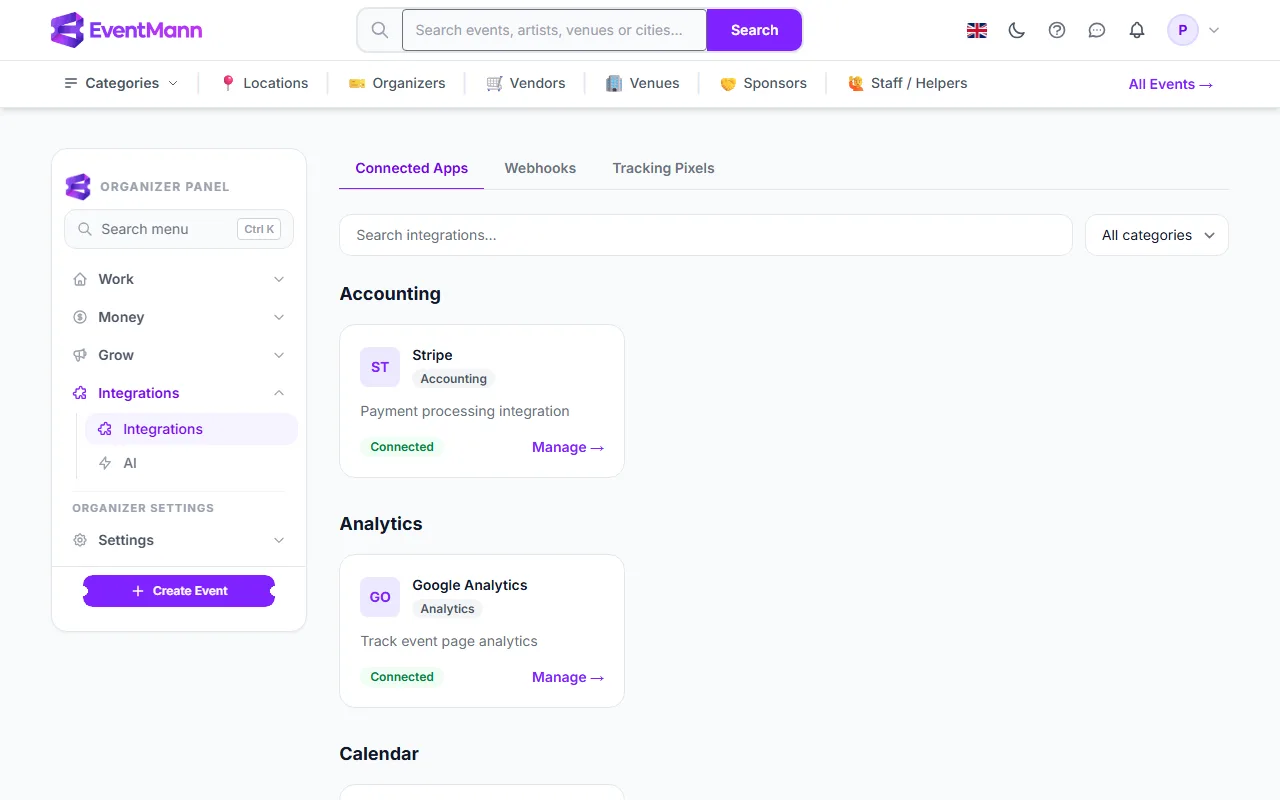
- Open Integrations and stay on Connected Apps ①.
- Search by name or filter by category ②.
- A Connected badge ③ marks what is already set up.
- Click Connect, or Manage ④ on a connected card.
What is available
| Card | What it does | Where it is set up |
|---|---|---|
| Google Calendar | Puts your upcoming events into a Google calendar. | Sign in with Google on the card. |
| Google Analytics | Measures visits and purchases on your event pages. | The card leads to Tracking Pixels, where you enter your GA4 Measurement ID. It reads Connected once that ID is saved. |
| Stripe | Takes ticket payments. | The card leads to Money → Stripe Connect. It reads Connected once your account can take card payments. |
The Google Analytics and Stripe cards are signposts: you set them up on the page they lead to, and the card shows the result. Other tools, for example Zapier or Make, connect through webhooks and an EventMann API token rather than through a card here.
Connect Google Calendar
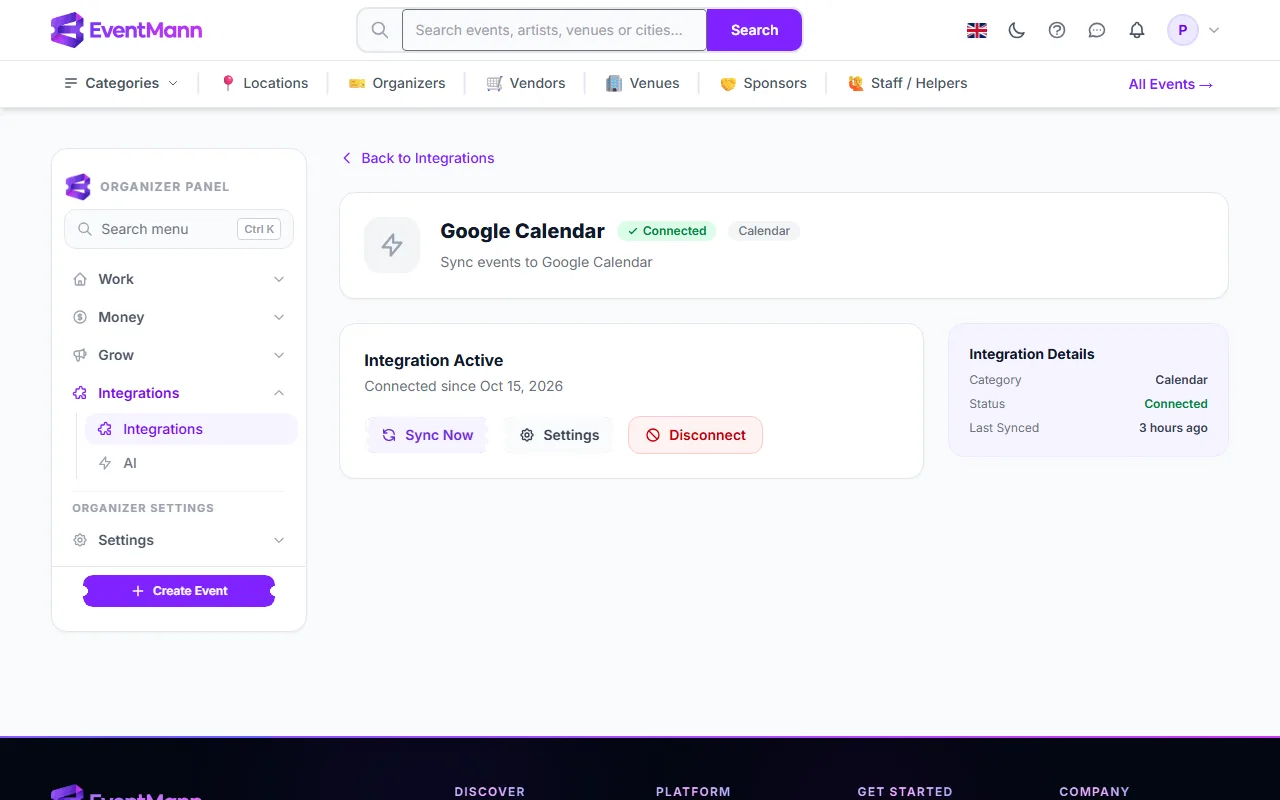
- On the Google Calendar card click Connect. You are sent to Google to sign in and allow access.
- Back in EventMann the card reads Connected. Click Manage.
- Click Sync Now ① to push your events. You see a success message or the exact error at once.
- Settings ② shows when you connected and when it last synced.
- Disconnect ③ removes the stored connection. To use the calendar again you connect from scratch.
A sync pushes up to 100 of your upcoming live and scheduled events to the calendar you connected, and updates the ones it pushed before instead of duplicating them. It goes one way only, from EventMann to Google, and it runs only when you press Sync Now: EventMann does not keep the calendar up to date by itself, so sync again after you change an event.
Good to know
- Google Calendar needs the platform to have its Google sign-in set up. If it has not, the card says so and you cannot connect.
- Whatever credentials a connection stores are kept encrypted and are never shown back to you.
- The Stripe card here is not a separate account: it is the same Stripe Connect connection you use to get paid.
Troubleshooting
- Sync failed — the message names the reason, often an expired Google sign-in. Disconnect and connect again.
- I cannot connect Google Calendar — the platform’s Google sign-in is not configured. Ask EventMann support.
- The calendar is missing a changed event — press Sync Now again.
- The Stripe or Analytics card shows Connect, not Manage — the underlying setup is not finished on its own page.