




Communicating with Organizers
Sponsor Guide
3 min read
Help articles may not be fully accurate — they can lag behind the app due to frequent updates and automated translation. If in doubt, please contact support.
On this page
- 1. What you can do here
- 2. Send a message
- 3. How you are notified
- 4. Good to know
- 5. Troubleshooting
- 6. Related
Every sponsorship has a private message thread between you and the organizer. It is the place to agree where your banner goes, send artwork details, arrange payment when there is no Stripe invoice, and ask which deliverables are still open. You open it with Message Organizer on the My Sponsorships page.
What you can do here
- Read the conversation about one sponsorship, oldest message first.
- Write to the organizer and see their replies appear without reloading.
- Get notified when the organizer writes.
Send a message
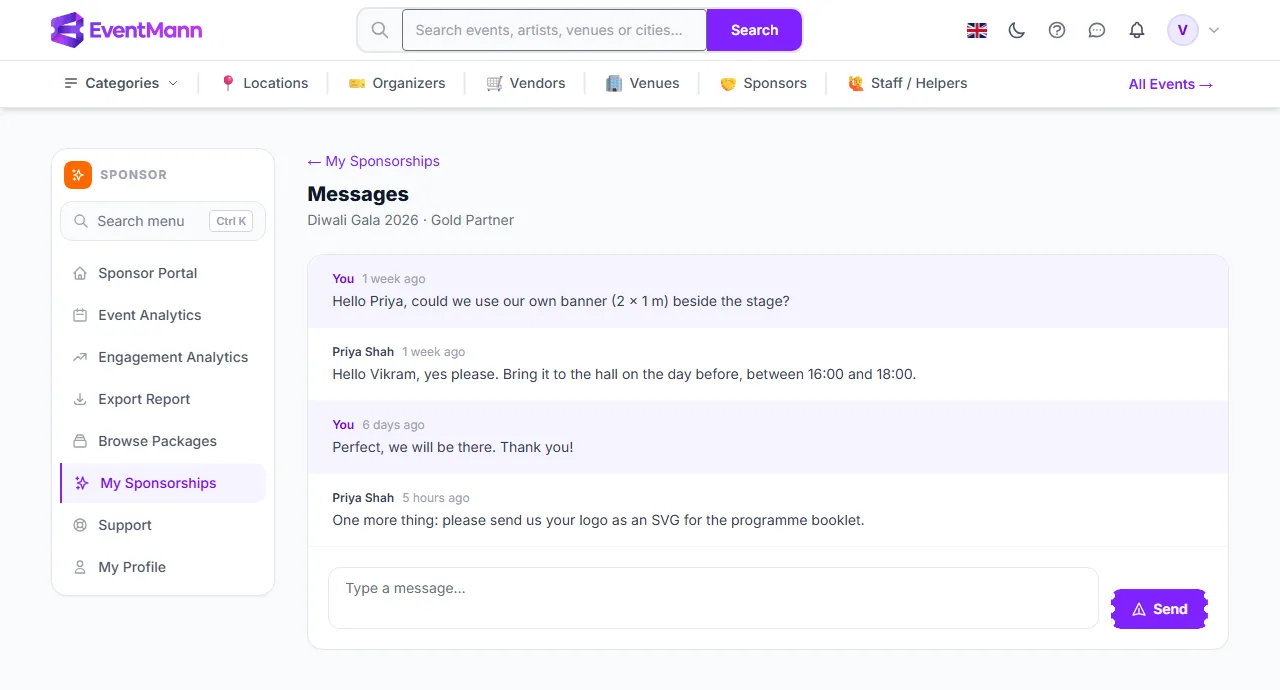
- Open My Sponsorships and click Message Organizer on the row. The page is titled Messages and shows the event and the package underneath.
- Read the thread ① — your own messages are tinted violet and labelled You; the organizer’s are white and carry their name. Opening the thread marks their messages as read.
- Type in the box ② (“Type a message…”), up to 3,000 characters, and click Send ③.
- While the page stays open it checks for new messages every few seconds, so a reply appears by itself.
How you are notified
- When the organizer writes, you get a bell notification, a mobile push if you use it, and an email if your Sponsorship messages notification preference is on (it is, unless you changed it).
- A red number on My Sponsorships in the sidebar, and on the Message Organizer button of the row, counts unread messages.
- The organizer is notified the same way when you write, according to their own preferences.
Good to know
- The thread belongs to one sponsorship. If you sponsor two events, there are two threads.
- It is plain text. There are no attachments, so for logos use the upload on My Sponsorships and for large files agree another route with the organizer.
- Pressing Send twice quickly does not send twice: an identical message within ten seconds is treated as the same one.
- The button is shown for pending, approved, active and completed sponsorships. For rejected, expired and cancelled ones it is hidden.
- Who answers on the organizer’s side is up to them: the organizer and team members with permission to view and reply to sponsorship messages can read and answer.
- Do not put passwords or card numbers into a message. Payments go through the Stripe invoice or the organizer’s own bank details, never through the thread.
Troubleshooting
- There is no Message Organizer button — the application was rejected, has expired or was cancelled. Contact the organizer another way.
- I did not get an email for a new message — check that Sponsorship messages is switched on in your notification preferences and look in your spam folder. The bell notification is always created.
- My message does not show up — the box requires some text, and messages over 3,000 characters are refused. Shorten it and send again.
- The organizer does not answer — there is no deadline for a reply. A slower organizer is not a technical fault; try again a few days later.