




Group Booking Import
Help articles may not be fully accurate — they can lag behind the app due to frequent updates and automated translation. If in doubt, please contact support.
On this page
Group import creates confirmed bookings in bulk from a spreadsheet — useful for a corporate block, a guest list, or anyone paying you outside the checkout, where you already have the attendee list in hand. Find it under Attendees → Attendee tools, on the Group Import tab. You need permission to edit the event.
What you can do here
- Download a CSV template.
- Upload your file and check it row by row before anything is created.
- Choose the default ticket type and map your columns.
- Import: every valid row becomes its own confirmed booking.
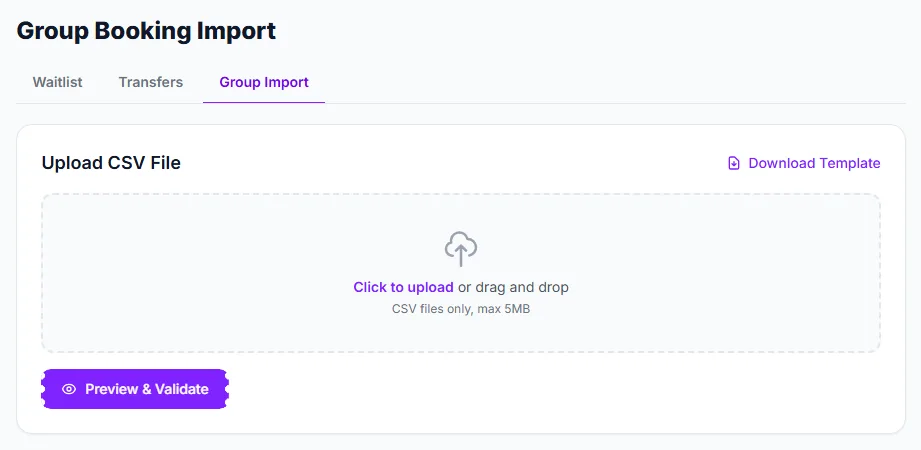
How to import
- Click Download Template ① to get
group-booking-template.csv, with the columnsname,email,phoneandticket_type. Or use your own file with a header row. - Click the upload area ② and choose your CSV (CSV or plain text, up to 5 MB).
- Click Preview & Validate ③. Nothing is created yet.
- Read the preview, set the ticket type and column mapping, and click Import.
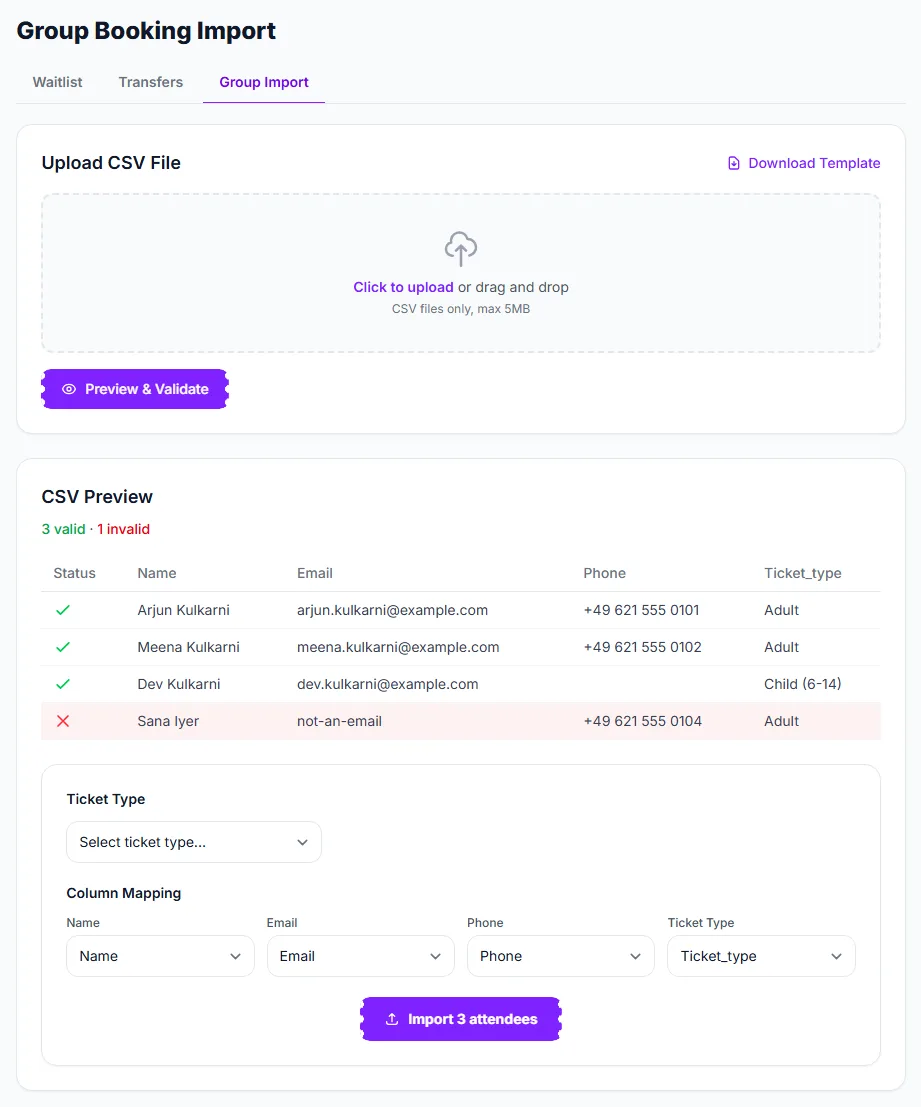
The preview shows how many rows are valid and how many are not, with a green tick or red cross on each row; a row with an email address that cannot be right (here not-an-email) is marked invalid. Under it, choose the Ticket Type ① that applies to every row without a ticket type of its own, check the Column Mapping ② (it is detected from your header names and you can override each field) and click the Import button ③, which states how many attendees will be created.
Column auto-detection
The importer recognises common variants, so your spreadsheet rarely needs renaming: name also matches full_name, fullname, attendee_name or attendee; email also matches e-mail, email_address, attendee_email or mail; phone also matches telephone, phone_number, mobile, tel or attendee_phone; ticket_type also matches ticket, type or tier. Name and email columns are required.
What an imported row becomes
- Its own booking, with a reference starting
GRP-, already Confirmed at the ticket type’s current price, with the payment method shown as group import. There is no payment step. It is a guest order in the attendee’s name, like a manual order: it is not attached to your account or to anybody else’s. - If a row has a value in the ticket type column, it is matched to one of the event’s ticket types by name. A blank cell uses the ticket type you chose in the dropdown. A name that matches nothing fails that row with “Unknown ticket type”, so a typo never silently lands on the wrong type.
- Stock is respected like at checkout. If a ticket type is sold out the row goes onto the waitlist when the event has one, and otherwise fails with a sold-out message.
- When it is finished you get a summary: created, waitlisted and failed, with the specific error for each failed row. The rest of the file still imports.
Good to know
- No emails are sent. Imported bookings are created silently. Open Orders and use Resend tickets (one order, or ticked in bulk) to email the tickets.
- Name and email are checked on every row: a missing name, or an email address that is not valid, rejects that row.
- Every row is one ticket. For several tickets for one person, add several rows.
- The checked file is kept for you for 30 minutes between preview and import, and is never saved as a file anywhere. Wait longer, or import it once already, and you are asked to upload it again (“CSV file expired”).
Troubleshooting
- Attendees did not get their tickets — group import never emails. Resend from Orders.
- “Unknown ticket type” — the name in the ticket_type cell does not exactly match a ticket type (capitals do not matter). Fix the cell or clear it to use the default.
- “Invalid name or email” — that row was skipped. Fix it in your spreadsheet and import just those rows.
- “Missing required columns” — the header row has no name or email column the importer can recognise.
- “CSV file expired” — more than 30 minutes passed since the preview, or the file was already imported. Upload it again and preview once more.