




Marketplace Visibility
Help articles may not be fully accurate — they can lag behind the app due to frequent updates and automated translation. If in doubt, please contact support.
On this page
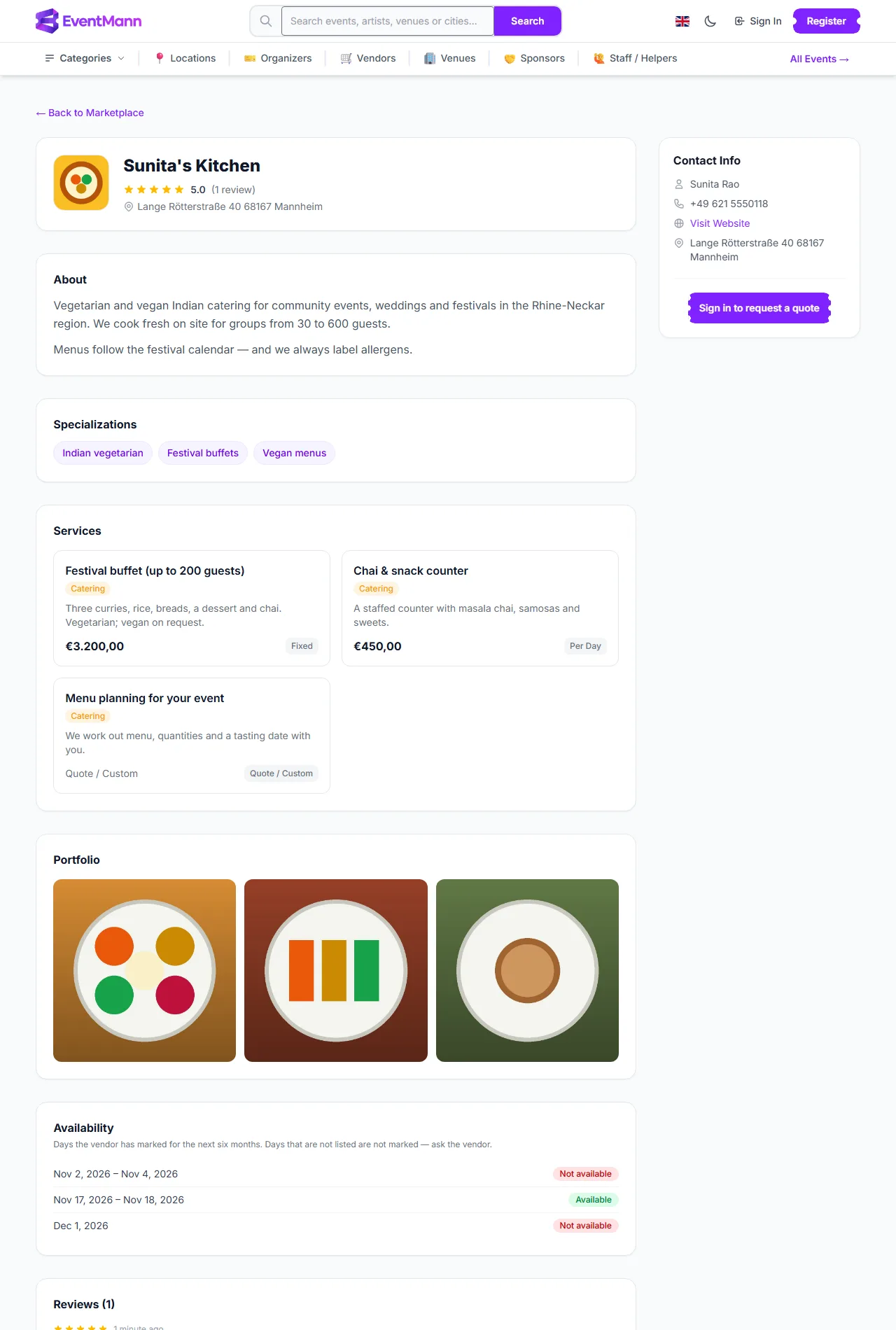
The Vendor Marketplace is the public list of approved vendors. The sidebar row Vendor Marketplace opens it; each vendor has a public profile page. This article explains who sees your page, what it shows and how to make it work for you.
What a visitor sees on your page
- Your logo, company name, average rating and the number of reviews, and your address ①.
- About — your bio, and Specializations as tags.
- Services ② — your active services with category, description and price or Quote.
- Portfolio — the photos you uploaded in Edit Profile.
- Availability — the periods you marked for the next six months, without your notes. A signed-in organizer also sees which of their own upcoming events fall on a day you blocked. See Managing Your Availability.
- Reviews ③ — every review organizers wrote about you.
- Contact Info ④ — your account name, phone, a Visit Website link and your address.
- A request form: an organizer or administrator who is signed in can press Send Quote Request; a visitor who is not signed in is asked to sign in first.
Who can find you
- Only approved profiles are listed.
- The listing is filtered by the visitor’s country: a visitor sees vendors whose profile Country matches theirs. Your direct page address works for anyone.
- Visitors can search words (matched against company name, bio and specializations), filter by specialization tag, price range (from your active services’ prices) and minimum rating, sort the results, and compare up to three vendors side by side.
- Administrators can mark a vendor as Featured; featured vendors get a highlighted section at the top of the unfiltered listing. You cannot buy or request this from the portal.
Make your page work
- Complete the profile. A bio with real detail (what, where, how many guests) is searched; an empty one is not. Add your logo and a few portfolio photos: they are the first thing a visitor sees.
- Use specializations. Add the words people search for: “Indian vegetarian”, “PA hire”, “wedding photography”.
- Publish active, priced services. The price filter only sees services with a price; “Quote” services are easy to skip.
- Choose the right country in your profile.
- Earn reviews. Organizers can rate you after an event; see Understanding Your Ratings.
- Keep your availability current. Block the days you are booked, so organizers who find you can see at once whether their date works.
Quote requests
When an organizer presses Send Quote Request you get a bell notification “New Quote Request — … has requested a quote from you” that opens your dashboard. The Quote Requests panel at the bottom of the dashboard shows the last ten: the organizer’s name, when they wrote, their message and a Reply by email link with their address. Answer them by email; the real engagement starts when the organizer invites you to an event.
Good to know
- The marketplace’s category filter uses the Marketplace category you pick on each service. Your own Category text is a label only — set the marketplace category too, or the filter will not find you.
- Your public page shows your phone number and address. Keep them current or leave them out.
- A suspended vendor disappears from the marketplace.