




Tax Rates
Help articles may not be fully accurate — they can lag behind the app due to frequent updates and automated translation. If in doubt, please contact support.
On this page
Tax rates tell EventMann how much VAT or sales tax to add to a ticket order, based on where the buyer says they live. Open them from Money → Finance → Tax Rates. They belong to your organizer account, so they apply to every event you sell tickets for.
What you can do here
- Add a rate for a country, or for a region within it.
- Mark one rate as the default for buyers whose country has no rate of its own.
- Edit a rate in place, switch it off without deleting it, or delete it.
How to add a rate
- Open Money → Finance → Tax Rates.
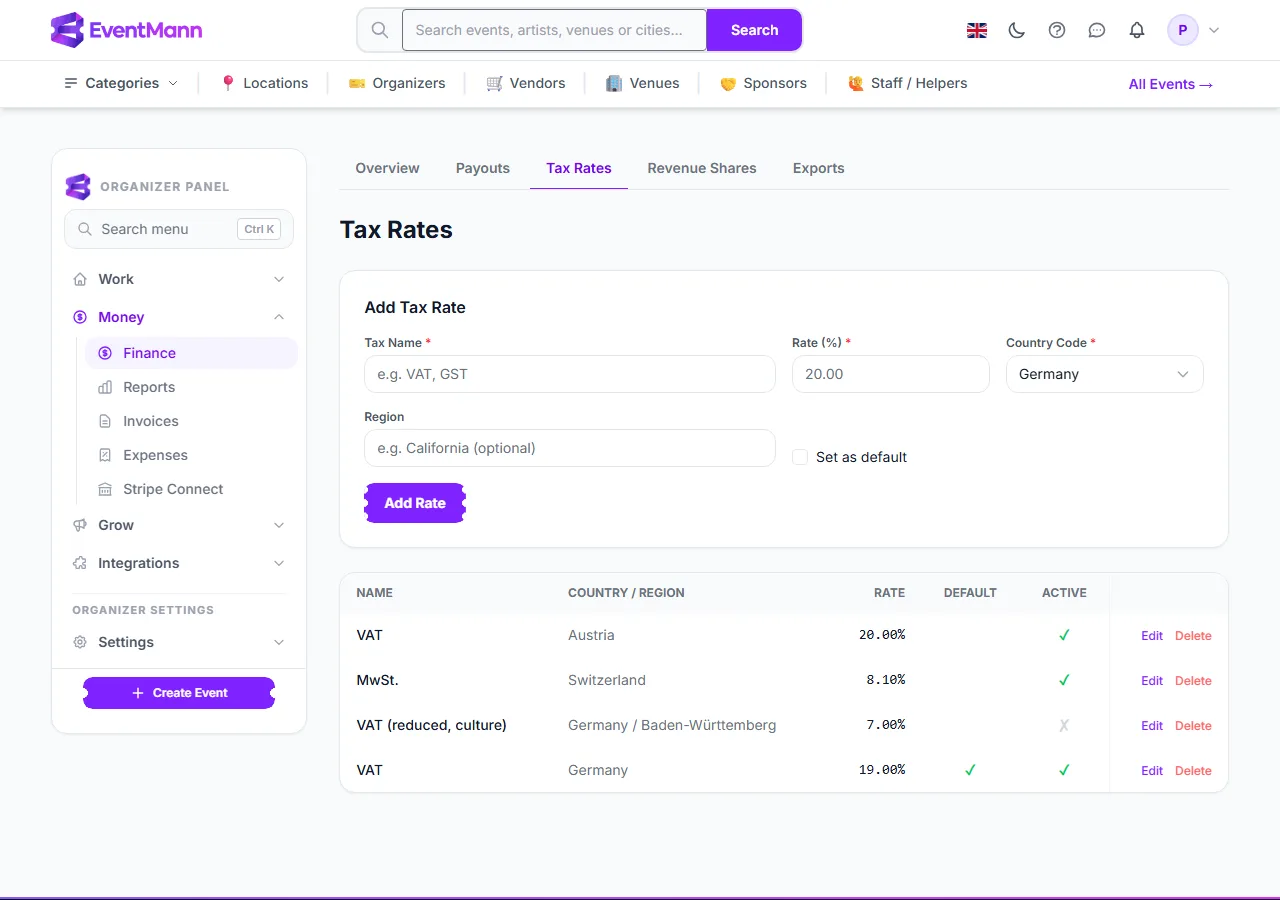
- Enter a Tax Name ①, such as VAT or GST, and the Rate (%) ② from 0 to 100.
- Choose the Country ③ from the list. Your own country is preselected.
- Optionally type a Region ④ (a state or province) to make the rate apply to that region only.
- Tick Set as default ⑤ if this is the fallback rate. Only one rate can be the default; ticking it clears the flag on the others.
- Click Add Rate. Later, use Edit ⑥ on a row to change anything, including the Active switch.
Edit a rate
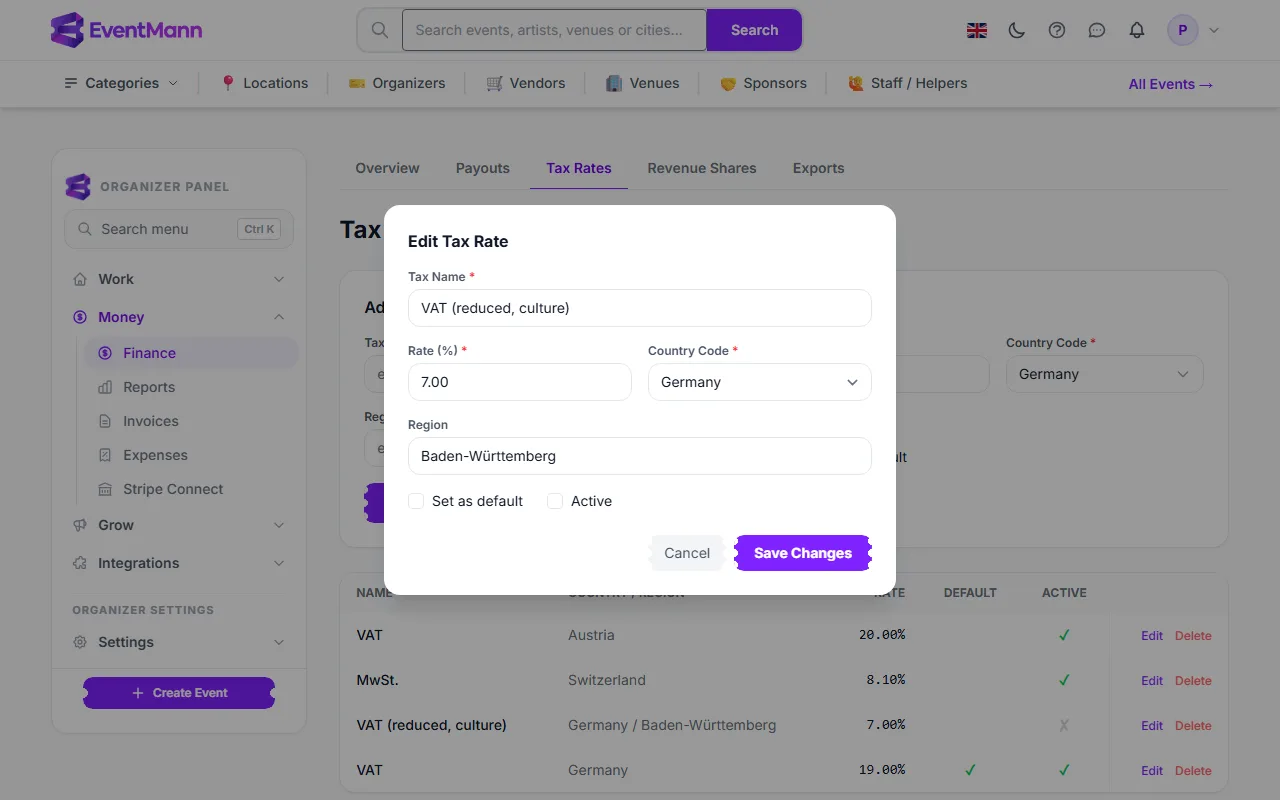
- Click Edit on the row. A window opens with the same fields.
- Change the Rate (%) ①, tick or untick Set as default ② and Active ③, then click Save Changes.
How the rate is chosen at checkout
EventMann applies exactly one rate to an order — never the sum of several — to the whole ticket subtotal (after discounts), not per ticket type. The rate is looked up from the billing country (and region, if given) the buyer enters:
- An active rate for that exact country and region.
- Otherwise an active rate for that country with no region.
- Otherwise your active rate marked Default.
- If none of these exist but you have exactly one active rate in total, that one is used.
The tax is always added on top of the price, as its own line named after the rate (“VAT 19%”). If no rate resolves at all, checkout falls back to the Tax Rate and Tax Label on the event’s Checkout → Payments tab, or to no tax if that is 0.
Settings explained
- Tax Name — shown to the buyer next to the tax line.
- Rate (%) — 0 to 100, two decimals.
- Country — required. A rate only matches buyers who give that billing country.
- Region — optional free text. It must match what the buyer enters; leave it empty for a country-wide rate.
- Default and Active — an inactive rate is ignored everywhere.
Good to know
- The checkout page previews the rate for the country it already knows; the rate actually charged is worked out again from what the buyer submits.
- One rate applies to the whole order, so you cannot give different ticket types different rates.
- Memberships work differently: a plan’s price already includes VAT at the rate you set on the plan. See Membership Plans.
- Changing a rate affects new orders only.
Troubleshooting
- No tax was added to an order. No active rate matched the country, no default is set, you have more than one active rate, and the event’s own Tax Rate is 0.
- The wrong rate was charged. A country-only rate may be matching where you expected a regional one (the region text must match), or your default is broader than intended.
- I need different rates per ticket type. Not supported.