




Event packing lists
Help articles may not be fully accurate — they can lag behind the app due to frequent updates and automated translation. If in doubt, please contact support.
On this page
A packing list says which items each team takes to an event, how many, and what came back. Each event has its own lists, one per team plus the Shared pool. Open the event and choose Manage → Day-of Operations → Event Inventory. Event editors and volunteer managers see every team’s list; a team lead sees only the lists of the teams they lead.
Plan what goes to the event
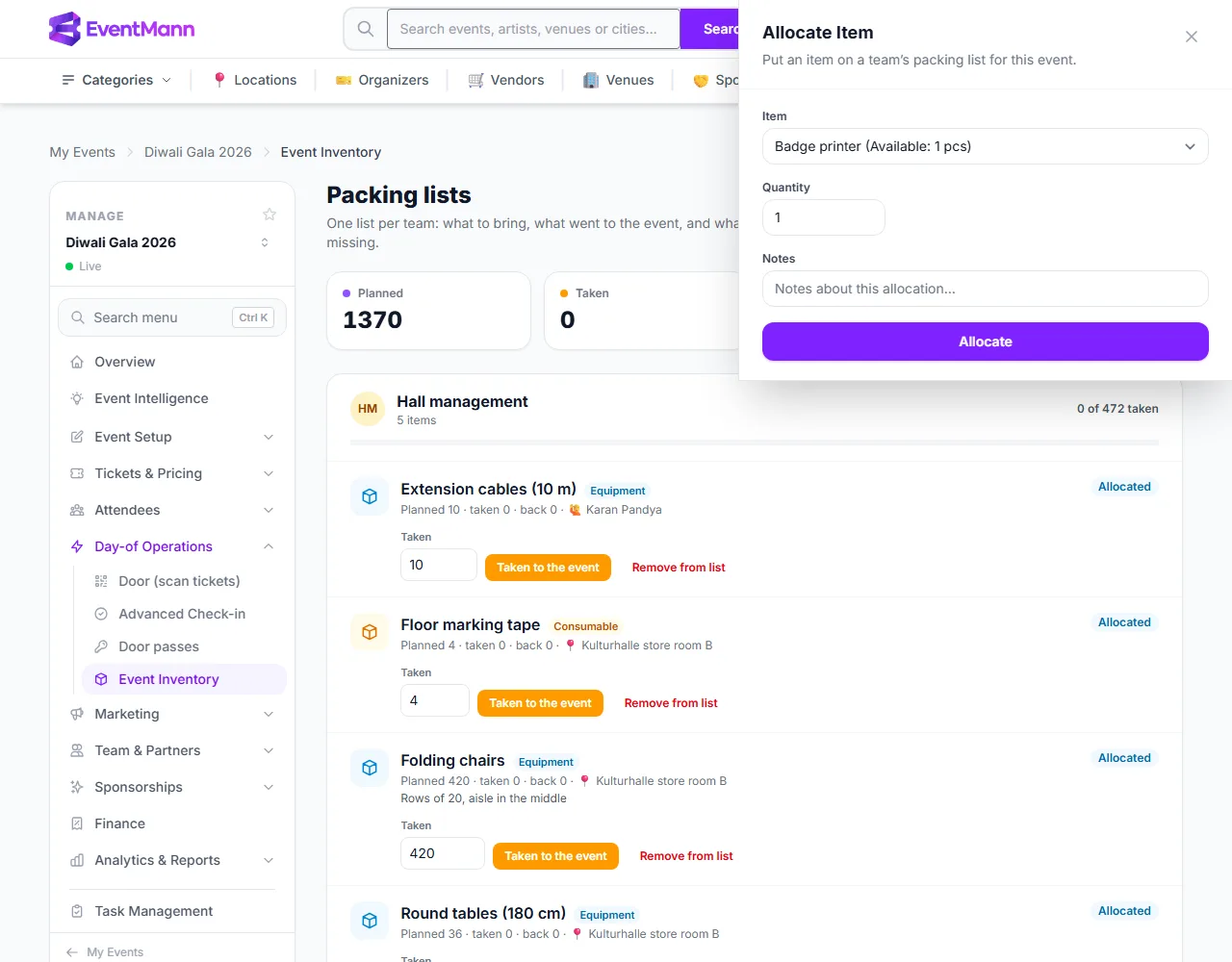
- Click Allocate Item at the top of the page and choose the Item ①. The list is grouped by team and shows how many are available. Items that are already on this event’s list, or that have none left, are not offered.
- Enter the Quantity ② and optionally a note, then click Allocate ③. You cannot plan more than what is available.
- The line appears in its team’s box ④ with the status Allocated: “Planned 420 · taken 0 · back 0”, and a button Taken to the event ⑤ for the day.
On the day: taken, then back
- When the items leave the store, enter the number on the line and click Taken to the event. The status becomes Checked Out.
- When they come back, fill in the return form on the same line: Returned ①, Damaged (equipment) or Used up ② (consumables), Missing ③, and a note. Click Save ④. The numbers together cannot exceed what is still out.
- When everything is accounted for the line reads Returned.
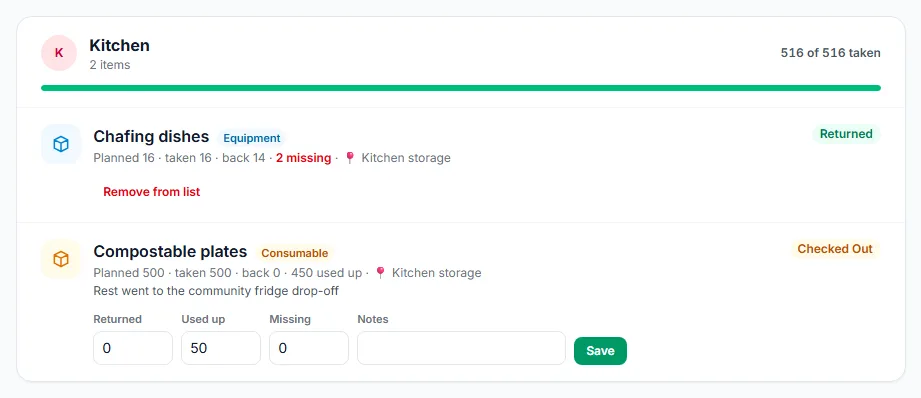
Quantities used up or missing leave the stock for good. A missing item that turns up later can be added again with Restock on its item page.
What is still missing
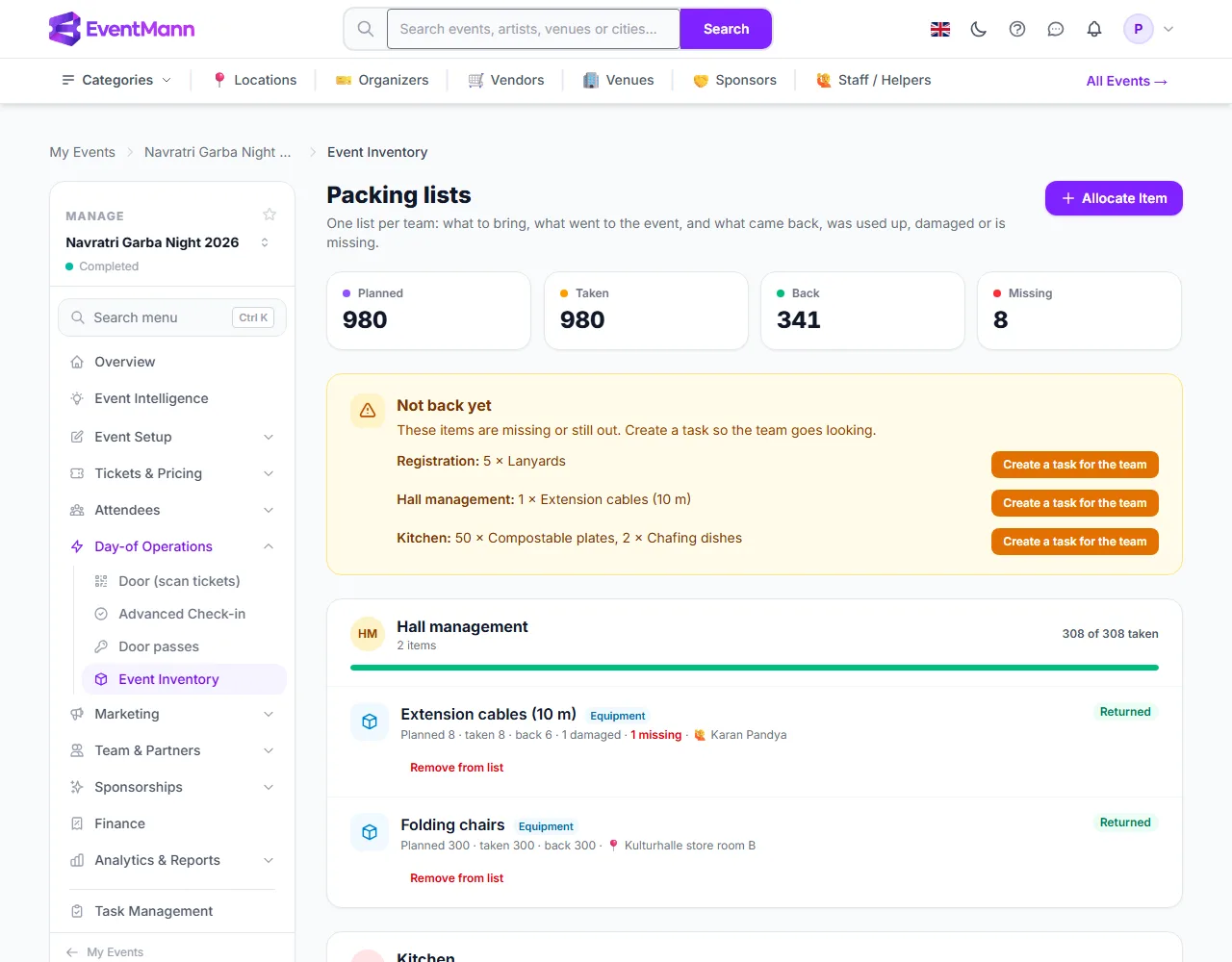
Once recorded, anything missing — and, after the event has ended, anything still out — is collected in a yellow box Not back yet ①. It lists the team and the items. Click Create a task for the team ② to add one task for that team, “Find missing items”, due in seven days and listing each line. It shows on the members’ My Volunteering page and with their lead.
The return forms ③ ④ sit on every line that still has items out. Lines in the Shared pool have no task button, because the Shared pool has no team to give the task to.
Good to know
- Allocating does not move anything: the available figure on the item drops so nobody else plans the same chairs, and recovers when they are returned.
- You can remove a line (Remove from list) only while nothing has been taken, or once everything is back.
- On an item’s page the panel Booked at events shows the same line with one-tap buttons Taken and All back — made for use after scanning a label. All back counts everything as returned, not used up.
- Copying setup from an earlier event (Manage → Volunteers) can carry packing lists over when enough stock is available.
Troubleshooting
- Only X units available — the rest is planned for another event or still out. Lower the quantity or return the other event’s items first.
- The item is not in the list — it is already on this event’s list (change the line instead), inactive, or has nothing available.
- A lead sees an empty page — they see only the teams they lead.